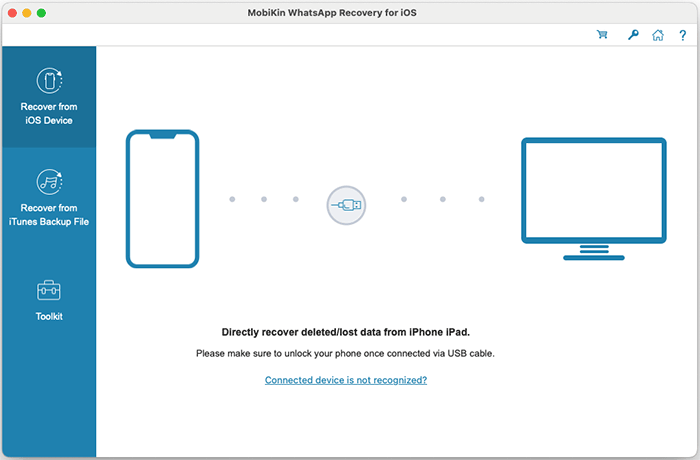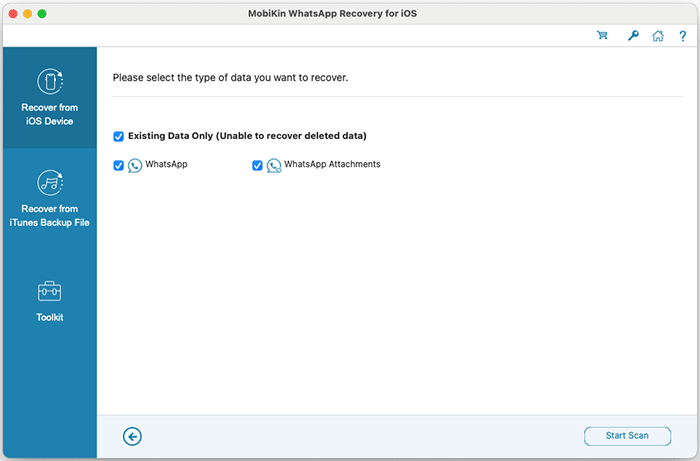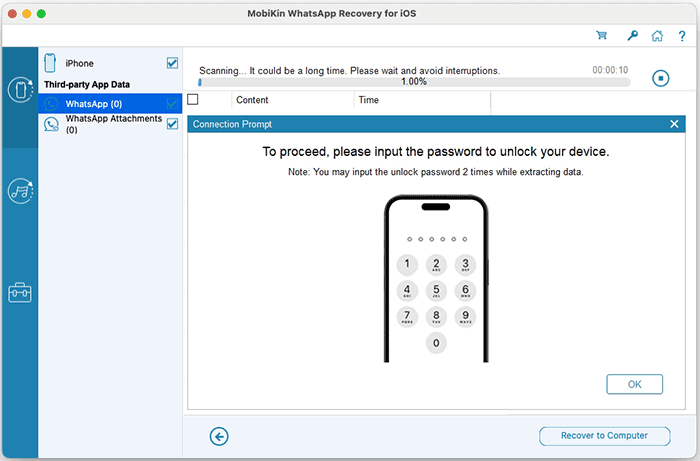
The leading iPhone WhatsApp recovery tool (Mac Version) for recovering WhatsApp data from iPhones and iTunes backups, delivering the highest success rate for restoring messages and attachments.
Fully compatible with the latest iOS 26 and iPhone 17.
Supported OS: Mac OS X 10.10 or Later
Secure Download90 days Money Back Guarantee
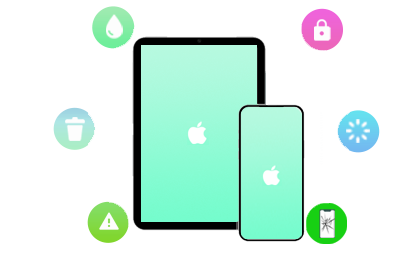
WhatsApp recovery for iOS (Mac Version) ensures your valuable conversations are never permanently lost, even in a range of unforeseen circumstances. Whether facing unintentional deletion, app corruption, or the unexpected system crash of your iPhone, this software provides a reliable retrieval path.
It securely restores WhatsApp messages and their attachments, offering peace of mind when you need it most.
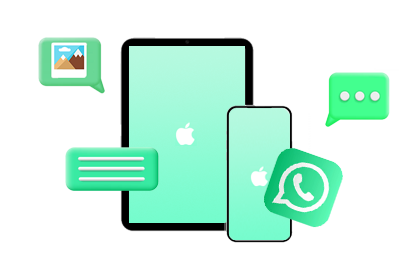

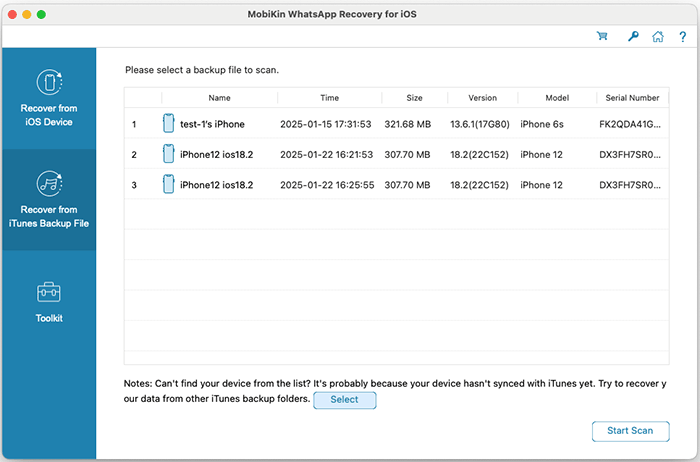
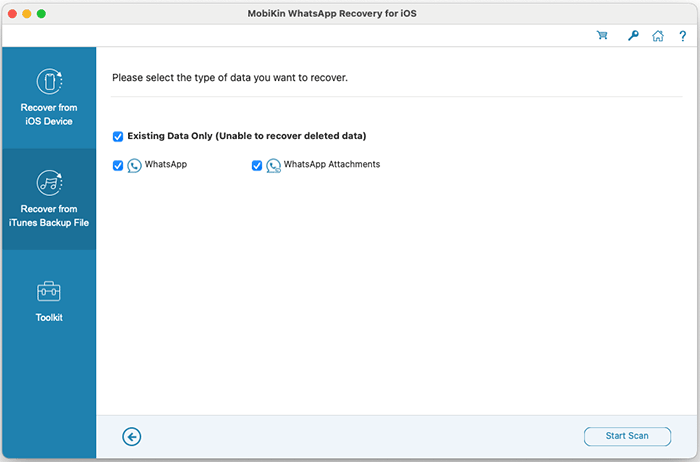
WhatsApp Recovery for iOS (Mac Version) excels by allowing you to selectively and safely restore chats from an iTunes backup, rather than forcing a full, overwriting restore. This means you can conveniently preview and choose only the specific messages or attachments you wish to recover.
This targeted approach saves storage, providing precise control over the restoration of your valuable WhatsApp information.
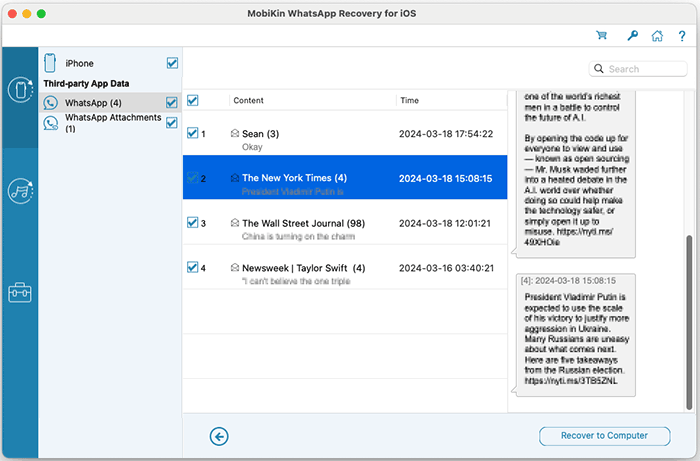
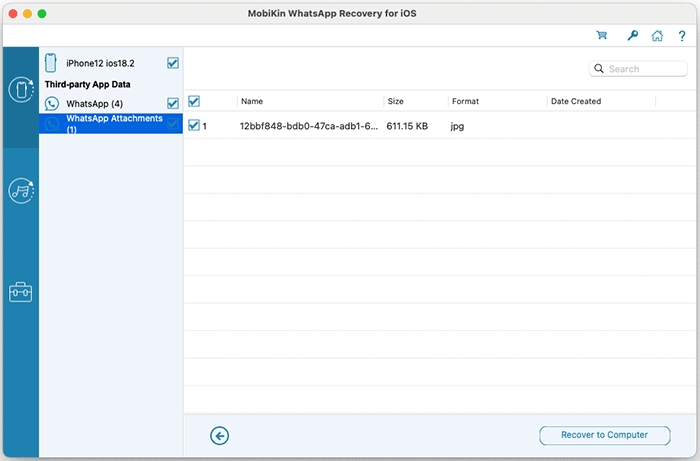
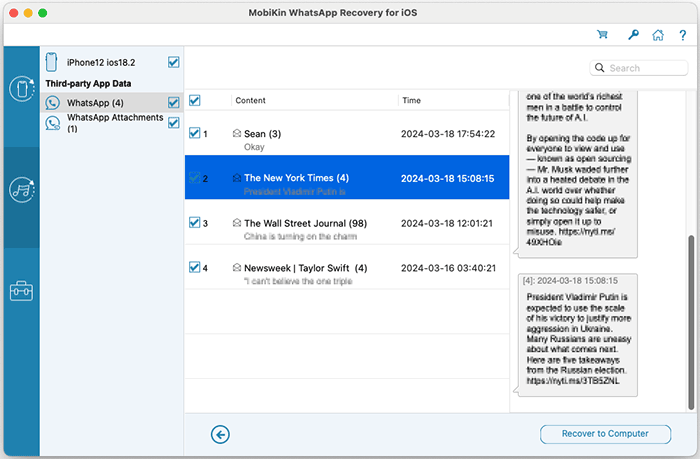
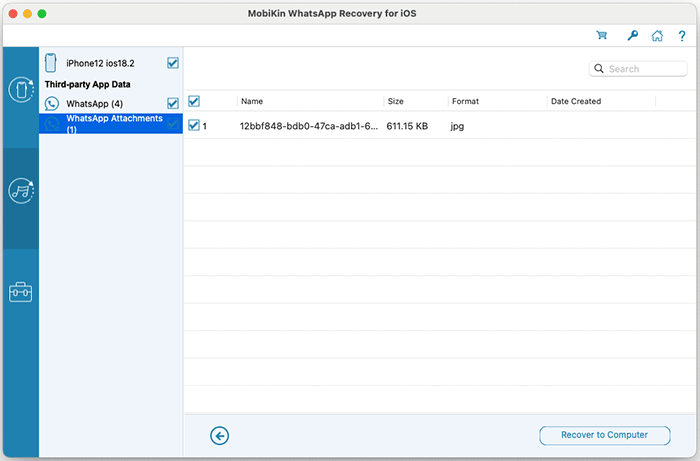
The program empowers you to preview your full WhatsApp data directly on your Mac as searchable HTML files before any recovery takes place. This allows for a handy, selective process where you can precisely choose individual messages, attachments, or entire conversations to restore.
All in all, this product provides a streamlined and controlled recovery experience, ensuring you retrieve only what you desire with ultimate convenience.
Users of MobiKin WhatsApp Recovery for iOS (Mac Version) Have Surpassed 740,000+ Worldwide.

I never thought I'd see my lost WhatsApp memes again, but MobiKin proved me wrong! It's like a time machine for my chats. I recovered my messages and even some old voice notes I forgot existed. Super easy on my Mac and zero stress!
Who knew a program could make chat recovery almost fun? This software didn't just restore my WhatsApp messages - everything came back exactly as it was, and I even previewed which files I wanted first. My Mac has never felt so powerful.