
What If the USB Driver Installation Failed? Ultimate Fixes & Tips
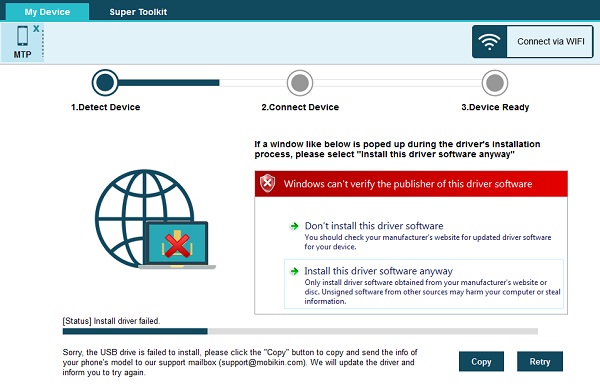
Getting the following interface when you are trying to build a connection between your Android phone and computer via USB cable? That means you failed to install the driver.
Then what to do if the driver installation failed? You can manually download and install the corresponding driver on your Windows computer to fix the problem.
Here Is How:
Step 1. Download the Driver
First of all, you need to download the driver on your Windows computer. You can find the applicable driver from the following links:
- For Samsung: https://www.mobikin.com/android_driver/SAMSUNG_USB_Driver_for_Mobile_Phones_v1.5.33.0.exe
- For other Android brands: https://developer.android.com/studio/run/oem-usb#Drivers
Step 2. Install the Driver
- For the Users Who Download the Samsung Driver Provided by MobiKin (the First Download Link):
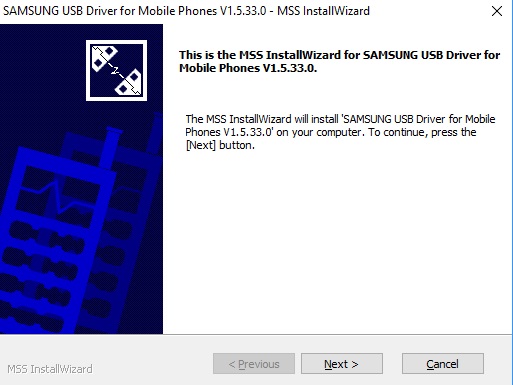
Open the driver, and the MSS InstallWizard window will pop up. Just click on "Next" and go on.
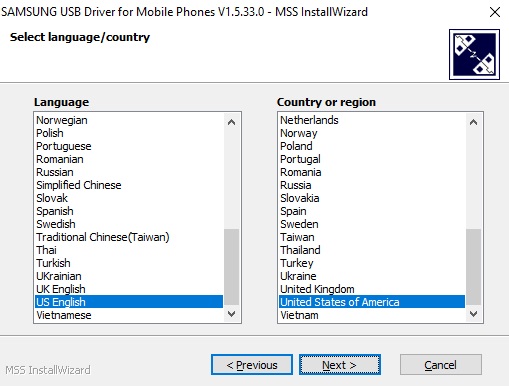
Then you need to select your language and country. After choosing the language and country, you can tap on "Next" to continue.
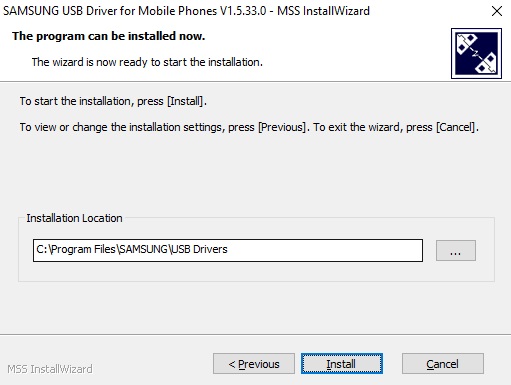
On the next interface, you are able to choose the installation location. Then you can click "Install" to start the installation.
When the installation process is completed, you can tap on "Finish" to end the installation.
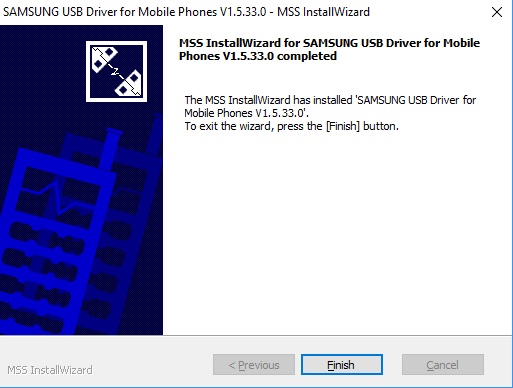
- For the Users Who Download the Driver Provided by OEM (the Second Download Link):
If you have a computer with the latest Windows 11, follow these steps:
- Connect the USB device to your Windows 11 PC.
- Wait for Windows to install the driver automatically. If it succeeds, you're done.
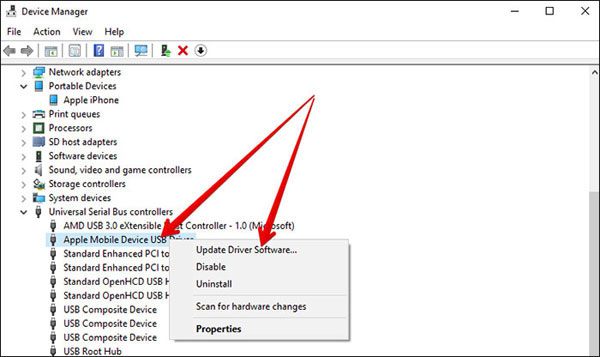
- If not, open Device Manager (Right-click Start > Device Manager).
- Look for your device under sections like Universal Serial Bus controllers, Other devices, or Portable devices.
- If you see a yellow warning icon, right-click the device and select Update Driver Software.
- Choose Search automatically for drivers to let Windows try again.
- If Windows cannot find a driver, download the official USB driver from the manufacturer's website (e.g., Samsung, Motorola, Xiaomi, etc.).
- Extract the downloaded ZIP file if needed.
- Go back to Device Manager, right-click the device again, and select Update driver.
- Choose Browse my computer for drivers.
- Click Browse and select the folder containing your downloaded driver files.
- Click Next to install the driver manually.
- Restart your PC after installation is complete.
If the operating system of your computer is Windows 10, you can go with the steps on the page: https://developer.android.com/studio/run/oem-usb#Win10;
If the operating system of your computer is Windows 8.1, you can adhere to the steps on the page: https://developer.android.com/studio/run/oem-usb#Win8;
If the operating system of your computer is Windows 7, you can follow the steps in on page: https://developer.android.com/studio/run/oem-usb#Win7.
Step 3. Launch the Program Again
After manually installing the driver, you can now try to launch the program and build a connection again.
Bonus - Other Helpful Tips to Fix the USB Driver Failed to Install
- Restart your computer to clear temporary driver conflicts.
- Try another USB port - preferably a different type (USB 2.0 vs. USB 3.0).
- Change the USB cable to rule out cable issues.
- Run Windows Update and install all pending updates.
- Open Device Manager and check for devices marked with a yellow warning icon.
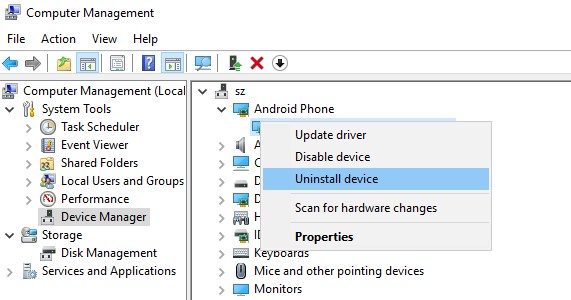
- Right-click the faulty device and select "Uninstall device," then reconnect it to reinstall.
- Download the latest USB driver from the device manufacturer's official website.
- Disable driver signature enforcement temporarily if the driver is unsigned.
- Reset USB controllers by uninstalling all entries under Universal Serial Bus controllers, then restarting.
- Test the USB device on another PC to confirm the hardware isn't faulty.
- Install official companion tools (e.g., Samsung Smart Switch, HiSuite, Mi PC Suite), which include necessary drivers.
Ask Our Support Team for Help
Suppose that the program still prompts that the driver installation has failed, you can tap on the "Copy" button in the pop-up window of the software and paste it into the email. Except for that, please tell us:
- What is the brand and model of your Android phone?
- What's the OS version of your device?
- Then you can send the email to our mailbox: support@mobikin.com, and we will help you tackle the problem.
For other problems about the software installation, connection, or use, please go to the Product FAQ page to find the solutions.
