
How to Fix Android Recovery Mode Not Working in Minutes? 10 Solutions
TL;DR:
Android Recovery Mode not working can result from low battery, incorrect button combinations, software glitches, firmware corruption, or hardware problems. You can try nine troubleshooting methods, from charging your device and using ADB to installing updates and contacting the manufacturer, while Android Repair offers another option for more complex system issues.
If these solutions fail, consult an authorized repair center for further diagnosis, and back up important data whenever possible before attempting repairs that may erase your files.
* Why is my recovery mode not responding or not exiting?
- Software Issues: Corrupted updates or failed ROM flashes.
- Battery Problems: Low power or interruptions during recovery.
- Hardware Issues: Faulty buttons or components.
- Corrupted Cache/System Files: Damaged data preventing normal function.
- Bootloader Issues: Locked or damaged bootloader.
Fortunately, there are several methods you can try to fix Android recovery mode not working. Today, we gather 10 reliable and efficient solutions to resolve this issue, from basic troubleshooting steps to more advanced techniques.

- Part 1: Fix Android Recovery Mode Not Working in 9 Basic Ways
> Way 1: Charge your device
> Way 2: Use key combinations
> Way 3: Force restart your phone
> Way 4: Wipe cache partition
> Way 5: Flash ROM
> Way 6: Use ADB Tool
> Way 7: Install Update Manually
> Way 8: Utilize Odin (Samsung Only)
> Way 9: Contact the Manufacturer - Part 2: Fix Recovery Mode Not Working via Android Repair [Ultimate Way]
- Finalization - Original Research Idea: A Symptom-to-solution Table
Watch the video below for a visual guide to this topic.
Part 1: Fix Android Recovery Mode Not Working in 9 Basic Ways
> Way 1: Charge your device
A charged battery can often resolve recovery mode issues, as insufficient power may interfere with the device's boot options. To make it:
- Connect to a reliable charger and allow the battery to reach at least 50%.
- While still connected, hold the "Power" button to restart. This can clear minor issues affecting recovery mode.
- After charging, disconnect and attempt recovery mode using the correct button combination (often "Power + Volume Up/Down").
> Way 2: Use key combinations
Upon receiving the "No command" notification on your display, simultaneously press and hold the following button combinations for several seconds, as the specific keys may vary by device:
- Press and hold the "Power and Volume Up" buttons.
- Press and hold the "Power, Home, and Volume Up" buttons.
- Press and hold the "Power and Volume Down" buttons.
- Press and hold the "Power, Home, and Volume Down" buttons.
- Press and hold the "Power and Home" buttons.
Once you have completed this step, release the buttons, and you should ideally be able to access the Android system recovery screen.
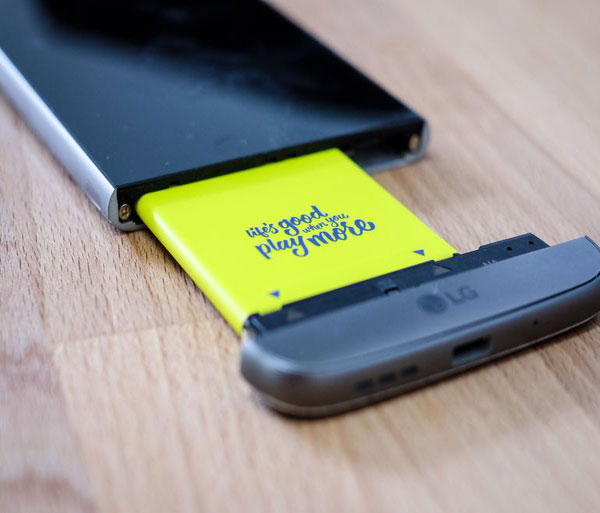
When your phone gets stuck in recovery mode, try these measures: 1. Select "reboot system now" in the recovery mode using the "Volume and Power" buttons. 2. Hold the "Power" button for 10-20 seconds to restart the phone. 3. If possible, remove and reinsert the battery, then try to boot the device again.
> Way 3: Force restart your phone
Most Android phones allow you to force a reboot, which can help exit recovery mode. Depending on your model, press a specific key combination to restart your device. For instance, you can force reboot a Samsung phone by following these steps: Press and hold the "Volume Down and Power" until the Samsung logo appears (about 10-15 seconds), then release.
> Way 4: Wipe cache partition
- Turn off your device completely.
- For most devices, press and hold the "Volume Up + Power" buttons together until the logo appears.
- For Samsung devices, press "Volume Up + Bixby + Power".
- Use the "Volume" buttons to scroll and the "Power" button to go to "wipe cache partition".
- Select "Yes" when prompted.
- After clearing the cache, select "reboot system now" to restart your phone.
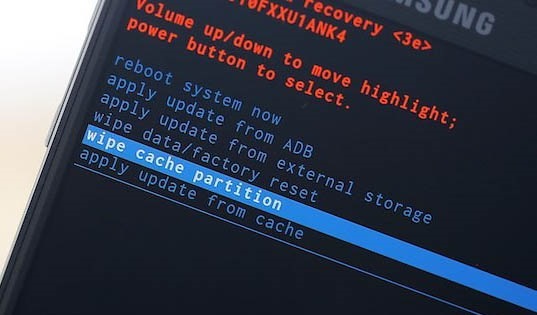
If wiping the cache partition doesn't work, try a factory data reset in recovery mode: 1. Use "Volume Down" to highlight "wipe data/factory reset". 2. Press "Power" to select it. 3. After completion, your phone will restart, allowing you to set it up again.
> Way 5: Flash ROM
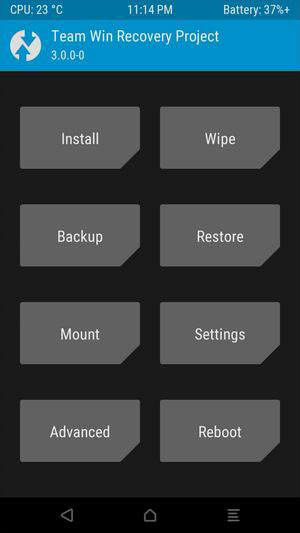
If recovery mode isn't working, flashing a custom ROM like CyanogenMod can help. Unlock your bootloader, download a compatible ROM, the Google Apps zip, and install TWRP Recovery. Here are the steps:
- Move ROM and Google Apps files to your phone via USB.
- Boot by holding "Power + Volume Down".
- Tap "Wipe in TWRP", then swipe to reset.
- Touch "Install", select files, and swipe to install.
- Click "Wipe Data" and then "Reboot System".
> Way 6: Use ADB Tool
Android Debug Bridge (ADB) is a command-line tool for controlling an Android device on a PC Windows via USB. It can be used to fix an Android stuck in Recovery Mode.
- Install ADB on your PC and connect your device in Recovery Mode via USB.
- In the ADB folder, hold "Shift" and right-click a blank area, then select the "Open command" window.
- Enter adb devices to confirm the connection.
- Type adb reboot and press "Enter".
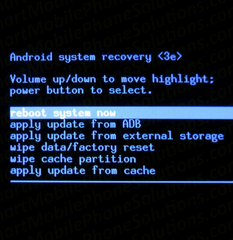
> Way 7: Install Update Manually
If you suspect the "No command" error is due to a software update or custom ROM flash, try these steps:
- Utilize the "Volume Down" button to highlight the option for "apply update from cache".
- Press the "Power" button to confirm your selection.
- Select the software that is available and press the "Power" button to initiate the download or installation process.
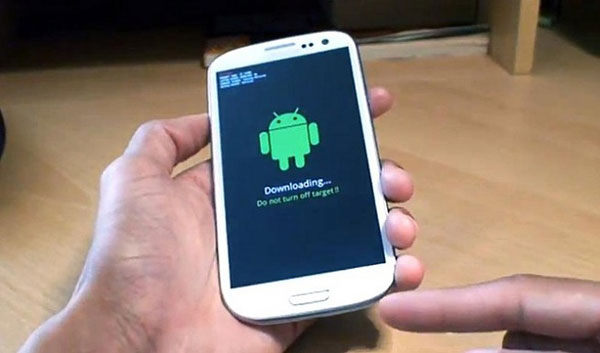
> Way 8: Utilize Odin (Samsung Only)
To fix the recovery mode not working on a Samsung using Odin:
- Download Odin and Samsung drivers on your PC, and get the correct Samsung firmware.
- Turn off your phone, then press "Volume Down + Bixby + Power" (or "Volume Down + Home + Power" on older models).
- Connect to PC and launch Odin. It should show "Added!".
- In Odin, click "AP" and select the firmware file.
- Click "Start" and wait for it to finish.
- Your device will restart automatically. If not, restart it manually.
> Way 9: Contact the Manufacturer
- Visit your Android phone manufacturer's official website and contact its customer support team through live chat, email, or the support hotline.
- Explain that Recovery Mode is not working, describe the troubleshooting steps you've tried, and provide your phone model and software version.
- Follow the manufacturer's instructions for diagnosis or authorized repair, and ask whether the repair could erase your data before proceeding.
Tips: If contacting the manufacturer doesn't resolve the Android Recovery Mode issue due to hardware issues, visit an authorized repair center for further diagnosis. Professional technicians can inspect the physical buttons, firmware, and other hardware components to identify the underlying problem. Before proceeding with repairs, ask whether the process may erase your data and back up your important files if possible.
Part 2: Fix Recovery Mode Not Working via Android Repair [Ultimate Way]
Are you experiencing difficulties accessing recovery mode? Do you find yourself at a disadvantage as your phone's issues escalate after being stuck in recovery mode or following attempts to utilize it? Consider utilizing Android Repair, a solution tailored to address a range of complex problems stemming from system errors in mobile devices.
As a specialist dedicated to resolving mobile system failures, it upholds exceptionally high standards regarding both repair success rates and the safeguarding of your privacy.
What can Android Repair do for you?
- Resolve recovery mode not working on Android efficiently.
- Enjoy a high success rate for system repair.
- Get on well with AT&T, Verizon, Vodafone, Sprint, T-Mobile, Orange, and more.
- Work for 1,000+ Android devices, especially helpful for Samsung Galaxy S26/S25/S24/S23/S22/S21/S20/S10, etc.
- Easy to use and pretty secure.
Safe Download (Clean):

Note: After conducting several investigations, we have tentatively determined that the most sophisticated technology presently on the market can only guarantee that certain Samsung models will not experience data loss during the system repair. However, some reference materials imply that system repairs will not lead to data loss on almost all Android devices, which is both misleading and irresponsible.
How to fix the Android recovery mode not working using Android Repair?
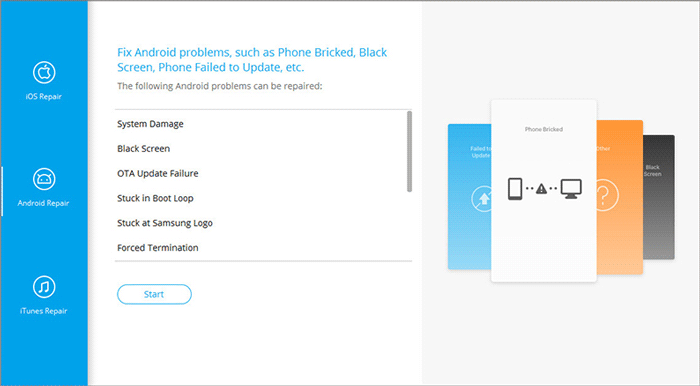
Step 1. Initiate the process by opening the installed software on your PC and going to "System Repair" on the main interface. Connect your device to the computer using USB and select the "Android Repair" option. The tool will present a list of various Android issues it can address. Check the info provided and click "Start."
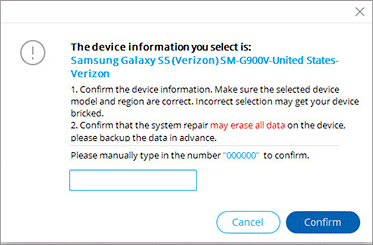
Step 2. In the next window, input the specifications of your device and click "Next" to advance to the subsequent screen. Enter "000000" in the specified field and select "Confirm" to continue.
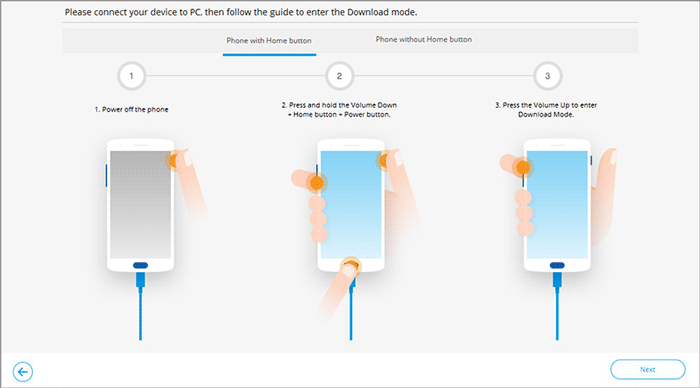
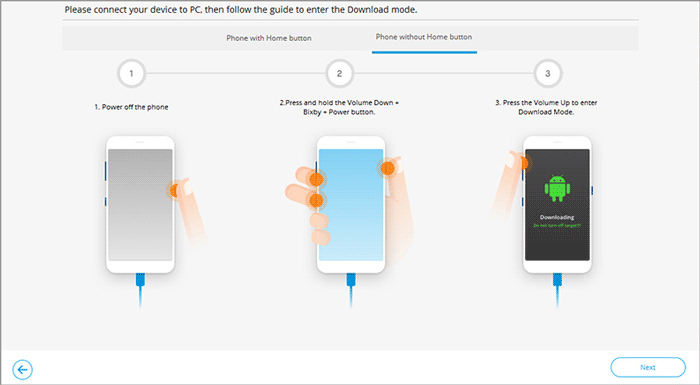
Step 3. To access download mode on your device:
> For devices equipped with a "Home" button: power off your phone > simultaneously press the "Home," "Power," and "Volume Down" buttons for 10 seconds > release all buttons > then press the "Volume Up" button to enter download mode.
> For devices lacking a "Home" button: power off your phone > press the "Bixby," "Power," and "Volume Down" buttons for approximately 10 seconds, then release > press the "Volume Up" button to access download mode.
Step 4. Once your device is in download mode, click "Next" to download the suitable firmware for your phone. After the download is finished, the tool will automatically commence the process of fixing the recovery mode issue on Android.
Finalization - Original Research Idea: A symptom-to-solution Table
|
Observed symptom
|
Likely area to investigate
|
Best first step
|
|
"No command" appears
|
Recovery menu has not been opened |
Use the model-specific key sequence |
|
Phone returns to Recovery Mode after reboot
|
Boot configuration or system integrity |
Try a normal reboot, then official software recovery |
|
Problem started after a failed update
|
Firmware or update failure |
Use the manufacturer's recovery procedure |
|
Problem started after installing a custom ROM
|
ROM compatibility or boot verification |
Check ROM compatibility and bootloader status |
|
Recovery screen is blank or the phone will not respond
|
Power, display, hardware or deeper firmware problem |
Charge the phone, force-restart it, then seek diagnosis if needed |
|
ADB cannot detect the phone
|
USB connection, drivers or ADB availability |
Check whether the device exposes an ADB connection in its current mode |
Hot Articles:
How to Restore iPhone in Recovery Mode with or without iTunes?
The Latest 11 Best Android Data Recovery Software/Tools [Free & Paid]
How to Unlock Your Locked Android Phone without Losing Data in 2026?
How to Recover Data after Factory Reset Android? 5 Ingenious Ways
