
VLC for iPhone: How to Use VLC Player and Transfer Videos Easily
TL;DR:
VLC for iPhone is a powerful media player that makes it easier to watch, stream, and manage videos on your iPhone. In this guide, you will learn:
- What VLC for iPhone is and how it works.
- The key features of VLC, including format support, video importing, streaming, and playback controls.
- How to transfer videos between iPhone and computer using VLC Wi-Fi Sharing, Finder/iTunes, or a professional iPhone data management tool.
- Frequently asked questions about VLC for iPhone and common video management issues.
VLC for iPhone is a powerful and free media player that allows users to watch videos in various formats without complicated conversions. Whether you want to play local videos, stream online content, or manage media files on your iPhone, VLC provides a flexible solution. In this guide, we will explain what VLC for iPhone is, explore its key features, show you how to use it effectively, and share ways to transfer and manage iPhone videos more easily.
Part 1: What Is VLC for iPhone?
What Is VLC for iPhone?
VLC for iPhone is the mobile version of the popular VLC Media Player developed by the VideoLAN project. It is a free and open-source video player designed for iPhone and iPad users to play, organize, and stream multimedia files.
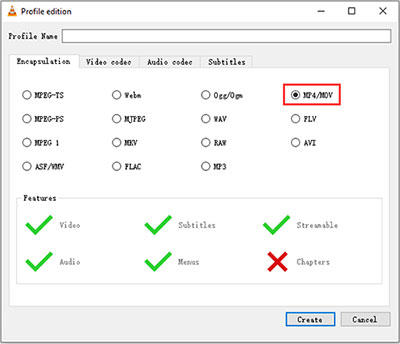
Unlike the default iPhone video player, VLC supports a wide range of video and audio formats, including MP4, MKV, AVI, MOV, FLAC, and more. This means you can watch many types of media files directly on your iPhone without converting them first.
VLC for iPhone also provides several convenient features, such as video streaming, subtitle support, playback speed adjustment, and integration with cloud storage services. It is especially useful for users who frequently transfer videos between computers and iPhones or need more control over their media playback experience.
Is VLC Available on iPhone?
Yes. VLC is available for iPhone and can be downloaded for free from the App Store. It works with most modern iPhone models and supports the latest iOS versions, allowing users to enjoy a smooth video playback experience.
After installing VLC on your iPhone, you can import videos from your computer, Files app, cloud services, or other sources. Once added, your videos can be played directly inside VLC without taking up additional steps for format conversion.
Although VLC is mainly designed as a video player, it also works as a simple media library where you can store and access your favorite videos anytime. However, if you need advanced video management features, such as batch exporting, backup, or organizing large numbers of iPhone videos, a professional iPhone data management tool may provide a more efficient solution.
Part 2: Key Features of VLC for iPhone
VLC for iPhone is more than a simple video player. It provides a variety of useful features that make it easier to watch, manage, and stream videos on your iPhone. From supporting different file formats to offering flexible playback options, VLC gives users more control over their media experience.
1. Play Almost Any Video Format
One of the biggest advantages of VLC for iPhone is its wide format compatibility. Unlike the built-in iPhone player, which may not support some video formats, VLC can handle many popular media files without requiring conversion.
With VLC, you can play formats such as MP4, MKV, AVI, MOV, WMV, FLV, and more. It also supports various audio formats, including MP3, FLAC, and AAC. This makes VLC a convenient choice for users who often download videos from different sources or transfer media files from a computer to an iPhone.
2. Add Videos from Multiple Sources
VLC for iPhone allows you to import videos from different locations, giving you more flexibility in managing your media files. You can add videos through iTunes/Finder file sharing, the Files app, Wi-Fi upload, or cloud storage services.
For example, you can transfer videos from your computer to VLC using a web browser over the same Wi-Fi network. You can also open videos stored in cloud services and play them directly without manually downloading every file to your device.
3. Stream Videos Directly on Your iPhone
In addition to playing local files, VLC for iPhone supports video streaming. You can use network streaming features to watch online videos or access media stored on other devices within the same network.
This feature is useful when you have a large video collection but do not want to store all files on your iPhone. Instead, VLC allows you to stream content whenever needed, helping save your iPhone storage space.
4. Customize Playback Settings
VLC provides various playback controls to improve your viewing experience. You can adjust playback speed, switch audio tracks, add subtitles, change video orientation, and customize other playback settings according to your preferences.
The playback speed feature is especially helpful when watching tutorials, lectures, or other educational content. You can slow down videos to catch important details or speed them up to save time.
5. Protect Your Private Videos
If you store personal or sensitive videos on your iPhone, VLC offers privacy protection features to help keep your files secure. You can enable app locking options, such as passcodes or biometric authentication, to prevent unauthorized access.
This is useful for users who keep private videos inside VLC and want an extra layer of protection beyond the standard iPhone lock screen.
6. Support Cloud Storage Services
VLC for iPhone works with several cloud storage platforms, making it easier to access videos without transferring them manually. You can connect VLC with services such as Dropbox, Google Drive, or OneDrive to browse and play stored videos.
Cloud integration is especially convenient for users who switch between multiple devices. You can upload videos from a computer to cloud storage and then access them through VLC whenever you need them.
Part 3: How to Transfer Videos Between iPhone and Computer
Although VLC for iPhone makes it easy to watch and stream videos, it is not designed as a complete video management tool. If you want to move videos between your iPhone and computer, back up important videos, or manage a large media library, choosing the right transfer method can save you time and storage space.
Below are several practical ways to transfer videos between your iPhone and PC/Mac.
Method 1: Transfer Videos Using VLC Wi-Fi Sharing
VLC for iPhone includes a built-in Wi-Fi sharing feature that allows you to transfer videos wirelessly from a computer to your iPhone. This method is convenient because it does not require a USB cable or additional software.
Steps to Transfer Videos to VLC via Wi-Fi:
- Open VLC on your iPhone.
- Tap the "Network" tab at the bottom.
- Turn on "Sharing via Wi-Fi".
- Open the displayed web address in a browser on your computer.
- Drag and drop videos into the upload window.
- Wait for the transfer process to complete.
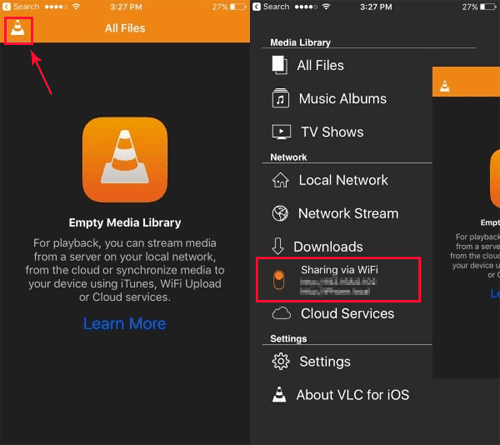
The uploaded videos will appear directly in VLC and can be played immediately.
Pros:
- No USB cable required.
- Simple and free.
- Works on both Windows and Mac.
Cons:
- Transfer speed depends on your Wi-Fi network.
- Not ideal for moving a large number of videos.
- Limited file management options.
Method 2: Transfer Videos with Finder or iTunes
Apple also provides official methods to transfer files between an iPhone and a computer. Mac users running macOS Catalina or later can use Finder, while Windows users can use iTunes.
Steps to Transfer Videos to VLC Using Finder/iTunes:
- Connect your iPhone to your computer with a USB cable.
- Open Finder or iTunes.
- Select your iPhone from the device list.
- Choose "File Sharing".
- Select VLC from the app list.
- Drag videos into VLC documents.
- Wait until the transfer finishes.
This method provides a stable wired connection and is suitable when you need to transfer videos without relying on Wi-Fi.
However, Finder and iTunes mainly focus on syncing and file sharing. They do not provide advanced options for previewing, organizing, or selectively managing large amounts of iPhone videos.
Method 3: Transfer and Manage iPhone Videos with a Professional Tool
If you have a large number of videos stored on your iPhone, using VLC or Apple’s built-in methods may not be enough for efficient management. A professional iPhone data management tool, such as Coolmuster iOS Assistant, provides a simpler way to transfer, back up, and organize videos between your iPhone and computer. It allows you to selectively export videos, keep the original quality, and manage your files without complicated operations.
Key Features of Coolmuster iOS Assistant:
- Export videos from iPhone to PC/Mac in batches.
- Transfer videos from computer to iPhone without deleting existing data.
- Preview videos before transferring.
- Manage other iPhone data, including photos, music, contacts, messages, and more.
- Create backups of iPhone content on your computer.


Steps to Transfer iPhone Videos to Computer with iOS Assistant:
Step 1. Connect Your iPhone to the Computer
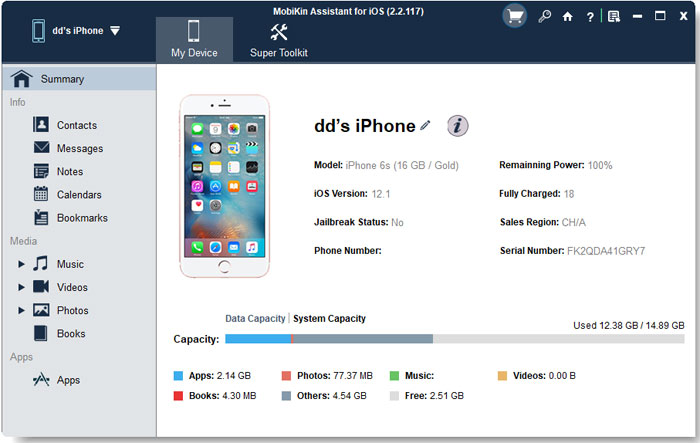
Install and launch Coolmuster iOS Assistant on your PC or Mac. Connect your iPhone to the computer using a USB cable and tap "Trust" on your iPhone if prompted. Once detected, the program will display your device information on the main interface.
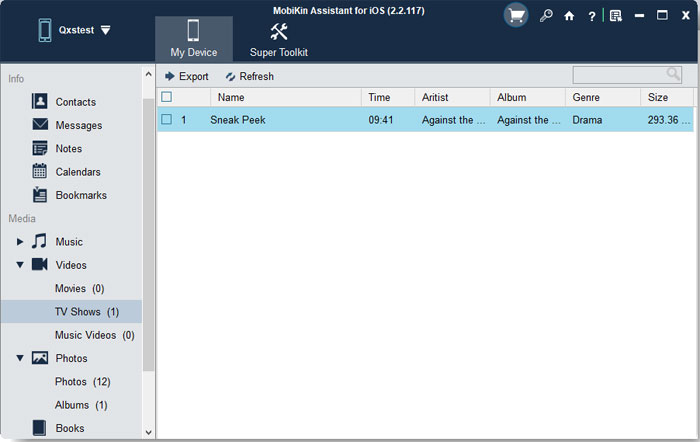
Step 2. Select Videos to Transfer
Click "Videos" from the left sidebar to access all videos stored on your iPhone. Preview and select the videos you want to transfer, then click the "Export" button at the top menu.
Step 3. Save Videos to Your Computer
Choose a destination folder on your computer and confirm the export process. The selected iPhone videos will be transferred to your computer while keeping their original quality.
Video Guide:
FAQs About VLC for iPhone
Q1. How do I add videos to VLC on my iPhone?
You can add videos to VLC on your iPhone in several ways, including using Wi-Fi sharing, Finder/iTunes file sharing, the Files app, or cloud storage services. Open VLC, choose the appropriate import method, and transfer your videos to the app for playback.
Q2. What video formats does VLC for iPhone support?
VLC for iPhone supports a wide range of video formats, including MP4, MKV, AVI, MOV, WMV, and more. It also supports many audio formats, allowing you to play media files that may not work with the default iPhone player.
Q3. Can VLC for iPhone play videos from Dropbox?
Yes. VLC for iPhone supports integration with cloud storage services, including Dropbox, Google Drive, and OneDrive. You can connect your cloud account in VLC and stream or play stored videos without manually transferring them to your iPhone.
Q4. How do I transfer VLC videos from iPhone to a computer?
You can transfer VLC videos from iPhone to a computer using VLC’s Wi-Fi sharing feature, Finder/iTunes file sharing, or a professional iPhone data management tool. The best method depends on the number of videos you need to transfer and whether you also want backup or file management features.
Q5. Is VLC for iPhone free?
Yes. VLC for iPhone is completely free to download and use. As an open-source media player, it provides powerful playback features without requiring a subscription or in-app purchase.
Final Words
VLC for iPhone is a versatile and free media player that allows users to enjoy videos in various formats with flexible playback options. While it works well for watching and streaming videos, managing large video collections may require additional tools. With the right transfer method, you can easily move, back up, and organize your iPhone videos on a computer.
Related Articles:
How to Put Videos on iPhone [6 Methods in 2026]
How to AirDrop Videos from iPhone to iPhone [Guide]
