Before selling, giving away, or trading in an Android phone, it’s important to erase your personal data completely. Simply deleting files or performing a basic reset may not be enough. If you want to wipe your Android phone thoroughly and prevent deleted data from being recovered, MobiKin Eraser for Android can help. It permanently erases your data with just a few simple clicks, leaving no possibility of data recovery.
Notice: This program will permanently and completely remove the data on Android device - all the erased data are unrecoverable, so please backup your wanted files before starting the erasure.

Now let's learn how to erase Android phone completely and permanently:
Step 1: Connect Android Device to Computer
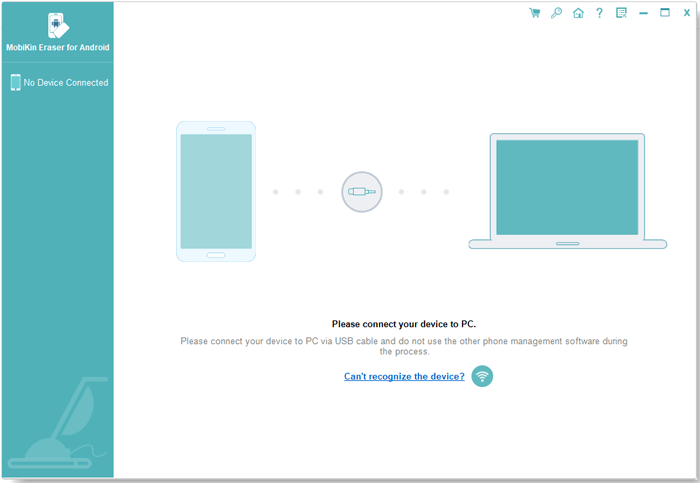
At first, please download the software by clicking the icon above and then install and launch it on your computer. Next, you can connect your Android device to computer via USB cable or Wi-Fi as you like.
1) Connect via USB
- Use a USB cable to connect your Android device to computer.
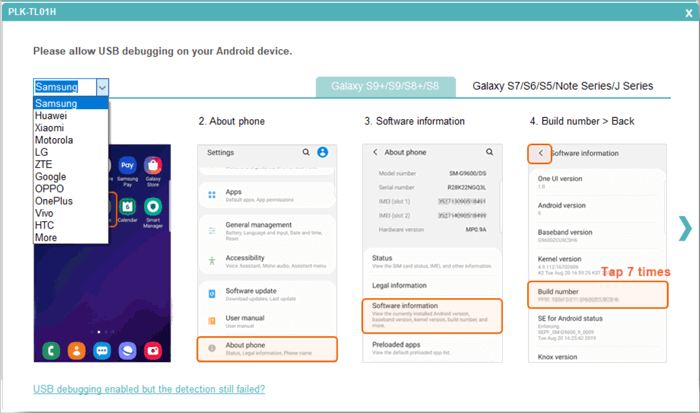
- Enable USB debugging on your mobile phone if the following prompt pops up. If you don't know how to complete that, please follow the steps provided in the complete guide about how to enable USB debugging on Android phone.
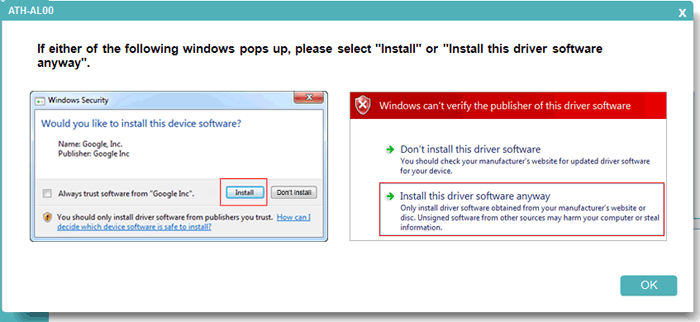
- Then the program will start downloading and installing the driver on your computer if you haven't installed it. Here, please click "Install" or "Install this driver software anyway" when you see the following windows to ensure the success of the driver installation. (If the driver installed failed, please turn to the page "How to Do If the Driver Installed Failed".)
- If your device is running on Android 4.2 or above, you will get the following interface that asks you to authorize the computer on your device by clicking "OK" or "Allow".
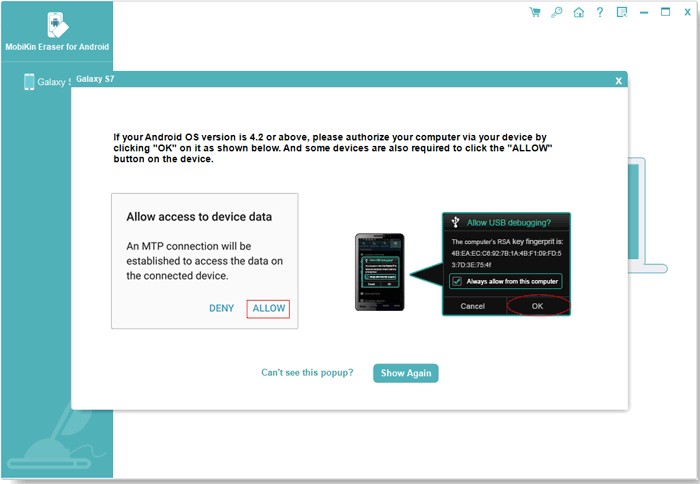
- After that, the software will automatically install the Assistant for Android (Android Version) on your mobile phone.
2) Connect via Wi-Fi
Notice: Please ensure your Android phone and computer are connected to the same network - checking the IP addresses. Otherwise, you won't be able to use the program smoothly. And if you want to know the detailed tutorial about Wi-Fi connection, please go to the page "How Can I Connect My Android Phone via Wi-Fi".
- Click the "Wi-Fi" icon on the primary interface and you will get the following interface.
- Download, install and open the Android Assistant for Android (Android Version) on your mobile phone.
- Use the "Scan" feature of the installed App to scan the QR code displayed on the program.
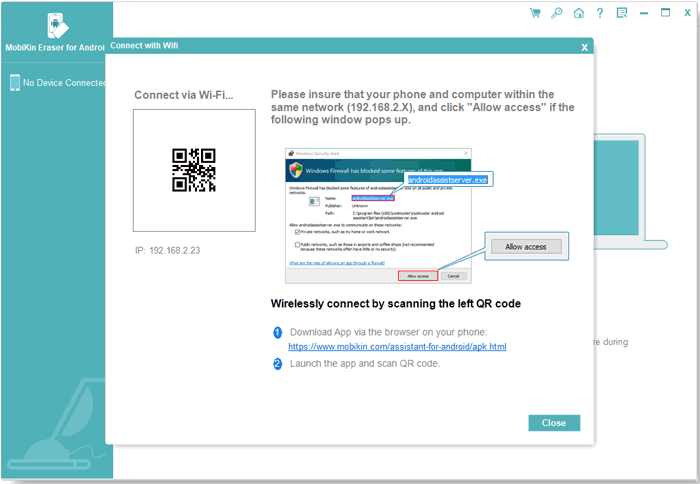
Tips: If the program fails to recognize the connected Android device, please click to learn what to do when the program does not recognize Android device.
Step 2: Set Security Level
- Once the tool successfully recognizes your Android device, it will display the mobile phone as below. On this interface, please click the "Continue" button.
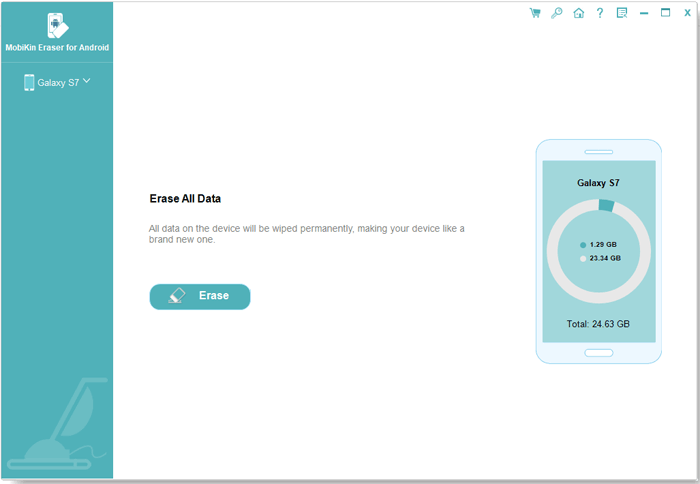
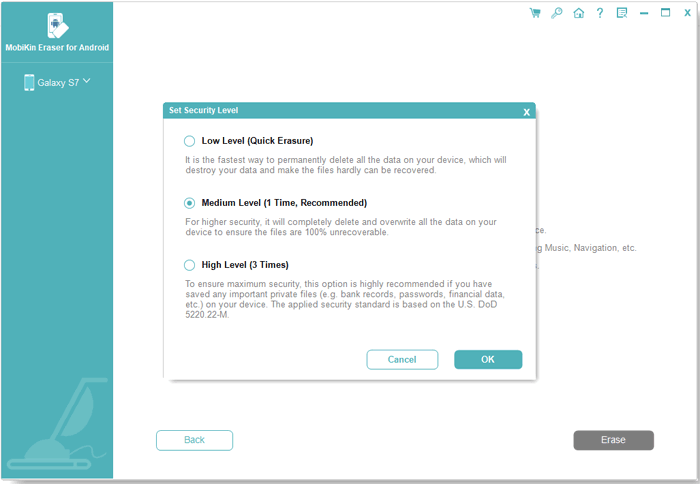
- After entering the next interface, please tap on "Medium" next to "Security Level:".
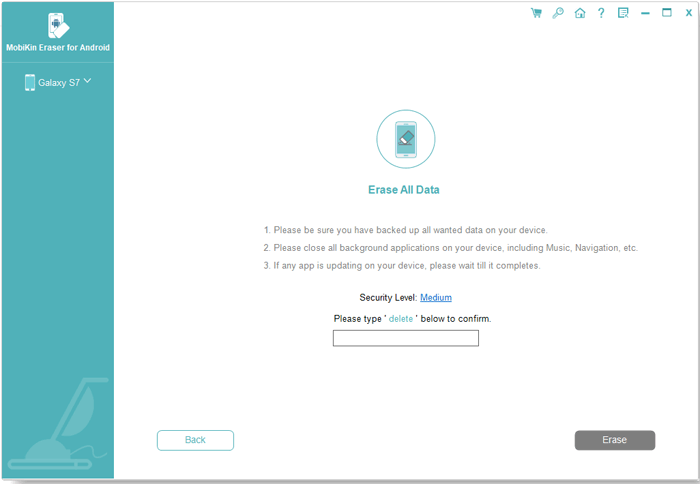
- A window will then appear, allowing you to select a security level: Low Level, Medium Level, or High Level. Choose the level that best suits your needs, then tap "OK" to confirm.
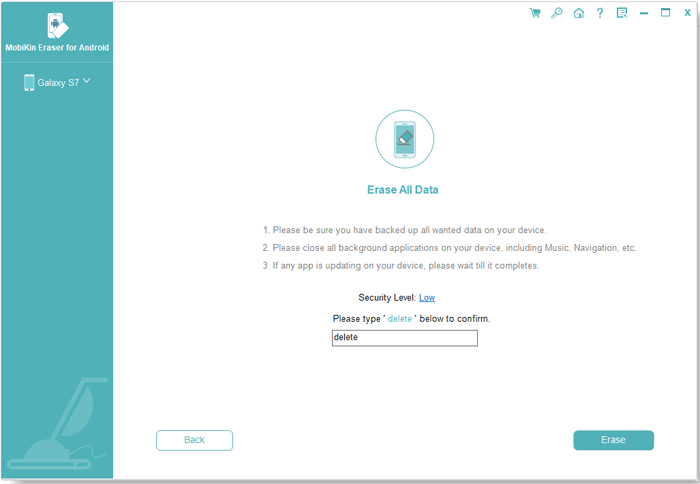
- When the confirmation window pops up, click "OK" to continue.
Step 3: Factory Reset Your Android Phone
For faster and more effective data erasure, it is recommended that you factory reset your Android phone before starting the erasing process. This also helps minimize the possibility of recovering previously stored data.
Situation 1: The Device Has Not Been Reset
- Select "No, the device has not been reset." if you have not reset the phone, then click "Next" to proceed.
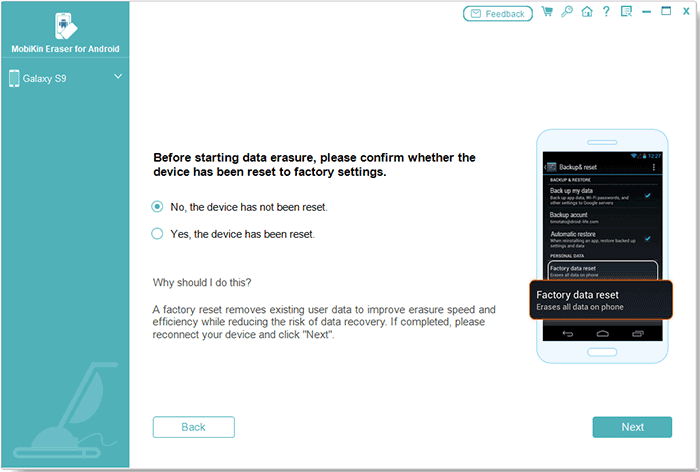
- Follow the on-screen instructions to perform a factory reset on your Android phone. Your phone will restart and temporarily disconnect from the program during this process. Do not exit the program, as doing so may interrupt the erasing process.
After the phone restarts, complete the activation and initial setup. Then, reconnect the device to the program.
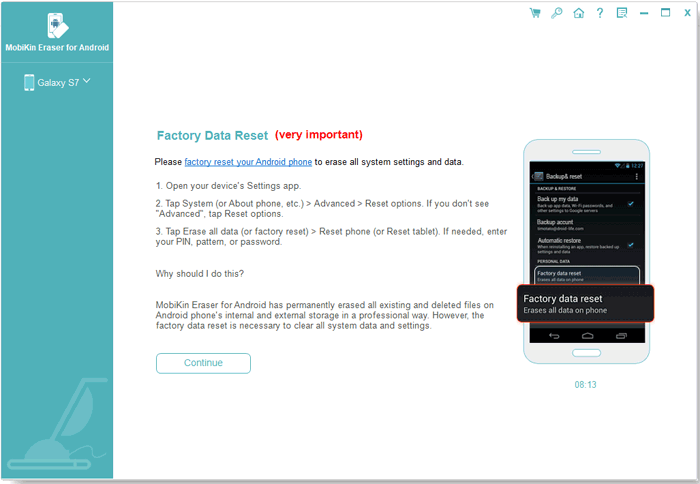
- After the connection is restored, click "Continue". Then, select the desired erasing level again and enter "delete" in the confirmation field to verify that you want to continue.

- Next, select "Yes, the device has been reset." When a confirmation window appears asking whether you want to proceed with the data wipe, click "OK", followed by "Next".
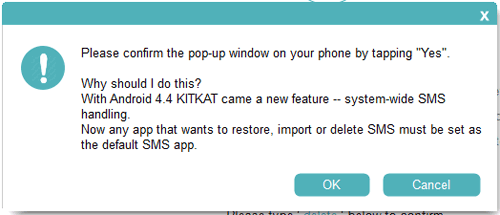
- If a permission prompt appears on your phone, tap "Yes" or follow the on-screen instructions to set MobiKin Assistant for Android as the default SMS app. This allows the program to erase SMS messages stored on your device. After completing the setup, click "OK" and then "Next" to continue.
Situation 2: The Device Has Already Been Factory Reset
- Select "Yes, the device has been reset." When a confirmation dialog appears asking you to confirm the complete deletion of your phone data, click "OK" and then "Next" to continue.
- When prompted on your phone, tap "Yes" or follow the on-screen instructions to make MobiKin Assistant for Android the default SMS app. This gives the program permission to remove SMS messages from the device. Once the setup is complete, click "OK" and "Next" to proceed.
Step 4: Erase & Overwrite All Android Data
- The software first scans the files and data stored on your Android device through a fast yet thorough scanning process.
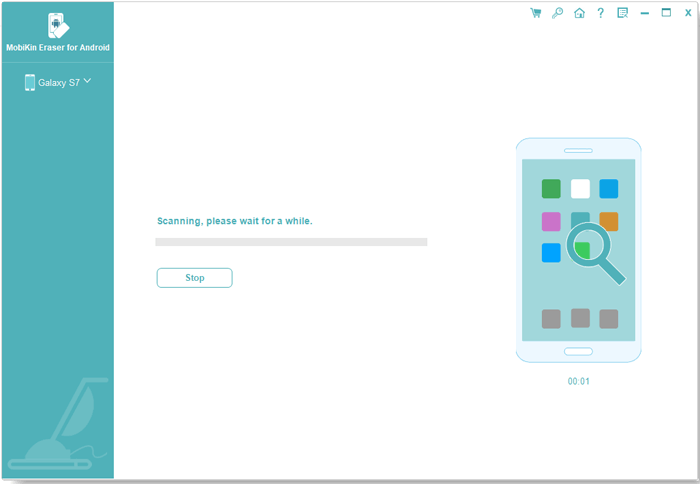
- After the scan is finished, the software will start to erase your phone data automatically.
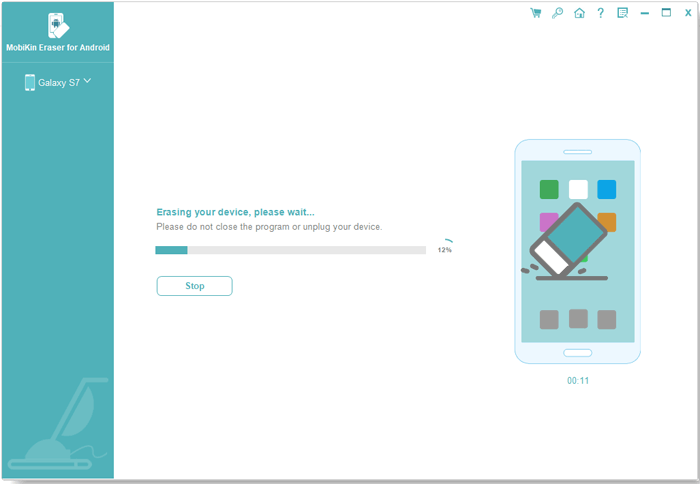
- After the erasure, the program will start to overwrite your phone data. Here, for the users who choose the "Low Level" or "Medium Level", the software will overwrite the device one time. As for the "High Level", the program will overwrite the phone data 3 times.
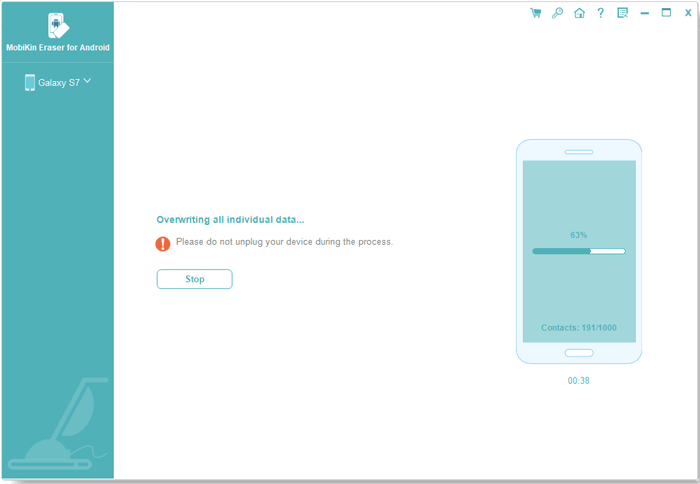
- After the erasure process is complete, all Android data will be permanently removed and cannot be recovered.
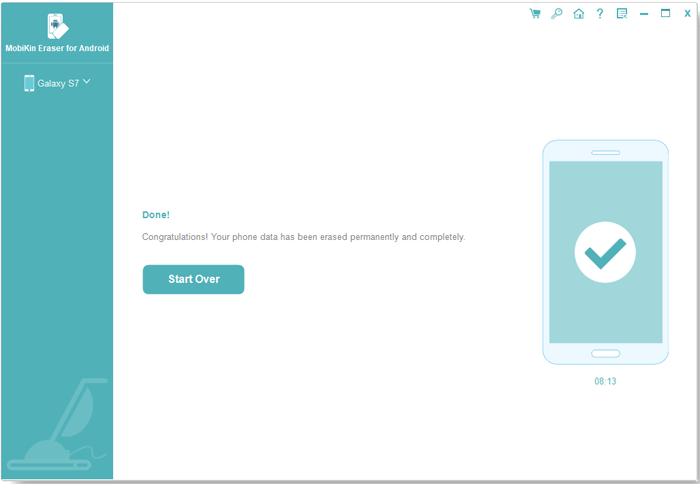
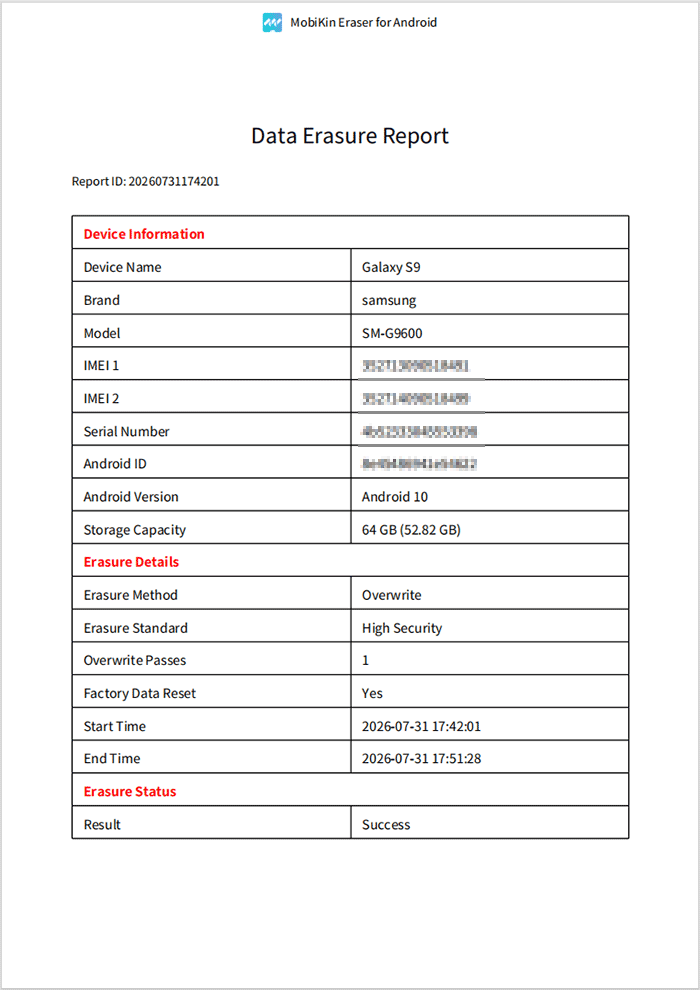
- If needed, click "Save Report" to save an erasure report on your computer. The report includes information such as the device details, erasure standard, number of overwrite passes, erasure method, result, and other relevant records.