
6 Ingenious Methods to Copy iPhone Voice Memos to PC/Computer
"I have recorded a whole bunch of voice memos on my iPhone 17 but this is my "work"-phone and the voice memos are hobby-related. How do I import my voice memos from my phone to my computer?" -- from Reddit
Voice memos often contain important recordings such as meetings, lectures, reminders, or personal notes. Moving these files to a computer is a practical way to manage data, especially when you need to free up iPhone storage, especially if you have long recordings that take up significant space.
This guide on how to copy iPhone voice memos to PC in 5 ways will walk through different transfer methods suitable for various needs and devices. It will also include helpful FAQs to address common issues and make the process easier to understand and apply.
- Part 1: How to Copy iPhone Voice Memos to PC Professionally
- Part 2: How Can I Transfer Voice Memos from iPhone to PC via iCloud Drive
- Part 3: How to Export Voice Memos from iPhone to PC via iTunes File Sharing
- Part 4: How to Export Audio from iPhone to PC with AirDrop
- Part 5: How to Send Voice Memos to Computer Using iMessage
- Part 6: How to Copy iPhone Voice Memos to Computer via Dropbox
- FAQs about Copying iPhone Voice Memos to PC
Part 1: How to Copy iPhone Voice Memos to PC Professionally
Requirements and Considerations:
- Install the MobiKin Assistant for iOS (Windows/Mac) on your PC.
- Connect iPhone via USB cable.
- Trust the computer on your iPhone.
- Supports direct access to voice memo files.
- Fast batch transfer and easy preview.
- Requires desktop installation and paid features for full functionality.
Main Features of MobiKin Assistant for iOS:
|
Feature
|
Description
|
|
Main Function |
iOS data management and transfer between iPhone and computer/iTunes. |
|
Voice Memos Support |
Allows direct access, preview, and export of iPhone voice memos to PC |
|
Transfer Method |
USB connection between iPhone and computer |
|
File Selection |
Enables selective or batch export of voice memos |
|
Preview Function |
Lets users preview voice memo content before exporting |
|
Export Option |
One-click "Export" to save voice memos to PC |
|
Transfer Speed |
Fast, especially for bulk file transfers |
|
Data Safety |
Keeps original audio quality without compression or loss |
|
Ease of Use |
Simple interface with categorized data view (Music > Voice Memos) |
|
Best Use Case |
Managing and backing up/transfer multiple iPhone voice recordings efficiently |
Best voice-memo-to-PC transfer free download:


How-to Guide:
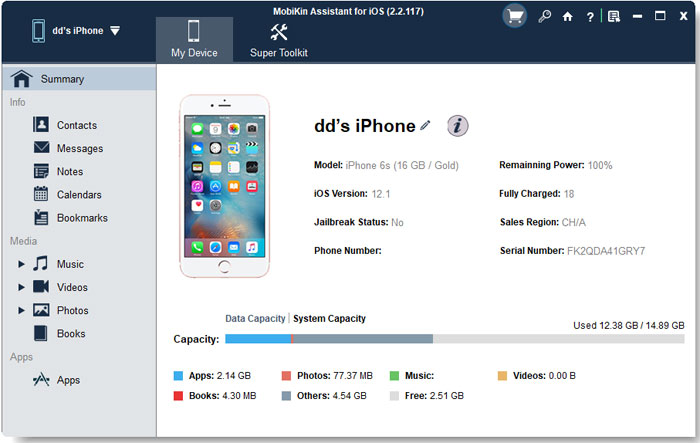
- First, download, install, and launch MobiKin Assistant for iOS on your computer.
- Connect your iPhone to the PC using a USB cable and wait until the program detects the device successfully.
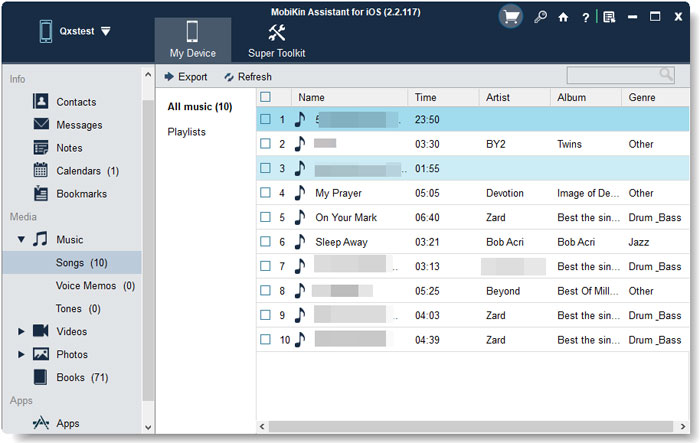
- Then go to Music > Voice Memos in the left panel, where the software will scan and display all voice recordings on your iPhone.
- You can preview the files, select the ones you need, and click the Export button to transfer and save them to your computer in bulk.
Video Guide:
You Might Also Like: How to Recover Permanently Deleted Voice Memos on iPhone with 3 Proven Methods?
Part 2: How Can I Transfer Voice Memos from iPhone to PC via iCloud Drive
Requirements and Considerations:
- Voice memos are synced to iTunes as part of the music library, not traditional file sharing.
- You can copy multiple memos at once after syncing.
- Newer versions of iTunes removed direct File Sharing access for Voice Memos, so syncing is the main method.
- After syncing, open File Explorer, go to: C:\Users\YourName\Music\iTunes\iTunes Media\Voice Memos and access your recordings in .m4a format.
How-to Guide:
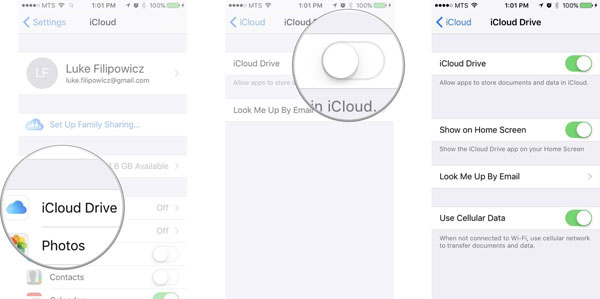
- Open Settings on iPhone > tap Apple ID > iCloud.
- Turn on iCloud Drive and Voice Memos.
- Open the Voice Memos app.
- Select a recording > tap Share.
- Choose Save to Files > select iCloud Drive > Save.
- On PC, go to iCloud.com and sign in.
- Open iCloud Drive.
- Locate the uploaded voice memo.
- Click Download to save it to your PC. (Optional: Install iCloud for Windows for automatic syncing.)
More to Explore: Ultimate Guide to Make a Voice Memo a Ringtone on iPhone in Minutes
Part 3: How to Export Voice Memos from iPhone to PC via iTunes File Sharing
Requirements and Considerations:
- Install iTunes on PC.
- USB cable connection.
- Enable sync for voice memos/music.
- Works best for Apple ecosystem users.
- Voice memos may sync through Music library, not File Sharing.
- Less flexible for selective file export.
How-to Guide:
- Install and open iTunes on your PC.
- Connect your iPhone to the PC using a USB cable.
- Unlock your iPhone and tap Trust This Computer if prompted.
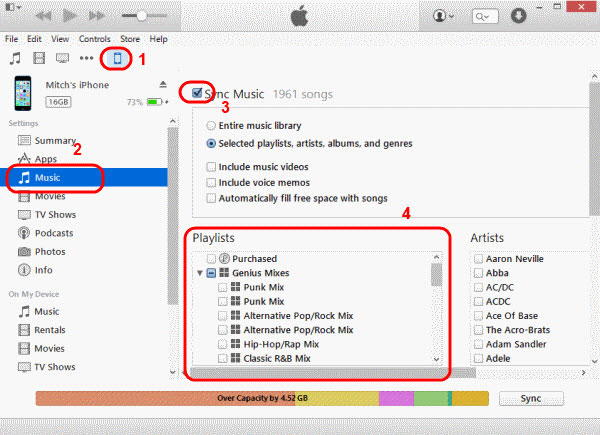
- Click the device icon in iTunes.
- Go to Music (or Summary > Music section).
- Check Sync Music and enable Include Voice Memos.
- Click Apply/Sync to start transferring.
Part 4: How to Export Audio from iPhone to PC with AirDrop
Requirements and Considerations:
- Wi-Fi and Bluetooth enabled.
- Apple devices only (iPhone + Mac).
- Very fast and wireless.
- Not compatible with Windows PCs directly.
- Best for quick single-file transfers.
How-to Guide:
- Turn on Wi-Fi and Bluetooth on your iPhone.
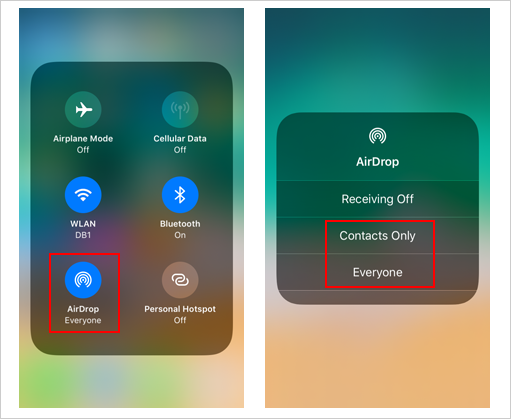
- Enable AirDrop from Control Center > set to Contacts Only or Everyone.
- On the receiving device (Mac or another Apple device), enable AirDrop and make it discoverable.
- Open the Voice Memos app.
- Select the audio recording you want to export.
- Tap the Share icon.
- Choose AirDrop from the sharing options.
- Tap the target device to send the file.
- Accept the transfer on the receiving device.
- The audio file will be saved as an .m4a file on the receiving device (usually in Downloads).
Part 5: How to Send Voice Memos to Computer Using iMessage
Requirements and Considerations:
- Active Apple ID/account.
- iMessage enabled on iPhone and Mac.
- Works only within Apple ecosystem.
- Good for quick sharing to yourself or Mac.
- Not suitable for large or multiple files.
How-to Guide:
- Open the Voice Memos app on your iPhone.
- Select the audio recording you want to transfer.
- Tap the Share icon.
- Choose Messages (iMessage) from the sharing options.
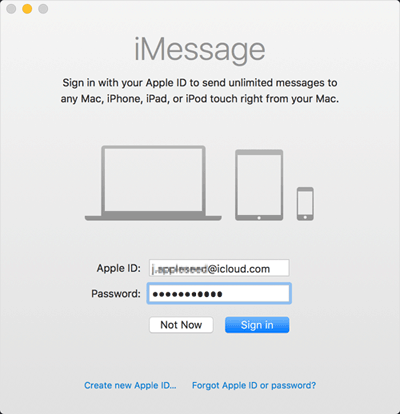
- Enter the Apple ID email linked to your computer (Mac).
- Tap Send to deliver the audio file.
- On your computer, open the Messages app.
- Locate the received message with the audio attachment.
- Download or drag the file to your desktop to save it.
WhatsApp is a widely used messaging platform that allows you to send files, including audio recordings, across devices. In addition to the iMessage method, you can also use WhatsApp to copy iPhone voice memos to a PC by sharing the recording to your own chat or a contact. Then, open WhatsApp Web or desktop on your computer to download the audio file quickly and conveniently.
Part 6: How to Copy iPhone Voice Memos to Computer via Dropbox
Requirements and Considerations:
- Dropbox app installed and account logged in.
- Internet connection.
- Cross-platform (works on Windows, Mac, mobile).
- Requires upload and download steps.
- Dependent on cloud storage space and network speed.
How-to Guide:
- Install and open Dropbox on your iPhone.
- Sign in to your Dropbox account.
- Open the Voice Memos app.
- Select the recording you want to transfer.
- Tap the Share icon.
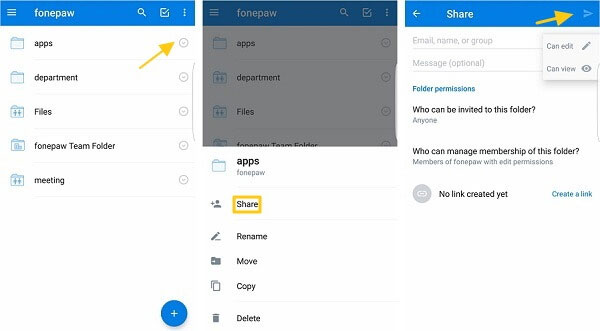
- Choose Dropbox from the sharing options.
- Select a folder and tap Save/Upload.
- On your computer, go to Dropbox.com and log in.
- Navigate to the folder where the memo was uploaded.
- Click Download to save the audio file to your computer.
FAQs about Copying iPhone Voice Memos to PC
Q1. Where are voice memos stored on a PC after transfer?
They are usually saved in the Downloads folder or the folder you selected during download.
Q2. What format are iPhone voice memos saved in?
They are typically saved as .m4a (AAC audio) files.
Q3. Why can't I see voice memos in iTunes File Sharing?
Because voice memos are managed through the music sync system in iTunes, not File Sharing.
Q4. Is there a file size limit for transferring voice memos?
Yes. Email and messaging apps have size limits, while cloud services depend on your available storage.
Q5. Will voice memo quality change after transfer?
No. Most transfer methods keep the original .m4a quality unless compressed by certain apps.
Q6. What is the easiest and safest way to copy voice memos to a PC?
The easiest and safest way to copy voice memos to a PC is by using MobiKin Assistant for iOS, which provides direct access to iPhone audio files from a computer. It offers strong accessibility, allowing you to preview, select, and export voice memos to a PC with just a few clicks without data loss or complicated steps.
Compared with cloud or manual methods, it is more reliable for managing multiple files efficiently while keeping the transfer process simple and secure.
Related Articles:
Voice Memos Disappeared on iPhone? 4 Ways to Get Them Back
iPhone Voice Memo Not Working or Recording? Try These 7 Fixes
5 Verified Ways to Transfer Voice Memos from iPhone to iPhone 17/16/15/14/13/12
6 Methods to Send Large Audio Files from iPhone to Android/iPhone/PC/Mac
