
FonePaw HEIC Converter Review: Ultimate Guide You'd Better Know
TL;DR:
HEIC images from iPhones often create compatibility issues on non-Apple devices, making reliable conversion tools essential for smooth photo sharing and viewing.
MobiKin HEIC to JPG Converter offers efficient batch conversion while preserving image clarity, making it suitable for large photo collections. When you want to get a more reliable FonePaw HEIC Converter alternative, try this tool, and you'll get a straightforward interface to make conversions quick and organized.
HEIC images taken from iPhones often cannot be opened on Windows or in certain applications, which creates confusion for many users who simply want to view or share their photos. In such situations, people usually look for a practical conversion tool like FonePaw HEIC Converter and wonder if it is reliable for use.
This article on FonePaw HEIC Converter review explores its features, performance, and usability to help users understand whether it fits their needs.
- Part 1: What Is FonePaw HEIC Converter
- Part 2: Key Features of FonePaw HEIC Converter
- Part 3: Pricing & Ratings of FonePaw HEIC Converter
- Part 4: How to Use FonePaw HEIC Converter
- Part 5: Pros & Cons of FonePaw HEIC Converter
- Part 6: What Could Possibly Beat FonePaw HEIC Converter
- FAQs about FonePaw HEIC Converter
Part 1: What Is FonePaw HEIC Converter
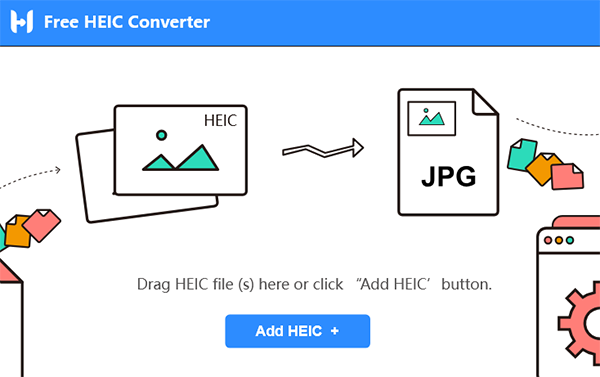
FonePaw HEIC Converter is a free, user-friendly tool that converts Apple's HEIC image format into widely compatible formats like JPEG and PNG. It supports batch conversion, preserves image quality, and works offline on both Windows and macOS. This makes it especially useful for sharing or viewing HEIC photos on devices and platforms that don't natively support the format.
You May Also Like: In-Depth Review of FonePaw iPhone Data Recovery: Ultimate iOS Data Recovery Solution
Part 2: Key Features of FonePaw HEIC Converter
FonePaw HEIC Converter is a practical solution for anyone dealing with Apple's HEIC image format, which often causes compatibility issues outside of iOS and macOS. The tool emphasizes simplicity, offering drag-and-drop functionality and batch conversion to save time. Below is a detailed table highlighting its most important features so you can quickly see what makes it useful.
|
Feature
|
Details
|
|
Format Conversion |
Converts HEIC/HEIF images to JPG or PNG for universal compatibility. |
|
Batch Processing |
Allows multiple HEIC files to be converted at once, saving time. |
|
Quality Preservation |
Maintains high resolution and supports keeping EXIF metadata (camera info, capture date). |
|
Offline Use |
Drag-and-drop functionality with straightforward steps for conversion. |
|
Cross-Platform Support |
Compatible with Windows PCs and macOS systems. |
|
Free to Use |
No registration or license required; completely free download and use. |
|
Metadata Handling |
Option to retain EXIF data during conversion for photo management. |
Explore More: 4 Ways to Download HEIC as JPG in Google Photos [Step-by-Step Guide]
Part 3: Pricing & Ratings of FonePaw HEIC Converter
FonePaw HEIC Converter is completely free to use, making it highly attractive for users who want reliable HEIC-to-JPEG/PNG conversion without cost. Reviews consistently rate it highly for effectiveness, ease of use, and image quality, though some note minor limitations such as lack of editing tools.
Pricing & Ratings of FonePaw HEIC Converter
|
Category
|
Details
|
|
Price |
Free to download and use (no subscription or license required). |
|
Effectiveness |
Highly effective at converting HEIC images to JPEG/PNG without loss of quality. |
|
Ease of Use |
Very user-friendly interface; simple drag-and-drop functionality. |
|
Support |
Responsive customer support via email and online chat. |
|
Cross-Platform Support |
Compatible with Windows PCs and macOS systems. |
|
Image Quality |
Converted images retain original detail, color accuracy, and sharpness. |
|
Value for Money |
Excellent, since it is free and delivers professional-level results. |
Click to Learn: HEIC/HEIF vs. JPEG/JPG: What Is the Difference [2026 Up-to-date]
Part 4: How to Use FonePaw HEIC Converter
Step 1. Install and open the software
- Download FonePaw HEIC Converter from the official website.
- Install it on your Windows or Mac computer.
- Launch the program after installation.
Step 2. Add HEIC photos
- Click "Add HEIC" or drag and drop your files into the window.
- You can import multiple HEIC images at once.
Step 3. Choose output settings
- Select JPG/JPEG or PNG as the output format.
- Choose the output folder location.
- Adjust image quality if needed.
- Keep EXIF data if required.
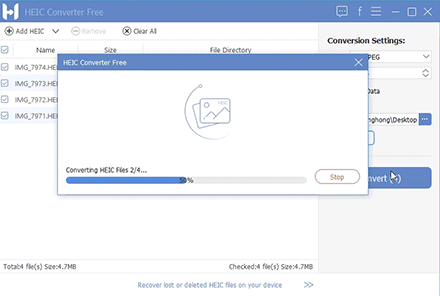
Step 4. Start converting
- Click the "Convert" button.
- Wait for the conversion process to complete.
Step 5. Open the output folder
- Click "Open Folder" after conversion.
- Find your converted JPG or PNG files ready for use.
Part 5: Pros & Cons of FonePaw HEIC Converter
Why We Like It?
- Supports batch conversion of multiple HEIC images at once.
- Converts HEIC to widely used formats like JPG and PNG.
- Maintains good image quality after conversion.
- Simple and beginner-friendly interface
- Works on both Windows and Mac systems.
Why We Don't Like It?
- Requires installation on a computer; no fully offline mobile version.
- Free version has limitations on usage or features.
- Lacks advanced editing tools beyond conversion.
- Large batches may take longer depending on system performance.
- Not as feature-rich as some all-in-one image management tools.
Part 6: What Could Possibly Beat FonePaw HEIC Converter
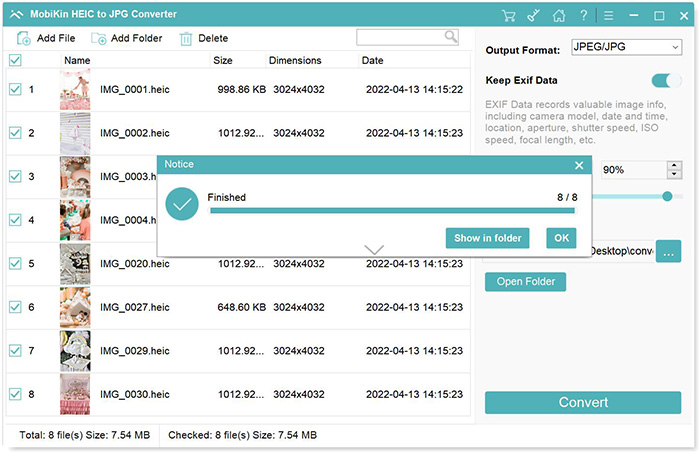
Converting HEIC files into universally supported JPG format becomes seamless with the help of MobiKin HEIC to JPG Converter (Windows/Mac), which maintains image clarity throughout the process. Its batch conversion capability and straightforward interface make it practical for managing extensive photo collections efficiently.
When you want a dependable FonePaw HEIC Converter alternative, this tool delivers speed and ease of use that is ideal for professional photo editing workflows.
Key Functions of MobiKin HEIC to JPG Converter:
> Supports converting HEIC/HEIF images to JPG/JPEG and PNG formats for wide compatibility.
> Allows batch conversion of multiple HEIC files at once, saving time for large photo collections.
> Maintains original image quality during conversion, with adjustable output quality settings.
> Preserves EXIF metadata such as date, camera model, and location information.
> Offers drag-and-drop and one-click conversion for easy operation.
> Provides a clean, ad-free interface with simple navigation for beginners.
> Works on both Windows and Mac systems for cross-platform use.


How to convert HEIC to JPG/PNG/JPEG on Windows 10/11/8/7 via MobiKin HEIC to JPG Converter?
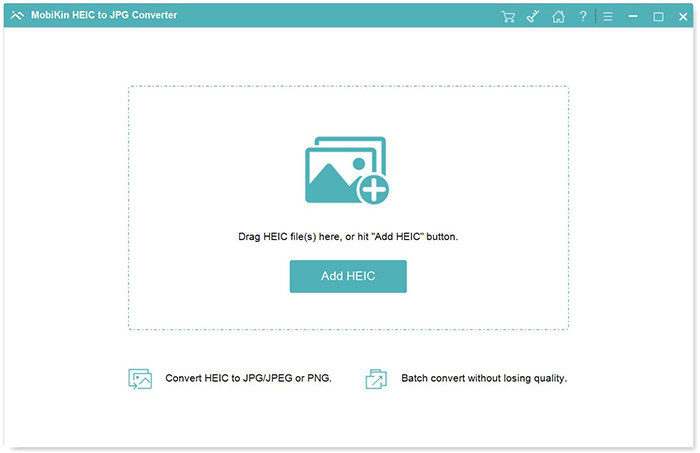
Step 1. Install the Converter and Import HEIC Files - Download and install the HEIC to JPG Converter on your computer. Open the program to access the main interface. Click "Add HEIC" or drag and drop HEIF/HEIC images directly into the window.
Step 2. Choose Output Settings and Preferences - The imported HEIC images will appear in the interface. Select the files you want to convert. Choose the output format (JPG/JPEG/PNG). Decide whether to keep Exif Data by checking or unchecking the box. Then set the output folder location.
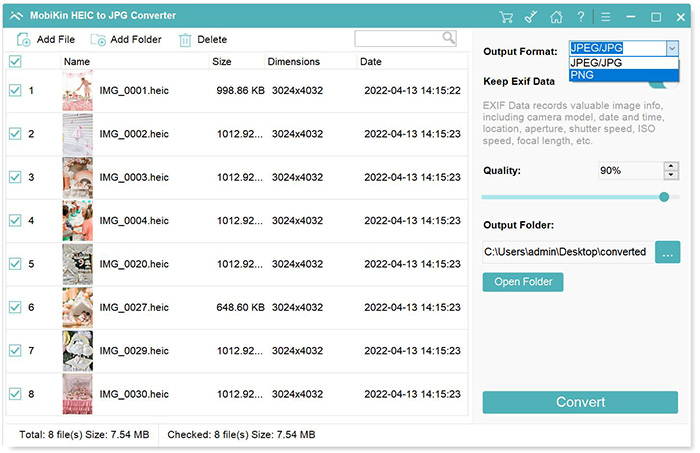
Step 3. Convert and Locate Your Files - Click "Convert" to start transforming HEIC files into JPG, JPEG, or PNG formats. Wait for the process to finish. Once completed, click "Show in folder" to view your converted images.
Video Tutorial:
FAQs about FonePaw HEIC Converter
Q1: Which operating systems are supported?
It runs on Windows computers. macOS users generally don't need it since Apple devices already support HEIC natively.
Q2: Which devices produce HEIC files?
iPhones running iOS 11 or later (starting with iPhone 7) save photos in HEIC format by default to reduce storage usage.
Q3: Does conversion increase file size?
Converted JPG or PNG files are usually larger than HEIC, so you should plan for extra storage space if converting many photos.
Q4: What if the program crashes?
If the software freezes, try reinstalling it, temporarily disabling antivirus, or converting smaller batches to reduce system load.
Q5: Can I convert photos stored on iCloud?
Yes, but you'll need to download the HEIC files from iCloud to your PC first, since the converter only works with local files.
Q6: Where are converted files saved?
You can set a custom output folder before conversion, ensuring your converted images are organized exactly where you want them.
Q7: Does FonePaw HEIC Converter work with photos from Android devices?
No, Android phones typically save images in JPG or PNG formats, so the converter is mainly intended for HEIC files generated by iPhones and iPads.
Q8: Can I use the converter without installing iTunes?
Yes, iTunes is not required. You only need the HEIC files stored locally on your computer to run the conversion.
Q9: Is there a limit on the number of files I can convert?
There is no strict limit; you can convert as many files as your computer's memory and processing power can handle in one batch.
In a Nutshell
FonePaw HEIC Converter proves useful for handling HEIC compatibility issues, especially when quick conversion and batch processing are required. It offers a straightforward way to make iPhone photos accessible across different devices without complicated steps. Still, its value depends on how often conversion is needed and whether basic functionality is enough for daily use.
For smoother results, always convert HEIC files immediately after transfer from iPhone. This helps avoid compatibility issues later and keeps your photo workflow more organized.
Related Articles:
FonePaw DoTrans Review 2026: Does It Justify the Cost? [Solved]
An Impartial FonePaw ScreenMo Review You'd Better Know [Latest]
Top 7 Best FonePaw WhatsApp Transfer Alternatives [Must-read]
7 Most Recommended FonePaw Android Data Recovery Alternatives
