
4Easysoft iOS Data Backup and Restore Review: Is It Worth Using?
TL;DR:
After reviewing its features, operation process, advantages, and limitations, 4Easysoft iOS Data Backup and Restore proves to be a practical option for users who need basic iPhone backup and restore functions, while those seeking wider data management choices can consider MobiKin Assistant for iOS as an alternative.
- This replacement offers a more complete way to handle iPhone files, allowing users to transfer, export, import, and manage various data types beyond regular backup and restore tasks.
- With extra file management features and flexible data access, it is a useful choice for users who want more control over their iOS content.
Many readers arrive here looking for practical information before deciding whether to use or purchase the software. The goal of this article is to provide a full analysis of 4Easysoft iOS Data Backup and Restore review, exploring its strengths, limitations, and usability for everyday iOS users. By examining how it handles data backup and restoration, this review aims to give clarity to those weighing their options.
- Part 1: What Is 4Easysoft iOS Data Backup and Restore
- Part 2: Core Features of 4Easysoft iOS Data Backup and Restore
- Part 3: How to Use 4Easysoft iOS Data Backup and Restore
- Part 4: Why Choose or Not Choose 4Easysoft iOS Data Backup and Restore
- Part 5: FAQs about 4Easysoft iOS Data Backup and Restore
- Part 6: Best Replacement for 4Easysoft iOS Data Backup and Restore
Part 1: What Is 4Easysoft iOS Data Backup and Restore
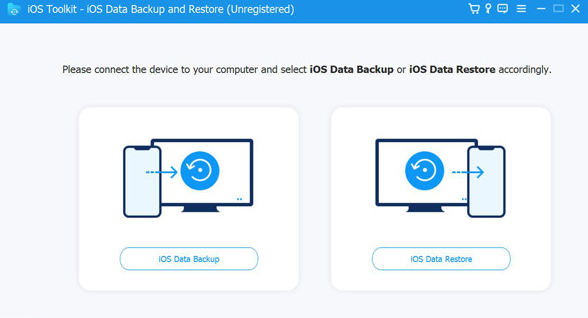
4Easysoft iOS Data Backup and Restore is a desktop program that helps users back up and restore data from iPhone, iPad, and iPod touch devices. It allows users to create standard or encrypted backups and preview selected data before restoring. The software supports various data types, including photos, videos, contacts, messages, notes, calendars, and other iOS files.
People Also Like: Best iPhoneBrowser Alternatives in 2026: Comprehensive Review
Part 2: Core Features of 4Easysoft iOS Data Backup and Restore
4Easysoft iOS Data Backup and Restore provides several practical functions to help users manage iPhone and iPad data more efficiently. The following table lists its core features, covering backup options, restore flexibility, data protection, and device support.
|
Feature
|
Description
|
|
Selective Backup |
Allows users to choose specific data types, such as photos, contacts, messages, and videos, instead of backing up the entire iOS device. |
|
Data Preview |
Lets users view available backup content before restoring or exporting files. |
|
Selective Restore |
Enables users to restore specific files or categories rather than replacing all existing data on the device. |
|
Multiple Backup Versions |
Keeps different backup records without automatically overwriting previous backups. |
|
Wide Data Support |
Supports various iOS data types, including contacts, messages, photos, videos, notes, calendars, call history, and more. |
|
Local Backup Storage |
Saves backups directly on a computer, reducing reliance on cloud storage services. |
|
Cross-Platform Compatibility |
Works with both Windows and macOS computers for flexible backup management. |
|
Device Compatibility |
Supports iPhone, iPad, and iPod touch models running different iOS versions. |
You May Also Like: iBackup Viewer Review & Alternative 2026: Is It Worth Your Money?
Part 3: How to Use 4Easysoft iOS Data Backup and Restore
Using 4Easysoft iOS Data Backup and Restore does not require complicated operations, as users can complete backup and restore tasks through a few simple steps. The following guide explains how to connect an iOS device, select data, create backups, and restore files when needed.
Step 1: Install and Launch the Program
Download and install 4Easysoft iOS Data Backup and Restore on your Windows or Mac computer, then open the program.
Step 2: Connect Your iOS Device
Use a USB cable to connect your iPhone, iPad, or iPod touch to the computer. Unlock your device and tap Trust if prompted.
Step 3: Select the Backup Mode
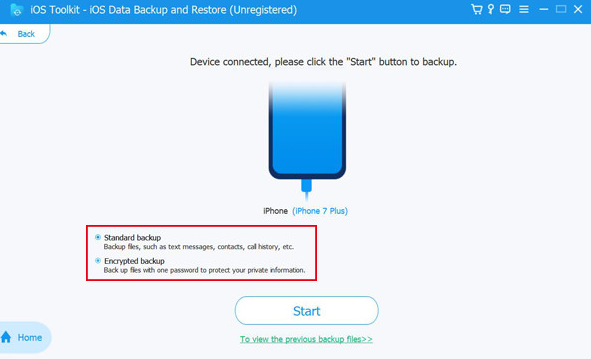
Choose iOS Data Backup from the main interface. You can select:
- Standard Backup for regular backups.
- Encrypted Backup to protect your backup with a password.
Step 4: Choose Data Types
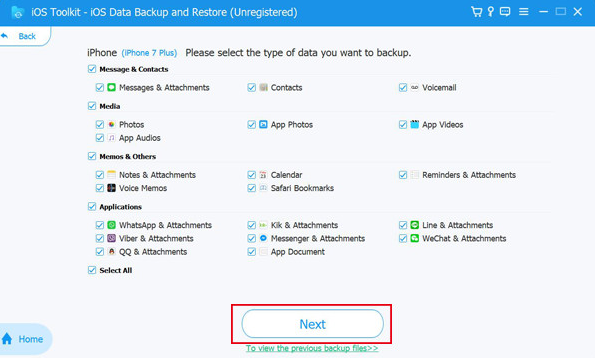
Select the files you want to back up, such as calendars, contacts, messages, photos, videos, notes, or other supported data categories.
Step 5: Start the Backup Process
Click the Next or Backup button to begin creating a local backup. Keep your device connected until the process finishes.
Step 6: Restore Data When Needed
Open the restore function, select a previous backup file, preview the available data, and choose the files you want to restore or export.
Step 7: Complete the Restoration
Confirm your selection and wait for the software to finish restoring or saving the chosen data.
Part 4: Why Choose or Not Choose 4Easysoft iOS Data Backup and Restore
4Easysoft iOS Data Backup and Restore is a suitable choice for users who want more control over iPhone backups, selective restoration, and local data management. However, users who prefer free official solutions or complete cloud-based backups may find iCloud, Finder, or iTunes more convenient.
|
Reasons to Choose
|
Reasons Not to Choose
|
|
Selective Backup and Restore - Allows users to back up or restore specific data types instead of handling the entire device backup. |
Limited Free Version - The trial version has restrictions, and users need to purchase a license to access all features. |
|
Easy-to-Use Interface - Provides a simple workflow that is suitable for beginners without advanced technical skills. |
Requires a Computer Connection - Users need a Windows or Mac computer and a USB cable to perform backup and restore operations. |
|
Encrypted Backup Support - Offers password protection to help secure private iOS data. |
No Cloud Backup Option - It does not directly sync backups with cloud services like iCloud or Google Drive. |
|
Preview Before Restore - Lets users check backup content before selecting files for restoration or export. |
Some Restore Limitations - Certain data types may only be exported to a computer rather than restored directly to an iPhone. |
|
Local Backup Storage - Keeps backup files on the computer, giving users more control over their data. |
May Not Be Necessary for Basic Users - Users who only need Apple's built-in iCloud or Finder/iTunes backup may not need additional software. |
|
Supports Multiple Backup Versions - Helps users keep different backup records without replacing older backups. |
Saves backups directly on a computer, reducing reliance on cloud storage services. |
|
Cross-Platform Compatibility |
Storage Space Requirements - Local backups can take up significant computer storage, especially for devices with large amounts of data. |
Part 5: FAQs about 4Easysoft iOS Data Backup and Restore
Q1. Is 4Easysoft iOS Data Backup and Restore free?
The software offers a free trial with limited functionality. To unlock all backup and restore features, you need to purchase a license.
Q2. Is 4Easysoft iOS Data Backup and Restore safe?
Yes, 4Easysoft iOS Data Backup and Restore is generally safe to use when downloaded from the official website, as it creates local backups and offers password-protected encryption for added security. To minimize risks, always install the latest version from the official source and avoid downloading the software from third-party websites.
Q3. Does 4Easysoft iOS Data Backup and Restore support encrypted backups?
Yes. It provides an Encrypted Backup mode that protects your backup with a password, helping keep sensitive information secure.
Q4. Does the software require an internet connection?
No. Since backups are stored locally on your computer, you only need a USB connection between your iPhone and the computer. Internet access is generally unnecessary unless you're downloading or updating the software.
Q5. Is it compatible with the latest iPhone and iOS versions?
4Easysoft regularly updates its software to support newer iPhone, iPad, and iOS versions. Check the official website for the latest compatibility information before installing.
Q6. Can I use it on both Windows and Mac?
Yes. 4Easysoft iOS Data Backup and Restore is available for both Windows and macOS, with similar features on each platform.
Q7. Will backing up my iPhone erase existing data?
No. Creating a backup does not delete or modify the data stored on your iPhone. It simply saves a copy of your selected data to your computer.
Q9. Is 4Easysoft iOS Data Backup and Restore better than iTunes?
It depends on your needs. If you want selective backup, encrypted local backups, preview before restoration, and multiple backup versions, 4Easysoft offers more flexibility. If you only need a free full-device backup, iTunes (or Finder on macOS) may be sufficient.
Part 6: Best Replacement for 4Easysoft iOS Data Backup and Restore
With a focus on iOS data management, MobiKin Assistant for iOS (Windows/Mac) helps users transfer, back up, restore, and manage files such as photos, contacts, messages, and music between an iPhone and a computer. It can serve as a good replacement for 4Easysoft iOS Data Backup and Restore by offering broader data management functions and more flexible file transfer options.
Compared with relying only on backup and restore features, this tool gives users more control over viewing, exporting, and organizing iPhone content.
A Comparison Table:
|
Aspect
|
MobiKin Assistant for iOS
|
Advantage over 4Easysoft iOS Data Backup and Restore
|
|
Data Management
|
Transfers, exports, deletes, and manages iPhone data. |
Offers more device management features. |
|
File Transfer
|
Moves photos, music, contacts, messages, and videos. |
Provides more flexible file transfers. |
|
Data Preview
|
Views and exports selected iPhone files. |
Gives easier access to specific data. |
|
Backup Options
|
Creates and manages local iOS backups. |
Combines backup with extra functions. |
|
File Control
|
Adds, removes, and organizes content. |
Handles more daily data tasks. |
|
Device Support
|
Manages iPhone data without iTunes or iCloud. |
Provides more control over device files. |
Free Download:


How to Use the Best 4Easysoft iOS Data Backup and Restore?
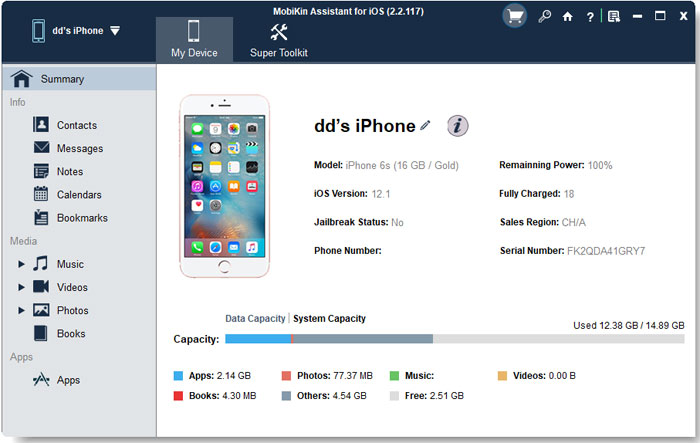
Install MobiKin Assistant for iOS, connect your iPhone or iPad via USB, and trust the computer when prompted. After the device is detected, preview and manage files from the sidebar or use Super Toolkit to back up and restore data.
For detailed instructions in a visual manner, check out the video below:
In Conclusion
A review of 4Easysoft iOS Data Backup and Restore is not just about listing features; it is about understanding whether the tool genuinely fits into the rhythm of your digital life. This article closes with a reminder: the best software is not always the one with the longest list of functions, but the one that seamlessly supports your needs without unnecessary complexity.
When you decide to commit to any iOS backup solution, test its restore process on non-critical data first. This simple step ensures you know exactly how recovery works and prevents surprises when dealing with important files.
Related Articles:
7 Solutions to Fix iPhone Backup Failed but I Have Enough Storage
How to Reset iPhone without Losing Data? [iOS 27/26/18 Supported]
How to Back Up WhatsApp on iPhone [Ultimate Guide in 2026]
7 Tested Ways to Fix iPhone Stuck on Restore Screen 2026
10 Tested Android Backup Software/Apps You Should Never Miss
