
How to Transfer Files from iPhone to PC via Bluetooth? 5 Alternative Ways
TL;DR:
Bluetooth may look like the easiest way to move files from iPhone to PC, but iOS restrictions make it impractical for all data types. Exploring alternatives such as USB, iCloud, Air Transfer, Dropbox, and Email reveals more reliable solutions. Among these, MobiKin Assistant for iOS is arguably the quickest and safest way, offering secure USB transfers, full backup options, and smooth file management that surpasses Bluetooth's limitations.
"Hey! I want to manually move files from iPhone 17 to an old MacBook I have. I know I can back up on iTunes or iCloud but like I said, I wish to manually select files and move them." -- from Reddit
Many users attempt to transfer files from iPhone to PC via Bluetooth because it seems convenient and doesn't require cables or internet access. This guide is about how to transfer files from iPhone to PC via Bluetooth, highlight both the challenges of Bluetooth and the 5 alternative methods such as USB, iCloud, or cloud storage apps. This sets the stage for understanding why Bluetooth is rarely the most effective option.
Part 1: Can I Transfer Files from iPhone to PC via Bluetooth
No, you cannot transfer files directly from an iPhone to a PC via Bluetooth because iOS restricts Bluetooth to accessories like headphones or speakers. To move files, you'll need alternatives such as iCloud, a USB cable with a professional tool, or third-party apps like Air Transfer. For large files, using a cable or cloud service is faster and more reliable than Bluetooth.
Part 2: Transfer Files from iPhone to PC without Bluetooth via USB [Quick]
As an expert program, MobiKin Assistant for iOS (Windows/Mac) enables smooth file transfers from iPhone to PC without Bluetooth by relying on a USB connection. It quickly detects the device, organizes data into categories, and lets users export files securely to a chosen folder. Beyond transfers, it also offers backup and restore functions, giving more control than iTunes or iCloud.
MobiKin Assistant for iOS - Core Features:
- Data Transfer: Move contacts, photos, videos, music, and more between iPhone and PC via USB.
- Two-Way Sync: Export files to PC or import data back to iPhone.
- Backup & Restore: Create backups on PC and restore selectively.
- File Categories: Browse files by type or search directly.
- Data Managment Tools: Edit, add, delete, and export stuff.
- App Control: Uninstall unwanted apps in bulk.
- Wide Compatibility: Supports latest iOS and Windows/macOS versions.
Free & Secure Download:


Now let's copy iPhone files to PC without Bluetooth using MobiKin Assistant for iOS:
Step 1: Once you've downloaded and installed MobiKin Assistant for iOS, launch the program on your computer. Connect your iPhone to the PC using a USB cable. After a successful connection, the software will automatically recognize your device and display its main dashboard.
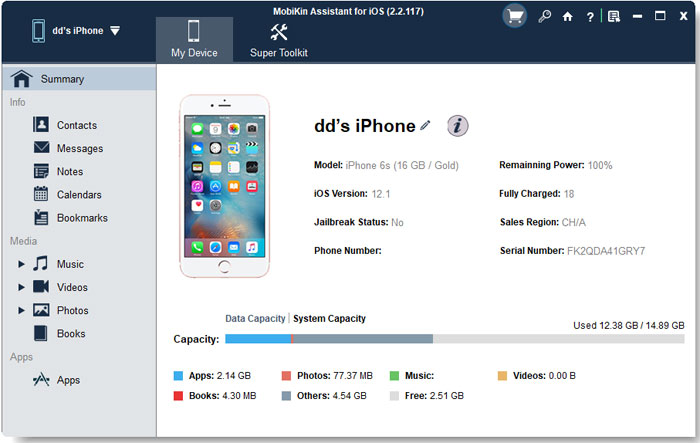
Step 2: On the main interface, you'll see a list of categories on the left side such as Contacts, Messages, Notes, Calendars, Bookmarks, Music, Videos, Photos, Books, and Apps. Browse through these sections to locate your files or use the search bar to quickly find specific items.
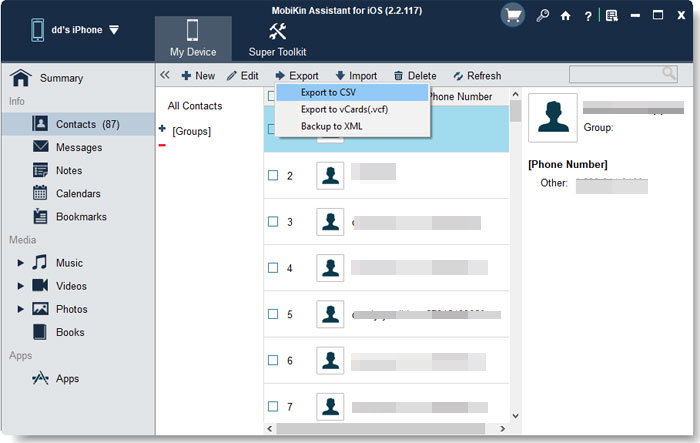
Step 3: Highlight the files you want to transfer and click the "Export" button at the top of the window. Choose a destination folder on your PC where the files will be saved. Wait for the process to complete, then access your transferred files in the selected location.
Video Guide:
Part 3: Transfer Files from iPhone to PC without Bluetooth via WiFi
> 3.1 Using iCloud
When files need to move seamlessly between iPhone and PC, one of the most dependable options is iCloud. By enabling iCloud Drive on the iPhone, documents, photos, and other supported items sync automatically to the cloud. On the PC side, users can log in through a browser or install iCloud for Windows to retrieve those files. This approach ensures continuous updates, so edits made on the phone appear instantly on the computer.
How-to Guide:
- Enable iCloud Drive: On your iPhone, go to Settings > [Your Name] > iCloud > iCloud Drive and switch it on. This ensures your files are synced to the cloud.
- Upload files to iCloud: Save photos, documents, or other files into iCloud-enabled apps like Photos, Files, or Notes so they are automatically backed up.
- Access iCloud on PC: Either log in at iCloud.com with your Apple ID or install iCloud for Windows to view your synced files directly.
- Download files from iCloud: Navigate to iCloud Drive or Photos on your PC, select the files you need, and download them for offline use.
- Keep files updated: Any changes you make on iPhone will sync automatically, so your PC always has the latest version.
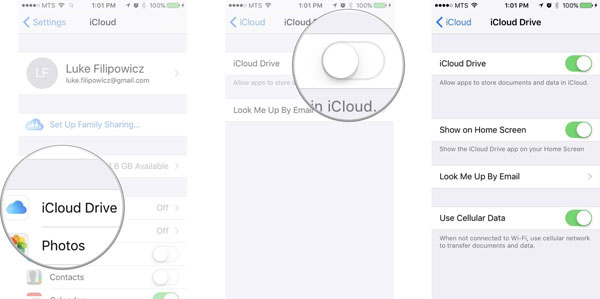
* iCloud uses cloud synchronization, not direct device-to-device transfer. When you upload files from your iPhone to iCloud, they are stored on Apple's servers. The Windows version of iCloud then downloads a copy to your PC automatically. Both devices simply need an internet connection.
> 3.2 Using Air Transfer
Another wireless method involves the Air Transfer app, which uses a shared Wi-Fi connection rather than Bluetooth. After importing files into the app on the iPhone, a browser link is generated that can be opened on the PC. From there, files can be downloaded directly without cables. It's straightforward and works well for everyday transfers, provided both devices remain on the same network.
How-to Guide:
- Install Air Transfer: Download the app from the App Store and open it on your iPhone.
- Connect to same Wi-Fi: Ensure both your iPhone and PC are connected to the same wireless network.
- Import files into Air Transfer: Add photos, videos, audio, or documents into the app's library on your iPhone.
- Access via browser link: On your PC, open a browser and enter the IP address or link provided by the app.
- Download files to PC: Browse the files displayed in the browser and save them directly to your computer.
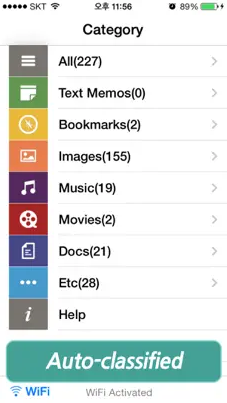
Is Air Transfer secure and private? Generally yes for local network tools. Files never leave your home network. However, avoid using public Wi-Fi (e.g., coffee shops), as others on the same network could potentially intercept data. For extra security, use tools with encryption (e.g., Feem v4+).
> 3.3 Using Dropbox
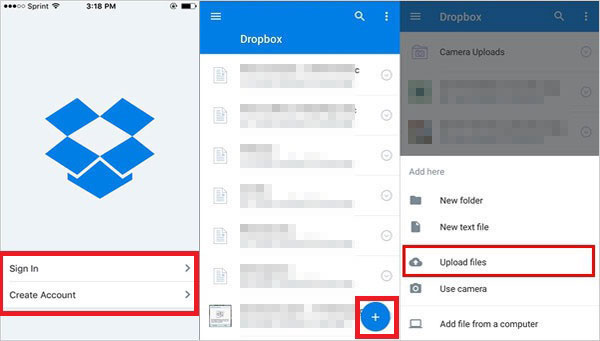
Cloud storage services also provide a practical solution, with Dropbox being a popular choice. Files uploaded from the iPhone into the Dropbox app become accessible on the PC through either the desktop client or the web interface. This system not only allows downloads but also keeps files synchronized across devices. It's especially useful for users who already rely on Dropbox for collaboration or backup.
How-to Guide:
- Install Dropbox on iPhone: Download the Dropbox app from the App Store and sign in with your account.
- Upload files to Dropbox: Open the app, tap the "+" button, and choose photos, videos, or documents to upload.
- Access Dropbox on PC: Log in at Dropbox.com or install the Dropbox desktop app.
- Download files to PC: Navigate to your uploaded files, then select and save them locally.
- Keep files synced: Any changes or new uploads from your iPhone will automatically appear on your PC through Dropbox sync.
> 3.4 Using Email
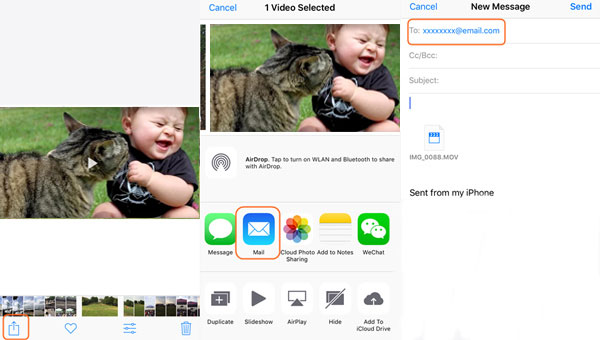
For smaller transfers, Email offers a simple workaround. By composing a message on the iPhone and attaching the desired files, users can send it to themselves. Once opened on the PC, attachments can be downloaded and saved locally. While not ideal for large files, this method is quick, requires no extra apps, and works anywhere with internet access.
How-to Guide:
- Open Mail app: Launch the Mail app (or Gmail/Outlook) on your iPhone.
- Compose new email: Start a new message and enter your own email address as the recipient.
- Attach files: Tap the attachment icon, select photos, documents, or videos you want to transfer.
- Send email: Send the message so the files are delivered to your inbox.
- Access email on PC: Log in to your email account on your computer and open the message.
- Download attachments: Save the attached files locally to your PC for use.
In Closing
While Bluetooth may look like the simplest path, it is unable to do it. The true advantage comes from knowing multiple ways to transfer files, so you can choose the one that saves time and avoids frustration. Hot Tip: If you want fast and reliable transfers, skip methods with WiFi connections and use a USB cable - your files will reach the PC much quicker and with fewer headaches.
Related Articles:
Transfer Files from Android to iPhone via Bluetooth? 6 Alternative Ways
App Share via Bluetooth: 5 Ways to Transfer Apps from Android to Android by Bluetooth
How to Recover Data from iPhone Disabled Connect to iTunes
[Solved] Data Recovery Cannot be Completed Please Restore Your iPhone from Backup
