
How to Install Apps on iPhone without App Store: 5 Working Methods
The App Store is the official way to download apps on an iPhone, but it's not the only option. Sometimes, you may want to install apps that are not available in your region, have been removed from the App Store, or are still in testing. In these cases, many users start looking for alternative ways to get apps on their devices.
So, is it possible to install apps on an iPhone without using the App Store? The answer is yes - but with some limitations. In this guide, we'll walk you through several practical methods, from using IPA files to third-party tools, and help you choose the safest and easiest option for your needs.
- Part 1: Can You Download Apps on iPhone without App Store?
- Part 2: Install Apps on iPhone without App Store with iOS Transfer
- Part 3: Download Apps in iPhone without App Store Using IPA Files
- Part 4: Install App in iPhone from a Third-Party App Store
- Part 5: Install App in iPhone without App Store via Enterprise Certificates
- Part 6: Download Apps in iPhone without App Store via Jailbreaking
Part 1: Can You Download Apps on iPhone without App Store?
Yes, you can download and install apps on an iPhone without using the App Store - but there are some important limits you should understand first. (How to Install Apps on iPhone without iTunes?)
Apple designs iOS as a closed and secure system, which means all apps are normally reviewed and distributed through the App Store. This helps protect users from malware, scams, and unstable apps. Because of this, installing apps from outside the App Store is not as simple as it is on Android devices.
However, there are still a few official and unofficial ways to do it:
- Sideloading apps using a computer and an IPA file.
- Using third-party app installers (like AltStore).
- Installing apps with enterprise certificates.
- Downloading beta apps via TestFlight (official method).
That said, these methods come with restrictions and risks, such as:
- Apps may expire or stop working after a few days.
- You may need to trust certificates manually.
- Some apps could pose security or privacy risks.
- Apple may revoke access at any time.
In short: It is possible, but not always stable or safe.
In the following sections, we'll walk you through each method step by step, so you can choose the one that works best for your needs.
Part 2: Install Apps on iPhone without App Store with iOS Transfer
If you find third-party app stores unreliable or don't want to deal with complicated signing processes, using a 3rd-party app installing tool is a much easier and more stable solution. It allows you to manage your iPhone directly from a computer, including installing apps, without relying on the App Store or iTunes.
iOS Transfer is designed to simplify iPhone management. Compared with iTunes, it offers a more user-friendly interface and does not overwrite your existing data, making it ideal for beginners and everyday users.
Main features of iOS Transfer:
- Easily install or remove iPhone apps on your computer directly.
- Back up and restore your device in a single click.
- View apps, photos, contacts, and more before making changes.
- Manage photos, videos, messages, contacts, etc.
- Move files between iPhone and computer quickly without using iTunes.


How to Install Apps on iPhone with iOS Transfer:
Step 1: Download and install the iOS Transfer tool on your computer. Launch it and connect your iPhone via a USB cable. Unlock your iPhone and tap "Trust This Computer" when prompted. Wait for the software to detect your device.
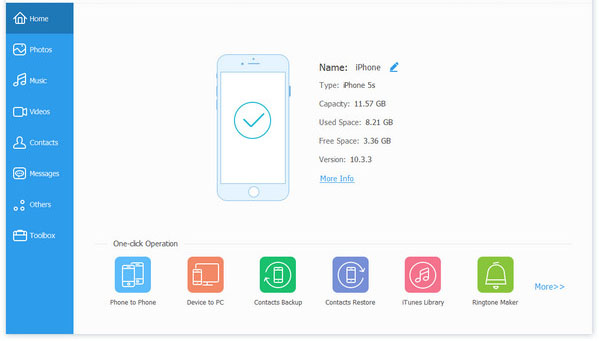
Step 2: Once your device is recognized, click on the "Apps" tab in the main interface to view installed applications.
Step 3: Click the "Install" button and select the app file (such as an IPA file) from your computer to install it on your iPhone.
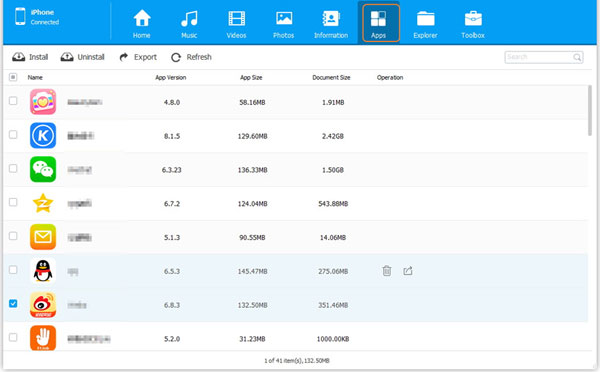
You can also uninstall unwanted apps or manage multiple apps directly within the program.
Related Passages:
Part 3: Download Apps in iPhone without App Store Using IPA Files
Another popular way to install apps on an iPhone without the App Store is by using IPA files. An IPA file is the installation package for iOS apps, similar to an APK file on Android. With the help of a computer and a sideloading tool, you can manually install these files onto your device.
What You Need:
Before you start, make sure you have:
- A computer (Windows or Mac)
- A USB cable
- An iPhone
- An IPA file (downloaded from a trusted source)
- A sideloading tool (such as Sideloadly or AltStore)
Follow these steps to sideload apps easily:
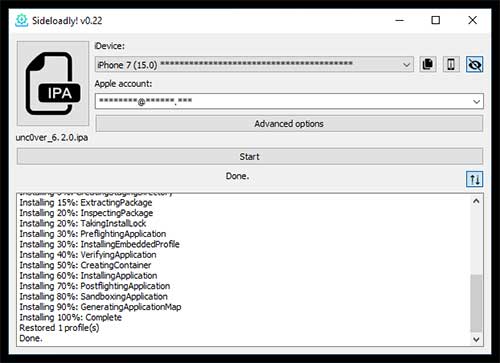
- Install a tool like Sideloadly or AltStore on your computer.
- Use a USB cable to connect your iPhone to the computer. Unlock the device and tap "Trust This Computer" if prompted.
- Open the sideloading tool and drag the IPA file into the program interface.
- Enter your Apple ID and password to sign the app (it's recommended to use a secondary Apple ID for safety).
- Click the "Start" or "Install" button to begin installing the IPA file onto your iPhone.
- After installation, go to: Settings > General > VPN & Device Management, find your Apple ID and tap "Trust" to allow the app to run.
Pros
- Free to use.
- No need for App Store.
- Access to apps not available in your region.
Cons
- Apps usually expire after 7 days (free Apple ID).
- Requires reinstallation or re-signing.
- Setup process may be slightly technical for beginners.
Can't Miss:
Part 4: Install Apps in iPhone from a Third-Party App Store
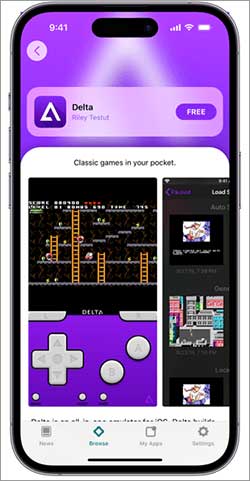
Besides using IPA files, another easy way to install apps on iPhone without the App Store is through third-party app stores. These platforms provide a collection of apps that are not available on the official App Store, and they usually allow direct installation without a computer.
A third-party app store is a website or platform that offers iOS apps signed with enterprise or developer certificates. Popular examples include AltStore, TutuApp, and AppValley.
These stores let you download apps directly on your iPhone, making the process simple and convenient.
How to Install Apps from a Third-Party App Store
- On your iPhone, open Safari and visit the official website of a third-party app store.
- Tap the "Download" or "Install" button. A configuration profile may be downloaded to your device.
- Go to Settings > Profile Downloaded and tap "Install" to add the app store to your iPhone.
- After installation, return to your Home Screen and launch the third-party app store.
- Browse or search for the app you want, then tap "Install" to download it directly.
- Go to Settings > General > VPN & Device Management, find the certificate, and tap "Trust".
Pros
- No computer required.
- Easy and quick installation.
- Access to modified or unofficial apps.
Cons
- Certificates may be revoked at any time.
- Apps can stop working suddenly.
- Potential security and privacy risks.
Part 5: Install App in iPhone without App Store via Enterprise Certificates
Another way to install apps on an iPhone without the App Store is by using enterprise certificates. This method is often used by companies to distribute internal apps to employees, but it is also adopted by some third-party platforms to share apps with the public.
Enterprise certificates are special licenses issued by Apple that allow organizations to install apps directly on iPhones without going through the App Store review process.
When used properly, this is a legitimate method for businesses. However, some third-party services misuse these certificates to distribute unofficial apps.
How to Install Apps via Enterprise Certificates
- On your iPhone, use Safari to visit a website that provides enterprise-signed apps.
- Find the app you want and tap "Install". A pop-up will appear asking for confirmation.
- The app icon will appear on your Home Screen. Wait for it to finish installing.
- Go to: Settings > General > VPN & Device Management, find the enterprise profile under "Enterprise App", then tap "Trust".
- Once trusted, return to your Home Screen and open the app.
Pros
- No computer needed.
- Quick installation process.
- Access to apps outside the App Store.
Cons
- Certificates can be revoked by Apple at any time.
- Apps may suddenly stop working.
- Higher security risks compared to official methods.
Part 6: Download Apps in iPhone without App Store via Jailbreaking
Jailbreaking is another way to install apps on an iPhone without using the App Store. It removes Apple's system restrictions, giving you full control over your device and allowing you to download apps from outside sources.
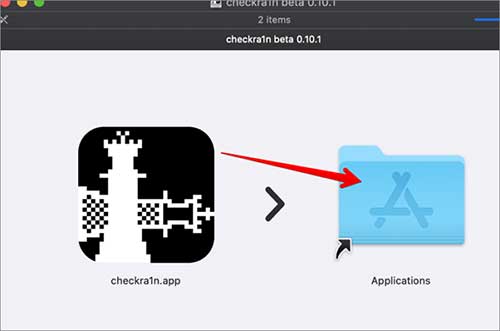
Jailbreaking is the process of modifying iOS to bypass Apple's built-in limitations. Once your iPhone is jailbroken, you can install apps, tweaks, and themes that are not approved by Apple.
A popular package manager used after jailbreaking is Cydia, where you can find and install various apps and extensions. (How to Jailbreak iPhone to Unlock Carrier?)
How to Install Apps after Jailbreaking
Note: Jailbreaking methods vary depending on your iOS version and device. The steps below are general.
- Download a jailbreak tool compatible with your iOS version and follow the instructions to jailbreak your device.
- After jailbreaking, install a package manager like Cydia (usually installed automatically).
- Open the package manager and add repositories that host apps and tweaks.
- Browse or search for apps you want, then tap "Install" to download them.
- Some apps require a respring (quick restart of the system interface) to take effect.
Pros
- Full control over your iPhone.
- Install any app without restrictions.
- Access to advanced customization features.
Cons
- Voids Apple warranty.
- Higher risk of malware and security issues.
- May cause system instability or crashes.
- Some apps (like banking apps) may stop working.
Wrapping Up
Installing apps on an iPhone without the App Store is possible, but each method comes with its own pros and cons. Options like iOS Transfer and IPA sideloading offer more control, while third-party app stores and enterprise certificates provide convenience but less stability. Jailbreaking, although powerful, carries the highest risk and is not suitable for most users.
Overall, if you want a balance between safety and flexibility, it's best to choose reliable and secure methods. Always be cautious about where your apps come from, and prioritize your device's security when trying these alternatives.
Related Articles:
How to Transfer Videos from iPhone to iTunes?
4 Practical Tips to Sync iPhone to a New Computer without Erasing
Can't Add Songs to iPhone with iTunes? Here're Best Solutions!
How to Transfer Music from Laptop to iPhone with/without iTunes?
