
8 Easy Methods to Print Notes from iCloud [Stepwise Guide]
"Every now and then I need to print a note from iCloud Notes on my Mac. How do I do this, other than copying and pasting it into another app like Word or Pages?"
- From Apple Support Community
Printing iCloud Notes can be useful in many everyday situations. You may want a paper copy for meetings, studying, legal records, or simply as a backup in case of data loss. However, iCloud Notes are mainly designed for digital use, so many users are not sure how to print them properly or which method works best on different devices.
If you are facing the same confusion, don't worry. In the following sections, we'll walk you through several practical ways to print iCloud Notes on iPhone, iPad, Mac, or computer, so you can choose the method that fits your needs best.
Part 1: Print iCloud Notes Directly from iPhone or iPad
If you want to print iCloud notes straight from your iPhone or iPad, here's a simple guide:
- Launch the "Notes" app on your device and navigate to the note you want to print.
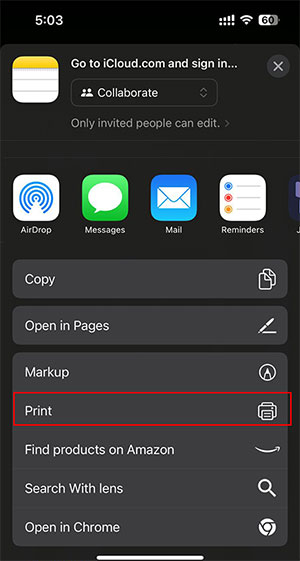
- In the top-right corner, tap the "Share" button, which looks like a square with an upward arrow.
- Scroll down through the options and choose "Print."
- If your printer is connected to the same Wi-Fi network, it will show up. Select your printer to continue.
- You can customize settings such as the number of copies to print.
- Once everything is set, tap the "Print" button at the top-right to begin printing.
Ensure that both your iPhone or iPad and your printer are connected to the same Wi-Fi network for smooth wireless printing. You may be interested in How to Restore Notes on iPhone from iCloud.
Part 2: Print Notes from iCloud on Mac
If you're using a Mac and want to print your iCloud notes, follow these simple steps:
- Launch the Notes app on your Mac and find the iCloud note you'd like to print.
- In the upper-left corner of the screen, click on "File" in the menu bar.
- From the drop-down menu, select "Print."
- In the print window that appears, adjust any settings such as the number of copies or page layout according to your needs.
- Once you've made your adjustments, click "Print" to begin printing your note.
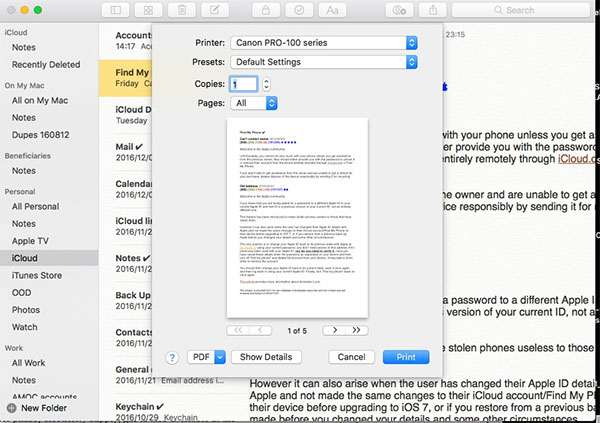
You can skip the menu and press Command + P to open the print window right away. iCloud Notes Not Syncing on iPhone/iPad/Mac?
Part 3: Print iCloud Notes from iCloud.com on PC or Mac
If you don't have access to an Apple device, you can still print your iCloud notes directly from any computer using iCloud.com. This method works well for Windows users or anyone who prefers using a web browser.
- Open a browser and visit iCloud.com. Sign in with your Apple ID credentials.
- Once logged in, click on the "Notes" app from the available options.
- Browse through your notes and open the one you wish to print.
- For extra formatting or adjustments, you can copy the note and paste it into a Word document.
- Use your browser's print function by pressing "Ctrl + P" (Windows) or "Command + P" (Mac) to bring up the print dialog and start the printing process.
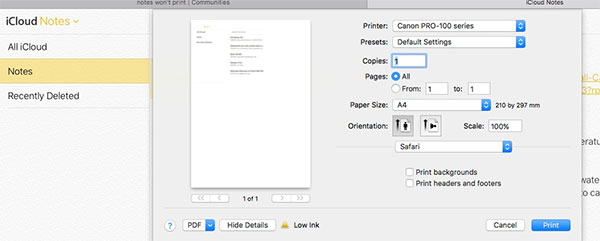
Ensure your computer is connected to a printer before starting the print job. [Tutorial] 6 Ways to Print Contacts from iPhone
Part 4: Print Notes from iCloud with Doctor for iOS
MobiKin Doctor for iOS is a powerful data recovery and extraction tool that allows you to retrieve lost or deleted files from iPhones, iPads, or iPods. In addition to restoring lost data, it can extract specific content from iCloud backups, including Notes. Once extracted, you can save your notes in formats like HTML or TXT, making it easy to print them from your computer. It's a reliable solution for users who need to back up or print their iCloud Notes.
Key Features of Doctor for iOS:
- Recovers deleted or lost data, including messages, contacts, photos, and more.
- Supports extraction of data from iCloud and iTunes backups without data loss.
- Allows previewing of data before recovery, ensuring you only recover what you need.
- Offers an easy-to-use interface, suitable for both beginners and experienced users.
- Enables export of recovered data to multiple formats, such as HTML and TXT.
- Works with a wide range of iOS devices and iOS versions for maximum compatibility.


Steps to Extract and Print Notes from iCloud using Doctor for iOS:
Step 1: Download and Install MobiKin Doctor for iOS
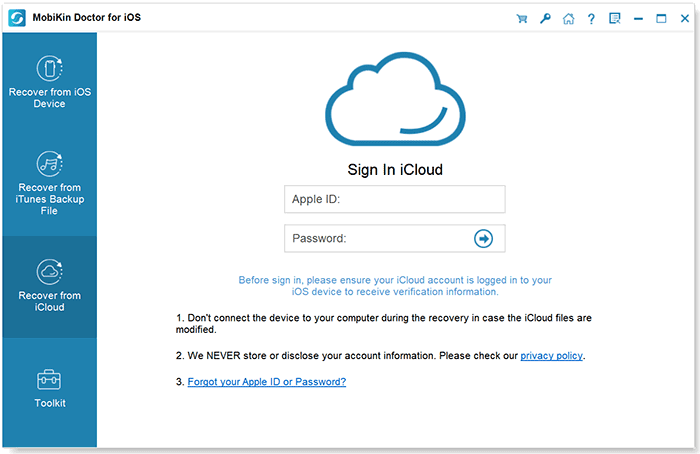
Start by downloading and installing the software on your computer. Launch the program and select "Recover from iCloud."
Step 2: Sign in to iCloud and Select the Backup
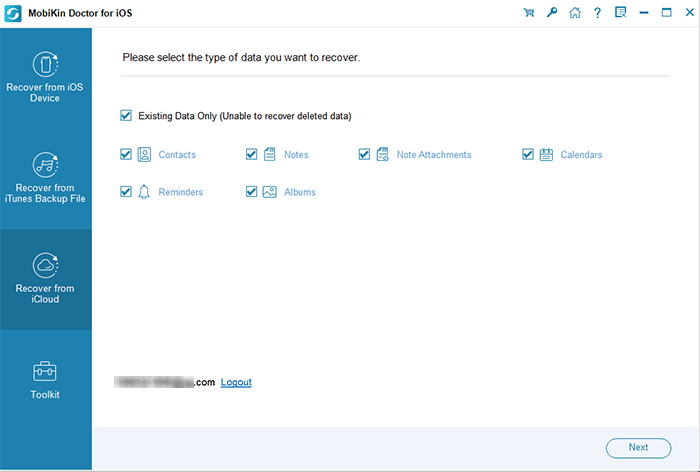
Sign in with your Apple ID, and on the next window, choose the "Notes" and "Note Attachments" folders, and click "Next" to proceed.
Step 3: Preview and Extract Notes
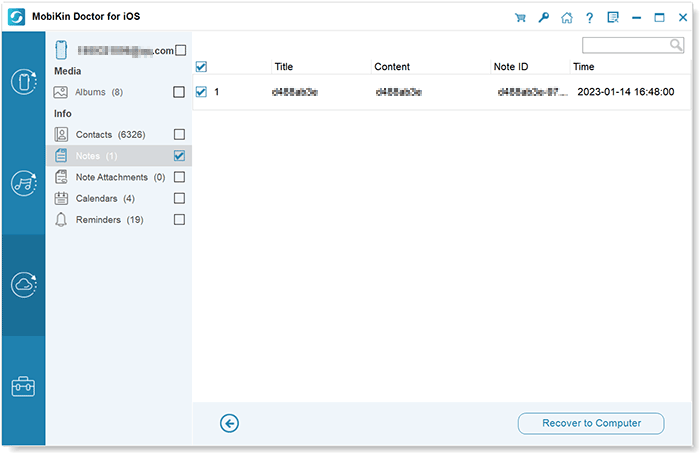
All scanned out notes in your iCloud backup will be available for recovery. Preview the notes, select those you want to print and then click "Recover to Computer" to extract them to your computer in HTML or TXT format.
Step 4: Print the Notes
Once the notes are saved to your computer, open them with a suitable application (like a browser) and use the print function to print your notes.
Video Guide:
Part 5: Other Methods to Print from iCloud Notes
Method 1: Export as PDF and Print
If you prefer a digital format, exporting your notes as a PDF allows for easy printing on any device.
- Open the note in iCloud or on your device.
- Select the option to export as PDF.
- Save the PDF to your device and use the print function to print it.
Method 2: Copy to Pages/Word and Print
For better formatting, copying your notes into a document editor like Pages or Word is a great way to organize them before printing.
- Copy the text from your iCloud note.
- Paste it into a Pages or Word document.
- Format the content as desired and print using the print option.
Method 3: Email the Note and Print
Emailing your note to yourself or others allows for convenient printing from any device with email access.
- Copy the note content and paste it into an email.
- Send the email to yourself or to the recipient.
- Open the email and use the print option to print the note.
Method 4: Screenshot and Print
Taking a screenshot is a quick solution for short or clearly formatted notes that don't require editing.
- Take a screenshot of your note on your device.
- Save the screenshot to your device.
- Use the print function to print the image directly from your device.
FAQs on Printing Notes from iCloud
Q1: Can I print multiple iCloud notes at once?
At the moment, there's no direct way to print multiple notes in bulk through the Notes app. However, you can easily copy the content of several notes and paste them into a single document (such as Word or Pages) to print them all at once.
Q2: Do I need an Apple device to print my iCloud notes?
No, Apple devices are not necessary for printing your iCloud notes. You can access and print your notes from any device that supports iCloud.com. Just log in through your browser, and follow the steps for printing.
Q3: Why can't I see my note on iCloud.com?
If your note isn't showing up on iCloud.com, check that iCloud syncing is enabled on your device. On iPhone or iPad, go to Settings > [Your Name] > iCloud > Notes. On your Mac, verify iCloud sync settings in the iCloud preferences.
Q4: How do I print notes that include images?
Both the Notes app and iCloud.com allow you to print notes with images. Make sure the images are fully loaded and visible in the note before printing, to ensure all content is captured.
The End
As can be seen from the above, many tools can help you get iPhone calendars printed out, but you might want to check out the most convenient one now. Honestly, MobiKin Assistant for iOS comes in great handy copying and printing calendars if your computer is connected to a printer. Plus, you can go even further with this program if you'd like to manage any other iOS files on your PC/Mac.
Related Articles:
4 Best Ways to Print Text Messages from iPhone Easily
[Best 6 Ways] How to Print Calendar from iPad Like a Pro
