
How to Print Calendar from iCloud: Step-by-Step Guide 2026
Printing a calendar makes planning your schedule, noting important events, or sharing your appointments with others much easier. Some people prefer paper calendars because they allow for quick access to plans without needing to open their phone or computer. Apple users of iCloud Calendar often want an easy way to print their iCloud calendars.
However, it's not always as simple as it seems. In this guide, we'll show you several easy ways to print your iCloud calendar step-by-step. If you want to understand how it works and which method is best for you, please read on.
Part 1: Can You Print iCloud Calendar Directly?
iCloud Calendar doesn't have a built-in "Print" button, so you can't print it directly from the app. To print your calendar, you'll need to use alternative methods, like accessing it through a web browser or syncing it with another app. In the next section, we'll show you some easy ways to print your iCloud Calendar. (How to Print Calendar from iPhone?)
Part 2: How to Print iCloud Calendar - 3 Ways
Way 1: Print iCloud Calendar from Web
One simple way to print your iCloud calendar is by taking a screenshot of it on iCloud.com and then printing it from your Mac or PC.
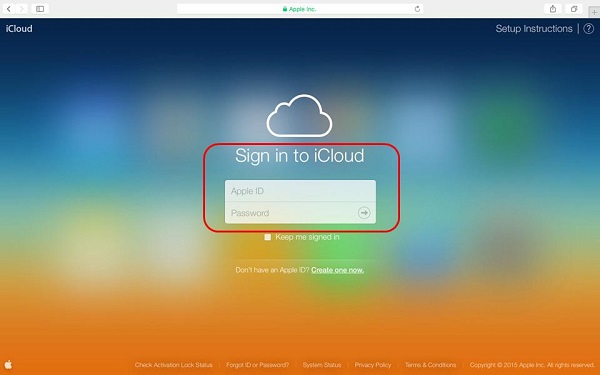
- Start by visiting iCloud.com and signing in with your Apple ID and password. (Can't Sign into Apple ID?)
- Once logged in, click on "Calendar" from the main interface.
- Next, take a screenshot of the calendar you want to print and save it to your computer.
- Then, print it using any connected printer.
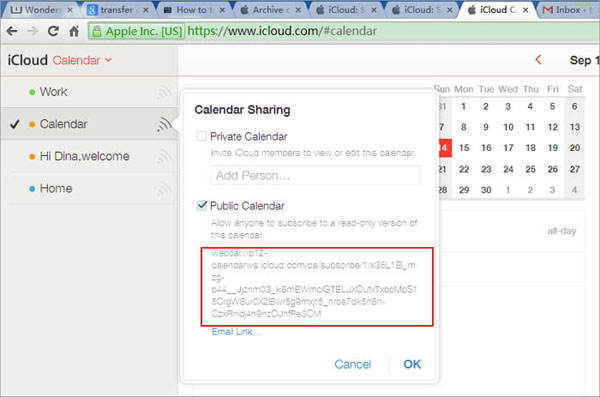
However, if the calendar is too long (like a full day's schedule), it might not fit on one page. In this case, adjusting the screen display to fit everything onto one page can be tricky. Fortunately, there's an alternative method using MobiKin to print your iCloud calendar from your computer.
Way 2: Print Calendar on iCloud with Doctor for iOS
If you want a more streamlined and reliable way to print your iCloud calendar, MobiKin Doctor for iOS can help. This tool allows you to export your calendar from iCloud backup to your computer, and then you can print it directly using your local printer.
Doctor for iOS is a powerful tool designed to recover and transfer data from your iPhone and iPad. It also works seamlessly with iCloud and iTunes backups, making it easy to extract and print data like your calendar events.
Core Features of Doctor for iOS:
- Easily access and view your iCloud backup data.
- Preview and export your calendar events from iCloud to your computer.
- Recover more than 10 types of files from iOS devices, including contacts, text messages, SMS attachments, call logs, photos, etc..
- Provide users with 3 different recovery modes: recover from idevices, recover from iTunes backup or recover from iCloud backups.
- Restore iCloud backup without resetting your device.
- Compatible with almost all iDevices like iPhone 17/16/15/14/13/12/11/X/8/7/6, iPad 11/10/9/8/Air/Pro/mini, etc.


Steps to print iCloud calendar with MobiKin Doctor for iOS:
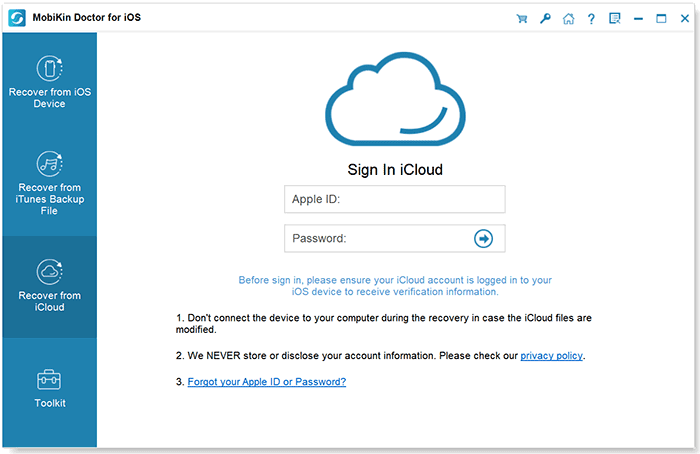
Step 1: Start by downloading and installing MobiKin Doctor for iOS on your computer. Launch the software and choose the "Recover from iCloud" option. Then, sign in to your iCloud account using your Apple ID and password.
Step 2: Once logged in, you will see a list of data types available for download from your iCloud backup. Select "Calendar", and click "Next". Wait for the software to process your selection.
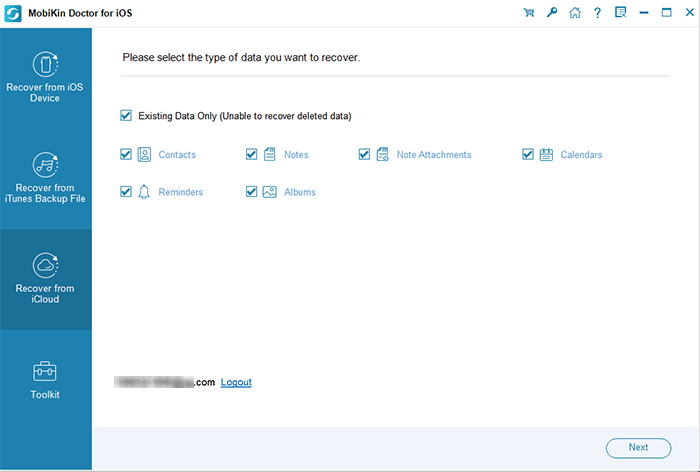
Step 3: After the download is complete, you can preview the calendars one by one. Select the files you need, and click "Recover to Computer" to export them to your computer.
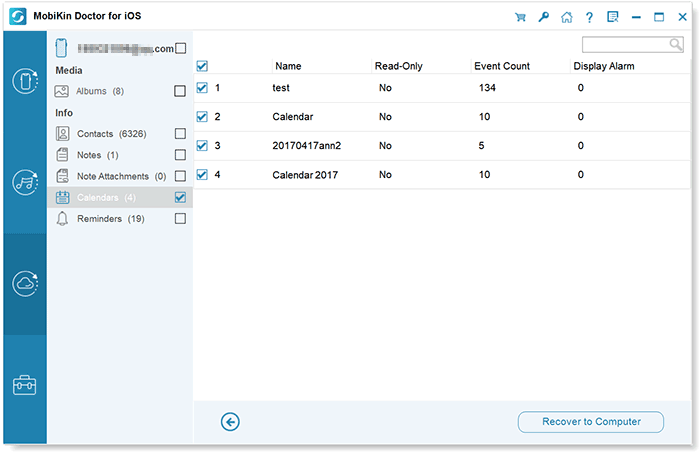
Step 4: Save the calendar data to your computer in a readable format (e.g. HTML). Open the saved file on your computer and use a local printer to print your calendar.
Video Guide:
Way 3: Print iCloud Calendar with Mac Calendar App
For Mac users who prefer more control over their printout, using the Calendar app is a great option. Here's how you can print your iCloud calendar:
- Open the Calendar app on your Mac. Choose the timeframe you want to print (such as day, week, month, or year view).
- Click on the "File" menu and select "Print". A print window will pop up with different options. Here, you can choose which calendars to include, adjust the date range, and customize the layout to suit your preferences.
- Once you're satisfied with the settings, click on the "Print" button. Your calendar will be sent to the printer you've selected.
Read Also:
FAQs on Printing iCloud Calendar
Q1. How can I print my iCloud calendar on a Windows PC?
You can print your iCloud calendar by accessing it on a web browser, taking a screenshot, or using third-party tools like MobiKin Doctor for iOS to export the calendar data.
Q2. Is there any way to customize the calendar before printing?
Yes, using the Calendar app on a Mac, you can adjust the date range, select specific calendars, and modify the layout for a more personalized printout.
Q3. Can I print my iCloud calendar from my iPhone?
While you can't print directly from the iPhone, you can use third-party apps to export the calendar data and print it via a connected printer. (How to Fix iPhone Calendar Disappeared?)
Q4. Can I print multiple calendar views at once?
Yes, if you're using the Mac Calendar app, you can select different calendar views like daily, weekly, or monthly before printing.
Q5. Can I print my calendar events from a specific date range?
Yes, both on the web version and the Mac Calendar app, you can select the specific date range to print, whether it's for a day, week, or month.
The End
Printing your iCloud calendar may not be as straightforward as clicking a "Print" button, but with the right methods, it's definitely possible. Whether you're using a simple screenshot, exporting with third-party tools like MobiKin Doctor for iOS, or utilizing the Calendar app on your Mac, you have several options for getting a printed version of your schedule. Each method offers different levels of customization, so you can choose the one that best fits your needs.
Related Articles:
5 Ways to Print WhatsApp Messages from iPhone/Android Phones
Top 4 Methods to Sync iPhone and iPad Calendars
