
How to Fix Music Won't Play on iPhone/iPad: 6 Solutions
Apple Music is a popular streaming service offering over 90 million songs, including playlists, albums, and podcasts. However, sometimes music won't play on iPhone, whether you're in your car or wearing AirPods. If you've ever experienced this problem, you might be wondering, "Why won't my music play on my iPhone?"
This is certainly frustrating, but there are many reasons why this might happen. In this guide, we'll explore the common causes of this issue and provide detailed solutions to help you successfully restore music playback.
Part 1: Why Does My iPhone Keeps Disconnecting from WiFi?
Experiencing music not playing on your iPhone can be frustrating, especially when you're at the gym or heading out for a long drive. There are several possible reasons for this issue:
- An iOS update could have caused the music to stop working or iPhone has no sound.
- Offline mode might prevent Apple Music from playing.
- Corrupted music files won't play on your iPhone.
- You could also encounter error messages such as "media not supported," "unexpected error code 4010," or notifications stating "items are unavailable."
Part 2: How to Fix iPhone Won't Play Music?
Method 1: Check Apple Music Settings on iPhone
Solution 1: Verify Apple Music Subscription
- Open the "Settings" app.
- Tap on [Your Name].
- Select "Subscriptions" and check if your Apple Music subscription is active or expired.
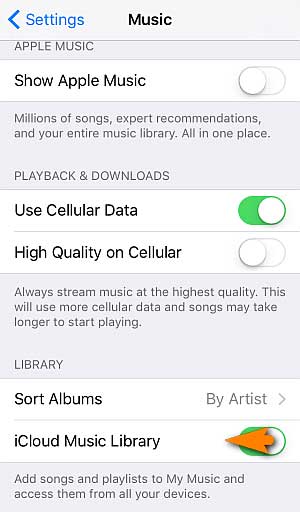
Solution 2: Enable iCloud Music Library/Sync Library
This setting ensures that your music library is accessible across all your Apple devices, syncing your purchased songs, recent additions, and changes. To fix music playback issues on your iPhone:
- Go to Settings.
- Tap "Music."
- Toggle on "Sync Library" or "iCloud Music Library."
You May Want to Know:
Method 2: Check the Factors in iTunes
Solution 1: Make sure your iTunes is updated to the latest version if it's not already.
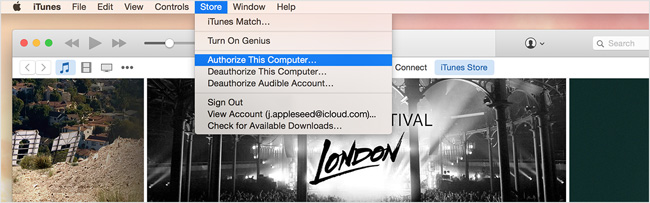
Solution 2: Reauthorize your computer.
Sometimes, iTunes may "forget" that your music is authorized. In such cases, you can refresh the authorization and authorize it again. To authorize or deauthorize your computer on iTunes, follow these steps:
- Click "Account".
- Select "Authorizations".
- Choose either "Authorize This Computer" or "Deauthorize This Computer".
Solution 3: Re-sync your iPhone, iPad, or iPod with iTunes.
If you have copies of the music, try syncing your device with iTunes again. If you previously synced your device over Wi-Fi, try using a USB cable this time, as network issues may cause Apple Music to not play. (iTunes Is Not Recognizing Your iPhone?)
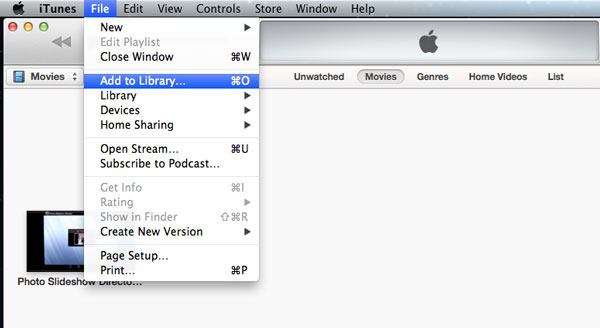
Solution 4: Re-add music to your iTunes library and sync again.
If you've deleted or lost some song files before syncing, it may cause the songs to appear grayed out and unplayable on your device. To fix this, re-add the music files to your iTunes library and sync with your iPhone or iPad again. To add files to the iTunes library, click "File" > "Add to Library" > select the folder with the music files you want to add > click "Open."
Solution 5: Clean your iTunes library and the songs on your device, then sync again.
If Apple Music still won't play after trying the solutions above, you can perform a clean sync by following these steps:
- Back up all your songs by exporting them from your iTunes Library to an external drive.
- Remove all data from the iTunes library and sync it with your device. This will delete all songs, ringtones, iBooks, Podcasts, etc. on your iPhone, iPad, or iPod.
- Re-export the music files you backed up to your iTunes library.
- Restart your device and sync it with iTunes. Your new songs will be added to your device.
Solution 6: Make a full backup and restore your iPhone or iPad to factory settings.
Method 3: Update iOS Software
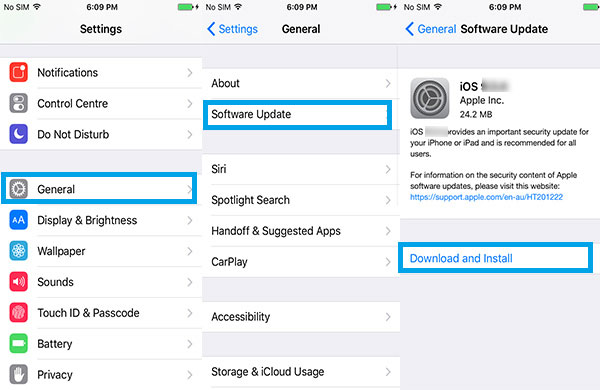
Updating your iPhone/iPad and the Apple Music app is important to ensure smooth performance. If you've missed an update, it's essential to do it as soon as possible. Here's how to check the version of your software and Apple Music app:
- Open "Settings" on your device.
- Scroll down and tap "General" to check the iOS version.
- To check the version of the Apple Music app, open the app and go to the "Settings" within the app itself.
- Make sure both the iOS software and Apple Music app are updated to the latest versions.
Learn More:
Method 4: Convert the Music Format
To convert the music format on your iPhone, it's important to first ensure that the music track is supported by your device. Some supported formats include WAV, AIFF, AAX, AAX+, AA, Protected AAC, VBR, MP3, AAC, ALAC, and HE-AAC.
If the music is already in your iTunes library, follow these steps:
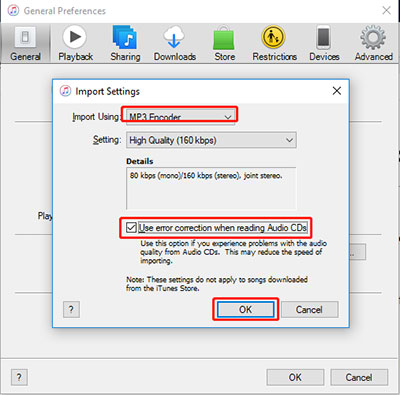
- Open iTunes and click on "Edit" in the menu, then choose "Preferences."
- Select "General" and click on "Import Settings."
- From the drop-down menu under "Import Using," select your preferred format and click "OK."
- Choose the song you want to convert, go to "File," click "Convert," and select the new format for the song.
Method 5: Reset Your iPhone
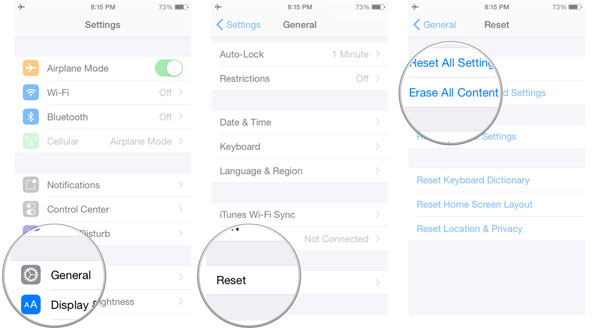
If none of the previous solutions work, you may need to reset your device. This step will return your phone to its factory settings and resolve the issue with music not playing. Before proceeding, it is essential to back up your data. You can back up your device using iTunes or third-party software like MobiKin Assistant for iOS.
- Back up your data using iTunes or MobiKin Assistant for iOS.
- Reset your device to factory settings: Go to the "Settings" app > tap on "General" > tap on "Transfer or Reset iPhone" (or iPad) > Tap on "Erase All Content and Settings."
- After resetting, restore your data from the backup.
Part 3: One-Stop Solution to Fix Music Not Playing on iPhone
If the methods above don't work and your iPhone still can't play music, it's time to try a professional solution. iOS System Recovery is a powerful tool designed to fix iOS system issues. It's highly effective in resolving Apple Music problems without causing any data loss. All your music files and other data will stay safe and unaffected.
Key Features of iOS System Recovery:
- Solve the issue of your iPhone/iPad not playing music without losing any data.
- Fix over 150 system problems, including issues like the stuck Apple logo, boot loops, black or white screens, and more.
- Enter and exit recovery mode with just one click.
- Upgrade or downgrade iOS without any data loss.
- Simple to use, fast, and secure.
- Fully compatible with both Windows and macOS, supporting the latest iOS 26 and iPhone 17.


How to Use iOS System Recovery to Fix iPhone Won't Play Music:
Step 1: Launch the Software
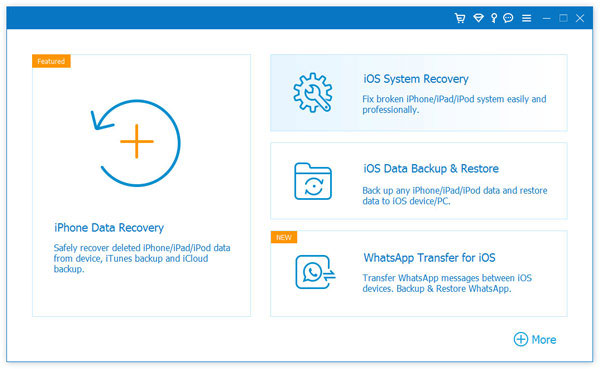
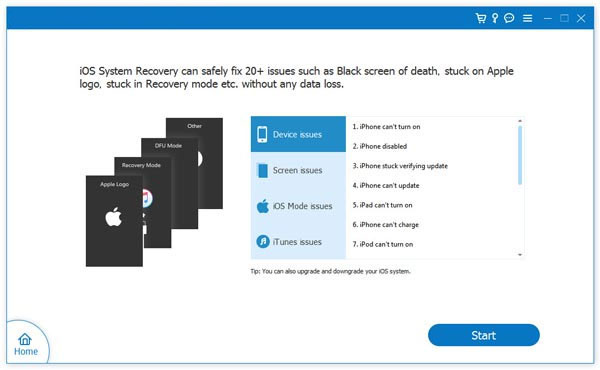
Download and install iOS System Recovery. Open the program and select "iOS System Recovery" to begin.
Step 2: Connect Your Device
Use a USB cable to connect your iPhone to your computer. Click "Start" to proceed.
Step 3: Step 3: Choose a Repair Mode
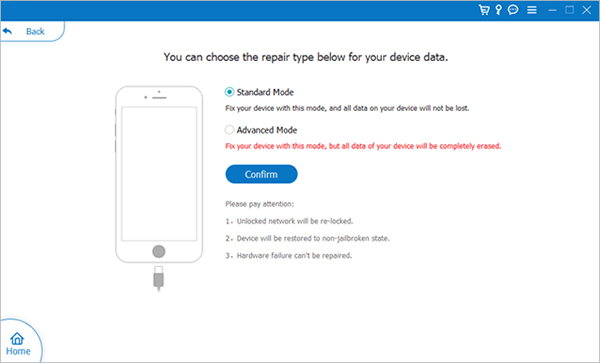
Choose "Standard Repair" to preserve your data. This is the recommended option for most issues. If it doesn't resolve the problem, you can try "Advanced Mode," but keep in mind this will erase all data on your device.
Step 4: Download Firmware and Start the Repair
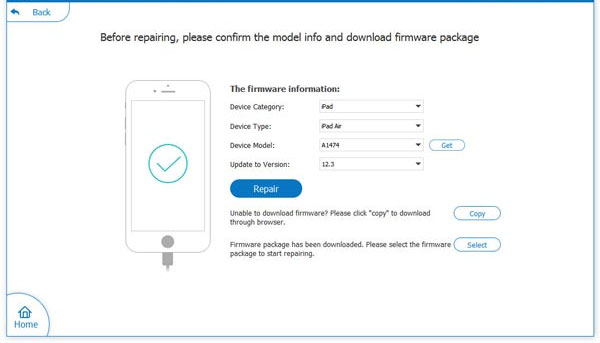
Confirm your device details and download the required firmware. Once it's downloaded, click "Repair" to begin the process. Wait for a few minutes while the system fixes the issue. After it's complete, your iPhone should be able to play music again.
The Bottom Line
This article explores the most effective solutions for "Music Won't Play on iPhone/iPad". We hope these solutions can help you resolve the issue. If the problem is related to the iOS system, restoring the system using iOS System Recovery software may be the ultimate solution. If you have other solutions not mentioned in this article, please feel free to share them in the comments section.
Related Articles:
Top 4 Ways to Transfer Playlist from iPhone to iPhone
[Guide 2026] How to Recover Deleted Music from iPhone
2 Ways to Transfer Music from External Hard Drive to iPhone
3 Ways to Transfer Music from iPhone to iPhone without Computer
