
WhatsApp Not Receiving Messages on iPhone/Android: 8 Solutions
WhatsApp has become a primary channel for handling client conversations and work-related discussions. For many freelancers and professionals, smooth communication is the cornerstone of their business. Therefore, when WhatsApp stops receiving messages on iPhones or Android phones suddenly, it can cause significant disruption and unnecessary stress.
However, this problem doesn't occur without reason; there are several potential underlying causes. In this article, we'll explore the reasons why WhatsApp not receiving messages and provide some practical solutions to help you restore normal functionality.
Part 1: Why Am I Not Receiving WhatsApp Messages?
WhatsApp relies on a stable internet connection, proper app performance, and correct device settings to receive messages. If any of these elements are not working as expected, incoming messages may be delayed or fail to appear altogether.
Some common reasons include:
- Unstable or Poor Internet Connection: WhatsApp requires constant access to the internet. Weak Wi-Fi signals, network interruptions, or slow mobile data can prevent messages from syncing properly.
- Mobile Data Disabled or Restricted: If mobile data is turned off or background data access is limited, WhatsApp may not be able to connect to its servers, especially when running in the background.
- Issues Within the WhatsApp App: Outdated app versions, temporary bugs, or corrupted cache files can interfere with message delivery and cause WhatsApp to stop receiving messages.
- Incorrect Device or System Settings: Battery optimization, background app restrictions, notification settings, or VPN/firewall configurations on Android or iPhone can block WhatsApp from receiving messages in real time.
These issues can affect both incoming and outgoing messages. Addressing them is essential to restore WhatsApp's normal messaging functionality.
Learn More:
Part 2: Solutions to Fix WhatsApp Not Receiving Messages
Next, we'll walk through the solutions. If you already know what's causing the problem, you can fix that specific issue. Otherwise, just follow the fixes one by one until WhatsApp begins receiving messages again.
1. Restart Your Phone
Restarting your phone is often the simplest and most effective way to fix temporary app glitches. If WhatsApp only receives messages when you open the app, a quick reboot can help refresh system processes and restore normal background activity. This solution applies to both Android devices and iPhones.
2. Check WhatsApp Server Status
Before changing any settings on your phone, it's important to determine whether the issue is coming from WhatsApp itself. If WhatsApp servers are experiencing an outage, message delivery problems can affect millions of users at the same time—not just you.
Popular apps like WhatsApp occasionally face temporary server disruptions. To check whether this is the cause, follow these steps on either iPhone or Android:
- Open a web browser such as Chrome or Safari and visit Downdetector.
- Type "WhatsApp" into the search bar.
- Review the current server status and outage reports.
- Check user reports and updates from the past 24 hours.
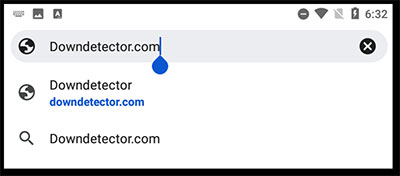
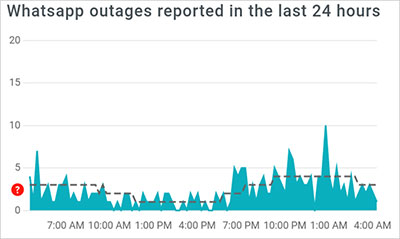
If Downdetector shows a recent or ongoing outage, the issue is likely on WhatsApp's side, and the best option is to wait until the service is restored. If the servers are working normally, move on to the next solutions to fix WhatsApp not receiving messages.
3. Check Your Blocked Contacts
If WhatsApp is not receiving messages from only one specific person, the issue may be caused by your privacy settings rather than a system or network problem. It's possible that the contact has been accidentally blocked on WhatsApp. Both Android and iPhone users can check this in the app settings.
- Open WhatsApp and tap "Settings" (from the top-right menu or bottom tab, depending on your device).
- Select "Account".
- Tap "Privacy".
- Scroll down and open "Blocked Contacts".
- Review the list and unblock any contact you want to receive messages from.
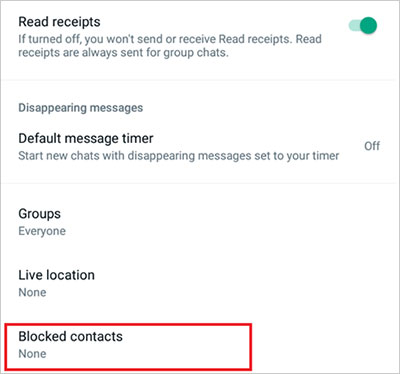
After removing the contact from the blocked list, ask them to send you a message again. If blocking was the cause, messages should now come through normally. (WhatsApp Contacts Not Showing?)
4. Reconnect the Network
If your internet connection is unstable, WhatsApp may only receive messages when the app is opened. To fix this, switch between Wi-Fi and mobile data, then make sure WhatsApp is allowed to use both network types in your device settings.
5. Update WhatsApp
Using an outdated version of WhatsApp can lead to compatibility issues, bugs, or missing features that prevent messages from working properly. Updating the app often fixes these problems by installing the latest improvements and security patches.
Follow the steps below to update WhatsApp on your device:
On iOS:
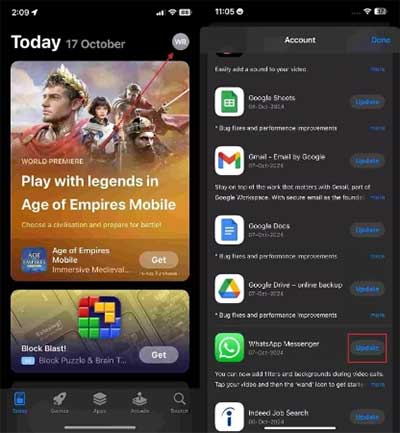
- Open the App Store on your iPhone and tap your profile icon at the top right.
- Scroll down to find WhatsApp and tap "Update" if an update is available.
On Android:
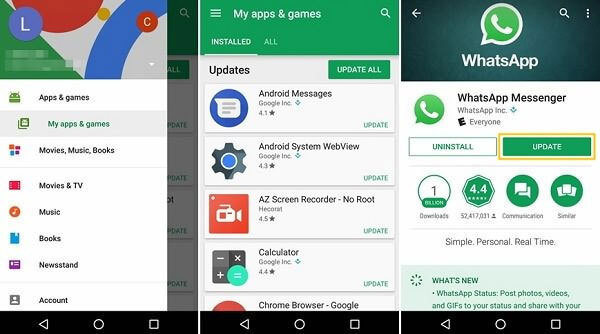
- Open the Google Play Store and tap your profile icon in the top corner.
- Select Manage apps & device, then tap Updates available.
- If WhatsApp appears in the list, tap Update next to it to update WhatsApp on Android.
Keeping WhatsApp up to date helps ensure smooth message delivery and reduces the chance of app-related errors.
6. Reinstall WhatsApp
In some cases, the issue isn't your network or phone settings, but the WhatsApp app itself. App glitches, corrupted data, or incomplete updates can stop messages from being received. Reinstalling WhatsApp often helps fix the "WhatsApp not receiving messages" problem.
Follow the steps below to reinstall WhatsApp on your device:
On iOS:
- Press and hold the WhatsApp icon until a menu appears. Tap Remove App, then select Delete App to confirm and completely uninstall WhatsApp from your iPhone.
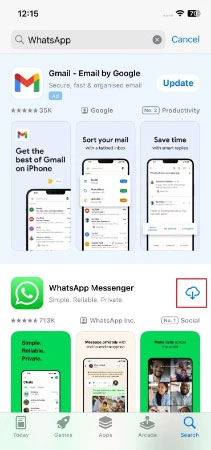
- Open the App Store, search for WhatsApp, and tap the Download icon to reinstall the app.
On Android:
- Locate the WhatsApp icon on your phone, press and hold it, then tap Uninstall from the pop-up menu.
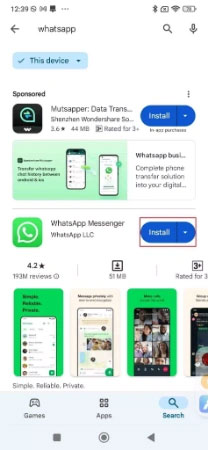
- Open the Google Play Store, search for WhatsApp, and tap Install to download and install the app again.
7. Enable WhatsApp Notifications
If WhatsApp notifications are turned off on your iPhone or Android device, you may not receive message alerts unless you open the app manually. This can make it seem like WhatsApp isn't receiving messages, even though they arrive in the background. Re-enabling notifications can quickly fix this issue.
To turn on WhatsApp notifications on iPhone:
- Open Settings on your iPhone.
- Tap Notifications and scroll through the app list.
- Find WhatsApp and make sure notifications are enabled.
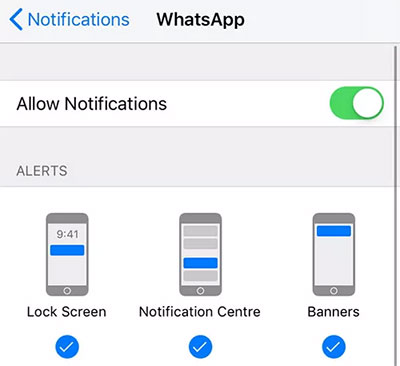
Once notifications are turned on, check whether new WhatsApp messages appear normally without opening the app.
8. Clear WhatsApp Storage
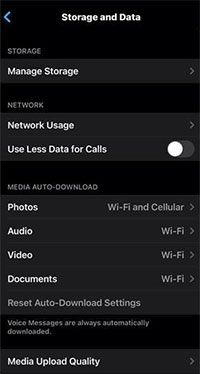
Insufficient storage space can interfere with WhatsApp's ability to receive new messages smoothly. When cached data builds up, the app may stop syncing messages properly. Clearing the cache to reduce WhatsApp Storage can often resolve the "WhatsApp not receiving messages" problem.
On Android:
- Open your phone's Settings and go to Apps (or App Management).
- Select WhatsApp, then tap Storage.
- On the next screen, choose Clear cache to remove temporary files and restore normal message delivery.
Part 3: How to Recover Lost WhatsApp Messages without Data Loss
Trying multiple fixes may solve WhatsApp issues, but it can also put your messages and important data at risk. If any chats are lost during the process, they can still be recovered for free.
MobiKin WhatsApp Recovery for iOS is a professional tool that helps iPhone users retrieve deleted WhatsApp messages, attachments, and chat history. It scans your device or backup files, allows you to preview recoverable data, and restores only selected items—without overwriting existing content.
Main Features of MobiKin WhatsApp Recovery for iOS
- Recover WhatsApp messages and attachments directly from the iPhone without requiring a backup file.
- Scan and preview deleted WhatsApp chats before recovery to choose exactly what you want.
- Restore WhatsApp data selectively from iTunes backup without full device restoration.
- Export recovered WhatsApp chats and media to computer in readable formats like HTML.
- Keep personal WhatsApp data private with secure, non-intrusive recovery methods.
- Complete recovery of WhatsApp photos, videos, webpages, and compressed files as well.


Steps to recover WhatsApp messages from iPhone by using WhatsApp Recovery for iOS:
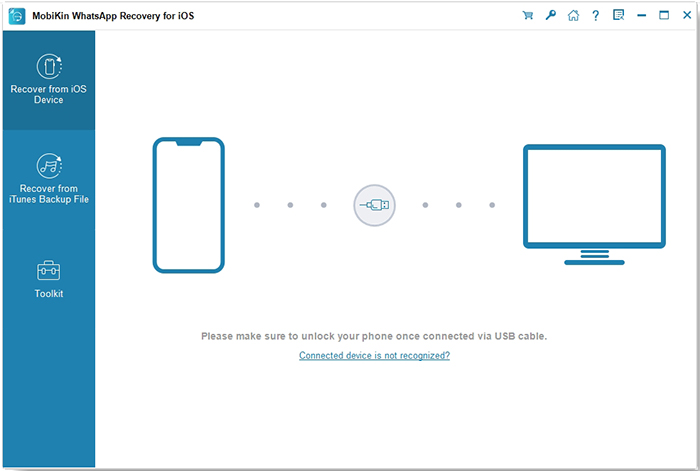
Step 1: Connect your phone and Launch the program
Install and open MobiKin WhatsApp Recovery for iOS on your computer, then connect your iPhone using a USB cable; allow the tool to detect the device or backup.
Step 2: Scan for Recoverable Data
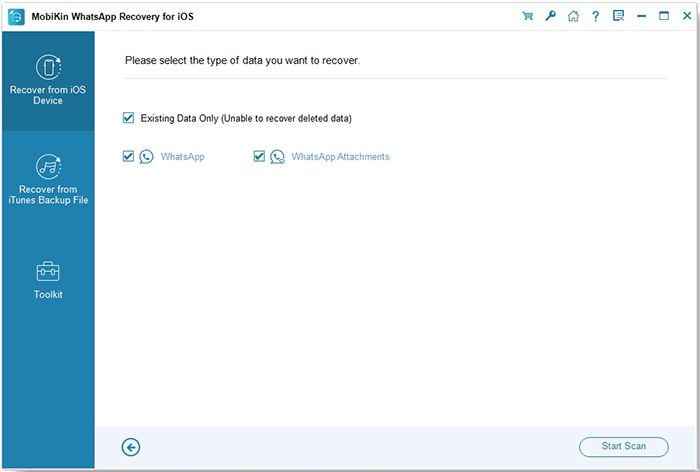
Choose the recovery mode (direct from device or from an existing iTunes backup) and start scanning - the software will list all recoverable WhatsApp chats and attachments. Click "Start Scan" to continue.
Step 3: Preview and Recover WhatsApp data
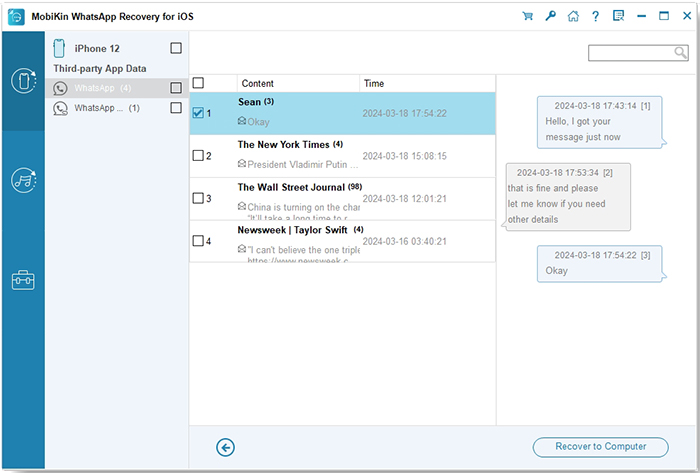
Preview the deleted WhatsApp messages, select what you want to restore, and click "Recover to Computer" to save them back to your computer without data loss or data overwritten.
Video Guide:
Ending Part
This article highlights how WhatsApp plays an essential role in helping people stay connected. However, the issue of WhatsApp not receiving messages is a common and frustrating problem for many users. To address it, we explored the main reasons behind this issue and explained why it happens.
We also shared eight effective solutions that can help fix different causes of the problem. Since each method targets a specific issue, it's recommended to try them one by one for the best results.
To avoid the risk of losing important chats or media, MobiKin WhatsApp Recovery for iOS is a reliable choice. It allows you to back up your WhatsApp data in advance and recover any lost messages during the troubleshooting process.
Related Articles:
5 Ways to recover deleted WhatsApp contacts on Android
Tenorshare UltData WhatsApp Recovery Review [Comprehensive]
