
[Updated] How to Make Screen Mirroring Full Screen (For Smart TV & PC)
TL;DR:
In essence, making screen mirroring full screen transforms your viewing experience by providing a simple yet powerful way to enjoy content on a larger, more immersive display. With the easy-to-follow steps for various devices and software, you can quickly elevate your entertainment, gaming, or productivity to a whole new level. Try Screen Mirror if you wish to do the job on a PC running Windows or macOS.
Do you want to step into the world of full-screen mirroring and elevate your viewing experience? I will guide you through transforming your small device screen into a larger, more immersive display. Whether for presentations, gaming, or simply maximizing your Netflix binge-watching sessions, understanding how to make screen mirroring full screen is a game-changer.
Get ready to uncover the full potential of your devices and dive into a world of high-definition, full-screen enjoyment. Trust me. There's no turning back once you go full screen.
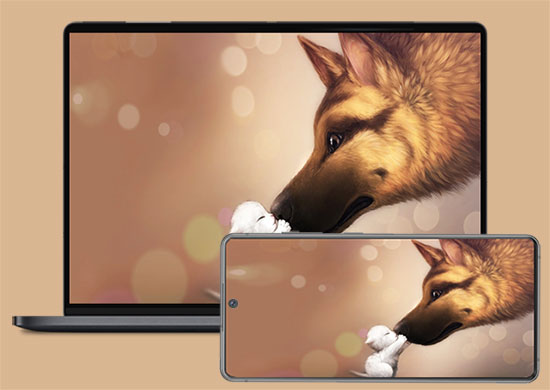
Watch the video below for a visual guide to this topic:
Part 1. How to Make Screen Mirroring Full Screen on PC?
Screen Mirror is an excellent option for a simple solution to manage your iPhone/Android from your PC. This software lets you mirror the iPhone or Android screen onto your computer. Consequently, it provides the ability to remotely navigate your iPhone using your computer's mouse and keyboard. This software is available for Windows and Mac. It is incredibly easy to use.
Key highlights of Screen Mirror:
- Full-Screen Mirroring - Mirror your phone in up to 1080p/60 FPS.
- iOS & Android Support - Mirror iPhone, iPad, and Android devices.
- USB & Wi-Fi - Connect via USB or wireless network.
- PC Phone Control - Control your phone with a mouse and keyboard.
- Audio Mirroring - Stream phone audio to your computer.
- Mobile Gaming - Play phone games on a larger screen.
- Screen Recording - Record your mirrored screen.
- Live Streaming - Stream to YouTube, TikTok, Twitch, and Kick.
- Annotation Tools - Add notes while mirroring.
- Phone as Camera - Use your phone as a virtual camera.
- Work with multiple Android and iOS versions which include: iPhone 17/16/15/14/13/12/11/X/8/7, iPad, iPod touch, Huawei, Samsung, Xiaomi, OPPO, vivo, Motorola, Sony, etc.


Screen Mirror is compatible with both Android and iOS devices. Next, let's take iOS as an example to explain how to use it to make screen mirroring full screen on iPhone via PC?:
Step 1. Download Screen Mirror on your computer. Launch it. Connect your iPhone and your PC to the same network. Then choose "iOS" from the app's dashboard.
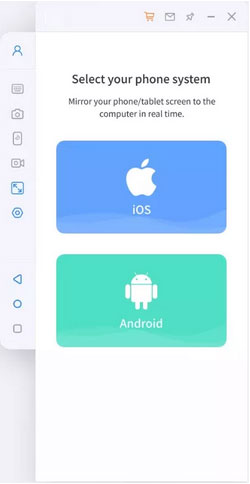
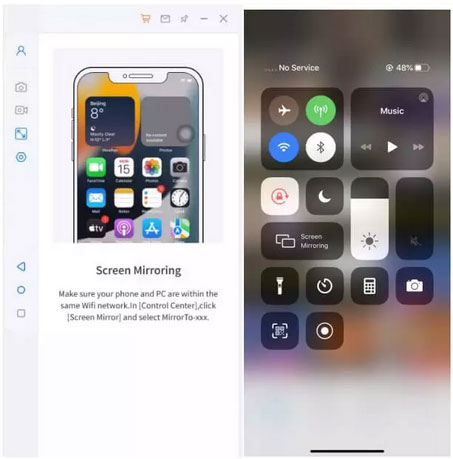
Step 2. Head to the control center on your iPhone and press "Screen Mirroring."
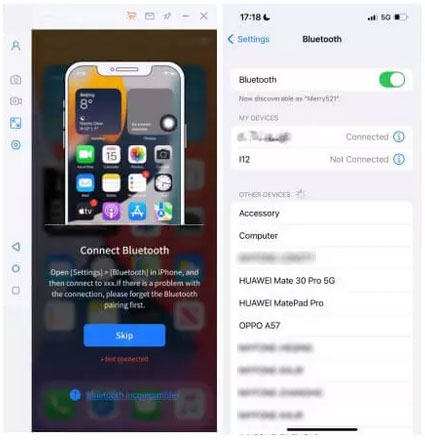
Step 3. Now, let's pair your iPhone using Bluetooth. Head to "Settings" -> "Bluetooth" on your iPhone and select the computer from the list of Bluetooth devices.
Step 4. You can see your iPhone mirrored on your computer screen after establishing the connection. You can use a mouse and keyboard to control the phone.
See More:
- Top 8 MP4 Screen Recorders: Which One Do You Like Best? [Pros, Cons, Reviews]
- How to Fix iPhone Frozen/Stuck on Lock Screen? [8 Methods Offered]
Part 2. How to Make Screen Mirroring Full Screen on TV?
1. How to Make Screen Mirroring Full Screen on LG TV
Do you have an LG TV and want to make screen mirroring full screen? The steps are absolutely simple. LG has a built-in screen mirroring feature that lets you easily cast your mobile device's screen directly onto your TV (Can I access my phone with a broken screen?). Here's how you can do it:
- Use your remote control to open the main menu.
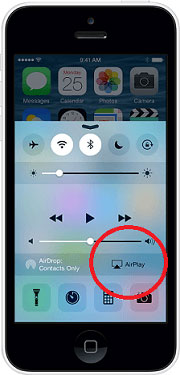
- On your TV home dashboard, enable AirPlay.
- Use the Control Center to connect your device.
- On your device, select the name of your TV from the list.
- Select "Mirroring" to confirm and start mirroring.
- Your device's screen should now be mirrored on your TV.
2. How to Get Full Screen Mirroring on Samsung TV
Below are the steps on how to make screen mirroring full screen on a Samsung TV:
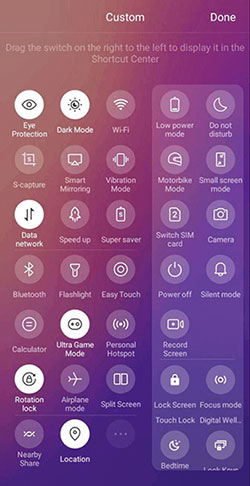
- Take your phone or tablet. Find the option for Screen Mirroring. Remember, screen mirroring comes with different names for different devices. Some names include Screen Mirroring, Smart Mirroring, Smart View, and Quick Connect. Pull down the notification shade to open the mirroring and look for Smart view or screen mirroring. Also, you can pull up the quick connect option in settings.
- The screen mirroring option will appear here. Click "More" if the shortcut is not visible there. Tap on it from the notification menu.
- Your device will search for available devices. Your Samsung TV should appear in the list if your TV is on the same Wi-Fi network as your device. Tap on it to connect.
- Now enjoy the mirroring. If prompted to enter the phone's code, enter the pin and start to play your videos.
Note: Your mobile device's display will adapt to its aspect ratio, yet visuals like photos and videos will utilize the entire screen for viewing.
3. How to Make Screen Mirroring Full Screen on Apple TV
Below are the methods on how to make AirPlay full screen:
Apple TV 4K and Apple TV HD Zoom Option:
- To access the AirPlay feature on Apple TV, navigate to Settings and select "AirPlay".
- From there, choose "AirPlay Display Underscan".
- Enabling this option will ensure that your screen mirror is displayed in full screen, providing a seamless viewing experience.
Apple TV 2nd and 3rd Generation Zoom option:
- Navigate to the settings menu on your TV and find the Audio and Video option.
- Within this section, you'll discover additional settings accessible through the Adjustment for AirPlay Overscan button.
See More:
Part 3. How to Mirror PC Screen to TV Full Screen?
Can you mirror your PC screen to a TV and make it full-screen? Absolutely! It's easy to do it. How to do it:
- First, connect the TV and your PC to the same Wi-Fi network. If you using an ethernet cable on your PC, just check which network your TV is connected to. You can additionally use Bluetooth to make the connection. Just enable it on both devices to make them pairable.
- Head to the option of screen mirroring feature on your TV once connected.
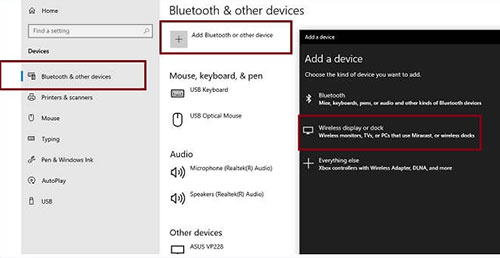
- On your PC, head to Control Panel -> Windows Settings -> Devices.
- Select "Add Bluetooth or other device," then choose "Wireless dock or display".
- Select your TV from the list of devices.
- You can now mirror your PC screen to the TV.
Part 4. FAQs about Making Screen Mirroring in Full Screen
Q1: How to create a full-screen mirror on the monitor?
Searching for a tool to project your mobile screen onto any PC monitor? LetsView is your prime choice. Whether you're using iPhone or Android or your computer is a Mac or Windows, LetsView allows for effortless mirroring between your mobile and computer screens and vice versa. To get started:
- Download and install LetsView onto both your PC and mobile phone. Use the same Wi-Fi network to connect the devices.
- Click the Redetect button on your phone. Your PC will appear there. Tap it and on the 'Phone Mirroring Screen.'
- Head to the screen mirroring option on your TV monitor and select your PC. Now, you should see a full-screen mirror of your desktop on the monitor.
Q2: What is the easiest and most fluent way to make the mirroring full screen?
You can make screen mirroring full-screen by pressing the "Full-screen" icon within the interface of your device. A tool like Screen Mirror is the most recommended one, as it supports most devices and provides a great full-screen viewing experience.
Q3: Does mirroring fill my TV screen automatically?
No, screen mirroring does not automatically fill the TV screen. In terms of smartphones or iPads, their screen proportions are typically 3:2 or 4:3. These dimensions don't perfectly match larger screens such as TVs. Nonetheless, you can modify the aspect ratio of the screen mirror by utilizing the Adjust for AirPlay Overscan feature.
Q4: How can I remove black bars when mirroring?
Open the TV, monitor, or mirroring software's display settings and look for Aspect Ratio, Picture Size, Screen Fit, or Zoom. Choose an option that matches your phone's screen ratio without excessively stretching the image.
Q5: Can I mirror my phone horizontally in full screen?
Yes, provided the phone, app, and receiving device support landscape orientation. Rotate your phone horizontally before or during mirroring, then use the full-screen option if necessary.
Q6: Does screen mirroring automatically fill the TV screen?
Not necessarily. Many TVs preserve the phone's original aspect ratio, which can leave empty space around the mirrored content rather than stretching it to fill the entire screen.
Q7: Why does my mirrored screen look stretched?
This usually happens when the TV or monitor stretches the phone's image to match its own aspect ratio. Try switching to Original, Fit to Screen, or another suitable display mode.
Q8: Does full-screen mirroring affect performance?
It can, particularly when you mirror high-resolution content or use a wireless connection with limited bandwidth. Closing unnecessary apps and using a strong Wi-Fi connection may help reduce lag.
Q9: Why does full-screen mirroring have poor quality?
Expanding a low-resolution mirrored image across a large display can make it appear blurry or pixelated. A stable connection, suitable resolution, and compatible mirroring software can help maintain better image quality.
Q10: Can I adjust the mirrored screen's aspect ratio?
On some TVs, monitors, and mirroring programs, you can select options such as 16:9, Original, Fit to Screen, or Zoom. Choose the setting that fills the display while keeping the image proportions natural.
Q11: How do I make screen mirroring fit the entire monitor?
Open the monitor or mirroring software's display settings and select a full-screen or screen-fit option. If necessary, adjust the resolution or aspect ratio to match the monitor.
Q12: What if screen mirroring still won't go full screen?
Reconnect both devices, update the phone and mirroring software, and check the display settings on the receiver. If the current method does not support full-screen viewing, trying another compatible mirroring tool may solve the problem.
Final Words
In summary, mastering full-screen mirroring has truly revolutionized my digital experience. It's fascinating how a few simple steps transform a small mobile display into a grand visual spectacle on a larger screen. The enhanced immersion and convenience it provides are truly game-changing. Discovering this feature has been exciting and insightful, opening up a new world of possibilities. Try it out for yourself; the difference is truly astonishing!
Related Articles:
How to Screen Share Mac with iPad or the Other Way Around [6 Creative Ways]
9 Best iPhone Repair Software to Fix Various iPhone Software Issues
How to Access PC/Computer Files from Android Phone Remotely? [5 Great Options]
Fix Android Touch Screen Not Working - Can't Unlock in 12 Ways
