
How to Delete Text Messages on iPhone for Both Sides: 2026 Guide
"I accidentally sent a text message to the wrong person and need to delete it from both my phone and theirs. Is there a way to do this on an iPhone? Any help would be greatly appreciated."
- From moontoast.com
Have you ever accidentally sent a message to the wrong person, or immediately wished you could delete the text messages on iPhone for both sides? If so, you're not alone - many iPhone users run into this situation and look for ways to fully delete messages for privacy or peace of mind.
While iPhone does not always allow messages to be removed from both your device and the recipient's, there are still several practical methods you can use to manage and erase your conversations effectively. In this guide, we'll walk you through the available options, helping you choose the best way to protect your message privacy.
Part 1: Why Delete Messages on iPhone from Both Sides?
In today's digital world, privacy control has become increasingly important. Deleting text messages on an iPhone from both sides is not only about removing content, but also about protecting personal information and maintaining discretion in communication.
Many users want to delete messages after sending them because mistakes can happen easily in daily conversations. Whether it is a personal chat, sensitive business information, or a message sent to the wrong person, removing it can help avoid potential issues and bring peace of mind. However, it's important to understand that iPhone has limitations when it comes to fully deleting messages from both sides.
Common reasons include:
- Accidental sending: Messages sent to the wrong person or containing errors.
- Privacy protection: Removing sensitive or personal information.
- Avoiding misunderstandings: Preventing confusion or conflict from unclear messages.
- Managing digital footprint: Reducing stored conversation history.
- Work-related concerns: Fixing mistakes in professional communication.
Despite these reasons, iPhone messages are not always fully removable from the recipient's device. In most cases, once a message is delivered, it remains visible unless specific conditions apply. This is why many users look for alternative solutions to better manage message privacy.
Related Posts:
Part 2: How to Delete Text Messages on iPhone for Both Sides
Method 1: Using the "Undo Send" Feature in iMessage
If you are using iOS 16 or later, iMessage offers an "Undo Send" feature that allows you to delete a recently sent message from both your device and the recipient's chat. However, this feature only works within a short time window (around 2 minutes after sending the message).
Follow the steps below to use Undo Send:
- Open the Messages app.
- Find the message you want to remove.
- Long-press the message bubble.
- Tap "Undo Send".
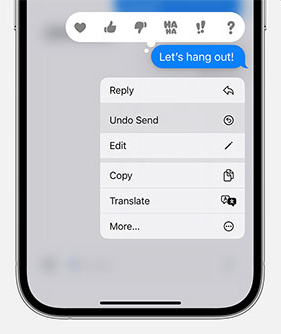
Once completed, the message will be removed from both conversations, as long as it has not already been delivered or read in some cases (iPhone Text Messages Not Sending?).
Method 2: Requesting the Recipient to Remove the Message
If the "Undo Send" option is no longer available, the only possible workaround is to manually ask the other person to delete the message from their device. Although this method is not automatic or reliable, it may still help in certain situations where both parties cooperate.
At the same time, you can also delete the message from your own iPhone to keep your chat clean. However, this action does not affect the recipient's copy.
How to remove the message from your iPhone:
- Open the "Messages" app and go to the conversation.
- Press and hold the specific message you want to remove.
- Choose "Delete" from the available options.
- Confirm the deletion if prompted.
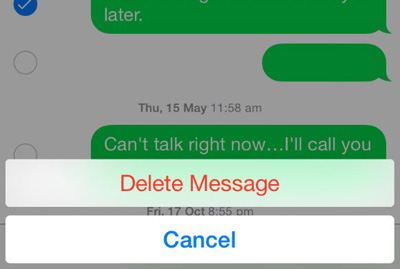
Keep in mind that this only affects your device. The message will remain on the receiver's phone unless they choose to delete it on their own. Therefore, this method depends entirely on the other person's cooperation and cannot guarantee full removal from both sides.
Related Posts:
Part 3: How to Permanently Delete Messages on iPhone
When simple deletion or iMessage tricks are not enough, the most reliable way to ensure messages cannot be recovered is to use a professional iOS data erasing tool. One of the most effective solutions is MobiKin Eraser for iOS, which is designed to permanently wipe all data from an iPhone, including text messages, attachments, and other private information. Unlike normal deletion, this method overwrites data, making recovery through any software impossible.
Key Features of Eraser for iOS
- Permanently deletes messages, contacts, photos, call logs, and more.
- Uses multiple security levels (Low, Medium, High) for different needs.
- Overwrites deleted data to prevent recovery.
- Helps prepare iPhone for resale, donation, or reset.
- Supports almost all iPhone models, including iPhone 17/16/15/14/13/12/11/X/9/8/7/6.
- Ensures erased content cannot be restored by recovery tools.


How to permanently delete text messages from iPhone using Eraser for iOS?
Step 1: Download, install, and launch MobiKin Eraser for iOS on your computer. Connect your iPhone to the computer using a USB cable. Once the device is detected successfully, click the "Erase" option on the main interface to proceed.

Step 2: Choose a security level based on your needs. The program offers three options: Low, Medium, and High. Select the level that fits your requirement, then click "OK" to confirm your selection.
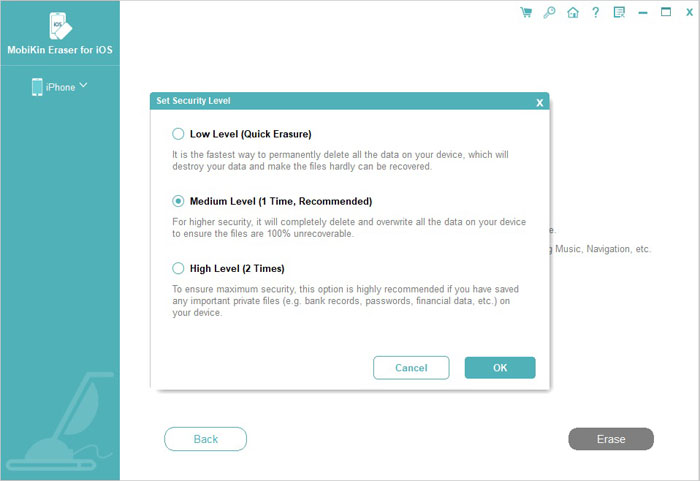
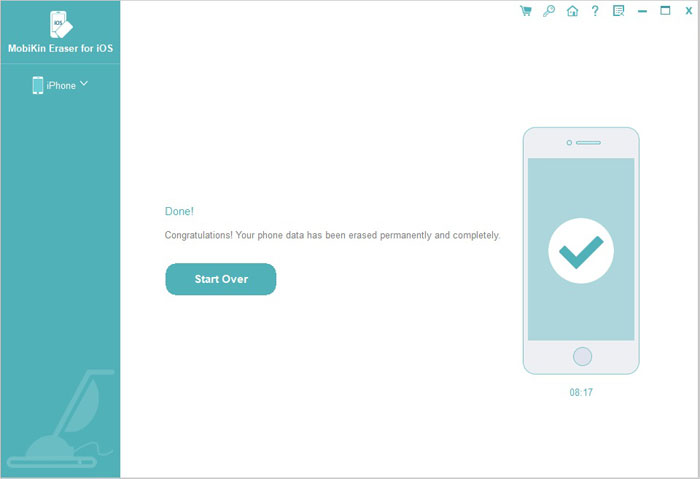
Step 3: On the confirmation screen, type "delete" into the required box to verify your action. After that, click the "Erase" button to begin the process of permanently erasing data from your iPhone.
The Bottom Line
Deleting text messages on iPhone for both sides is not always fully possible due to system limitations. However, users can use iMessage "Undo Send" for recent messages, or request recipients to remove them. For stronger privacy protection, tools like MobiKin Eraser for iOS provide permanent deletion, ensuring messages cannot be recovered and helping users manage sensitive data securely.
Related Articles:
Top 5 Ways to Permanently Delete Photos from iPhone/iPad
3 Ways to Transfer Messages from iPhone to iPhone without iCloud
