How to Delete All or Multiple Messages on iPhone: Complete Guide
TL;DR:
Want to delete all your iPhone messages but don't know where to start? This guide covers everything you need to know about deleting messages on iPhone:
- Check whether you can delete all messages at once and learn about the available options on iPhone.
- Delete multiple messages or conversations by selecting unwanted chats or individual messages.
- Remove all messages from iPhone manually or set your device to automatically delete old messages.
- Permanently erase messages with a professional data erasing tool to protect your privacy.
Over time, your iPhone may collect a large number of text messages, iMessages, photos, and attachments that you no longer need. These messages can take up storage space and make it harder to find important conversations. If you want to clean up your Messages app, you may wonder whether you can delete all messages on iPhone at once or remove multiple conversations quickly. In this guide, we'll walk you through different ways to delete all or multiple messages on your iPhone, including how to delete them permanently.
Part 1: Can You Delete All Messages on iPhone at Once?
Yes, you can delete all messages on your iPhone, but Apple does not provide a direct "Delete All Messages" button in the Messages app. If you have a lot of conversations to remove, you'll need to select and delete them manually or use the automatic message deletion feature.
Starting with newer iOS versions, you can quickly select multiple conversations in the Messages app and delete them together. However, if you want to remove every message from your iPhone, you may still need to repeat the process or adjust the message retention settings to automatically delete older messages.
Before deleting all messages, keep in mind that this action cannot be easily undone once the messages are removed from the Recently Deleted folder. If there are important conversations, photos, or attachments you want to keep, it's better to back them up first. (How to Back Up Text Messages on iPhone?)
Part 2: How to Delete Multiple Messages on iPhone
If you don't want to remove all messages from your iPhone, you can delete multiple conversations or selected messages instead. The Messages app allows you to clean up unwanted chats in just a few steps.
Method 1: Delete Multiple Conversations from Messages App
If you have many old conversations you no longer need, you can delete them in bulk from the Messages app. This will remove the entire chat thread, including the messages and attachments inside it.
Here's how to delete multiple conversations on iPhone:
- Open the "Messages" app on your iPhone.
- Tap "Edit" in the top-left corner.
- Select "Select Messages" from the menu.
- Check the conversations you want to remove.
- Tap "Delete" and confirm your action.
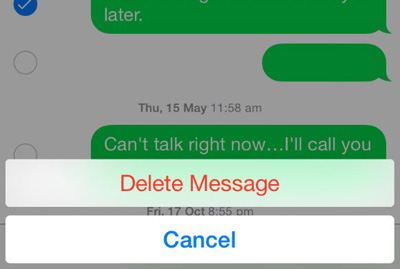
Note: On newer iOS versions, deleted conversations may be moved to the Recently Deleted folder. You can delete them there if you want to remove them permanently.
Method 2: Delete Multiple Messages Inside One Conversation
If you want to remove only specific texts, photos, or attachments from a conversation, you can select and delete multiple messages without deleting the entire chat. Follow these steps:
- Open the conversation in the "Messages" app.
- Touch and hold the message you want to delete.
- Tap "More".
- Select the messages you want to remove.
- Tap the "Trash" icon and confirm the deletion.
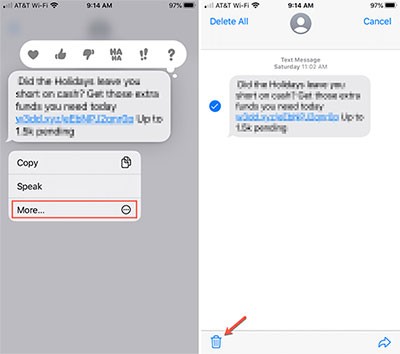
This method is useful when you want to free up space while keeping the rest of the conversation.
Related Posts:
Part 3: How to Delete All Messages on iPhone
If you want to clear all messages from your iPhone, you can either delete conversations manually or let your iPhone remove older messages automatically. Choose the method that works best for your needs.
Method 1: Delete All Conversations Manually
The easiest way to remove all messages is to select and delete conversations directly from the Messages app. This method works well if you only have a limited number of chats to remove. Follow these steps:
- Open the Messages app on your iPhone.
- Tap "Edit" in the top-left corner.
- Select "Select Messages".
- Choose all conversations you want to delete.
- Tap "Delete" and confirm your action.
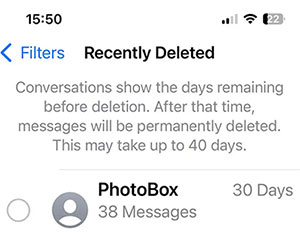
If you have a large number of conversations, you may need to repeat the steps several times. After deletion, you can also clear the Recently Deleted folder to remove them permanently.
Method 2: Automatically Delete Old Messages on iPhone
If you don't want to manually delete messages every time, you can set your iPhone to automatically remove older messages after a certain period. This is a convenient way to keep your Messages app clean and save storage space. Follow these steps:
- Open "Settings" on your iPhone.
- Scroll down and tap "Messages".
- Tap "Keep Messages" under the "Message History" section.
- Choose "30 Days" or "1 Year".
- Tap "Delete" to confirm.
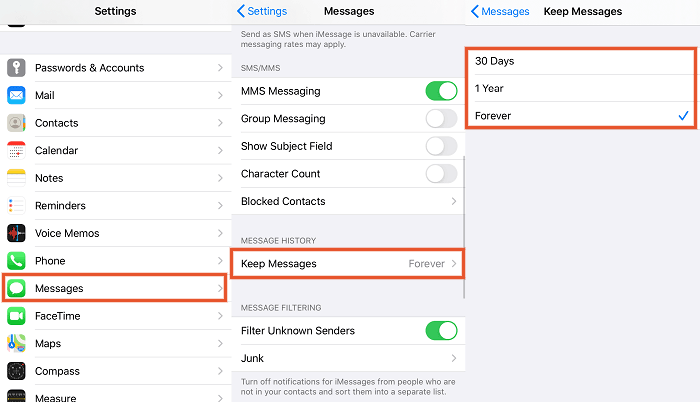
After setting this option, your iPhone will automatically delete messages older than the selected time period.
Part 4: How to Permanently Delete All Messages on iPhone
Deleting messages from the Messages app only removes them from your iPhone interface. If you want to completely wipe messages and prevent them from being recovered, you need a professional data erasing tool.
MobiKin Eraser for iOS is designed to permanently erase iPhone data, including messages, contacts, photos, call history, notes, and other private files. It allows you to wipe all data from your iPhone with a few clicks and provides different erasing levels for better security.
Key Features of Eraser for iOS:
- Permanently delete messages, contacts, photos, and more without recovery.
- Choose Low, Medium, or High erasing levels as needed.
- Overwrites deleted data to prevent recovery.
- Remove personal data before selling or giving away your device.
- Supports almost all iPhone models, including iPhone 17/16/15/14/13/12/11/X, etc..
- Make sure erased files cannot be restored by recovery tools.


How to permanently delete all text messages from iPhone using Eraser for iOS?
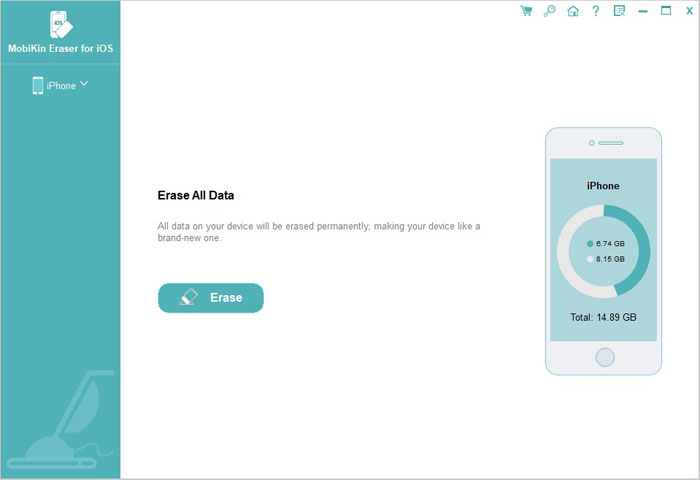
Step 1: Download and install MobiKin Eraser for iOS on your computer, then launch the program. Connect your iPhone to the computer with a USB cable. After your device is recognized, click "Erase" on the main interface.
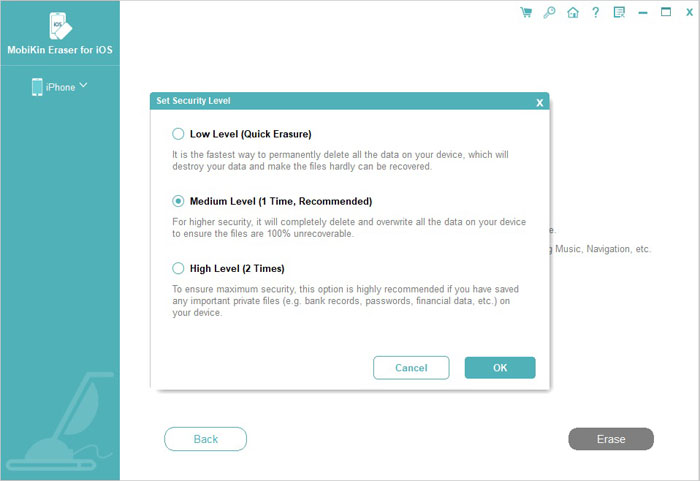
Step 2: Select a security level according to your needs. You can choose from Low, Medium, or High levels. After making your choice, click "OK" to continue.
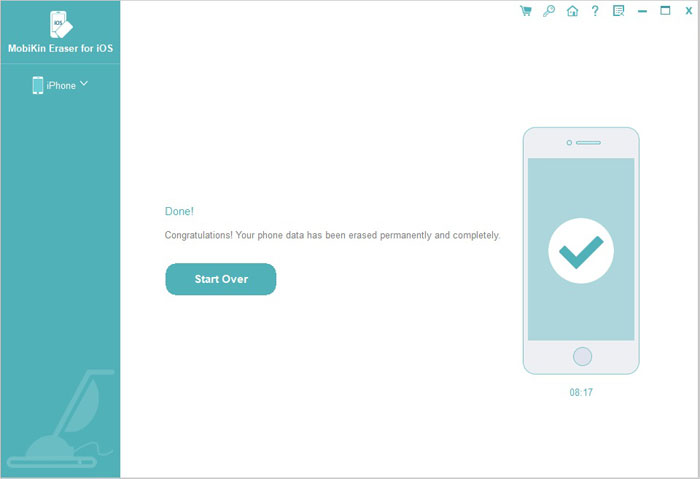
Step 3: Enter "delete" in the confirmation box to verify the operation. Then, click "Erase" to start permanently removing all data from your iPhone.
Part 5: FAQs About Deleting Messages on iPhone
Q1: Does deleting messages on iPhone permanently remove them?
Not always. Deleted messages may remain in the Recently Deleted folder for a period of time, and they may still be recoverable with professional tools. If you want to completely erase messages, you can use a data erasing tool like MobiKin Eraser for iOS.
Q2: How do I delete old messages automatically on iPhone?
You can enable automatic message deletion through your iPhone settings. Go to "Settings" > "Messages" > "Keep Messages", then choose 30 Days or 1 Year. Your iPhone will automatically remove messages older than the selected period.
Q3: Will deleting messages free up storage on my iPhone?
Yes, deleting messages can free up some storage space, especially if your conversations contain many photos, videos, or attachments. To recover more space, remember to also clear the Recently Deleted folder.
Q4: Can I recover deleted messages on my iPhone?
It depends on how the messages were deleted. If they are still in the Recently Deleted folder, you may be able to restore them. However, permanently erased messages that were deleted by MobiKin Eraser for iOS cannot be recovered.
Q5: How can I delete messages before selling my iPhone?
Before selling or giving away your iPhone, it is better to completely erase all personal data instead of only deleting messages manually. A professional erasing tool like MobiKin Eraser for iOS can help remove messages and other private information permanently.
Summary
Deleting all messages on iPhone is a simple way to clean up your conversations, free up storage space, and protect your privacy. Whether you only need to remove a few messages or clear everything from your device, you can choose the method that fits your needs. If you want to permanently delete messages and prevent recovery, using a reliable erasing tool like MobiKin Eraser for iOS can make the process easier and safer.
Related Articles:
4 Ways to Recover Deleted Messages on iPhone without Computer
Top 5 Ways to Permanently Delete Photos from iPhone/iPad
3 Ways to Transfer Messages from iPhone to iPhone without iCloud