
How to Factory Reset iPad with Buttons without Computer [2026 Guide]
Need to factory reset your iPad but don't have a computer nearby? Whether your iPad is frozen on Apple logo, running slowly, preparing for sale, or you simply want a fresh start, you may be looking for a way to reset it using only the device itself. While many people believe the buttons alone can factory reset an iPad, they actually help you access reset or recovery options rather than erase data directly.
In this guide, you'll learn how to factory reset an iPad with buttons without a computer in different situations, including when the device is locked or still accessible.
Part 1: Can You Factory Reset an iPad with Buttons without a Computer?
The short answer is yes, but only in certain situations. Many users think pressing hardware buttons alone will instantly erase an iPad and restore factory settings. In reality, the buttons are mainly used to restart the device or enter recovery-related options. To complete a factory reset, you usually still need to confirm actions on the iPad screen.
Whether you can reset your iPad without a computer depends on its current condition, your access to the device, and whether required Apple security features are available.
1. What "Factory Reset with Buttons" Actually Means
Using buttons on an iPad does not directly wipe all data. Instead, the buttons help you:
- Force restart an unresponsive iPad
- Access recovery or reset options
- Open the erase process from the lock screen (on supported versions)
- Continue with on-screen instructions to remove all content and settings
A true factory reset means erasing personal data, settings, downloaded apps, and returning the iPad to its original setup state.
2. When Can You Reset an iPad Without a Computer?
You may be able to reset your iPad without a computer if:
- You can unlock the iPad normally
- You remember the screen passcode
- The iPad supports the "Erase iPad" option on the lock screen
- The device is connected to Wi-Fi or cellular data
- You know the Apple ID used on the device (How to Factory Reset iPad without Apple ID Password?)
If these conditions are met, you can usually complete the reset directly from the iPad.
3. When a Computer May Still Be Required
In some cases, buttons alone are not enough, and you may still need a computer:
- The iPad is stuck on the Apple logo
- Recovery mode cannot load properly
- You forgot both the passcode and Apple ID
- The device is disabled and not connected to the internet
- The system becomes unresponsive during reset
Before moving to the actual methods, make sure your important files are backed up because a factory reset will permanently erase your iPad data.
Part 2: Factory Reset iPad with Buttons Without Computer
If your iPad still turns on normally and you can unlock it, this is the easiest and safest way to perform a factory reset without using a computer. Although the buttons help confirm that the device is responsive, the actual reset is completed through the built-in settings menu.
This method removes your personal data, installed apps, and customized settings, returning the iPad to its original factory state.
This method is suitable for:
- You can unlock the iPad normally
- You know the screen passcode
- The iPad responds to touch
- No computer is available
Steps to Factory Reset iPad Without Computer
- If your iPad or iPhone is running slowly or behaving abnormally, restart it first. Press and hold the Top button and either Volume button until the power slider appears. Drag the slider to turn off the device, then press the Top button again to turn it back on.
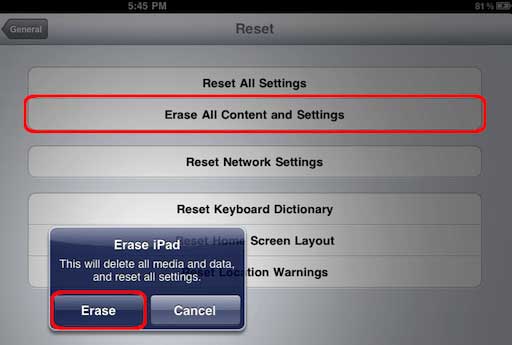
- Unlock your iPad and go to: "Settings" > "General" > "Transfer or Reset iPad". Scroll to the bottom and tap "Erase All Content and Settings".
- Your iPad will display a summary of the data that will be erased, including apps, photos, accounts, and settings. Tap "Continue".
- Input your screen passcode when prompted. If Find My iPad is enabled, enter your Apple ID password to disable Activation Lock.
- Tap "Erase iPad" to confirm. The device will restart automatically and begin removing all content. This process may take several minutes depending on how much data is stored.
Tips before resetting your iPad:
- Back up important photos, videos, and documents first.
- Keep the iPad charged or connected to power.
- Make sure you remember your Apple ID credentials for later activation.
Once finished, your iPad will restart and display the initial setup screen just like a brand-new device.
Part 3: Reset iPad Without Computer Using Recovery Mode Buttons
If your iPad is frozen, keeps restarting, or you cannot access the Settings app, you may try using the hardware buttons to enter recovery-related options. Many users search for this method because they want to reset an iPad without using a computer. (How to Factory Reset A Locked iPad without Passcode?)
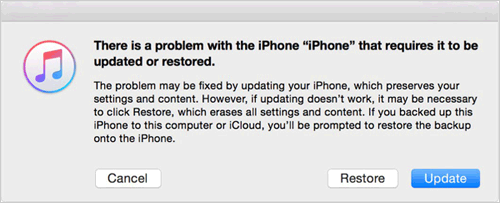
However, there is an important limitation: Recovery Mode itself normally requires a computer to reinstall iPadOS and complete a full factory reset. Without a computer, the buttons can only help you force restart the device or reach available recovery options on the iPad.
Steps to reset iPad without computer using recovery mode buttons:
Step 1. Force restart your iPad using the correct button combination based on your iPad model.
For iPad Without a Home Button
- Quickly press and release the Volume Up button.
- Quickly press and release the Volume Down button.
- Press and hold the Top button.
- Release it when the Apple logo appears.
For iPad with a Home Button
- Press and hold the Home button and Top (or Side) button together.
- Keep holding until the Apple logo appears.
- Release both buttons.
Step 2. Check Whether the iPad Becomes Responsive
After restarting, see whether you can:
- Unlock the device
- Open "Settings"
- Access "General" > "Transfer or Reset iPad"
If yes, return to Part 2 and complete the factory reset from Settings.
Step 3. Use Available Reset Options on Screen
Some iPads may show recovery prompts or allow you to continue with erase options directly on the device. Follow the instructions shown on the screen and confirm the reset if available.
Part 4: Factory Reset a Locked iPad Without Computer
Forgot your iPad passcode and can't get into Settings? Don't worry. If your iPad is running a supported iPadOS version and connected to the internet, Apple provides a built-in way to erase the device directly from the lock screen-no computer required.
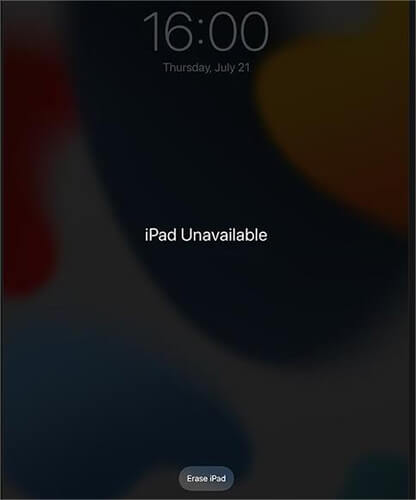
This method is especially useful when your iPad shows messages like iPad Unavailable or Security Lockout after too many incorrect passcode attempts. Below is how to use the "Erase iPad" option on the Lock Screen to Factory Reset a Locked iPad Without Computer
- On the lock screen, continue entering incorrect passcodes until you see "iPad Unavailable" or "Security Lockout".
- When the "Erase iPad" option appears in the lower corner of the screen, tap it to continue.
- Read the warning message carefully. This action will remove all data, apps, and settings stored on the device.
- Enter the Apple ID password associated with the iPad. This disables Activation Lock and authorizes the reset.
- Your iPad will automatically erase all content and restart. After completion, you'll see the Hello screen and can set it up as new or restore from a backup.
Bonus: A More Flexible Way to Factory Reset iPad
If the button methods above don't work, your iPad won't enter reset mode, or you want a more thorough way to erase personal data on iPad before selling or giving away the device, a dedicated iOS erasing tool can be more flexible. Unlike a standard factory reset that mainly restores system settings, MobiKin Eraser for iOS is designed to wipe iPad data more completely and offers multiple security levels for different privacy needs. It supports one-click erasing and works with iPhone, iPad, and iPod touch devices.
Key Features of MobiKin Eraser for iOS:
- Erase all content and settings from your iPad and return it to a clean state.
- Remove both visible files and deleted traces to reduce the chance of data recovery.
- Choose from Low, Medium, or High level based on your privacy requirements.
- Wipe messages, contacts, photos, accounts, settings, and more before transferring ownership.
- Compatible with iPhone, iPad, and iPod touch across multiple iOS versions.
- Connect the device, select an erase level, and complete the process in a few clicks.


How to factory reset iPad and erase all iPad data permanently via MobiKin Eraser for iOS?
Step 1. Launch Eraser for iOS
Visit the official website, install the program on your computer, and launch it. Then connect your iPad using a USB cable. If prompted, tap Trust This Computer on the iPad.

Step 2. Get into the "Select Security Level" window
Once your iPad is recognized, click "Erase" from the main interface and choose a security level (Low, Medium, or High) according to your needs.
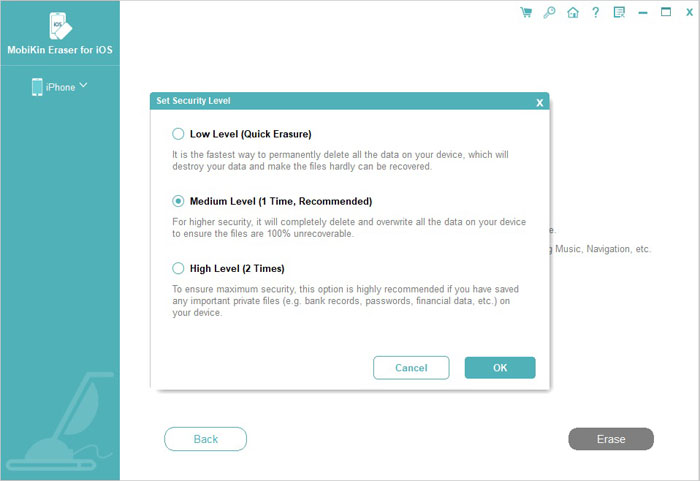
Step 3. Erase iPad to sell
Type delete into the confirmation box and click Erase again to proceed. The software will begin removing data and may restart your iPad during the process. Keep the device connected until the process finishes.
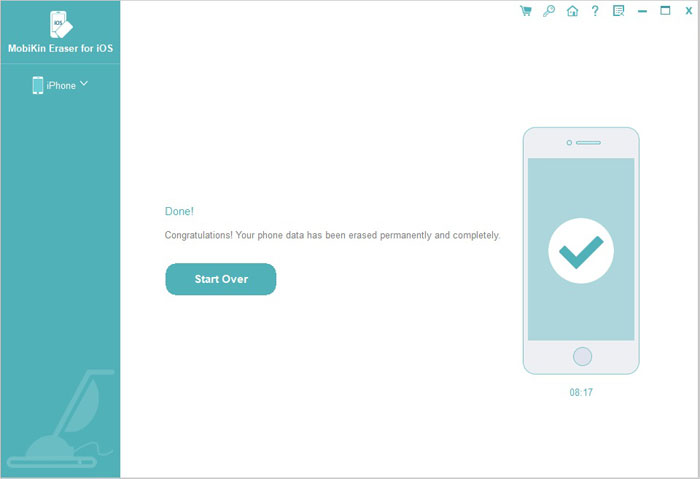
After completion, your iPad will restart and display the setup screen, allowing you to configure it as a new device.
Summing Up
Factory resetting an iPad without a computer is possible in many situations, but the exact method depends on whether you can access the device, remember the passcode, or use the built-in erase options. If your iPad is still usable, resetting through Settings is usually the easiest solution. If the device is locked, the Erase iPad feature may help you wipe it directly from the lock screen.
For users who want a more flexible and thorough data removal process, MobiKin Eraser for iOS offers an easier way to permanently erase iPad data and protect personal privacy before selling, recycling, or starting over with a clean device.
Related Articles:
4 Ways to Restore iPad without iTunes [Easy and Quick]
How to Clear iPad to Sell or Trade It In [4 Methods]
9 Recommended iPad Backup Software Help Back Up iPad Breezily
iPad Won't Unlock? 9 Solutions to Fix iPad Slide to Unlock Not Working
