
iPad Running Slowly? 8 Proven Solutions to Speed It Up in 2026
TL;DR:
A slow iPad is a common issue that can happen for many simple reasons, but the good news is it can usually be fixed with a few easy steps:
- Identify why your iPad is running slowly and what causes performance drops.
- Apply basic fixes like restarting, closing apps, and updating iPadOS.
- Optimize storage, network, and system settings to keep your iPad running smoothly over time.
You open your iPad expecting it to be fast and responsive, but instead it feels like it's struggling - apps take longer to load, scrolling isn't smooth, and everything just feels off. If your iPad is running slowly, it can be frustrating, especially when you rely on it for work, study, or entertainment.
The good news is that this doesn't usually mean something is seriously wrong. In most cases, a slow iPad is caused by common issues that can be fixed with a few simple steps. This guide will help you understand why your iPad is running slowly and how to get it back to smooth performance again.

Part 1: Why is My iPad So Slow?
Before we get into the fixes, it's worth quickly looking at what might be causing your iPad to slow down in the first place:
- Low storage space: When your iPad storage is almost full, the system has less room to run smoothly, which slows everything down.
- Too many background apps: Running multiple apps in the background can consume memory and reduce performance.
- Outdated iOS or apps: Older system or app versions may contain bugs or compatibility issues that affect speed.
- Accumulated cache and junk files: Over time, temporary files build up and can make the device feel sluggish.
- Battery aging or overheating: When the battery degrades or the device gets too hot, iPadOS may reduce performance to protect the hardware.
Part 2: How to Fix a Slow iPad
Way 1: Restart Your iPad
A simple restart can often fix temporary glitches and improve your iPad's performance.
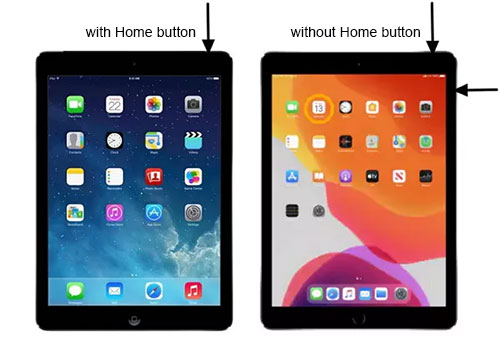
For iPads with a Home button:
- Press and hold the Top button until the power off slider appears.
- Drag the slider to turn off your iPad.
- Wait a few seconds, then press and hold the Top button again to turn it back on.
For iPads without a Home button:
- Press and hold the Top button and either Volume button until the power off slider appears.
- Drag the slider to power off your device.
- Wait a few seconds, then press and hold the Top button to restart it.
Way 2: Close Unused Apps
Keeping too many apps open in the background can slow down your iPad and make it less responsive. To improve performance, close apps you're not actively using. This helps free up memory and allows your iPad to run smoother, especially when multitasking.
- Swipe up from the bottom of the screen and pause in the middle (or double-press the Home button on older iPads).
- You'll see all open apps displayed on the screen.
- Swipe up on the apps you want to close. (How to Delete Multiple Apps on iPad?)
Way 3: Update iPadOS
Updating iPadOS ensures your device gets the latest performance improvements, security patches, and bug fixes, which can help your iPad run more smoothly.
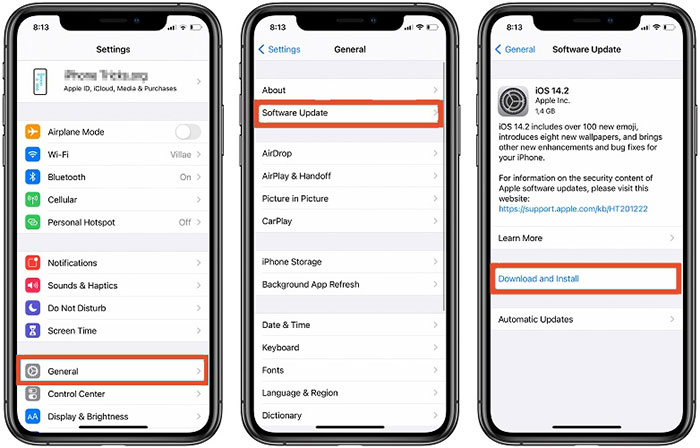
- Open the "Settings" app on your iPad.
- Tap "General", then select "Software Update".
- If an update is available, tap "Download and Install". (iPad Won't Update?)
- Make sure your iPad is connected to Wi-Fi and has enough battery (or is plugged in).
Way 4: Clear Safari Cache & App Cache
This helps free up storage space and remove unnecessary temporary files, which can improve your iPad's overall performance and speed.
Over time, cached data from Safari and apps can build up and take up valuable storage space, which may slow down your iPad.
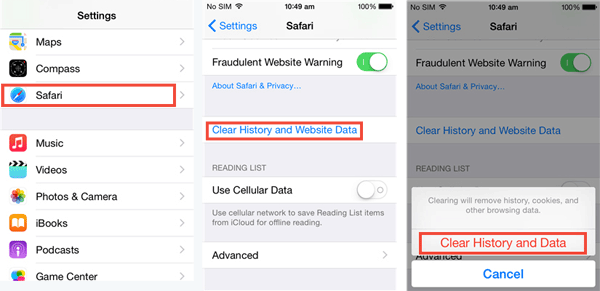
- Open "Settings" on your iPad.
- Scroll down and tap "Safari".
- Tap "Clear History and Website Data".
- Confirm your action when prompted.
For app cache, you can also free up space by deleting and reinstalling apps that store large amounts of cached data, or by removing unused apps altogether.
Way 5: Turn off Background App Refresh
Turning this off helps reduce background activity, saves memory, and can make your iPad feel faster and more responsive.
This feature allows apps to refresh their content in the background, but it can also consume system resources and slow down your iPad.
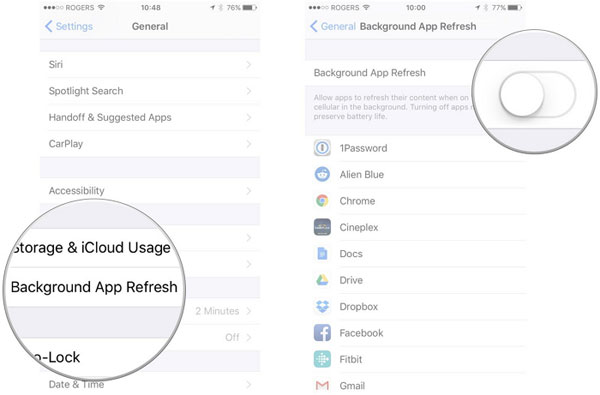
- Open "Settings" on your iPad.
- Tap "General", then select "Background App Refresh".
- Tap "Background App Refresh" again at the top.
- Choose "Off" to disable it completely, or select "Wi-Fi" if you want to limit it.
Way 6: Free up Space
Freeing up storage is one of the most effective ways to speed up a slow iPad, especially when your device is running low on available space. When storage is nearly full, iPadOS has less room to operate smoothly, which can lead to lag and slower app performance.
Start by deleting unused apps, old photos (How to Remove Photos from iPad Only?), videos, and large files you no longer need. You can also review your storage usage in "Settings" > "General" > "iPad Storage" to see what's taking up space.
For a quicker and more efficient cleanup, you can also use a dedicated tool like MobiKin Cleaner for iOS. It is a free iOS cleanup tool designed to help users quickly free up storage space and improve device performance. Instead of manually deleting files one by one, it scans your iPad for junk data, cache files, and large hidden items, making cleanup faster and more efficient.
Key Feature of This Free Cleaner for iOS:
- Automatically detects and deletes system junk and temporary files.
- Helps reduce unnecessary cached data from apps that take up storage.
- Ensures important data is not affected during cleanup.
- Simple design that allows users to clean their iPad in just a few clicks.
- 100% Free. Fully compatible with iPad 11/10/9/8, Air/Pro/mini, etc.


Step-by-Step Guide to Speed Up iPad on Mac or PC:
Step 1: Use a USB cable to connect your iPad to a Mac or PC, then open the iPhone Cleaner (or iOS Cleaner) software.
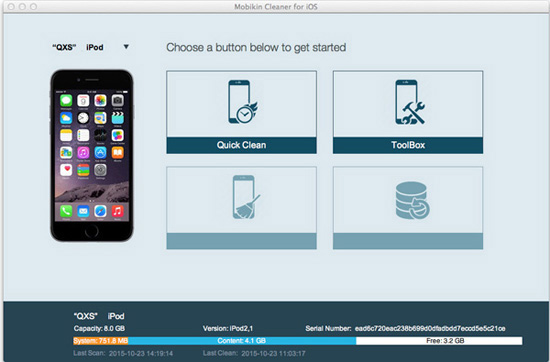
Step 2: Once your device is detected, the main interface will appear. Click the "Quick Clean" option to start the cleaning process.
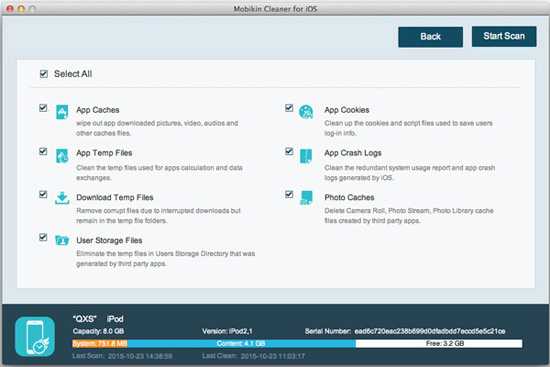
Step 3: Select the types of files you want to remove, then click "Start Scan" to begin analyzing your iPad.
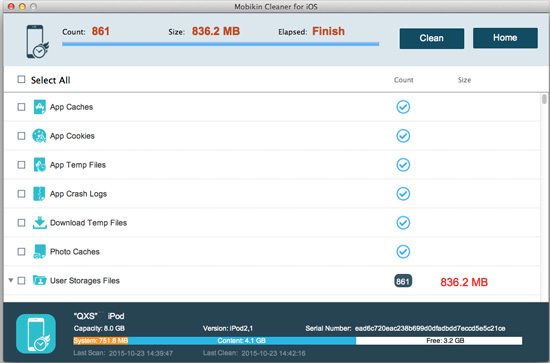
Step 4: Wait for the scan to complete. All detected files will be displayed in the program interface for you to review. Click the "Clean" button to remove unwanted files and free up storage space on your iPad, helping improve overall performance.
Way 7: Check Your Wi-Fi Connection
A weak or unstable Wi-Fi connection can make your iPad feel slow, especially when browsing, streaming, or downloading apps.
Make sure your connection is stable by trying the following:
- Turn Wi-Fi off and on again in "Settings" > "Wi-Fi".
- Move closer to your router to improve signal strength.
- Restart your router if the connection seems unstable.
- Forget the network and reconnect if issues continue.
Way 8: Reset All Settings
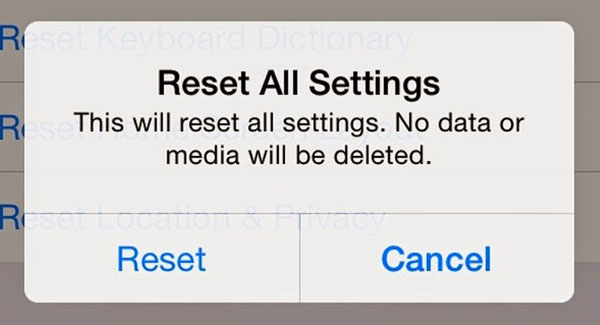
Resetting all settings can help fix hidden system issues that may be slowing down your iPad, without deleting your personal data. This will restore system settings like Wi-Fi, display, and preferences to default, which can help improve performance while keeping your photos, apps, and files intact.
- Open "Settings" on your iPad.
- Tap "General".
- Scroll down and select "Transfer or Reset iPad".
- Tap "Reset".
- Choose "Reset All Settings".
- Enter your passcode and confirm your choice.
FAQs on iPad Performance
Q1. Why is my iPad so slow all of a sudden?
A sudden slowdown is usually caused by common system issues such as too many background apps running, insufficient storage space, or an outdated iPadOS version. These factors can quickly affect performance and make the device feel laggy. In most cases, restarting your iPad and clearing unnecessary files or apps can immediately improve speed.
Q2. Is it normal for an iPad to slow down after an update?
Yes, this is fairly normal. After a major iPadOS update, your device may temporarily run slower while it completes background tasks such as re-indexing files, optimizing apps, and syncing data. Performance usually returns to normal after a short period once these processes are finished.
Q3. What if my iPad is frozen, not just slow?
If your iPad is completely unresponsive, it may be frozen rather than just running slowly. In this case, a force restart is usually the best solution. If the device still doesn't respond, you may need to check charging issues or follow recovery steps if the iPad won't turn on at all.
Q4. Why is my iPad charging extremely slow?
Slow charging can be caused by several common factors:
- A damaged cable or adapter, or using non-Apple-certified accessories, can significantly reduce charging speed.
- Charging via a computer USB port or a low-output adapter provides much less power than a proper wall charger.
- Running games, streaming videos, or using demanding apps while charging can slow down the charging process.
- As the battery ages, its capacity and charging efficiency naturally decrease, which can lead to slower charging speeds over time.
Q5. How often should I clean my iPad's storage?
It's recommended to clean and organize your iPad storage every few months. Regular maintenance, such as deleting unused apps, clearing cached data, and backing up photos or videos to cloud storage, can help prevent performance issues and keep your iPad running smoothly over time.
Summary
iPads, especially newer models, are designed to run smoothly, but it's still common for an iPad to run slowly over time. Storage buildup, background activity, or outdated settings can gradually affect performance. If your iPad is running slowly, it usually isn't a serious issue and can often be fixed with a few simple adjustments. To keep performance stable, regularly update iPadOS, manage storage, maintain battery health, and use a stable internet connection for smoother everyday use.
Related Articles:
How to Clear iPad to Sell or Trade It In [4 Methods]
5 Effective Ways to Transfer Apps from Old to New iPad
