
How to Transfer Photos from iPhone to Google Drive [3 Easy Ways]
TL;DR:
Want to move iPhone photos to Google Drive but don't know which method works best? This guide covers several easy ways to transfer your pictures:
- Automatically back up iPhone photos with Google Photos.
- Upload selected photos from iPhone to Google Drive manually.
- Transfer iPhone photos to Google Drive through a computer.
- Find answers to common questions about moving iPhone photos to Google Drive.
Running out of iPhone storage or looking for a safer place to keep your photos? Uploading iPhone photos to Google Drive is a simple way to store and access your pictures across different devices. Whether you want automatic backup, selective uploads, or a faster way to transfer a large number of photos, there are several options available. In this guide, we will show you practical methods to move photos from your iPhone to Google Drive step by step.
Part 1: Back Up iPhone Photos to Google Drive Automatically
If you want to save iPhone photos without uploading them manually every time, Google Photos is a convenient option. By enabling the photo backup feature, your pictures and videos can be automatically uploaded to your Google account. After that, you can view and manage your backed-up photos on other devices by signing in with the same account.
Note: Google Photos backups use your Google account storage, which is shared with other Google services. You can change the backup account in Google Photos settings if needed.
Here are the steps to automatically back up iPhone photos:
- Open the App Store on your iPhone, search for "Google Photos", and install the app. After installation, launch it and log in with your Google account.
- Tap your "profile picture" in the upper-right corner of the screen. Then select "Photos settings" to access the app's configuration options.
- Find the "Backup" option and switch it on. If Google Photos asks for permission to access your photos, allow the app to view and upload your iPhone photos. (Google Photos Not Showing All Photos?)
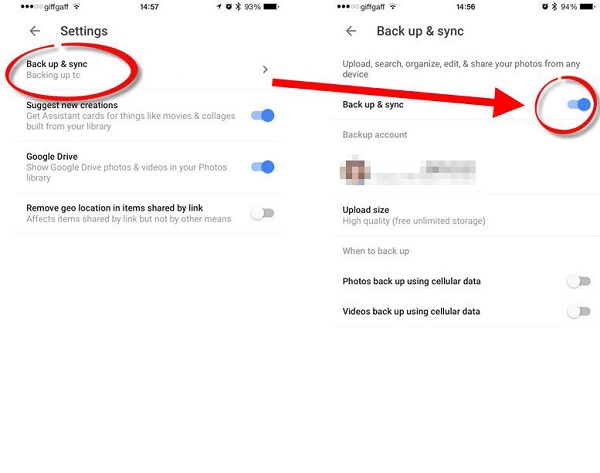
If you have not granted photo access, go to "Settings" > "Privacy & Security" > "Photos" on your iPhone. Select "Google Photos", then choose the appropriate access option.
After enabling backup, Google Photos will automatically upload new photos from your iPhone. The uploading speed depends on factors such as the number of photos, file size, and the quality of your internet connection.
Part 2: Upload Photos from iPhone to Google Drive Manually
If you only need to transfer selected photos instead of uploading your entire iPhone photo library, manually uploading them to Google Drive is a practical choice. This method gives you more control over which pictures to move and helps save Google account storage by avoiding unnecessary uploads.
Follow the steps below to upload iPhone photos to Google Drive manually:
- Install the "Google Drive" app from the App Store if you haven't already. Launch the app and sign in with the Google account where you want to store your photos.
- Tap the "+" button at the bottom-right corner. You can select "New Folder" to create a dedicated location for your iPhone photos, or choose an existing folder instead.
- Tap "Upload" > "Photos and Videos". If prompted, allow Google Drive to access your photos. Then browse your iPhone gallery and select the pictures you want to upload.
- After choosing the photos, tap "Upload" to begin transferring them to Google Drive. Keep your iPhone connected to a stable Wi-Fi network during the process, especially when uploading a large number of high-resolution images.
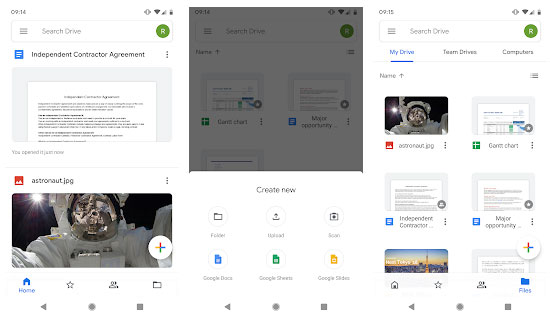
Once the upload is finished, open the target folder in Google Drive to confirm that your photos have been transferred successfully.
Which is better - Google Photos or Google Drive? This review is all about Google Drive vs. Google Photos. You'll know their man differences and helpful tips on this topic from the page.
Part 3: Transfer iPhone Photos to Google Drive via Computer
For users who need to move a large number of photos from an iPhone to Google Drive, using a computer can be more efficient. Instead of uploading images one by one through the Google Drive app, you can first export photos from your iPhone to your computer and then upload them to Google Drive in batches.
To transfer iPhone photos to your computer, MobiKin Assistant for iOS (Win and Mac) is a reliable iOS data management tool. It allows you to preview, select, and export photos from your iPhone without transferring unnecessary files.
Key Features of MobiKin Assistant for iOS:
- Export photos, videos, music, contacts, messages, and other iPhone data to a computer.
- Import files from a computer to iPhone, iPad, or iPod touch without overwriting existing data.
- Preview and select specific photos before transferring them.
- Support photo management for various iPhone, iPad, and iPod touch models.


How to Move iPhone Photos to Google Drive via Computer:
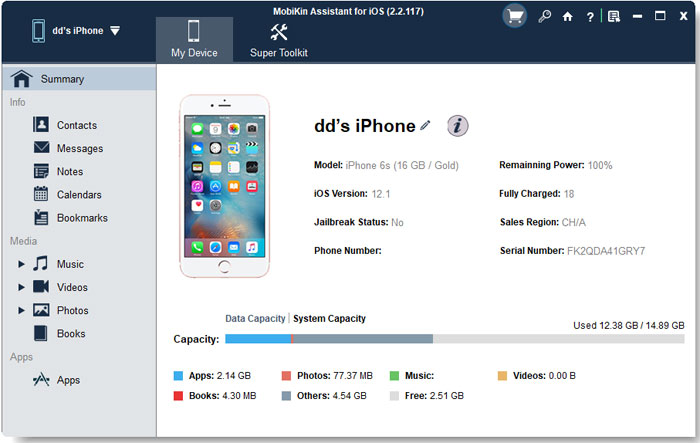
Step 1: Download and install MobiKin Assistant for iOS on your computer. Open the program and connect your iPhone using a USB cable. Follow the on-screen instructions to let the software detect your device.
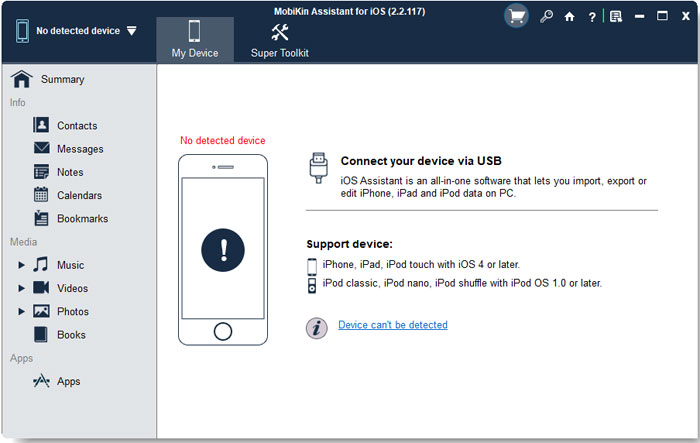
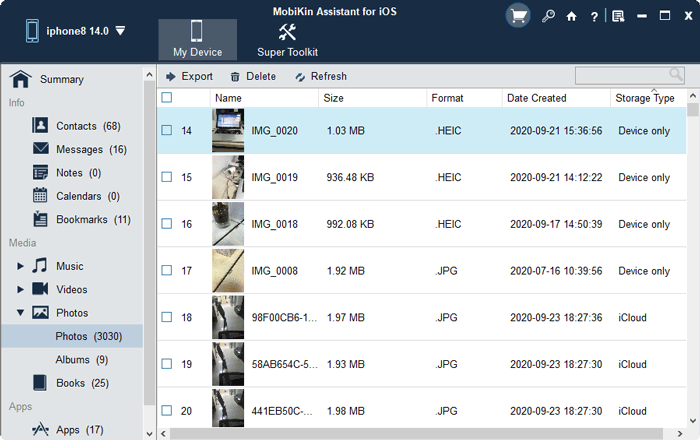
Step 2: After your iPhone is recognized, click "Photos" from the left-side menu. The program will display your photos in different categories, allowing you to preview the images before transferring them.
Step 3: Choose the photos you want to upload to Google Drive, then click the "Export" button. Select a storage location on your computer and wait for the transfer process to finish.
Step 4: Open Google Drive in your browser and sign in with your Google account. Click the "New" button, choose "File upload" or "Folder upload", and select the exported iPhone photos from your computer.
Once the upload is complete, your iPhone photos will be stored in Google Drive and can be accessed from any device connected to the same Google account.
Video Guide:
FAQs About Transferring iPhone Photos to Google Drive
Q1. How do I transfer all photos from my iPhone to Google Drive?
You can transfer all iPhone photos by using the Google Drive app or Google Photos. For a large photo library, you can also export photos from your iPhone to a computer with MobiKin Assistant for iOS and then upload them to Google Drive in batches. (Google Photos Not Backing Up?)
Q2. Why are my iPhone photos not uploading to Google Drive?
Photos may fail to upload because of an unstable internet connection, insufficient Google storage space, disabled photo permissions, or background restrictions on the Google Drive/Google Photos app. Check your network, app permissions, and available storage to fix the issue.
Q3. Does uploading photos to Google Drive delete them from my iPhone?
No. Uploading photos to Google Drive only creates a copy of your pictures online and does not remove the original files stored on your iPhone. You need to manually delete the photos from your device if you want to free up storage space.
Q4. How long does it take to upload iPhone photos to Google Drive?
The upload time depends on the number of photos, file size, internet speed, and Google Drive upload performance. Large collections of high-resolution photos may take longer, so using a stable Wi-Fi connection is recommended.
Q5. Where can I find my iPhone photos uploaded to Google Drive?
If you uploaded your iPhone photos manually through the Google Drive app, you can find them in the folder you selected during the upload process. Open Google Drive, sign in with the same Google account, go to "My Drive", and check the destination folder where your photos were saved.
If you used Google Photos to back up your iPhone pictures, you can view them in the Google Photos app or on the Google Photos website instead of Google Drive folders.
Final Words
Transferring iPhone photos to Google Drive is easier than it may seem. You can use Google Photos for automatic backups, upload selected pictures through the Google Drive app, or transfer photos to a computer first for better management. Choose the method that fits your needs based on the number of photos and your storage situation. With the right approach, you can keep your iPhone photos safe and access them anytime.
Related Articles:
How to Back Up iPhone to Google Drive [4 Methods]
How to Download Photos from Google Drive to iPhone [5 Ways]
