
[Guide] How to Upload Videos to iCloud from iPhone, Mac, and Windows PC
TL;DR:
Learn how to upload videos to iCloud from different devices and explore an easier way to transfer videos without relying on iCloud.
- Upload videos to iCloud from iPhone/iPad using iCloud Photos or iCloud Drive.
- Put videos on iCloud from Mac through the Photos app or Finder.
- Upload videos to iCloud from Windows PC via iCloud.com or iCloud for Windows.
- Transfer videos from iPhone to computer directly with MobiKin Assistant for iOS without iCloud.
iCloud makes it easy to store, sync, and access videos across Apple devices. Whether you want to upload videos from an iPhone, iPad, Mac, or Windows PC, iCloud provides flexible options for keeping your files available anywhere. However, uploading large video collections may take time or require enough cloud storage. In this guide, we will show you how to upload videos to iCloud step by step and introduce an alternative way to transfer videos without using iCloud.

- Part 1: What to Know Before Uploading Videos to iCloud?
- Part 2: How to Upload Videos to iCloud from iPhone/iPad
- Part 3: How to Put Videos on iCloud from Mac
- Part 4: How to Upload Videos to iCloud from Windows PC
- Bonus: How to Transfer Videos from iPhone to Computer Without iCloud
- FAQs About Uploading Videos to iCloud
Part 1: What to Know Before Uploading Videos to iCloud?
Before uploading videos to iCloud, it is helpful to understand how iCloud handles video storage and syncing. iCloud provides two main ways to store videos: iCloud Photos and iCloud Drive. Choosing the right option can help you manage your videos more efficiently and access them across your Apple devices.
iCloud Photos vs. iCloud Drive: Which One Should You Use?
iCloud Photos is designed for photos and videos captured with your iPhone or iPad. Once enabled, your videos will be synced across devices signed in with the same Apple ID. You can view and manage them through the Photos app on your iPhone, iPad, Mac, or iCloud.com. (How to back up photos to iCloud?)
iCloud Drive, on the other hand, works more like a cloud folder where you can manually store and organize individual video files. It is useful when you want to save downloaded videos, edited clips, or videos that are not part of your Photos library.
In general:
- Use iCloud Photos for automatically syncing personal videos from your camera roll.
- Use iCloud Drive for storing specific video files and managing them like documents.
Prepare Your Videos Before Uploading
Before uploading videos to iCloud, you can make some preparations to ensure a smoother process:
- Organize your videos: Delete unwanted clips and sort videos into albums or folders to make them easier to manage later.
- Check video size: Large or high-resolution videos, such as 4K recordings, may take longer to upload and require more storage space.
- Keep your devices updated: Make sure your iPhone, iPad, or Mac is running a compatible system version to avoid syncing issues.
- Use a stable connection: A reliable Wi-Fi network helps ensure that video uploads complete successfully.
Once everything is ready, you can follow the methods below to upload videos to iCloud from your iPhone, iPad, Mac, or Windows PC.
Part 2: How to Upload Videos to iCloud from iPhone/iPad
If you want to upload videos from your iPhone or iPad to iCloud, the easiest way is to use iCloud Photos. Once enabled, your videos will automatically sync to iCloud and become accessible across your Apple devices that use the same Apple ID.
Method 1: Upload Videos to iCloud Photos
Follow these steps to turn on iCloud Photos and upload your videos:
- Open the "Settings" app on your iPhone or iPad.
- Tap your name at the top and select "iCloud".
- Tap "Photos" and turn on "Sync this iPhone".
- Connect your device to Wi-Fi and leave it connected while your videos upload.
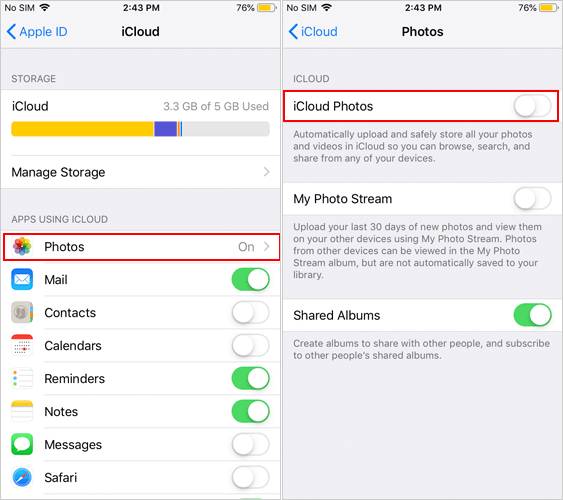
After enabling this feature, your existing videos in the Photos app will start syncing to iCloud. Any new videos you record will also be uploaded automatically when your device is connected to the internet.
Method 2: Upload Videos to iCloud Drive Manually
If you only want to upload specific video files instead of syncing your entire Photos library, you can use iCloud Drive.
- Open the "Photos" app and select the video you want to upload.
- Tap the "Share" button.
- Choose "Save to Files".
- Select "iCloud Drive" as the storage location.
- Tap "Save" to upload the video.
You can later access these videos through the "Files" app on your iPhone, iPad, Mac, or by visiting iCloud.com.
Tips for Uploading Videos to iCloud from iPhone/iPad:
- Keep your iPhone or iPad connected to Wi-Fi, especially when uploading large videos. (iPhone WiFi Keeps Disconnecting?)
- Make sure your device has enough battery or connect it to a charger during the upload process.
- Avoid closing apps or interrupting the internet connection while large videos are syncing.
- If you have many videos to upload, organize or remove unnecessary files first to make the process smoother.
Part 3: How to Put Videos on iCloud from Mac
Uploading videos to iCloud from a Mac is simple, especially if you use the built-in Photos app or iCloud Drive. Depending on whether you want to sync your entire video library or upload selected video files, you can choose the method that works best for you.
Method 1: Upload Videos to iCloud Photos Using the Photos App
If you want to sync videos from your Mac's Photos library to iCloud, follow these steps:
- Open the "Photos" app on your Mac.
- Click "Photos" in the top menu bar and select "Settings".
- Go to the "iCloud" tab.
- Turn on "iCloud Photos".
- Import the videos you want to upload into the Photos app.
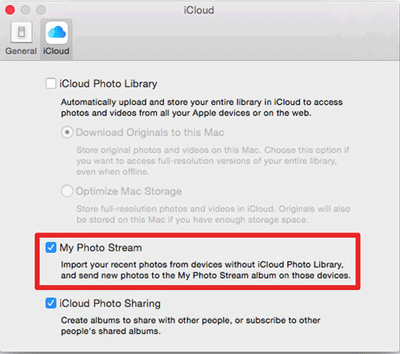
Once enabled, your videos will automatically sync to iCloud Photos and become available on other Apple devices signed in with the same Apple ID. (iCloud Photos Not Syncing?)
To import videos into the Photos app:
- Open the "Photos" app.
- Click "File" > "Import".
- Select the videos from your Mac.
- Click "Review for Import" and choose "Import All New Items".
Method 2: Upload Videos to iCloud Drive from Mac
If you prefer to upload individual video files instead of syncing your entire Photos library, iCloud Drive is a better option.
- Open "Finder" on your Mac.
- Click "iCloud Drive" from the sidebar.
- Drag and drop the videos you want to upload into the iCloud Drive folder.
- Wait for the upload process to complete.
Your uploaded videos will then be stored in iCloud Drive and can be accessed from your iPhone, iPad, another Mac, or through iCloud.com.
Part 4: How to Upload Videos to iCloud from Windows PC
Although iCloud is mainly designed for Apple devices, Windows users can also upload videos to iCloud through iCloud.com or the iCloud for Windows app. These methods allow you to store videos online and access them from your iPhone, iPad, Mac, or other devices.
Method 1: Upload Videos to iCloud via iCloud.com
If you only need to upload a few videos, using iCloud's website is the quickest option.
- Open a browser on your Windows PC and visit iCloud.com.
- Sign in with your Apple ID.
- Select "Photos" or "iCloud Drive".
- Click the upload icon.
- Choose the videos you want to upload from your computer.
- Wait for the upload process to finish.
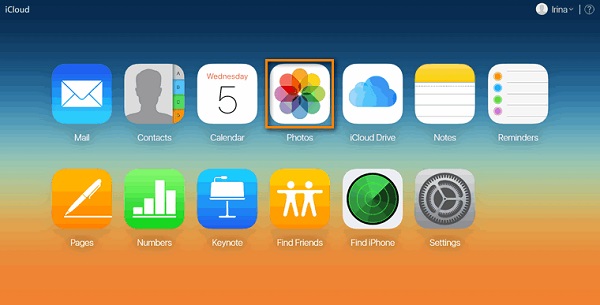
When uploading through iCloud Photos, your videos will appear in the Photos app on other Apple devices with the same Apple ID. If you upload videos to iCloud Drive, you can access them through the Files app or iCloud Drive folder.
Method 2: Upload Videos Using iCloud for Windows
For users who frequently transfer files between a Windows PC and iCloud, iCloud for Windows provides a more convenient way.
- Download and install iCloud for Windows on your PC.
- Open the app and sign in with your Apple ID.
- Enable "Photos" or "iCloud Drive" syncing.
- Open the iCloud folder in File Explorer.
- Copy or drag videos into the corresponding folder.
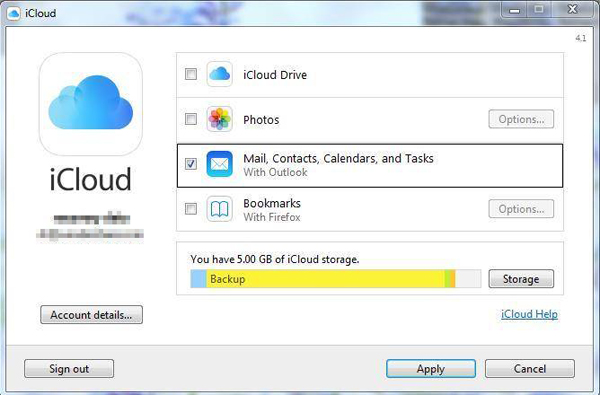
After that, your videos will automatically sync with iCloud when your PC is connected to the internet.
Bonus: How to Transfer Videos from iPhone to Computer Without iCloud
Although iCloud provides a convenient way to sync videos, it may not always be the best option. Limited iCloud storage, slow upload speeds, or unstable internet connections can make transferring large video files inconvenient. If you want to move videos from your iPhone to a computer directly, MobiKin Assistant for iOS offers a simple and efficient solution.
MobiKin Assistant for iOS is a professional iPhone data management tool that allows you to transfer videos, photos, music, contacts, messages, and other data between your iPhone and computer without relying on iCloud.
Key Features of MobiKin Assistant for iOS:
- Export videos from your iPhone to a Windows PC or Mac without uploading them to iCloud first.
- Transfer videos in their original format and quality without compression or quality loss.
- Preview your iPhone videos and choose specific files to transfer instead of moving the entire library.
- Besides videos, the tool also supports transferring photos, music, contacts, messages, books, and more.
- Add, delete, edit, and organize iPhone files directly from your computer.


How to Transfer Videos from iPhone to Computer with MobiKin Assistant for iOS:
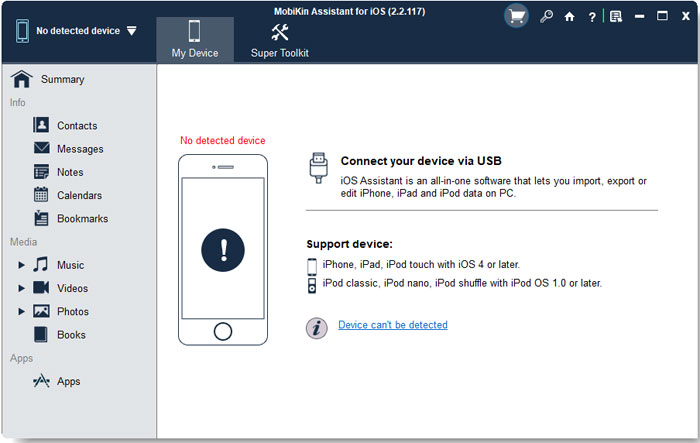
Step 1. Download and install MobiKin Assistant for iOS on your computer. Launch the program and connect your iPhone using a USB cable. Tap "Trust" on your iPhone if prompted.
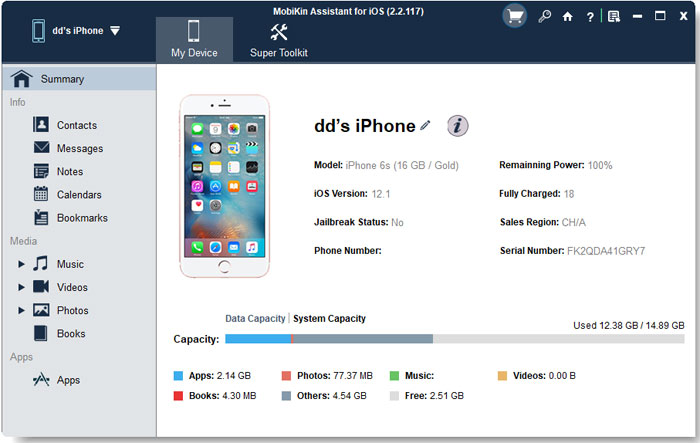
Step 2. After your device is recognized, choose "Videos" from the left sidebar. The program will scan and display all available videos on your iPhone.
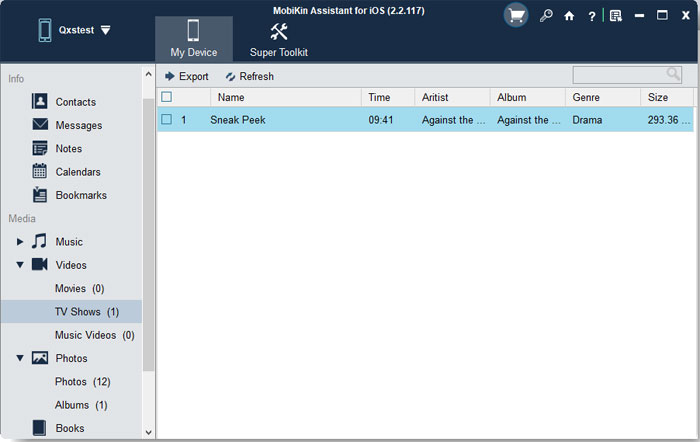
Step 3. Select the videos you want to transfer. You can preview the files before exporting to make sure you choose the correct videos. Click the "Export" button and select a destination folder on your computer. Wait for the transfer process to complete.
Video Guide:
FAQs About Uploading Videos to iCloud
Q1. How Long Does It Take to Upload Videos to iCloud?
The time required to upload videos to iCloud depends on several factors, including video size, upload speed, network stability, and the number of videos being uploaded. Small video clips may upload within minutes, while large 4K videos or a large video library may take much longer. Keeping your device connected to Wi-Fi and power can help complete the upload process more smoothly.
Q2. Why Are My Videos Not Uploading to iCloud?
If your videos are not uploading to iCloud, try checking your internet connection first. You can also restart your device, make sure iCloud services are working properly, or update your system to the latest version. In some cases, signing out of iCloud and signing back in may help resolve syncing problems.
Q3. Can I Upload Videos to iCloud Without Wi-Fi?
Yes, you can upload videos using mobile data if your device settings allow it. On your iPhone or iPad, go to "Settings" > "Photos" and enable mobile data access for Photos. However, uploading large videos over cellular data may consume a significant amount of your data plan.
Q4. Does Uploading Videos to iCloud Compress Video Quality?
No. iCloud Photos stores your videos in their original resolution and format. When you access or download them, you can keep the original quality of your videos. However, make sure you choose the option to download the original files when moving videos back to your device.
Q5. Can I Upload Videos to iCloud from an External Hard Drive?
Yes, you can upload videos stored on an external hard drive through a Mac or Windows PC. Connect the drive to your computer, then upload the video files through iCloud.com, iCloud Drive, or the Photos app on Mac.
Q6. Can I Upload Videos to iCloud from an Android Phone?
iCloud does not provide a dedicated Android app for uploading videos. However, Android users can access iCloud.com through a browser and upload supported files manually. For frequent transfers between Android and Apple devices, a dedicated file transfer tool may offer a more convenient solution. (How to Back Up to iCloud from Android?)
Q7. What Should I Do If iCloud Upload Is Stuck?
If an iCloud video upload gets stuck, try pausing and resuming the upload, restarting your device, or reconnecting to a stronger network. You can also check whether the video file is supported and whether iCloud is experiencing a temporary service issue.
Final Words
Uploading videos to iCloud is a convenient way to sync and access your videos across multiple devices. This guide explains how to upload videos from iPhone, iPad, Mac, and Windows PC. However, if you need faster transfers without iCloud storage limitations, tools like MobiKin Assistant for iOS can help you move videos directly and efficiently.
Related Articles:
How to Download Video from iCloud [3 Easy Methods]
[2026] Recover Deleted Videos from iPhone Without Backup
