
How to Add a Calendar on iPhone (Google, Outlook, Shared & More)
TL;DR:
Want to know how to add calendar on iPhone? This guide covers different ways to create, sync, and transfer calendars easily.
- Create a new calendar directly on your iPhone to organize different types of events.
- Add Google Calendar to iPhone and sync your schedules across devices.
- Connect Outlook Calendar with iPhone to manage work and personal appointments.
- Add shared or subscribed calendars to view family, team, holiday, or public schedules.
- Import calendars from your computer to iPhone with MobiKin Assistant for iOS.
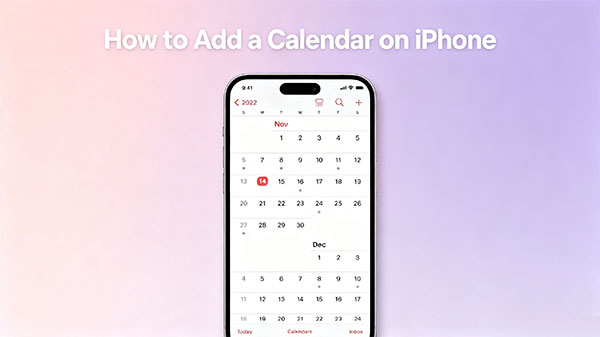
The iPhone Calendar app makes it easy to manage appointments, events, and daily schedules in one place. However, many users may not know how to add different types of calendars, such as Google Calendar, Outlook Calendar, shared calendars, or calendars stored on a computer. In this guide, we will show you how to add calendar on iPhone step by step and introduce a simple way to transfer calendars between your iPhone and computer.
Part 1: How to Add a New Calendar on iPhone
If you want to organize your schedules more efficiently, creating a new calendar on your iPhone is a simple way to separate different types of events. For example, you can create separate calendars for work, personal plans, family activities, or important reminders. The built-in Calendar app allows you to add a new calendar in just a few steps.
- Open the Calendar app on your iPhone.
- Tap "Calendars" at the bottom of the screen to view your existing calendars.
- Tap "Add Calendar" in the lower-left corner.
- Select "Add Calendar" again, then enter a name for your new calendar.
- Choose an account where you want to save the calendar, such as iCloud or another connected account.
- Pick a color for the calendar to help you identify events more easily.
- Tap "Done" to create the new calendar.
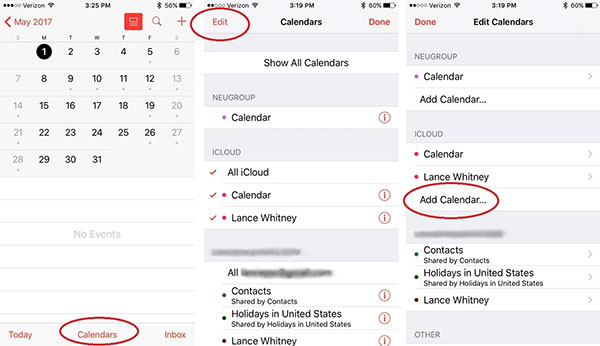
Once completed, your new calendar will appear in the Calendar app (iPhone Calendar Disappeared?), and you can start adding events to it. If you use multiple calendars, you can also tap the checkbox next to each calendar to show or hide them whenever needed.
Part 2: How to Add Google Calendar to iPhone
If you mainly use Google Calendar to manage your appointments and schedules, you can easily add it to your iPhone's Calendar app. After connecting your Google account, your Google Calendar events will sync with the iPhone Calendar, allowing you to view and manage everything in one place.
Here is how to add Google Calendar to your iPhone:
- Open the "Settings" app on your iPhone.
- Scroll down and tap "Calendar".
- Select "Accounts", then tap "Add Account".
- Choose "Google" from the account options.
- Enter your Google account information and sign in.
- After signing in, turn on the "Calendars" option to enable calendar syncing.
- Tap "Save" to finish the setup.
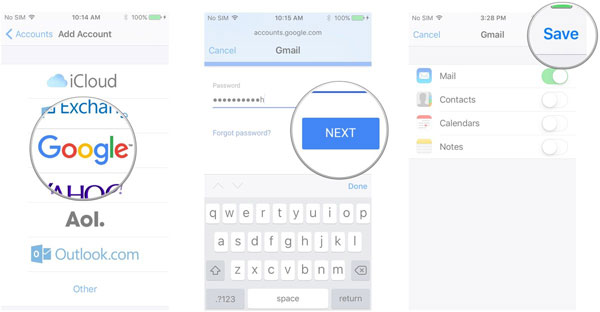
Now, open the "Calendar" app on your iPhone and tap "Calendars" at the bottom. Your Google Calendar should appear in the list. You can select or deselect it anytime to show or hide Google Calendar events.
If your Google Calendar events are not showing up after adding the account, check whether calendar sync is enabled in your Google account settings or try removing and adding the account again.
Part 3: How to Add Outlook Calendar to iPhone
If you use Outlook for work or personal scheduling, you can add your Outlook Calendar to your iPhone and sync your events with the built-in Calendar app. This way, you can check meetings, appointments, and reminders from different accounts without switching between apps.
Follow these steps to add Outlook Calendar to your iPhone:
- Open the "Settings" app on your iPhone.
- Scroll down and tap "Calendar".
- Tap "Accounts", then select "Add Account".
- Choose "Outlook.com" from the available account options.
- Enter your Outlook email address and password, then sign in.
- After your account is added, make sure the "Calendars" option is turned on.
- Tap "Save" to complete the setup.
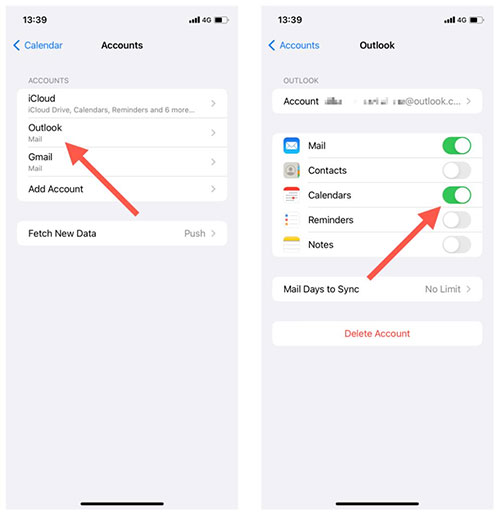
After that, open the "Calendar" app and tap "Calendars" at the bottom. Your Outlook Calendar will appear in the list, and you can choose whether to display or hide its events.
If your Outlook Calendar is not syncing properly, check your account settings, make sure the Calendar option is enabled, and confirm that your iPhone has a stable internet connection. You can also remove the Outlook account and add it again to refresh the connection.
Part 4: How to Add a Shared or Subscribed Calendar on iPhone
Besides creating your own calendar, you can also add shared or subscribed calendars to your iPhone. This is useful when you want to view schedules from family members, coworkers, organizations, or public sources without manually adding each event.
Way 1: Add a Shared Calendar on iPhone
A shared calendar allows multiple people to view or edit the same calendar. For example, families can share schedules, while teams can use shared calendars to keep track of meetings and tasks.
Follow these steps to add a shared calendar:
- Open the "Calendar" app on your iPhone.
- Tap "Calendars" at the bottom of the screen.
- Tap "Add Calendar" and choose "Add Shared Calendar".
- Enter the name or email address of the person who shared the calendar with you.
- Select the shared calendar and tap "Add" to complete the process.
You can also accept a shared calendar invitation by opening the invitation message or email and following the provided link. (How to Restore Calendar on iPhone?)
Way 2: Add a Subscribed Calendar on iPhone
A subscribed calendar is usually used for calendars that are publicly available, such as holiday schedules, sports events, or school calendars. Instead of creating events manually, you can subscribe to the calendar and let your iPhone update it automatically.
Here is how to add a subscribed calendar:
- Open the "Settings" app on your iPhone.
- Tap "Calendar" and select "Accounts".
- Tap "Add Account", then choose "Other".
- Select "Add Subscribed Calendar".
- Enter the calendar server address or URL.
- Tap "Next" and follow the instructions to save the calendar.
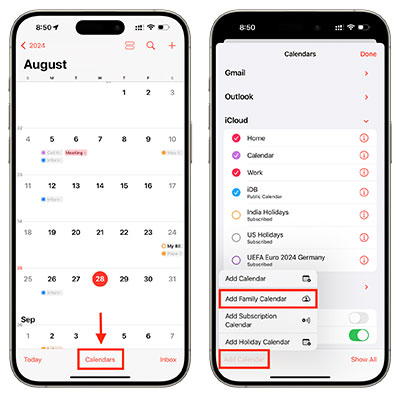
After adding a shared or subscribed calendar, you can manage it anytime by opening the "Calendar" app and tapping "Calendars". From there, you can choose which calendars to display, change their colors, or remove calendars you no longer need.
Part 5: How to Import Calendar from Computer to iPhone
If you have calendar data saved on your computer and want to move it to your iPhone, using a professional iOS transfer tool can make the process much easier. MobiKin Assistant for iOS allows you to manage iPhone data directly from your computer, including transferring calendar entries from PC to iPhone and exporting calendars from iPhone for backup. It provides a simple way to move important schedules without relying on iCloud or complicated syncing methods.
Main Features of Assistant for iOS:
- Transfer calendars between iPhone and computer easily without complicated setup.
- Import calendar data from your computer to iPhone with a few simple clicks.
- Export iPhone calendars to your computer for backup or future use.
- Preview calendar information before transferring to make sure you select the right data.
- Manage multiple types of iPhone data, including contacts, messages, notes, photos, music, and more.
- Transfer data selectively without erasing existing content on your iPhone.


Steps to Import Calendar from Computer to iPhone:
Step 1: Download and install the program, then open it to prepare for the connection. Use a USB cable to connect your iPhone to the computer. When prompted on your iPhone, tap "Trust" to allow the computer to access your device.
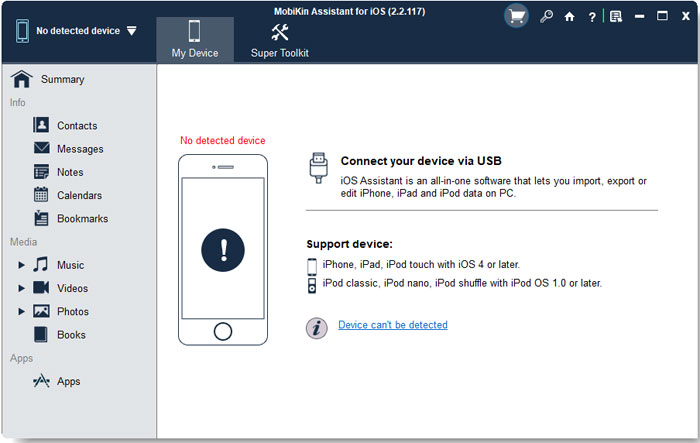
Step 2: After your iPhone is recognized, choose "Calendar" from the left sidebar. The program will load and display the available calendar information on your device.
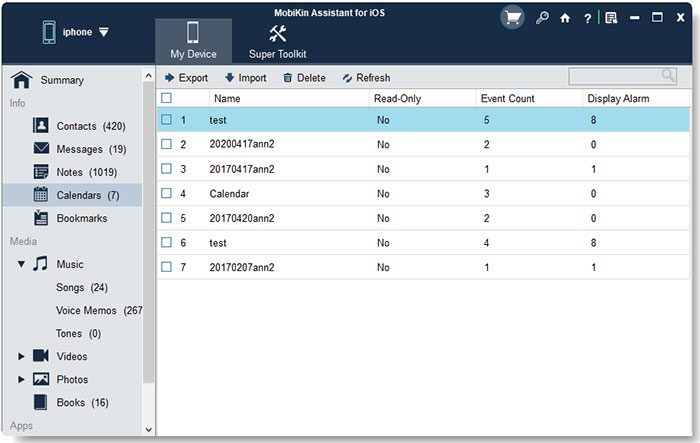
Step 3: Click the "Import" button, select the calendar files stored on your computer, and confirm the transfer. The selected calendar data will be added to your iPhone.
Open the "Calendar" app on your iPhone and check whether the imported calendar events appear correctly. If you need, you can also click "Export" to transfer calendar events from iPhone to your computer.
Video Guide:
Wrapping Up
Adding a calendar on iPhone is a simple process, whether you want to create a new calendar, sync Google or Outlook accounts, or subscribe to shared calendars. If you need to move calendar data between your computer and iPhone, MobiKin Assistant for iOS provides a convenient way to import and export calendars without complicated steps.
Related Articles:
6 Ways to Print Calendar from iPhone [Beginner's Guide]
Top 4 Methods to Sync iPhone and iPad Calendars
