
4 Options: How to Change Location on Bluestacks 5 [Easy Tutorial]
"Hi, I am having a hard time changing my location. I would like the Bluestacks to emulate my home country location so that I can make a purchase on playstore." -- from Reddit
Location settings can influence how apps behave when running inside BlueStacks 5. Many services rely on GPS data to determine what content or functions should be available. For instance, changing regions can display different recommendations, ads, or services tailored to another location.
Because of this, a growing number of users search for reliable methods on how to change location on Bluestacks without causing errors or interruptions. This guide covers 4 clever ways, covering both built-in tools and third-party solutions that make the process straightforward.
- Part 1: Change Bluestacks Location by Setting Up or Customizing Location
- Part 2: Change Location on Bluestacks via Virtual Location Tool [Stable]
- Part 3: Change Current Location on Bluestacks via Change My Location
- Part 4: Change Bluestacks Store Region with Location Changer - Fake GPS
- FAQs about Changing Location on Bluestacks
Part 1: Change Bluestacks Location by Setting Up or Customizing Location
A built-in feature in Setting or Customizing Location allows users to adjust the virtual GPS position directly within BlueStacks 5. By opening the location panel and searching for a city or dropping a pin on the map, a new coordinate can be applied instantly. This option works well for testing location-based apps or accessing region-specific services without installing extra utilities.
How-to Guide:
- Launch BlueStacks 5 on your computer.
- Click the "Set location" icon on the right-side toolbar (or press Ctrl + Shift + K).
- The location map window will appear.
- Choose one of the following ways to set your location:
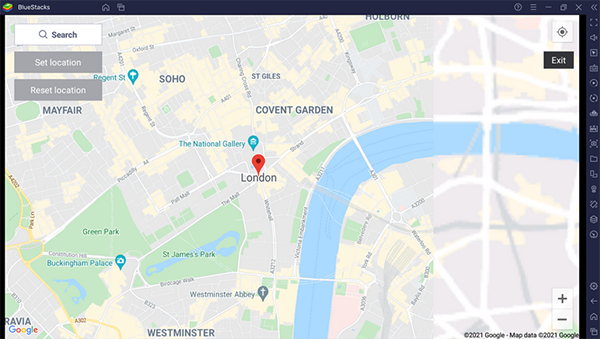
Option 1: Search for a Location
- Enter the city, address, or coordinates in the search box.
- Select the correct result from the list.
- Click "Set location" to confirm.
Option 2: Customize Location on the Map
- Drag the map to explore different areas.
- Use the mouse wheel or +/- buttons to zoom.
- Click any point on the map to place a marker.
- Click "Set location" to apply the new GPS location.
* To reset location: Click Reset in the location panel to return to the default location.
You May Also Like: 9 Best BlueStacks Alternatives in 2026 [Ultimate Guide]
Part 2: Change Location on Bluestacks via Virtual Location Tool [Stable]
A desktop utility called Virtual Location Tool provides another way to alter GPS coordinates for mobile environments connected to a computer. After linking the emulator session, the program can simulate a different position through an interactive map interface.
Users may select a location, enter precise coordinates, or create a movement route to mimic real travel. The modified location can then be recognized by apps running inside BlueStacks 5.
Virtual Location Tool - Core Features:
- GPS teleport - Instantly change location, including for apps in BlueStacks 5.
- Route simulation - Create two-spot or multi-spot travel routes.
- Joystick control - Move GPS locations manually in real time.
- Speed adjustment - Simulate walking, cycling, or driving speeds.
- App compatibility - Works with many GPS-based apps and games.
- GPX support - Import or export saved route files.
- Multi-device control - Manage several devices at once.
- Privacy protection - Hide the real GPS location.
- Cooldown timer - Reduce risks from frequent location changes.
- Favorite locations - Save commonly used places.
How-to Guide:
- Start by downloading and installing the most effective location changer on your Windows or macOS system.
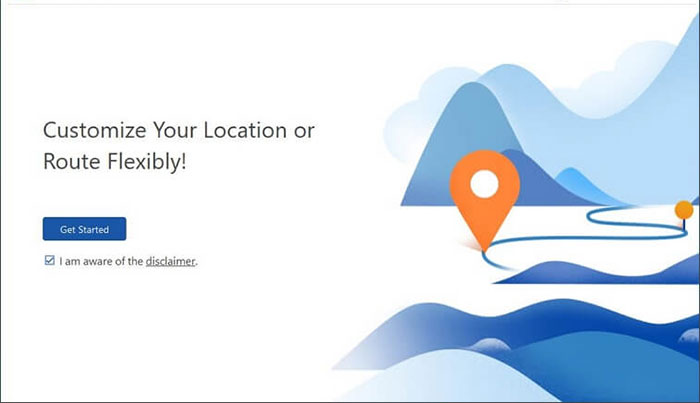
- Once you have opened the application, click on "Get Started" on the main interface.
- Connect your smartphone to the computer using a USB cable and wait briefly for the software to recognize your device.
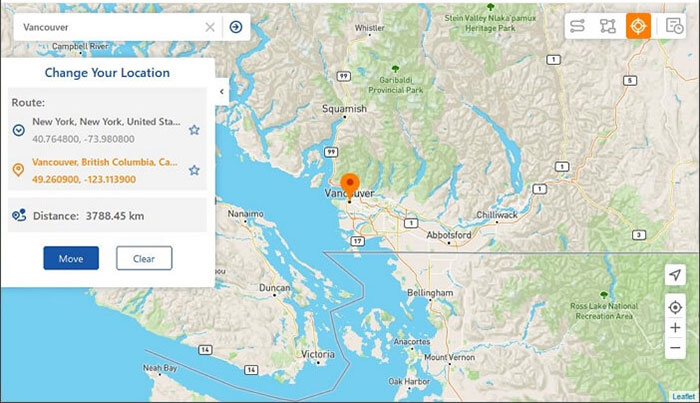
- In the upper-right corner of the interface, select "Teleport Mode."
- Subsequently, enter your desired destination in the search bar or provide specific GPS coordinates for accurate location identification.
- After the map pointer has moved to your chosen location, click "Move" to instantly alter the GPS location for Bluestacks.


Learn More: [Latest Guide] How to Change iPhone Location without VPN in 3 Ways?
Part 3: Change Current Location on Bluestacks via Change My Location
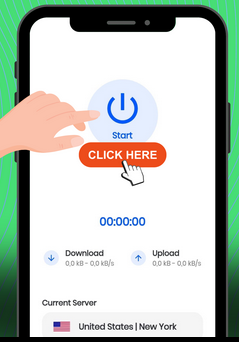
A lightweight Android application such as Change My Location can also be installed inside BlueStacks 5 to alter the device's reported region. After opening the app, a list of available countries and servers becomes accessible for quick selection.
Once connected, the program replaces the original coordinates with the chosen virtual region. Apps launched afterward will usually read the new location instead of the actual one.
How-to Guide:
- Open BlueStacks 5 on your computer and sign in with your Google account if you have not already done so.
- Go to the Google Play Store within BlueStacks and search for Change My Location.
- Select the app from the search results and click Install to add it to BlueStacks.
- After installation, launch the Change My Location app from the BlueStacks home screen.
- Browse the list of available countries or regions provided in the app.
- Choose the location you want to simulate and tap the Connect or activation option.
- Once connected, the app will mask your original location and apply the selected virtual region for apps running inside BlueStacks.
- Open any location-based app or game in BlueStacks to confirm that the new location is now being used.
Part 4: Change Bluestacks Store Region with Location Changer - Fake GPS
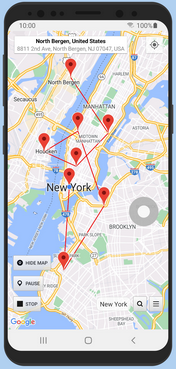
Another option available from the Play Store is Location Changer - Fake GPS, which simulates GPS movement through a map-based interface. Inside BlueStacks 5, users can search for an address or manually place a marker to define a destination.
Activating the play button enables the selected coordinates to function as the device's current location. The tool can also simulate movement between points, which may help when testing navigation or location-dependent applications.
How-to Guide:
- Open BlueStacks 5 on your PC or Mac and make sure you are logged in with your Google account.
- Launch the Google Play Store inside BlueStacks and search for Location Changer - Fake GPS.
- Click Install and wait until the app finishes downloading and installing.
- Open the Location Changer - Fake GPS app from the BlueStacks home screen.
- Use the interactive map or joystick controls to select a new country or city you want to simulate.
- Drop a pin on the map or search for a specific location to set your virtual coordinates.
- Tap the Start/Play button (or enable the fake location option) to activate the new GPS location.
- Close the app and open the Google Play Store or other apps to check if the store content or services now reflect the new region.
FAQs about Changing Location on Bluestacks
Q1: How to upgrade to a newer version of BlueStacks?
- Open BlueStacks 5 on your computer.
- Click the gear icon (Settings) located on the right sidebar or bottom menu.
- Go to the About section within the Settings panel.
- Click Check for updates to see if a newer version is available.
- If an update appears, select Download update to begin the process.
- Wait for the installer to download the latest version automatically.
- Follow the on-screen prompts and click Install now to upgrade the emulator.
- Restart BlueStacks once the installation finishes so the new version can take effect.
Q2. Why do people change their location on BlueStacks?
Users often change their location to test location-based apps, access region-restricted services, or simulate GPS movement in certain games while using BlueStacks 5.
Q3. Does changing the location affect all apps in BlueStacks?
In most cases, yes. After you set a new GPS location in BlueStacks 5, the majority of apps running inside the emulator will detect the updated coordinates.
Q4. Can I reset the location back to the default one?
Yes. Open the Set Location panel in BlueStacks 5 and click Reset to restore the original GPS location.
Q5. Why isn't the location changing in BlueStacks?
Sometimes apps cache the previous GPS data. Restart the app, clear its cache, or restart BlueStacks 5 to make the new location take effect.
Q6. Can changing location help access region-restricted apps?
It may help in some cases. By setting a different region in BlueStacks 5, users might access apps or services that are limited to certain countries.
Q7. Is it safe to change location on BlueStacks?
Using the built-in location tool in BlueStacks 5 is generally safe. However, when installing third-party location apps, make sure they come from trusted developers.
Q8. Do I need root access to change the location on BlueStacks?
No. Most location-changing features and GPS spoofing apps work normally on BlueStacks 5 without requiring root access.
Calling It a Wrap
Adjusting the virtual GPS position in BlueStacks 5 can open access to region-specific content, help test location-based apps, or simply provide more flexibility when running mobile software on a computer. While several approaches can accomplish this task, the experience becomes smoother when using a dependable desktop tool.
Virtual Location Tool offers accurate location switching, flexible route simulation, and an intuitive map interface that makes GPS modification easy to control. It also reduces the complications that sometimes appear with emulator-only methods.
Related Articles:
4 Tried-and-true Ways to Play Mobile Legends on PC [Good Experience]
All You Want to Know about Find My iPhone Offline Last Known Location [2026]
5 Means to Share Location on Android Devices with Friends/Family
How to Download & Play Android Games on PC in 7 Ways [Fluent]
