
How to Pause Snapchat Location in 6 Easy & Safe Ways? [Answered]
TL;DR:
A thoughtful conclusion to this article emphasizes that while Snapchat offers several built-in ways to pause location, the most versatile option comes from external tools. Among them, Virtual Location Tool is the most recommended because it provides flexible and customizable control over your GPS. This makes it ideal for anyone who wants more than temporary privacy - it gives you lasting control over how Snapchat interprets your location.
"I've cancelled plans bc of tidying to hang out with another friend, and I don't want any drama anyone know any help?" -- From Reddit
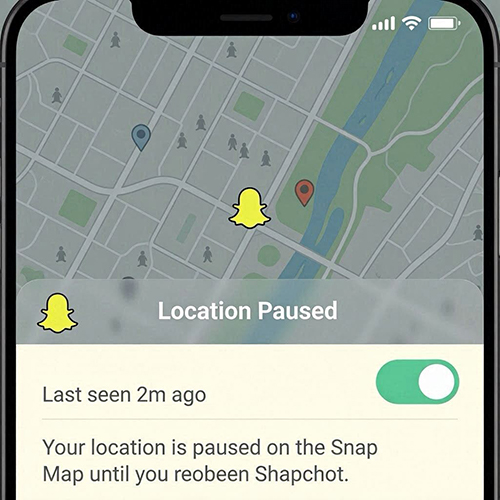
Snapchat's Snap Map can be fun, but it also raises concerns about protecting your privacy and controlling who sees your whereabouts. Constant tracking may feel intrusive. This guide explores the 6 most productive ways on how to pause Snapchat location to prevent constant tracking, giving you practical options to manage visibility without losing access to the app's core features.
- Part 1: Freeze Location on Snapchat by Enabling Ghost Mode
- Part 2: Pause Snapchat Location by Turning off Precise Location
- Part 3: Pause Location on Snapchat by Restricting Location Access
- Part 4: Freeze Last Seen Location on Snapchat by Managing Visibility
- Part 5: Freeze Snapchat Location by Activating Airplane Mode
- Part 6: Pause Snapchat Location via Location Changer [Customizable]
- FAQs for Pausing Snapchat Location
Part 1: Freeze Location on Snapchat by Enabling Ghost Mode
When privacy is a priority, one of the simplest methods is enabling Ghost Mode. This feature hides your Bitmoji from Snap Map, ensuring no one can see your live location. You can set it for a few hours, a day, or keep it on until you manually disable it, giving you flexible control over visibility. Here are the steps:
- Launch Snapchat on your phone.
- Tap your profile icon in the top-left corner.
- Scroll to Snap Map and select the option beneath it.
- Switch on Ghost Mode by toggling the button.
- Pick a duration: 3 hours, 24 hours, or Until turned off (which keeps Ghost Mode active until you manually disable it).
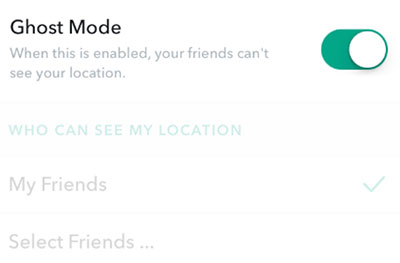
* Another way to freeze your Snapchat location is by enabling Ghost Mode through the Friends section. Open Snapchat, tap the map icon at the bottom, then the gear icon in the top-right to access Snap Map settings. Toggle Ghost Mode on and choose a duration - 3 hours, 24 hours, or Until turned off for continuous privacy.
You can tell if someone has paused their Snapchat location when their Bitmoji stays in the same spot for a long time without updating. Unlike Ghost Mode, where their Bitmoji disappears completely, paused location keeps it visible but frozen. Keep in mind, though, a static Bitmoji could also mean they haven't opened Snapchat recently or have weak GPS/connection.
You Might Also Like: 5 Easiest Ways to Fake/Change Location on Snapchat Map [iOS/Android]
Part 2: Pause Snapchat Location by Turning off Precise Location
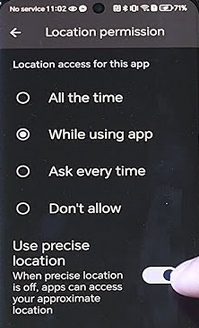
Another option is turning off Precise Location in your device settings. By doing this, Snapchat only receives an approximate area rather than your exact coordinates. It's a subtle way to pause detailed tracking while still allowing limited location-based features to function. Here are the steps:
Disable Precise Location on Android
- Adjust Snapchat's location permissions through your Android settings.
- Go to Settings > Apps > App Management > Snapchat > Permissions > Location.
- Open your Android device's System Settings.
- Scroll down and tap Apps or App Management.
- Select Snapchat from the list.
- Tap Permissions > Location.
- Turn off the toggle for Use Precise Location.
Disable Precise Location on iPhone
- Manage Snapchat's location access directly from iOS settings.
- Go to Settings > Snapchat > Location.
- Open your iPhone's Settings.
- Scroll down and find Snapchat.
- Tap Location under Snapchat settings.
- Switch off the toggle for Precise Location.
People Also Like: How to Get/Use Snapchat on PC Flexibly? [Way 6 Is Incredible]
Part 3: Pause Location on Snapchat by Restricting Location Access
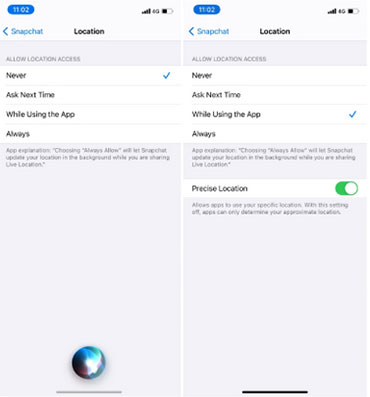
Restricting Location Access through system permissions is another effective approach. On Android or iPhone, you can set Snapchat to use location only while the app is open, or block it entirely. This prevents background updates and ensures your whereabouts aren't constantly shared. Here are the steps:
On Android
- Open System Settings on your device.
- Go to App Management to view all installed apps.
- Select Snapchat from the list.
- Tap Permissions > Location.
- Under Location access for this app, choose one of four options: Allow all the time; Allow only while using the app; Ask every time; Don't allow)
On iPhone
- Open Settings on your device.
- Scroll to Snapchat in the Apps list.
- Tap Location.
- Under Allow Location Access, select one of four options: (Never; Ask next time or when I share; While using the app; Always)
NOTE:
- Allow all the time (Android) and Always (iPhone) give Snapchat full access to your real-time location, even when not using the app - not recommended.
- While using the app is safer, limiting access to when Snapchat is open.
- Ask every time (Android) and Ask next time or when I share (iPhone) require permission each time.
- Don't allow/Never completely blocks Snapchat from accessing your location.
Part 4: Freeze Last Seen Location on Snapchat by Managing Visibility
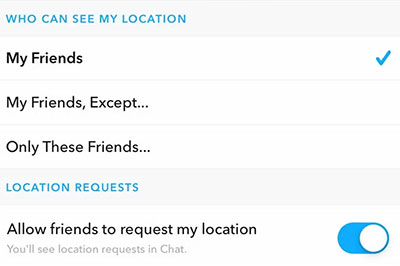
Managing visibility by customizing Who Can See Your Location offers more selective control. This way, you pause location sharing for specific people without hiding it from everyone. Here are the steps:
- Open Snap Map settings.
- Go to "Who Can See My Location".
- Choose one of the following: My Friends - all friends can see your location; My Friends, Except... - hide location from selected friends; Only These Friends - share location only with chosen friends.) (How to stop your parents from tracking your phone?)
Part 5: Freeze Snapchat Location by Activating Airplane Mode
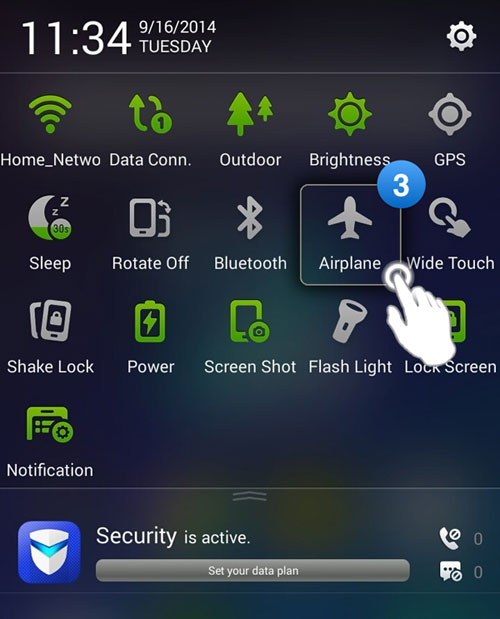
A temporary but powerful method is activating Airplane Mode. Once enabled, Snapchat cannot send or receive location data, freezing your last known position. When you're ready to reconnect, simply disable Airplane Mode and your location updates resume if permissions are allowed. Here are the steps:
- Enable Airplane Mode: Swipe down on iOS or Android to open quick settings, then tap the airplane icon (or turn it on in system settings).
- Open Snapchat: You can still view previously loaded snaps, but no new data will be sent or received.
- Check Snap Map: It will show your last known location or none at all, meaning your current location isn't shared.
- Disable Airplane Mode: When finished, turn it off to reconnect to Wi-Fi and cellular networks, allowing Snapchat to update your location again if enabled.
Part 6: Pause Snapchat Location via Location Changer [Customizable]
For advanced control, tools like Virtual Location Tool let you spoof or freeze your location entirely. This software allows you to set a custom spot on the map, making Snapchat believe you're somewhere else. It's particularly useful if you want to pause or disguise your location without relying solely on in-app settings.
This is a professional location changer program that lets you spoof or freeze your GPS location instantly. It supports both iOS and Android devices (8,000+), allowing you to set a custom spot anywhere in the world. With features like Teleport Mode and real-time movement simulation, it gives you full control over how Snapchat and other apps read your location.
Here's how it works:
- Download and install Virtual Location Tool on your computer, making sure the setup completes successfully.
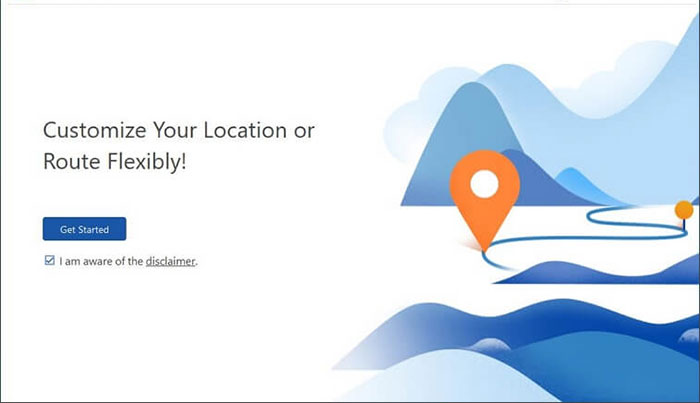
- Launch the program and click Get Started to begin the process.
- Connect your device (Android or iPhone) to the computer with a USB cable, and wait until it is recognized by the software.
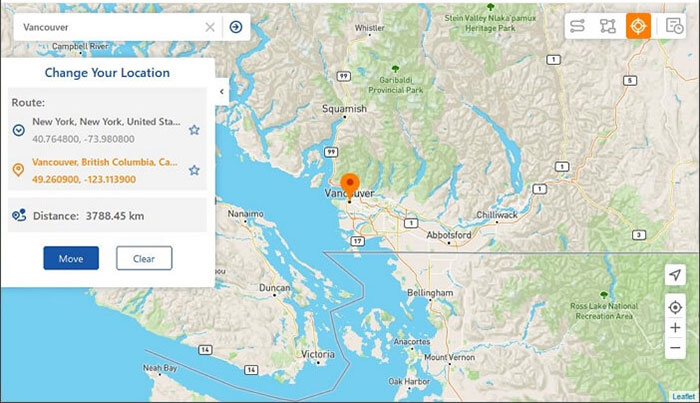
- Select Teleport Mode, then type in the location or coordinates you want Snapchat to display in the search bar.
- Click Move to apply the new location, and once the change is complete, a confirmation message will appear.
- Your device's GPS will now reflect the spoofed location instantly, meaning Snapchat will show this new spot instead of your actual position until you change it again.


FAQs for Pausing Snapchat Location
Q1: Does Ghost Mode disable Snap Map completely?
No, Snap Map remains active - you just won't appear on it.
Q2: Can friends tell if I paused my location?
They won't get a notification, but they may notice your Bitmoji isn't updating or has disappeared.
Q3: What's the difference between Precise and Approximate Location?
Precise shows your exact spot; disabling it shares only a general area, reducing accuracy.
Q4: What happens to my Bitmoji when I pause location?
It stays at your last recorded spot or disappears if Ghost Mode is on.
Q5: Will Snapchat still work without location access?
Yes, you can still send snaps, chat, and view stories - only location-based features are affected.
Q6: Does pausing location affect Snapchat filters?
Some location-based filters and stickers may not appear if location access is blocked or paused.
Q7: Will my location update automatically after pausing?
No - your Bitmoji stays frozen at the last known spot until you re-enable location sharing.
The Bottom Line
So here we are - at the end of a map where no little Bitmoji has to march. You've learned that pausing location isn't about hiding from the world; it's about choosing when to let the world see you. Turn on Ghost Mode before opening Snapchat after a long break. The app pings your location the moment it launches - so activate the setting while your phone is still on airplane mode, then reconnect. That way, your current spot never gets recorded.
Related Articles:
How to Recover Snapchat Messages on iPhone [100% Success]
How to Recover Snapchat Photos on Android? 3 Easy Ways for You!
