
Pokemon Go Routes Not Working? Causes & 11 Workable Methods
"I tried following two routes today and neither worked. What could I be doing wrong?" -- from Facebook
Pokémon GO Routes have become an important part of gameplay, but many players still face issues where the feature may not show up, fail to track progress, or stop working due to GPS errors, weak internet, or missing nearby Routes.
This guide on Pokémon GO Routes not working explores the main reasons behind these problems and provides 10 easy solutions to help restore normal gameplay. It also includes a helpful tip to improve stability and ensure a smoother experience while using Routes.
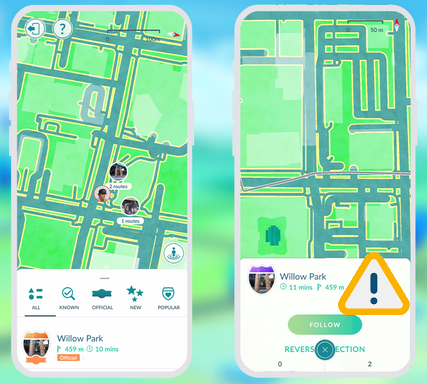
Part 1: Why Are Pokémon GO Routes Not Working
Routes in Pokémon GO can sometimes fail to load or function properly, leaving players confused during gameplay. Understanding the common causes behind this issue can help you quickly identify what's going wrong and get back on track. Here are some main ones:
- No Routes available in your area.
- Weak or unstable internet connection.
- GPS or location inaccuracies.
- Outdated app version or app glitches.
- Temporary server or game issues.
- Route restrictions (length or regional limits).
- Missing location or background permissions.
- In-game bugs causing tracking or loading failures.
Expanded Knowledge: How to Follow a Route in Pokemon GO? To follow a Route in the game, open the Nearby menu, go to the Routes tab, and select a Route near your location. Tap "Follow" and begin walking along the marked path while keeping the app open and your GPS active. As you move, your progress will be tracked automatically, and you'll earn rewards upon completing the Route.
Part 2: Fix Pokemon GO Routes Not Working with 11 General Solutions
Way 1: Inspect Device Compatibility
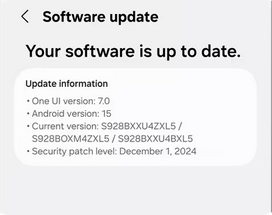
At the very beginning, checking device compatibility is an important step because older or unsupported devices may not handle newer features properly. Here's how to inspect device compatibility:
- Check OS version (Android 9+ or iOS 15+).
- Ensure GPS and mobile data are supported.
- Avoid rooted or jailbroken devices.
- Keep system software updated.
- Use a device with sufficient performance.
You May Also Like: Pokémon GO AR Not Working? 10 Quick Fixes & Helpful FAQs
Way 2: Check the Internent Connection
- Switch between Wi-Fi and mobile data to test stability.
- Open other apps or websites to confirm your internet is working.
- Restart your router or toggle airplane mode on/off to refresh the signal.
- Run a speed test to ensure your connection is strong enough.
- Move to a better signal area if your network is weak or unstable.
Way 3: Re-log in Pokemon GO Account
Logging out and logging back into your Pokémon GO account can help fix Route issues when the problem is caused by temporary glitches or sync errors. Here's how to do it:
- Open Pokémon GO and go to Settings.
- Scroll down and tap Sign Out.
- Close the app completely.
- Reopen Pokémon GO and log back in with your account.
- Check if Routes now appear and work normally.
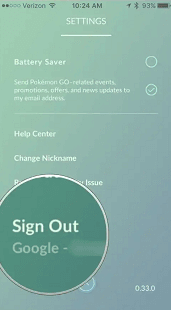
This simple re-login refreshes your account connection and can clear bugs affecting Routes functionality.
If re-logging into Pokémon GO doesn't tackle the problem, start by fully closing the app from the recent apps menu and then reopening it. If the problem persists, restart your phone to refresh system processes and clear temporary glitches affecting GPS or app performance. After rebooting, open Pokémon GO again and check if Routes are working properly.
Way 4: Clear Cache
- Go to your Android phone's Settings.
- Open Apps/Application Manager.
- Find and tap Pokémon GO.
- Select Storage.
- Tap Clear Cache (this removes temporary corrupted files without deleting your account data).
- Restart the app and check Routes again.
Way 5: Update Pokemon GO
Keeping the app updated ensures you have the latest bug fixes, performance improvements, and Route feature support. To do this:
- Open the Google Play Store (Android) or App Store (iOS).
- Search for Pokémon GO.
- Tap Update if a newer version is available.
- Restart the app after updating.
- Check if Routes are now working properly.
Way 6: Adjust Location Settings
- Turn on Location Services in your phone settings.
- Set location mode to High Accuracy (GPS + Wi-Fi + mobile networks).
- Allow Pokémon GO to access location "Always" or "While Using the App".
- Enable Precise Location if your phone has this option.
- Restart the app after changing settings to refresh GPS detection.
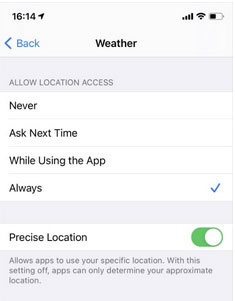
These adjustments help the game detect your exact position correctly, which is essential for Routes to load and function properly.
Way 7: Verify Server Status
Firstly, check whether the issue is coming from Niantic's servers or your device:
- Open the game and try logging in; if you see error messages or infinite loading, it may indicate a server issue.
- Visit trusted server trackers like Downdetector to see if other players are reporting outages.
- Check Niantic's official status page or announcements for maintenance or downtime updates.
- If many users are affected at the same time, the problem is likely server-side, and you'll need to wait for a fix.
Way 8: Reset GPS
- Turn Location Services off, wait a few seconds, then turn it back on.
- Switch location mode to High Accuracy (GPS + Wi-Fi + mobile data).
- Open Google Maps or another map app to refresh GPS signals, then reopen Pokémon GO.
- If needed, restart your phone to fully reset GPS connection.
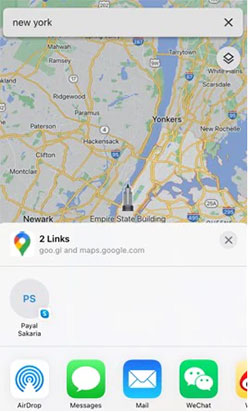
Way 9: Travel Farther & Check If the Route Appears
Traveling to another location increases the chance of detecting available Routes because they are not always shown in every area. Here's how you can do it:
- Move to a different area such as a park, city center, or landmark where Routes are more likely to exist.
- Open the Nearby > Routes tab again after arriving in the new location.
- Refresh the game or wait a few minutes for the map to update nearby Routes.
- Start or restart the app if no routes show up immediately.
- Continue walking around the area, as Routes only appear when you are within range of their starting point.
Way 10: Disable battery saver mode
Battery saver mode can limit background activity, reduce GPS accuracy, and restrict how Pokémon GO runs while your phone is locked or idle. This may cause Routes to stop tracking properly or fail to update your progress. Turning off battery saver ensures full GPS performance, smoother background processing, and more reliable Route tracking during gameplay.
See More: Why Is My Phone Hot and Losing Battery? How to Fix It Quickly? [SOLVED]
Way 11: Contact Pokemon GO Support
- Open Pokémon GO on your phone.
- Tap the Main Menu, then go to Settings.
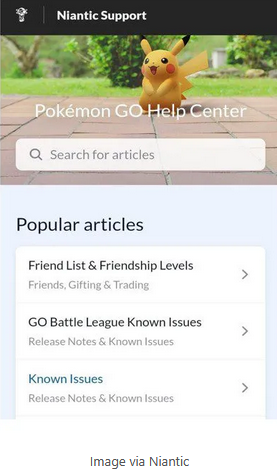
- Select Help to open the Help Center.
- Choose Contact Support/Get in Touch and submit your issue about Routes.
- Provide details like your device, app version, and what error you're facing.
Part 3: The Most Desirable Way for Auto-walk in Pokemon GO without Moving
Not interested in creating or sharing custom walking routes in Pokémon GO but still want a smoother experience? Tools like Virtual Location Tool let players catch rare Pokémon, hatch eggs, gain distance, and complete tasks without going outside.
It can simulate movement, set routes, and control speed so your in-game character appears to move naturally. This makes it especially useful for handling distance-based challenges while playing from home.
The product offers powerful features like teleport mode, route simulation, speed control, and joystick navigation, making it highly flexible for location-based app usage. With cross-platform support and no need for jailbreak or root, it provides a convenient and safer way to simulate realistic movement across iOS and Android devices.
Best Pokemon GO faker free download:


How to spoof Pokemon GO GPS location on an iOS/Android device with Virtual Location Tool?
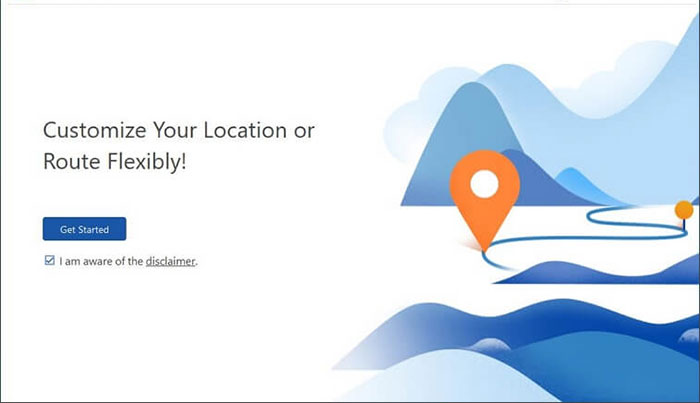
Step One. Start by downloading and installing a reliable location spoofer on your computer. After the installation is finished, open the software and choose the "Get Started" option.
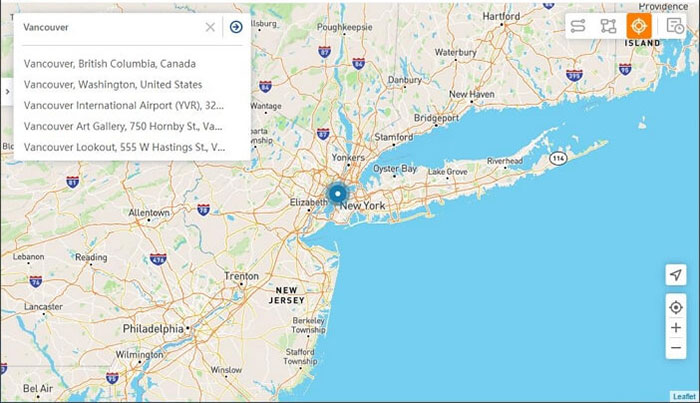
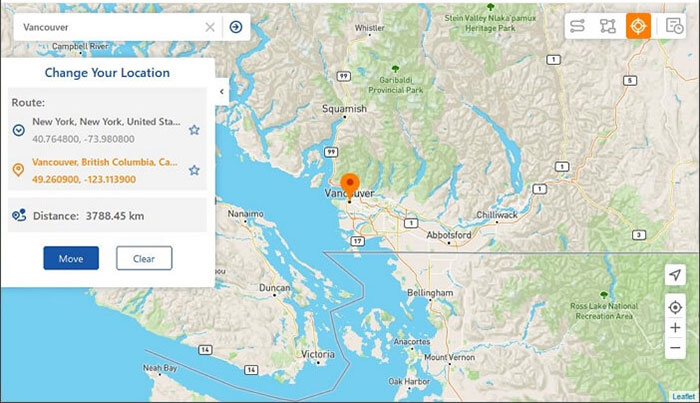
Step Two. Then, connect your iPhone or Android device to the computer using a USB cable. The software will automatically detect your device. Select "Teleport Mode" and either type in your desired location in the search bar or enter specific coordinates.
Step Three. Lastly, click "Move" to set the new location. Once this is done, a notification stating "Completed" will appear, and your device along with Pokemon GO will quickly update to show the new location settings.
FAQs about Pokémon GO Routes Not Working
Q1. Why can't I start a Route?
You might be too far from the Route start point or it hasn't loaded properly in the app.
Q2. Can my phone affect Routes performance?
Yes, low-end devices or missing permissions can prevent Routes from working correctly.
Q3. Why is the Routes tab missing in Pokémon GO?
Your account may not have access yet, or the feature isn't available in your region.
Q4. Can background apps affect Routes?
Yes, heavy background apps can reduce GPS accuracy and affect Route tracking.
Q5. Do battery saver modes affect Routes?
Yes, battery saver can limit GPS performance and disrupt Route tracking.
Q6. Why do Routes work for others but not for me?
It may be due to device compatibility, account limitations, or location differences.
Q7. Do I need to enable all location permissions?
Yes, Pokémon GO requires full or precise location access for Routes to work properly.
Wrap It Up
Route issues in Pokémon GO can often be traced back to simple factors such as location accuracy, connection stability, or app settings. With the proper adjustments and a few practical fixes, most players can get the feature working again without much difficulty.
In the end, as a side note - Keep both your GPS accuracy and app updates in check before starting a Route - small setup tweaks like these often prevent most tracking problems and lead to a more pleasant gameplay experience.
Related Articles:
7 Best Pokemon GO Joysticks for Enhanced Gameplay [Trusted]
All You Want to Know about Find My iPhone Offline Last Known Location [2026]
Pokemon GO Cooldown Chart: Everything about Cooldown Chart/Time for Pogo
How to Download & Play Android Games on PC in 7 Ways [Fluent]
