
Aiseesoft HEIC Converter Review: Precise Analysis & Explanation
TL;DR:
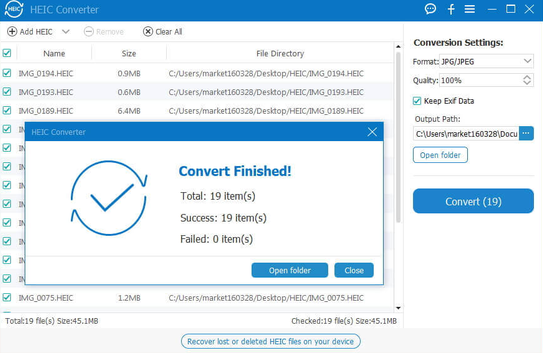
This article provides a detailed Aiseesoft HEIC Converter review, covering its key features, pricing, ratings, coupon offers, advantages, and limitations.
- It explains functions such as batch conversion, EXIF preservation, adjustable output quality, and HEIC conversion to JPG, JPEG, and PNG.
- The article also introduces MobiKin HEIC to JPG Converter as an alternative and outlines how to use it for batch HEIC conversion.
- Finally, the FAQs address common concerns about compatibility, image quality, safety, editing capabilities, and overall value.
HEIC is widely used for saving photos on Apple devices, but its compatibility with Windows, Android, and other platforms can sometimes be limited. If you want details about batch conversion, EXIF preservation, output quality settings, and supported formats about Aiseesoft HEIC Converter, this Aiseesoft HEIC Converter review will walk through its main features, performance, advantages, and possible drawbacks.
It can help you decide whether this converter fits your photo conversion needs or whether another option may be more suitable.
- Part 1: Aiseesoft HEIC Converter - Product Details
- Part 2: Aiseesoft HEIC Converter - Pricing & Ratings
- Part 3: Aiseesoft HEIC Converter - Coupon Codes [50% Off]
- Part 4: Aiseesoft HEIC Converter - Pros and Cons
- Part 5: What Could Be Better than Aiseesoft HEIC Converter
- FAQs about Aiseesoft HEIC Converter
Part 1: Aiseesoft HEIC Converter - Product Details
Aiseesoft HEIC Converter offers a range of practical functions for converting HEIC/HEIF images into more compatible formats. The table below summarizes its key features and product details for a quick overview.
|
Key Feature
|
Product Details
|
|
HEIC to JPG/JPEG Conversion |
Converts HEIC/HEIF photos into widely compatible JPG/JPEG files for easier viewing, editing, and sharing. |
|
HEIC to PNG Conversion |
Converts HEIC images to PNG while maintaining high output quality. |
|
Batch Conversion |
Converts multiple HEIC files simultaneously, making it practical for processing large photo collections. |
|
EXIF Data Preservation |
Can retain original EXIF information, including shooting date, camera details, and location data. |
|
Adjustable Image Quality |
Lets users customize the output image quality before conversion. |
|
Fast Conversion |
Uses conversion and acceleration technology to process HEIC images quickly. |
|
Drag-and-Drop Support |
Allows users to add HEIC/HEIF files directly from a folder through drag-and-drop. |
|
Windows & Mac Support |
Available for Windows and macOS computers, with support for modern Windows versions and macOS. |
|
Free Trial |
The free version allows conversion of up to 10 HEIC files, while larger conversion needs require a paid license. |
Further Exploration: How to Fix Photos Disappeared from iPhone after Update? [2026 Updated]
Part 2: Aiseesoft HEIC Converter - Pricing & Ratings
The following table provides a quick look at Aiseesoft HEIC Converter's pricing options and user ratings from several software review platforms. These figures can help you assess its cost, overall user satisfaction, ease of use, and value for money.
|
Category
|
Details
|
|
Pricing |
TechJockey lists plans starting at $27/month and $64 for a lifetime license. |
|
Alternative Pricing Reference |
The Software Shop lists a $31.20 retail price for a lifetime license, with a discounted price of $15.60 at the time of its review. |
|
G2 |
Rating 4.5/5, based on 1 review. |
|
TechJockey |
Rating 4.6/5, based on 3 review. |
|
TechJockey Feature |
Rating 4.7/5. |
|
TechJockey Value-for-Money |
Rating 4.3/5. |
|
TechJockey Ease-of-Use |
Rating 4.6/5. |
|
TechJockey Customer Support |
Rating 4.4/5. |
Note: Prices can vary by platform, license type, region, taxes, and promotions, so the figures above are best treated as reference prices rather than fixed current pricing.
You Might Also Like: [Best Way] Recover iPhone Photos after Factory Reset without Backup
Part 3: Aiseesoft HEIC Converter - Coupon Codes [50% Off]
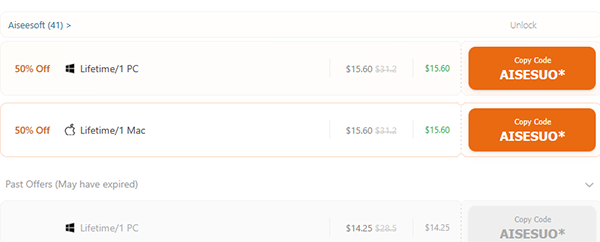
Aiseesoft HEIC Converter users can save on the regular license price with a 50% off coupon offer listed by colormango.com. The promotion reduces the lifetime license price from $31.20 to $15.60.
The listed coupon code is AISESUO*, with the offer covering the 1-PC and 1-Mac lifetime licenses. Since coupon availability and prices may change, check the deal page before making a purchase.
Part 4: Aiseesoft HEIC Converter - Pros and Cons
Aiseesoft HEIC Converter has several advantages that make HEIC conversion more convenient, but it also comes with some limitations. The following lists highlight its main pros and cons to help you quickly evaluate the software.
The Good
- Easy-to-use interface.
- Supports batch HEIC conversion.
- Converts HEIC to common formats such as JPG and PNG.
- Maintains good image quality after conversion.
- Offers a free version for basic conversion needs.
- Preserves EXIF metadata during conversion.
- Supports both Windows and Mac systems.
The Bad
- Free version has conversion limitations
- Lacks built-in photo editing features.
- Large batches may take longer to process.
- Free users may have limited support options.
- Mainly focuses on conversion rather than broader image management.
- Requires desktop installation rather than offering a fully web-based workflow.
- Output format options are relatively limited compared with full-featured image converters.
Part 5: What Could Be Better than Aiseesoft HEIC Converter
For users seeking a straightforward way to convert HEIC photos, MobiKin HEIC to JPG Converter (Windows/Mac) supports JPG, JPEG, and PNG output, batch processing, quality adjustment, and EXIF preservation. Its simple workflow and support for both Windows and Mac make it suitable for everyday photo conversion. With these core functions, it can serve as a good replacement for Aiseesoft HEIC Converter, especially for users who want a focused desktop converter.
MobiKin HEIC to JPG Converter - Core Characteristics:
> HEIC Conversion - Converts HEIC/HEIF to JPG, JPEG, or PNG.
> Batch Conversion - Converts multiple HEIC files at once.
> Drag-and-Drop - Adds HEIC files quickly by dragging them in.
> Quality Adjustment - Lets you customize output image quality.
> EXIF Preservation - Retains key photo metadata after conversion.
> One-Click Conversion - Provides a simple, straightforward workflow.
> Windows & Mac Support - Works on Windows and macOS systems.
> No Ads or Watermarks - Produces clean conversions without ads or watermarks.
> Aiseesoft Alternative - Offers similar core HEIC conversion features as Aiseesoft.
Free & Secure Download:


How can I convert HEIC to JPG/JPEG/PNG using MobiKin HEIC to JPG Converter?
Step 1: Download and install MobiKin HEIC to JPG Converter on your Windows PC, then launch the program immediately.
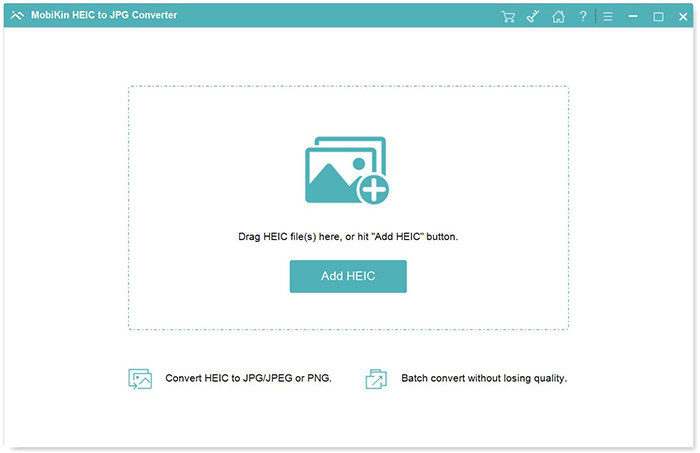
Step 2: Hit the "Add HEIC" button to load your images - or skip the clicks and drag-and-drop your files straight into the window.
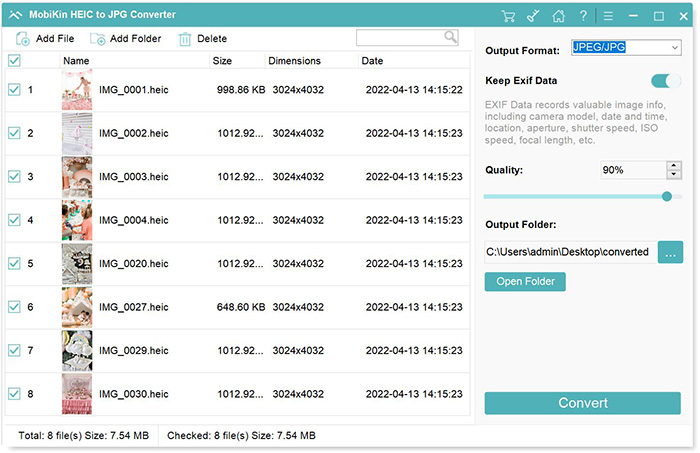
Step 3: Lock in your output format: JPG/JPEG or PNG. Then, set your destination folder, fine-tune the image quality, and make sure the "Keep Exif Data" box is checked to retain all original photo metadata.
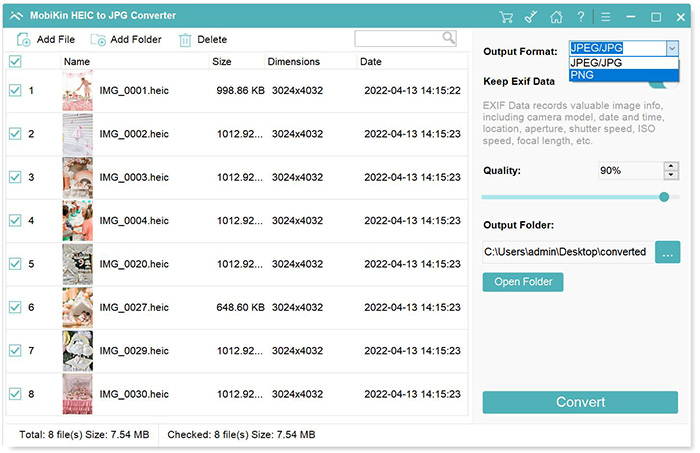
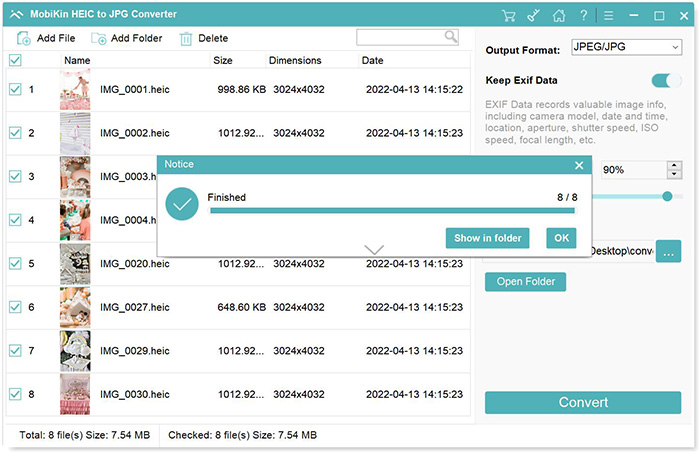
Step 4: Press the Convert button to power through the batch conversion. Once it finishes, your newly converted photos are ready and waiting in your chosen folder.
Video Tutorial:
FAQs about Aiseesoft HEIC Converter
Q1. Can Aiseesoft HEIC Converter convert multiple HEIC files at once?
Yes. It supports batch conversion, which is useful when you have a large collection of HEIC photos.
Q2. Does Aiseesoft HEIC Converter reduce photo quality?
The software is intended to retain the original image quality during conversion, although the final result can depend on the selected output settings.
Q3. Is Aiseesoft HEIC Converter safe to use?
Aiseesoft HEIC Converter is generally considered safe for routine HEIC conversion when downloaded from the official Aiseesoft website. For added security, avoid unofficial download sources and scan the installer with reliable antivirus software before installation.
Q4. Does Aiseesoft HEIC Converter edit photos?
No. Its primary purpose is image-format conversion rather than photo editing or enhancement.
Q5. Can I use it to make HEIC photos compatible with Windows?
Yes. Converting HEIC files to JPG or PNG can make them easier to open, share, and edit on systems or applications with limited HEIC support. Aiseesoft also notes that HEIC compatibility can be an issue on Windows.
Q6. Is Aiseesoft HEIC Converter suitable for large photo collections?
Yes. Its batch-conversion capability makes it more practical than converting photos individually.
Q7. Is Aiseesoft HEIC Converter worth using?
It can be a convenient choice if your main requirement is converting HEIC photos to common formats without needing a full-featured photo editor.
In a Nutshell
Aiseesoft HEIC Converter offers a straightforward way to turn HEIC images into more widely supported formats while providing useful options for quality and metadata preservation. Still, its conversion limits, pricing, and overall feature set are worth considering before making a choice. In the end, the right HEIC converter is not simply the one with the longest feature list, but the one that handles your photos reliably and fits the way you work.
Related Articles:
Aiseesoft FoneLab iPhone Data Recovery Review: Recover Lost iPhone Data Easily
6 Aiseesoft FoneLab Android Data Recovery Alternatives [Rewarding]
Aiseesoft iOS Data Backup and Restore Review: Is It Worth It?
Aiseesoft MobieSync Review: Overall Performance & Alternative
