
iMobie HEIC Converter Review: Features, Pros, Cons & Best Alternative
TL;DR:
iMobie HEIC Converter is a popular tool for converting HEIC images, but is it the right choice for your photo conversion needs? This article will provide a detailed review and explore a better alternative.
- What iMobie HEIC Converter is and how it helps users convert HEIC photos.
- The key features of iMobie HEIC Converter, including supported formats, batch conversion, quality adjustment, and EXIF preservation.
- The pros and cons of iMobie HEIC Converter to help you understand its strengths and limitations.
- The best iMobie HEIC Converter alternative, MobiKin HEIC to JPG Converter, and why it is worth considering.
- Frequently asked questions about iMobie HEIC Converter, including its usage, features, and alternatives.
HEIC is a space-saving image format widely used by iPhone and iPad users, but its limited compatibility can make photo sharing and editing inconvenient on some devices. To solve this issue, many users turn to HEIC converters like iMobie HEIC Converter. In this review, we will explore its key features, advantages, and limitations, and introduce a reliable alternative, MobiKin HEIC to JPG Converter, for more flexible photo conversion needs.
Part 1: What Is iMobie HEIC Converter?
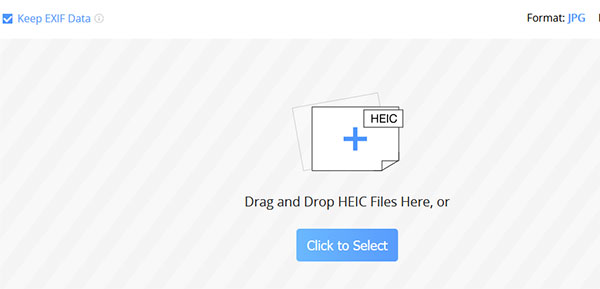
iMobie HEIC Converter is an online HEIC conversion tool developed by iMobie that helps users change HEIC images into more widely supported formats. It works directly through a web browser, allowing users to upload photos from a computer and convert them without installing additional programs.
The tool supports converting HEIC files to popular image formats, including JPG, JPEG, PNG, and GIF. Users can choose the desired output format and adjust image quality before starting the conversion process. It also provides an option to keep EXIF data, which helps preserve original photo information such as shooting details.
iMobie HEIC Converter is designed with simplicity in mind. Users only need to add HEIC files, select conversion settings, and save the converted images after processing. It supports drag-and-drop uploading and batch conversion, making it suitable for users who need to handle multiple photos at once.
Related Posts:
Part 2: Key Features of iMobie HEIC Converter
iMobie HEIC Converter provides a simple way to process HEIC images with several practical conversion features. It is designed for users who want to quickly adjust their photo formats while keeping the original image quality and important details.
1. Convert HEIC Photos to Multiple Formats
The main function of iMobie HEIC Converter is to transform HEIC files into more commonly used image formats. Besides JPG, it also supports JPEG, PNG, and GIF as output options, allowing users to choose a suitable format based on their needs.
2. Batch Convert Multiple HEIC Images
For users with many iPhone photos, converting files one by one can be time-consuming. iMobie HEIC Converter supports batch conversion, allowing users to add multiple HEIC images at once and process them together. The online version supports converting multiple files in a single operation. (How to Batch Convert HEIC to JPG?)
3. Adjust Output Image Quality
The tool allows users to customize image quality before conversion. Users can select different quality levels according to their needs, such as prioritizing smaller file sizes for sharing or maintaining higher quality for editing and storage.
4. Preserve EXIF Metadata
When converting photos, iMobie HEIC Converter can keep EXIF information from the original files. This means important details, including shooting date, camera information, and other photo metadata, can remain available after conversion.
5. Simple Drag-and-Drop Operation
iMobie HEIC Converter focuses on ease of use. Users can add HEIC photos by dragging and dropping files into the conversion area or selecting them manually. The straightforward workflow makes it accessible even for users without technical experience.
Learn More:
Part 3: iMobie HEIC Converter Review: Pros and Cons
iMobie HEIC Converter offers a convenient way to convert HEIC images, but it also has some limitations. Below are its main advantages and disadvantages to help you decide whether it meets your needs.
Pros:
- Easy to Use: The simple interface allows users to convert HEIC files without complicated steps.
- Supports Multiple Formats: It can convert HEIC images to JPG, JPEG, PNG, and GIF formats.
- Batch Conversion: It allows users to process multiple HEIC photos at the same time.
- Keeps Image Quality: It preserves photo quality and supports EXIF metadata retention during conversion.
- Free Online Access: Users can convert HEIC images directly through a browser without installing software.
Cons:
- Limited Advanced Features: It mainly focuses on conversion and lacks photo management or editing functions.
- Requires Internet Connection: The online version depends on a stable network connection for file processing.
- Less Control Over Settings: It provides fewer customization options compared with professional desktop converters.
- Not Ideal for Large Photo Libraries: Uploading and converting many high-resolution images online can be time-consuming.
Part 4: Best iMobie HEIC Converter Alternative
Although iMobie HEIC Converter is suitable for quick online conversions, users who frequently handle large numbers of HEIC photos may need a more powerful and flexible solution. MobiKin HEIC to JPG Converter is a professional desktop tool that allows users to convert HEIC/HEIF images to JPG, JPEG, or PNG formats with high quality. It supports batch conversion, EXIF data preservation, and customizable output quality, making it a reliable alternative for managing iPhone photos on Windows and Mac.
Key Features of MobiKin HEIC to JPG Converter:
- convert HEIC images into widely supported JPG, JPEG, or PNG formats for easier viewing and sharing.
- Users can add multiple HEIC files at once and convert them together.
- allows users to adjust output quality settings and convert photos without quality loss.
- keep important EXIF Metadata during the conversion process
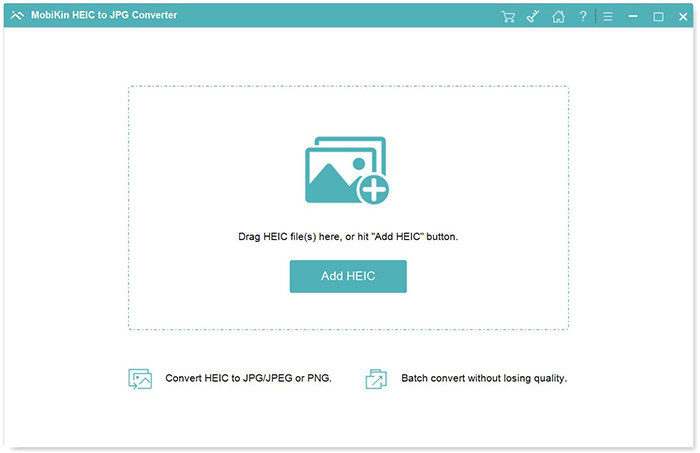
- lets users add HEIC files by clicking the "Add HEIC" button or dragging photos directly into the program.
- works locally on your computer, helping protect private images during conversion.


How to Convert HEIC to JPG/JPEG/PNG with MobiKin HEIC to JPG Converter
Step 1. Download and install MobiKin HEIC to JPG Converter on your computer, then open the software. Click the "Add HEIC" button or drag and drop your HEIC files into the program interface.
Step 2. Select the output format, choose the destination folder, and adjust image quality settings according to your needs.
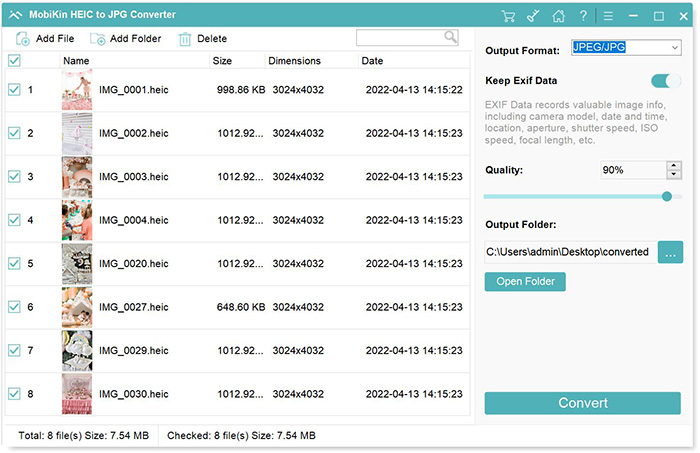
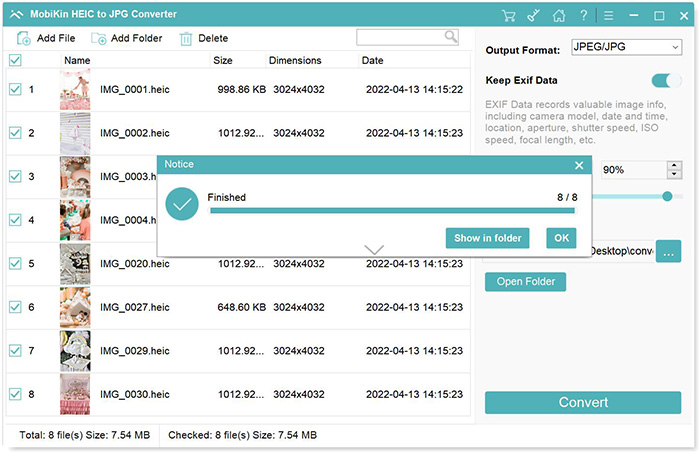
Step 3. Click the "Convert" button to begin the conversion process and save the converted JPG, JPEG, or PNG images on your computer.
Video Guide:
FAQs About iMobie HEIC Converter
Q1: Is iMobie HEIC Converter free to use?
Yes. iMobie HEIC Converter provides a free online conversion option that allows users to convert HEIC images without installing additional software. (How to Convert HEIC to JPG Online for Free?)
Q2: Can iMobie HEIC Converter convert multiple HEIC photos at once?
Yes. The tool supports batch conversion, allowing users to process multiple HEIC files in one operation. However, the online version has a limit on the number of files that can be converted at a time.
Q3: Does iMobie HEIC Converter keep EXIF data?
Yes. iMobie HEIC Converter provides an option to preserve EXIF metadata, helping users keep important photo information during conversion.
Q4: Is iMobie HEIC Converter safe to use?
iMobie HEIC Converter is designed as a browser-based conversion tool and provides a simple way to process HEIC images. However, users who prefer not to upload photos online can choose a desktop converter like MobiKin HEIC to JPG Converter for local conversion.
Quick Summary
iMobie HEIC Converter is a convenient tool for users who need to quickly convert HEIC images into more compatible formats. With features like batch conversion, multiple output formats, and EXIF preservation, it can handle basic HEIC conversion needs. However, users looking for offline processing, stronger privacy protection, and more flexible conversion options may prefer MobiKin HEIC to JPG Converter. With its easy operation and powerful features, MobiKin provides a practical solution for efficiently managing and converting HEIC photos.
Related Articles:
How to Share HEIC Photos from iPhone in 3 Simple Ways
Top 5 Ways to Convert HEIC to JPG on Windows 11/10/8/7
