
Joyoshare HEIC Converter Review: 5 Best Alternatives You Should Try
TL;DR:
Looking for the best Joyoshare HEIC Converter alternative? This guide covers everything you need to know, from Joyoshare HEIC Converter's features to the best replacement tools available.
- Learn what Joyoshare HEIC Converter is and its main features.
- Find out why users look for alternatives to Joyoshare HEIC Converter.
- Explore the best Joyoshare HEIC Converter alternatives with their pros and cons.
- Compare Joyoshare and other HEIC converters to choose the right one.
- Get answers to common questions about Joyoshare HEIC Converter alternatives.
HEIC is widely used on iPhones because it delivers excellent image quality while saving storage space. However, its limited compatibility can make it difficult to open or share photos on some devices. Joyoshare HEIC Converter is one solution for converting HEIC images to more common formats, but it may not meet everyone's needs. If you are looking for a Joyoshare HEIC Converter alternative, this guide will introduce the best options and help you choose the right HEIC converter.
Part 1: What Is Joyoshare HEIC Converter?
Joyoshare HEIC Converter is a dedicated image conversion tool developed to help users handle HEIC and HEIF files more conveniently. It provides a simple way to convert Apple's default image format into commonly used formats, making photos easier to store, edit, and share across different platforms.
Key Features of Joyoshare HEIC Converter
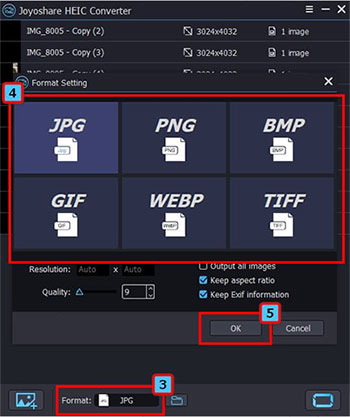
- Convert HEIC to Multiple Formats: Joyoshare HEIC Converter supports converting HEIC images into popular formats, including JPG, PNG, BMP, GIF, and TIFF. This allows users to use their iPhone photos with different devices and applications more easily.
- Batch Convert HEIC Images: Instead of converting photos one by one, users can import multiple HEIC files and process them at the same time. This feature is helpful when dealing with large photo collections from iPhones or iPads.
- Preserve Image Quality and EXIF Data: The converter maintains the original image quality and resolution during conversion. It can also keep EXIF information, such as shooting date, camera settings, and other photo details.
- Customize Conversion Settings: Before conversion, users can adjust output preferences, including: Output format, image quality, and file storage location.
Supported Platforms and Limitations
Joyoshare HEIC Converter is available for Windows and Mac and works offline, so users can convert photos without uploading files to online services. However, the free version has limitations, and some advanced features require a paid license.
For users who need more flexible features, faster processing, or additional HEIC management options, exploring a Joyoshare HEIC Converter alternative may be a better choice.
Related Posts:
Part 2: Why Do You Need a Joyoshare HEIC Converter Alternative?
Although Joyoshare HEIC Converter works well for basic HEIC conversion, it may not satisfy users with higher requirements. Many people look for alternatives with better features, faster performance, or more flexible options.
1. Limited Free Features
Joyoshare's free version has restrictions, and some advanced features require a paid upgrade. Users may prefer alternatives that offer more functions at a lower cost.
2. Faster Batch Conversion
For users with large photo collections, conversion speed matters. Some alternatives provide faster processing and better batch conversion performance.
3. More Customization Options
Some users need more control over:
- Output formats
- Image quality
- File size
- Metadata preservation
4. Better Compatibility and Privacy
A good alternative should support different devices, offer an easy-to-use interface, and process photos offline to protect personal data.
Therefore, choosing the right Joyoshare HEIC Converter alternative can provide a smoother and more efficient HEIC conversion experience.
Part 3: Best Joyoshare HEIC Converter Alternatives
If Joyoshare HEIC Converter does not fully meet your needs, there are many other HEIC converters that offer different features, such as faster conversion speed, better batch processing, or more flexible output options. Here are some of the best Joyoshare HEIC Converter alternatives to consider.
1. MobiKin HEIC to JPG Converter
MobiKin HEIC to JPG Converter is a professional HEIC conversion tool that helps users convert HEIC/HEIF images into widely supported formats like JPG/JPEG and PNG. It allows users to process multiple photos at once while keeping the original image quality, making it a reliable alternative to Joyoshare HEIC Converter for iPhone and iPad users.
Key Features of MobiKin HEIC to JPG Converter:
- Convert HEIC to JPG/JPEG/PNG easily.
- Import and convert multiple HEIC files simultaneously.
- keeps the original resolution and image quality during conversion.
- Preserve important photo metadata, including the EXIF details.
- Customize the output quality and preferred storage location.


How to Convert HEIC to JPG/JPEG/PNG with MobiKin HEIC to JPG Converter:
Step 1. Download and launch the software
Download and install MobiKin HEIC to JPG Converter on your Windows computer, then open the program.
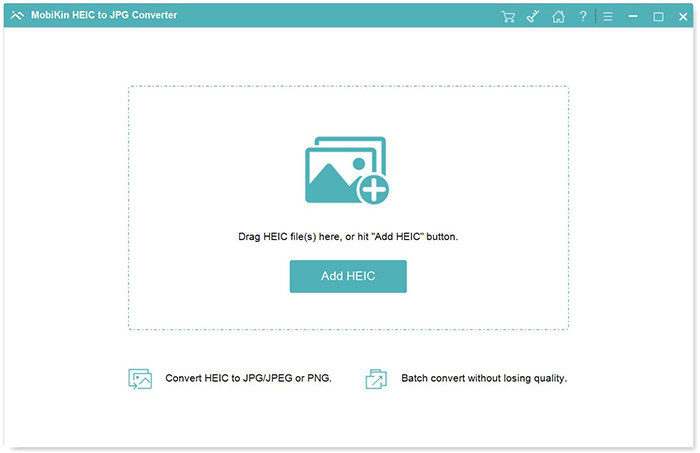
Step 2: Import HEIC images into the Converter
Click the "Add HEIC" button to import one or multiple HEIC images that you want to convert. You can also simply drag and drop them into the program window.
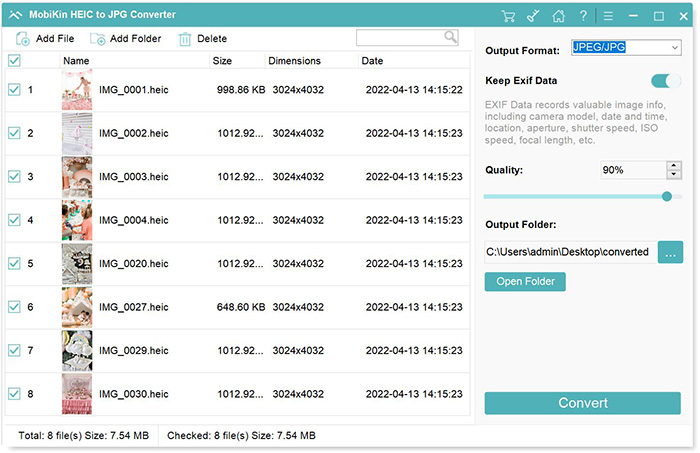
Step 3: Customize the output preferences
Choose "JPG/JPEG" or "PNG" as the output format. Then select the output folder, adjust the image quality if needed, and enable the "Keep Exif Data" option if you want to preserve the original photo information.
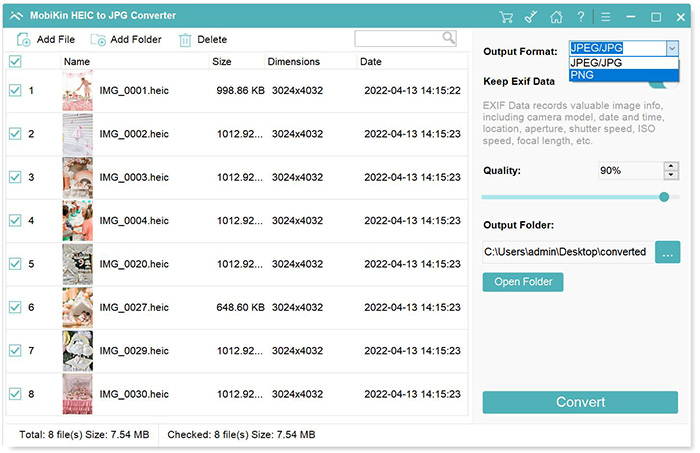
Step 4: Initiate the HEIC to JPG/JPEG/PNG conversion
Click the Convert button to begin converting HEIC images to JPG, JPEG or PNG format. Once finished, you can access the converted photos in the selected folder.
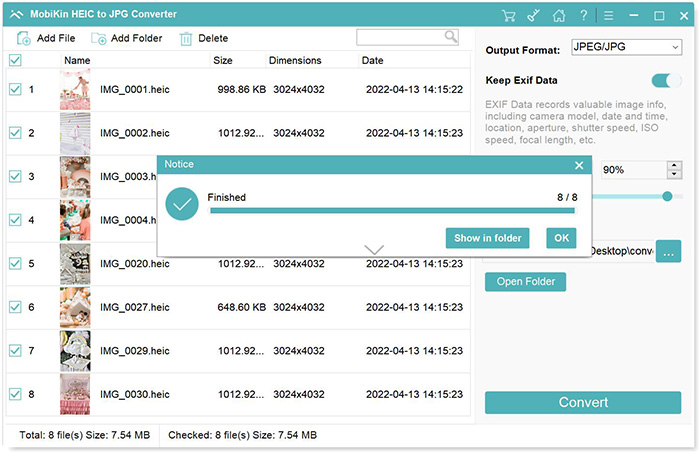
Video Guide:
2. Aiseesoft HEIC Converter
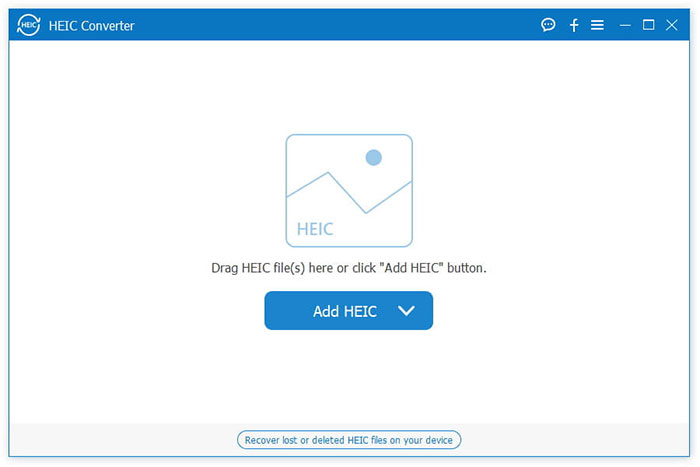
Aiseesoft HEIC Converter is a desktop HEIC conversion tool that helps users convert HEIC images from iPhones and iPads into more compatible formats, such as JPG and PNG. It supports batch conversion and allows users to adjust image quality before exporting, making it a practical alternative to Joyoshare HEIC Converter for users who need more control over output settings.
Pros:
- Supports batch HEIC conversion.
- Allows adjustment of image quality.
- Preserves original resolution and EXIF data.
- Simple and user-friendly interface.
- Provides fast conversion speed.
Cons:
- Free version has conversion limitations.
- Requires a paid license to unlock full features.
- Offers fewer image management features compared with some professional tools.
3. iMazing HEIC Converter
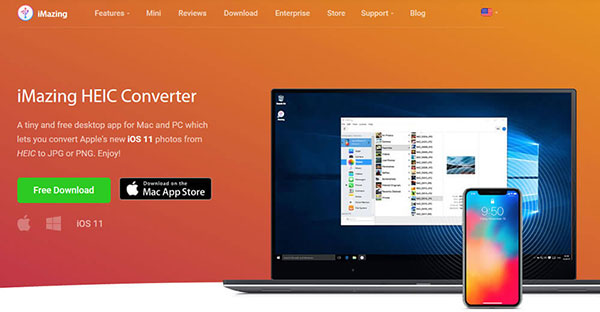
iMazing HEIC Converter is a free and lightweight tool designed to convert HEIC images into JPG or PNG formats. It supports drag-and-drop operation and batch conversion, allowing users to quickly convert iPhone photos on Windows or Mac. With its simple interface and straightforward workflow, it is a good Joyoshare HEIC Converter alternative for users who only need basic HEIC conversion.
Pros:
- Completely free to use.
- Simple drag-and-drop interface.
- Supports batch HEIC conversion.
- Keeps original image quality.
- Available for both Windows and Mac.
Cons:
- Limited output customization options.
- No advanced image editing features.
- Lacks additional photo management functions.
4. CopyTrans HEIC for Windows
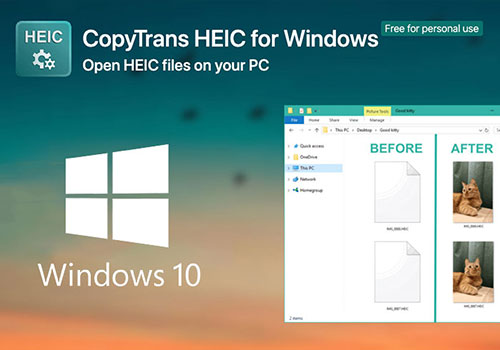
CopyTrans HEIC for Windows is a lightweight HEIC compatibility tool designed specifically for Windows users. It allows users to view HEIC images directly in Windows Explorer and convert HEIC files to JPG format without installing complicated software. As a Joyoshare HEIC Converter alternative, it is suitable for users who mainly need basic HEIC support and simple conversion.
Pros:
- Free for personal use.
- Easy integration with Windows Explorer.
- Allows viewing HEIC files without conversion.
- Simple and lightweight.
- Keeps original image quality.
Cons:
- Only supports Windows.
- Limited output options.
- Lacks advanced conversion features such as quality adjustment and batch management.
5. FonePaw HEIC Converter
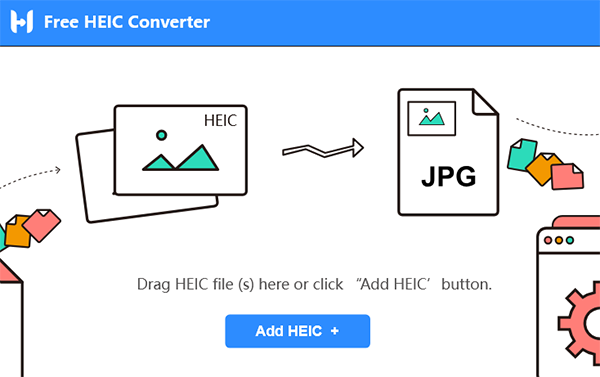
FonePaw HEIC Converter is a user-friendly desktop tool that helps convert HEIC images from iPhones and iPads into JPG formats. It supports batch conversion and allows users to adjust image quality while preserving original photo details, making it a convenient alternative to Joyoshare HEIC Converter.
Pros:
- Supports batch HEIC conversion.
- Preserves image quality and EXIF information.
- Allows image quality adjustment.
- Simple and beginner-friendly interface.
- Works offline for better privacy.
Cons:
- Free version has conversion limits.
- Mainly focuses on HEIC conversion.
- Requires a paid version for unlimited use.
Part 4: Joyoshare HEIC Converter vs Alternatives: Comparison Table
|
Tool
|
Supported OS
|
Free Version |
Price |
Ease of Use |
Value for Money |
|
Joyoshare HEIC Converter
|
Windows, Mac
|
Limited
|
$9.95 (Single PC License), $19.95 (Family License)
|
Easy
|
Good
|
|
MobiKin HEIC to JPG Converter
|
Windows, Mac
|
Trial
|
$9.95 (1 Year License)
|
Easy
|
Great
|
|
Aiseesoft HEIC Converter
|
Windows, Mac
|
Limited
|
$19.00 (1 Year License)
|
Easy
|
Expensive
|
|
iMazing HEIC Converter
|
Windows, Mac
|
Yes
|
Free
|
Easy
|
Great
|
|
CopyTrans HEIC for Windows
|
Windows
|
Yes
|
Free
|
Easy
|
Great
|
|
FonePaw HEIC Converter
|
Windows, Mac
|
Limited
|
$19.95 (1 Year License)
|
Easy
|
Expensive
|
FAQs About Joyoshare HEIC Converter Alternatives
Q1: Is Joyoshare HEIC Converter free?
Joyoshare HEIC Converter offers a free version, but it comes with some limitations. If you want to unlock more features or convert more photos without restrictions, you may need to upgrade to the paid version.
Q2: Is Joyoshare HEIC Converter safe?
Yes, Joyoshare HEIC Converter is generally safe to use when downloaded from its official website. Since it is a desktop application, your photos are converted directly on your computer instead of being uploaded to an online server. However, it is always recommended to download the software from a trusted source and keep it updated to avoid potential security risks.
Q3: What is the best free alternative to Joyoshare HEIC Converter?
There are several free alternatives available, such as iMazing HEIC Converter and CopyTrans HEIC for Windows. They are good choices if you only need basic HEIC-to-JPG conversion. However, if you need faster batch conversion or more customization options, a professional tool like MobiKin HEIC to JPG Converter may be a better fit.
Q4: Can I convert HEIC to JPG without losing quality?
Yes. A good HEIC converter can convert your photos without noticeable quality loss. Most reliable tools keep the original resolution and image details, and some can also preserve EXIF information, such as shooting date and camera settings.
Q5: Is it safe to use online HEIC converters?
Online HEIC converters are convenient, especially when you only need to convert a few images. However, you need to upload your photos to a third-party website, which may not be ideal for private pictures. For personal or sensitive photos, using an offline desktop converter is usually a safer choice.
Q6: How do I convert hundreds of HEIC photos at once?
The easiest way is to use a HEIC converter that supports batch processing. Simply add all your HEIC files, select the output format and quality settings, and start the conversion. Tools like MobiKin HEIC to JPG Converter can help you convert a large number of photos at once, saving time compared with converting them individually.
Summary
Converting HEIC files to more widely supported formats makes it easier to view, edit, and share iPhone photos across different devices. While Joyoshare HEIC Converter is a useful tool for HEIC conversion, it may not be the perfect choice for everyone. In this guide, we introduced several reliable Joyoshare HEIC Converter alternatives, including options with faster performance, better batch processing, and more flexible features. Choose the one that best fits your needs and enjoy a smoother HEIC conversion experience.
Related Articles:
How to Convert HEIC to JPG on Mac [Full Guide 2026]
HEIC vs PNG: What Are the Differences? Which Is Better?
[Fixed] How to Fix HEIC Display Issue?
[Ultimate Guide] How to Open HEIC Files in Photoshop on Windows & Mac
