
How to Convert HEIC to JPG: 5 Easy Ways for Windows, Mac, and iPhone
"Is there an easy way to convert Apple's disastrous HEIC format to JPG? I have to submit photos to a government agency and none of them accept the HEIC file format."
- From Apple Support Community
HEIC (High Efficiency Image Coding) is the default image format used by Apple devices such as iPhones and iPads since iOS 11. It offers better compression, allowing images to take up less storage space while maintaining high quality. However, since many older devices and software do not support HEIC, users often need to convert HEIC images to the more widely compatible JPG format. This article will explore several simple and effective methods to convert HEIC to JPG, ensuring you can easily manage your photos across different devices and platforms.
- Part 1: What Is HEIC & Why Convert HEIC to JPG?
- Part 2: Convert HEIC to JPG Using Online Converter
- Part 3: Change HEIC to JPG with HEIC to JPG Converter [HOT!]
- Part 4: Convert HEIC to JPG via Windows Photos App
- Part 5: Transfer HEIC to JPG on Mac via Preview
- Part 6: Convert HEIC to JPEG on iPhone Settings
- FAQs on Converting HEIC to JPG
Part 1: What Is HEIC & Why Convert HEIC to JPG?
What Is HEIC?
HEIC (High Efficiency Image Coding) is a modern image format developed by the Moving Picture Experts Group (MPEG) and adopted by Apple starting with iOS 11. It uses advanced compression techniques to reduce file sizes while preserving image quality, making it ideal for high-resolution images. Compared to the older JPG format, HEIC can store images at half the size without sacrificing detail, allowing for more photos to be stored on devices like iPhones and iPads.
While HEIC offers superior compression, it is not as universally supported as JPG, which is why many users prefer to convert their HEIC files to JPG.
Why Convert HEIC to JPG?
- Compatibility Issues: Many applications, devices, and operating systems still don't support HEIC, especially older ones. JPG, on the other hand, is universally recognized, making it easier to view and share images across various platforms.
- Sharing and Printing: When sharing photos via email, social media, or messaging apps, JPG is often the preferred format, as most platforms are optimized to handle JPG images. Additionally, printing services typically support JPG files, but not HEIC. (How to Share HEIC Photos?)
- Editing: While some modern photo editing software supports HEIC, many older editing tools may only recognize JPG files. Converting HEIC to JPG allows for a smoother editing experience.
- Ease of Use: Converting HEIC to JPG can also simplify things for users who are unfamiliar with the format, as JPG is a long-established and widely understood format.
You May Need:
Part 2: Convert HEIC to JPG Using Online Converter
One of the easiest and quickest ways to convert HEIC files to JPG is by using an online converter. These tools allow you to convert images without installing any software, making them ideal for users who need to quickly handle a few files. There are numerous online HEIC to JPG converters available, such as: HEICtoJPG.com, iLoveIMG, Convertio, etc. Here we take HEICtoJPG.com as an example:
- Go to HEICtoJPG.com and click on the "Upload" button.
- Choose the HEIC files you want to convert. It also allows you to drag and drop files for easier uploading.
- After uploading your HEIC files, select JPG as the output format.
- Click on the "Convert" button to begin the conversion process.
- Once the conversion is complete, the site will provide a download link for the JPG files. Click "Download" to save the converted images to your device.
Pros:
- No software needed.
- Free and easy to use.
- Quick for small batches.
Cons:
- Privacy concerns when uploading files.
- File size limits on free versions.
- Requires an internet connection.
Part 3: Change HEIC to JPG with HEIC to JPG Converter
While online converters are convenient for quick, small conversions, using dedicated software like MobiKin HEIC to JPG Converter offers a more robust solution for handling larger files or batch conversions. This software provides extra features and better control over the conversion process, making it ideal for users who frequently need to convert HEIC images to JPG and more file formats.
Key highlights of HEIC to JPG Converter:
- Convert multiple HEIC files to JPG/JPEG/PNG on Windows/Mac in no time.
- Maintains the original image quality without significant loss during conversion.
- Works offline, ensuring your files remain private and secure.
- Allow you to adjust picture quality at your will before converting.
- Simple interface that requires no advanced technical skills.
- It won't divulge your privacy.


How to convert HEIC to JPG on Windows PC and Mac via MobiKin HEIC to JPG Converter?
Step 1. First, download and install MobiKin HEIC to JPG Converter on your computer. Launch the software to open the main interface.
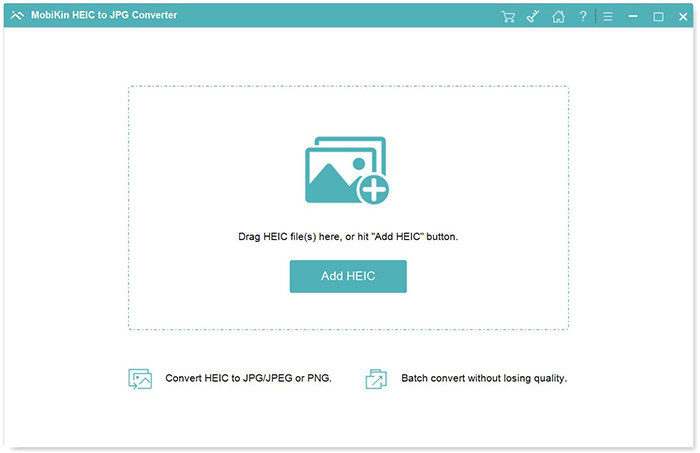
Step 2. Click "Add HEIC" to import your images, or simply drag and drop HEIF/HEIC files directly into the program.
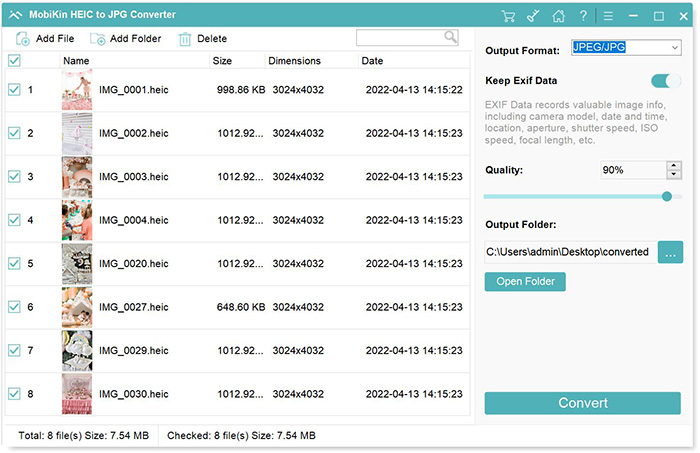
Step 3. Once the HEIC files are listed, select the ones you want to convert. Choose the output format (JPG/JPEG/PNG), decide whether to keep Exif data, and set the output folder.
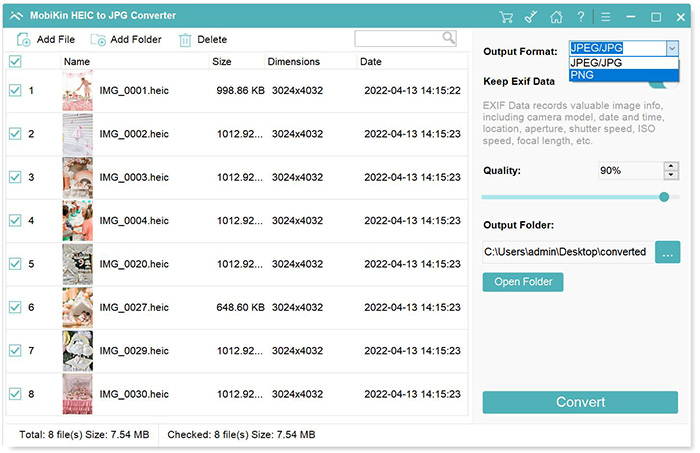
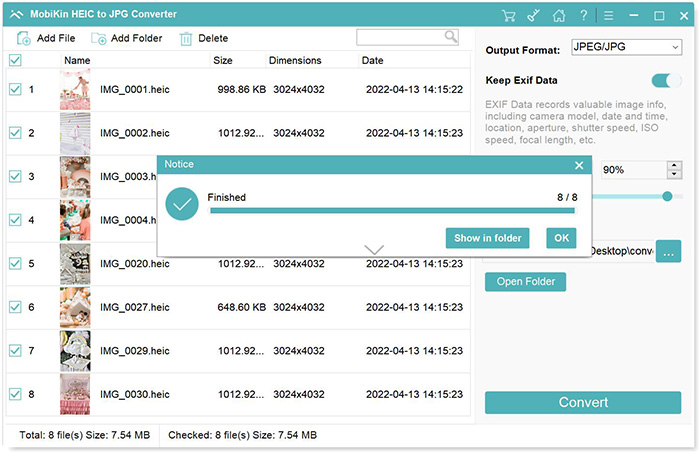
Step 4. Click "Convert" to start the conversion process. Once complete, click "Show in folder" to view your converted photos.
Video Guide:
Pros:
- Batch conversion saves time.
- High-quality image conversion.
- Works offline for privacy.
- Supports multiple formats (JPG, PNG, etc.).
- Easy-to-use interface.
- Option to keep EXIF data.
Cons:
- Requires a paid license after trial.
Learn More:
Part 4: Convert HEIC to JPG via Windows Photos App
If you're using Windows 10 or later, the Photos app offers a simple and built-in way to convert HEIC files to JPG on Windows without needing third-party software. This method is quick and convenient, making it a great option for users who want a hassle-free conversion process.
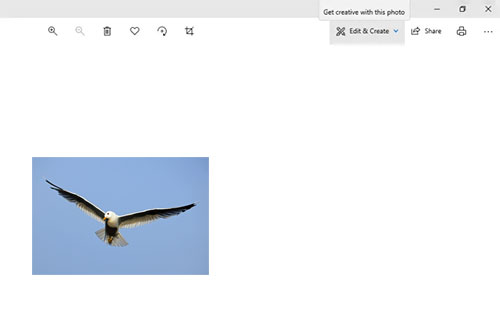
- Double-click on your HEIC image to open it in the Windows Photos app.
- In the top-right corner of the Photos app, click the three-dot menu icon ("See More").
- Choose the "Save as" option from the dropdown menu.
- In the save dialog, select JPG as the output format and choose a destination folder to save the file.
- Click "Save" to convert the HEIC file to JPG. Your image will now be available in the selected folder in JPG format.
Pros:
- Free and built-in for Windows 10 and later.
- No third-party software needed.
- Quick and easy for single image conversions.
Cons:
- Only works for individual files—no batch conversion.
- Requires HEIC extension to be installed (available from Microsoft Store).
- Limited control over output settings compared to dedicated converters.
Part 5: Transfer HEIC to JPG on Mac via Preview
On a Mac, the Preview app provides an easy and built-in method to convert HEIC images to JPG without needing any additional software. It's a simple solution for users who want to quickly convert individual images while maintaining high quality.
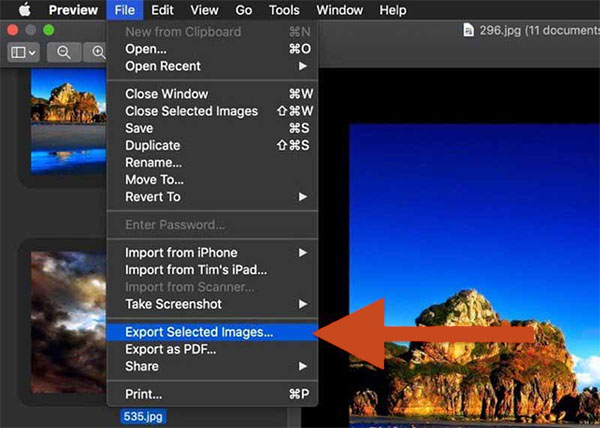
- Double-click your HEIC image, and it will open automatically in Preview.
- In the top menu, click "File", then select "Export" from the dropdown.
- In the Export dialog box, select JPG from the Format dropdown menu.
- You can adjust the quality slider to control the file size. Afterward, choose your destination folder and click "Save".
Pros:
- Built-in and free on all Macs.
- Quick and easy for single image conversions.
- Allows you to adjust the quality of the JPG file.
Cons:
- Only supports one file at a time—no batch conversion.
- Limited format options (only JPG, PNG, etc.).
Part 6: Convert HEIC to JPEG on iPhone Settings
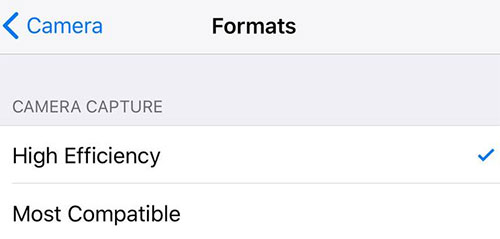
If you prefer not to use third-party apps, you can easily change your iPhone's settings to ensure that new photos are automatically saved in JPEG format instead of HEIC. This is a helpful solution if you often need JPEG files for sharing, printing, or compatibility reasons.
- On your iPhone, go to the "Settings" app.
- Scroll down and tap on "Camera", then tap on "Formats".
- Under the Formats section, select "Most Compatible". This will set your iPhone to capture photos in JPEG format instead of HEIC.
- From this point onward, any new photos you take will be saved in JPEG format.
Pros:
- Simple and convenient.
- No need for third-party apps or conversions.
- JPEG photos are more widely compatible with older devices and platforms.
Cons:
- Only applies to new photos - existing HEIC photos will not be converted.
- Takes up more storage since JPEG images generally require more space than HEIC.
FAQs on Converting HEIC to JPG
Q1: Is HEIC better than JPG?
HEIC generally provides smaller file sizes and better image quality, but JPG is more widely supported across devices, software, and websites. (Full Comparison Between HEIC vs. JPEG: Which Is Better?)
Q2: Why can't I open HEIC files on my Windows PC?
Some Windows computers don't support HEIC by default. You may need to install the HEIF Image Extensions from the Microsoft Store or use a converter.
Q3: Is it safe to use online HEIC converters?
Most popular online converters are safe, but uploading personal photos may raise privacy concerns. If privacy is important, using offline software is recommended.
Q4: Can I convert HEIC to JPG without losing metadata?
Yes, it is possible to convert HEIC to JPG while keeping the original metadata, such as the date, location, and camera information (EXIF data) using professional tools like MobiKin HEIC to JPG Converter. It allows you to keep EXIF data during the conversion process, ensuring that important photo information remains intact.
Q5: Will converting HEIC to JPG reduce image quality?
Yes, since JPG uses lossy compression, there may be a slight reduction in image quality after conversion. However, the difference is usually minimal and hardly noticeable in everyday use. If you want to keep the original quality as much as possible, using a professional tool like MobiKin HEIC to JPG Converter is recommended, as it is designed to preserve the image quality and important metadata during the conversion process.
Q6: Can I convert HEIC to JPG on Android devices?
Yes. You can use third-party apps or online converters on Android to change HEIC images to JPG easily. For more details, you can go to read this guide: How to Convert HEIC to JPG on Android?
Wrapping Up
In summary, converting HEIC to JPG is often necessary because JPG is more widely supported across devices, software, and websites. Fortunately, there are several easy ways to complete the conversion, including using online converters, dedicated tools, Windows Photos, Mac Preview, or adjusting iPhone settings. Each method has its own advantages depending on your needs. If you want faster batch conversion and better quality preservation, using a professional tool like MobiKin HEIC to JPG Converter can be a reliable choice. By choosing the right method, you can easily make your photos more compatible and accessible.
Related Articles:
How to Convert HEIC to JPG in Google Photos [4 Useful Tips]
HEIC vs. JPEG: What is the Different?
[Solved] How to Permanently Delete HEIC Photos on iPhone or iPad?
