
How to Block and Unblock Someone on WhatsApp on iPhone: Updated 2026
iPhone users enjoy sending and receiving messages on WhatsApp, which also lets them share photos and videos. However, there may be times when you do not want to receive messages from someone, even if they are in your WhatsApp contacts. In such cases, you can choose to block someone on whatsapp on iPhone. Unlike deleting a WhatsApp contact, blocking allows you to reconsider later, meaning you can unblock the contact in WhatsApp to resume sending and receiving messages.
For this reason, blocking and unblocking WhatsApp contacts on an iPhone can be a useful feature. If you are unfamiliar with how it works, this article will help you understand it better.
Part 1: What Happens When You Block Someone on WhatsApp?
- The person you blocked will no longer be able to send you messages or make voice or video calls. They also cannot see your last seen status, profile picture, about information, or status updates.
- If you share a group chat with the blocked person, both of you will still be able to read each other's messages in that group.
- Blocking someone on WhatsApp does not remove the existing chat history. You can still view all previous messages exchanged with that contact.
- The person's phone number remains saved on your device or in an account such as iCloud or Gmail. You can manually delete the contact if you no longer want it stored.
Part 2. How to Block WhatsApp Contacts in iPhone?
To block a contact on WhatsApp, you have three choices. You can select anyone of them according to your need.
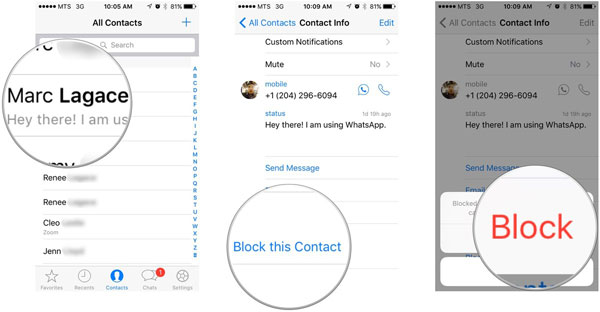
Method 1: Block from the Chat Screen
- Launch WhatsApp on the screen of your iPhone.
- Open the chat with the person you want to block.
- Tap their name at the top, scroll down, and choose "Block Contact."
- Confirm your choice to complete the process.
Method 2: Block from WhatsApp Settings
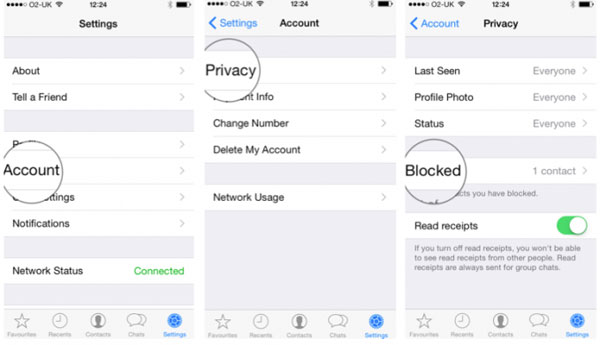
- Open WhatsApp and go to "Settings."
- Tap "Privacy", then select "Blocked."
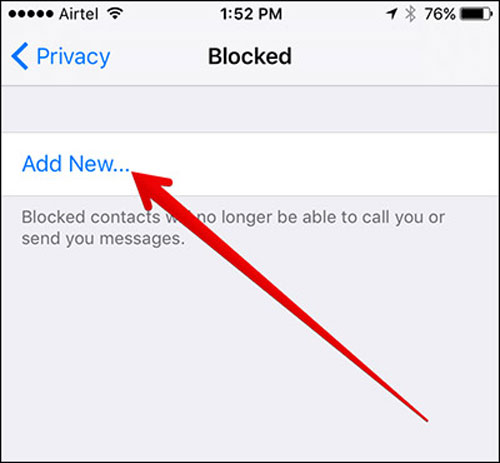
- Tap "Add New", choose the contact you want to block, and it will be added to your blocked list.
Method 3: Block an Unknown Number
- Open the chat from the unknown number.
- Check the options that appear at the bottom of the screen.
- Tap "Block" to stop that number from contacting you again.
Part 3: How to Unblock WhatsApp Contacts on iPhone?
It is not rare that users change their mind shortly after they block the contact. Besides, it is possible that you block a contact by accident. Thus, you also need to know the method to unblock WhatsApp contacts on your iPhone. The means to unblock a contact is similar to add the contact to blocked list. The specific operation is:
- Open up WhatsApp.
- Navigate to "Settings" > "Account" > "Privacy" > "Blocked".
- Then tap on "Edit" at the top right corner and click on the red minus icon.
- Click on "Unblock" to confirm your selection.
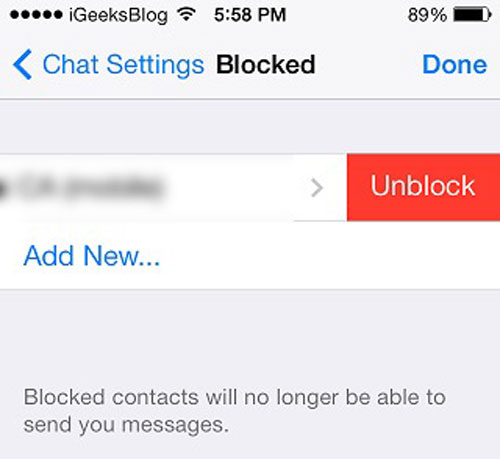
And now you can receive and send WhatsApp messages from/to the contact as usual.
Part 4. How to Know Whether Someone Has Blocked Me or Not?
When you try to block someone, other contacts might tend to block you on WhatsApp as well. Since you won't receive any notification when others block you, how can you know whether they have blocked or not? Here is a way for your reference. When you are blocked by someone on WhatsApp, you will be unable to:
- Deliver messages to the contact. When you fail to send messages, one check mark will appear near the sent messages rather than two check marks.
- Call the contact on WhatsApp.
- See the contact's last seen or online in the chat window.
- View any update on the contact's profile photo.
See also:
Part 5: How to Recover Blocked WhatsApp Messages on iPhone?
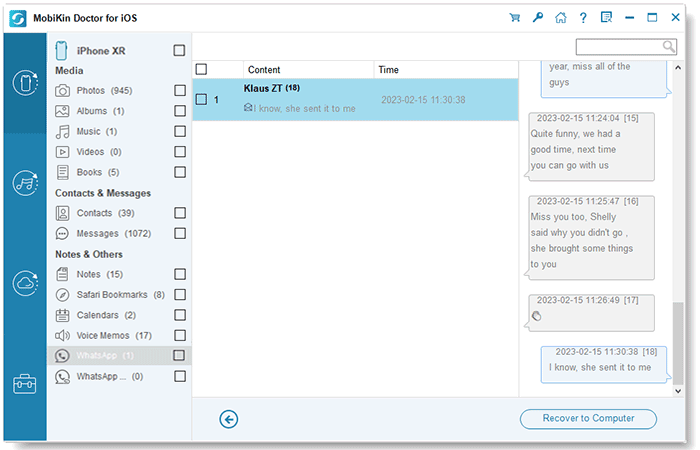
If you regret blocking someone and want to see the messages they sent before you blocked them, you can use a data recovery tool such as MobiKin Doctor for iOS. This program helps you retrieve deleted or lost WhatsApp messages that existed before the block. It also lets you safely recover more than twenty types of files from your iOS device, an iTunes backup, or an iCloud backup.
Key features of MobiKin Doctor for iOS:
- Retrieve WhatsApp messages that were sent before you blocked a contact.
- Recover deleted or lost messages, photos, contacts, notes, call history, and more.
- Restore lost/deleted data from an iOS device, iTunes backup, or iCloud backup.
- Supports the latest iOS 26 and iOS 18 and works with iPhone 17, 16, 15, 14, 13, 12, 11, X, 8, 7, and 6.


Steps to Recover Blocked WhatsApp Messages with Doctor for iOS:
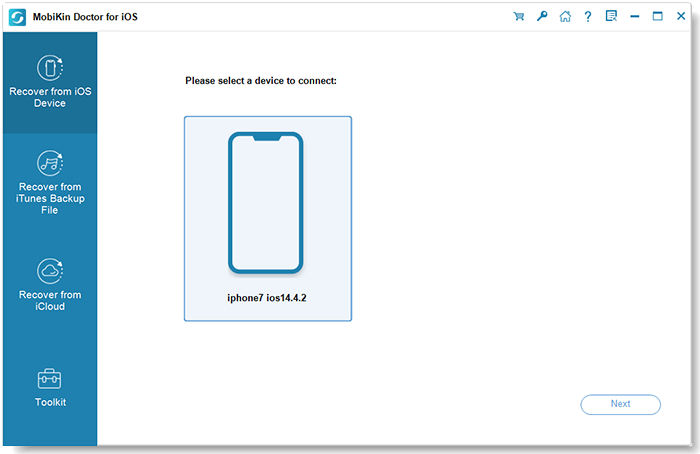
Step 1. Download, install, and open Doctor for iOS, then connect your iPhone to the computer with a USB cable. Select the "Recover from iOS Device" option on the left panel.
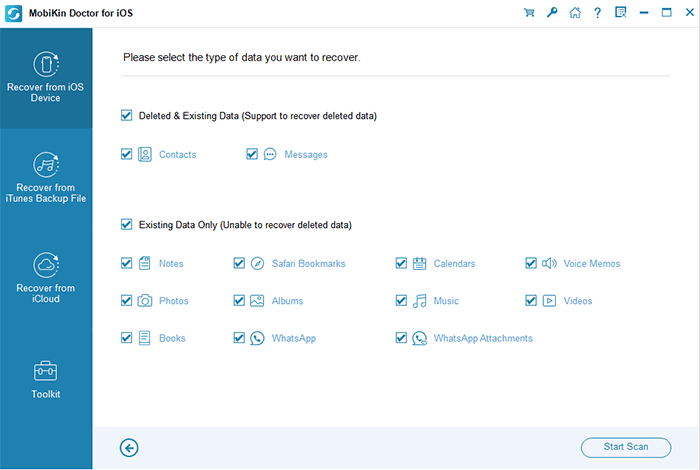
Step 2. Click the "Next" button and the program will display all available data categories on the main screen.
Step 3. Select the "WhatsApp" and "WhatsApp Attachments" tabs and click "Start Scan".
Step 4. Review the blocked WhatsApp messages you want to restore. Click the "Recover to Computer" button to begin the recovery process.
Video Guide:
Summary
In this article, we walked you through the process of blocking a contact on WhatsApp on both iPhone and Android, along with the steps to unblock someone when needed. We also discussed what changes when a contact is blocked and how you might tell if someone has blocked you. Hopefully, the information provided here has been useful.
Blocking a person on WhatsApp helps you stop unwanted messages. If you also want to prevent someone from calling your phone, you can check out methods for blocking phone calls as well.
FAQs
Q1: Can I block someone on WhatsApp without them knowing?
Yes, you can block someone on WhatsApp without them being notified. The person you block will not receive any alerts or messages about it.
Q2: Will I receive messages from a blocked contact after unblocking them?
Once you unblock a contact, you can start receiving new messages from them. Messages sent while they were blocked will not be delivered.
Q3: Can I still see the blocked contact's profile picture after blocking them?
You can still view the profile picture of a contact you have blocked. However, they will no longer be able to see your profile picture.
Related Articles:
Transfer WhatsApp from One Apple ID to Another: Full Guide
[2026] How to Restore Only WhatsApp from iTunes Backup
