
How to Export iMessage Attachments from iPhone: 4 Easy Ways
TL;DR:
You can export iMessage attachments by extracting them from an iTunes backup, accessing them through iCloud, saving them on your iPhone, or transferring them to a Mac.
- MobiKin Doctor for iOS: Select "Recover from iTunes Backup File", scan "Messages", preview available attachments, and click "Recover to Computer" to export selected files.
- iCloud: Enable "Settings" > your name > "iCloud" > "Messages", then open Messages on another Apple device signed in to the same Apple Account.
- iPhone: Open a conversation, select an attachment, tap "Share", and choose "Save Image", "Save Video", or "Save to Files".
- Mac: Enable AirDrop on both devices, share the attachment from Messages, select your Mac, and check "Downloads" for the received file.
iMessage attachments often include photos, videos, documents, and other files you may want to keep outside your message history. Whether you need to back up important files, free up iPhone storage, or save attachments to your computer, there are several ways to do it. You can use a dedicated tool to extract attachments from an iTunes backup, access synced messages through iCloud, save files directly on your iPhone, or transfer them to your Mac with AirDrop. This guide walks you through each method so you can choose the one that works best for you.
Part 1: Export iMessage Attachments from iPhone with MobiKin Doctor for iOS
If you want to export iMessage attachments from your iPhone to a computer, MobiKin Doctor for iOS is worth trying. Its "Recover from iTunes Backup File" mode lets you scan an existing iTunes backup, preview messages and their attachments, and selectively export the available data to your computer. You don't need to restore the entire backup to your iPhone, making it a practical option when you want to save specific message attachments without replacing your current iPhone data.
Key Features of MobiKin Doctor for iOS:
- Extract SMS attachments from existing iTunes backups.
- Preview messages and available attachments before export.
- Offer three recovery modes: from iPhone, iTunes backup, or iCloud.
- Recover contacts, messages, WhatsApp, photos, videos, notes, calendars, and more.
- Select specific data instead of restoring everything.


How to Export iMessage Attachments from iPhone Using MobiKin Doctor for iOS:
Step 1: Download and install MobiKin Doctor for iOS on your computer, then open it. Choose "Recover from iTunes Backup File" from the left panel. The program will scan the default iTunes backup location and display the available backup files.
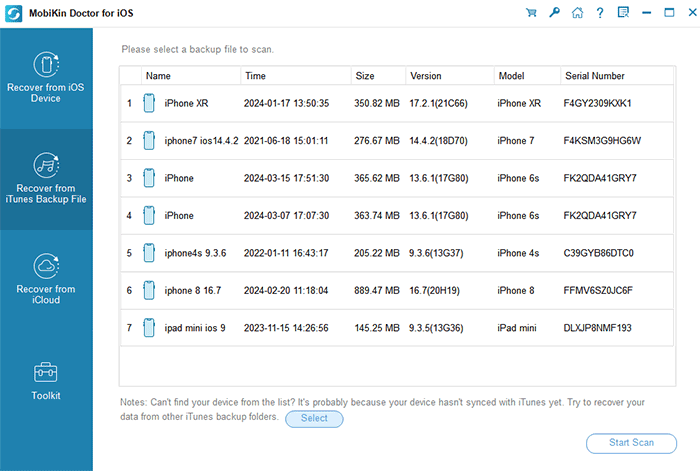
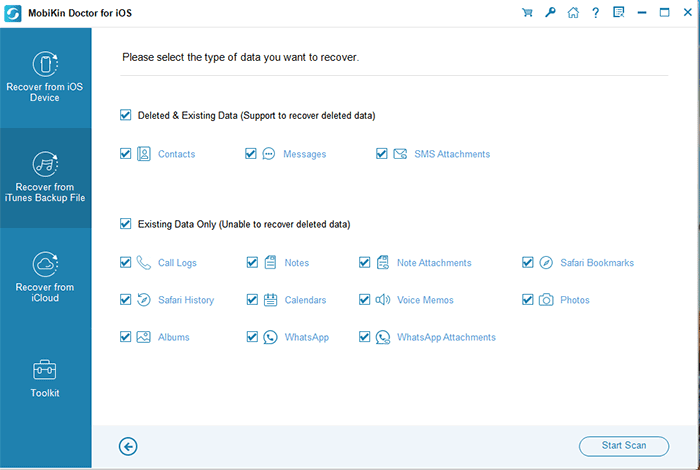
Step 2: Select the backup containing your messages. click "Start Scan" to view the available data categories. Select "SMS Attachments" to access the attachments stored in the backup, then click "Start Scan" again to begin scanning the selected category.
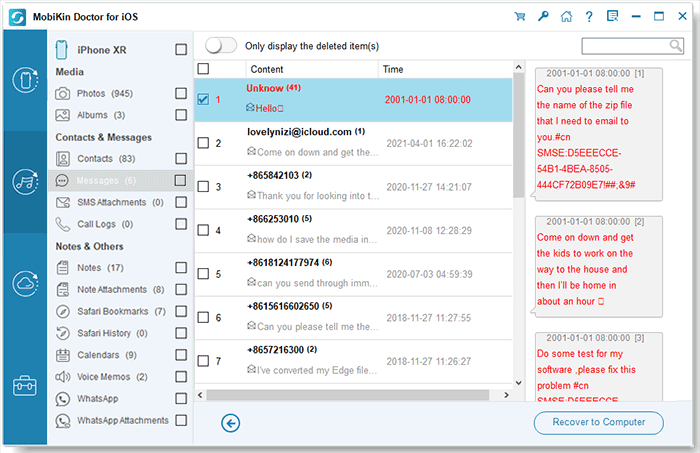
Step 3: Once the scan finishes, browse and check the attachments you want to save, and click "Recover to Computer" to save the selected recoverable data locally.
Video Guide:
Part 2: Download iMessage Attachments from iCloud
If you use Messages in iCloud, your messages and attachments can sync across your Apple devices signed in to the same Apple Account. This makes it easy to access your iMessage photos, videos, and other files on a Mac or iPad without transferring them manually from your iPhone.
- On your iPhone, open "Settings", tap your name, then go to "iCloud" > "Messages" and make sure syncing is enabled.
- On your Mac, open the "Messages" app and sign in with the same Apple Account.
- Find the conversation containing the attachments you want to save.
- Open the attachment, then use the "Share" button or right-click menu to save it to your Mac, if the option is available.
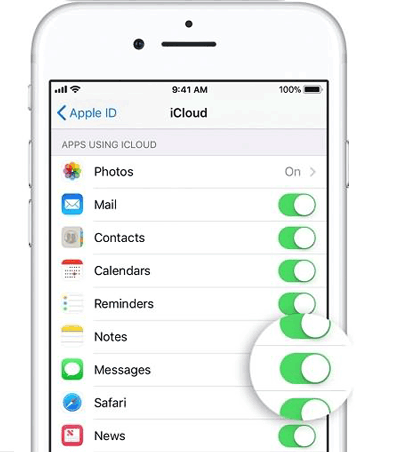
Note that iCloud sync keeps messages up to date across devices but doesn't provide a direct way to download all iMessage attachments in bulk. If you need to export many attachments at once, consider using the method in Part 1. (How to View Text Messages on iCloud?)
Part 3: Save iMessage Attachments to iPhone Files or Photos
If you only need to save a few iMessage attachments, you can do it directly on your iPhone without installing another app. Photos and videos can usually be saved to the Photos app, while supported documents can be stored in Files for easier access later.
- Open the "Messages" app and select the conversation containing the attachment you want to save.
- Tap the contact or group name at the top to find shared content, or scroll through the conversation to locate the attachment.
- For a photo or video, open it, tap the "Share" button, and select "Save Image" or "Save Video" if available.
- For a document, open the attachment, tap "Share", choose "Save to Files", select a folder, and tap "Save".
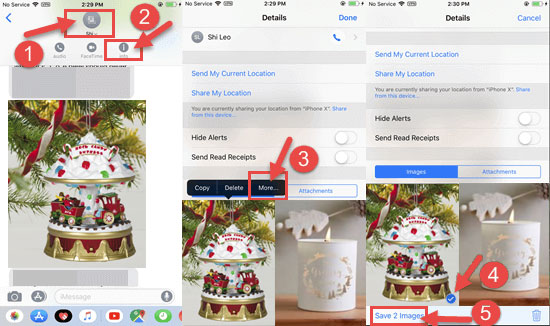
Repeat these steps for other attachments you want to keep. This method works well for a few files, but saving many attachments one by one can take time.
Part 4: Export iMessage Attachments from iPhone to Mac
AirDrop is a convenient way to transfer iMessage attachments from your iPhone to your Mac without using a cable or cloud storage. It's especially useful when you only need to move a few photos, videos, or documents.
- Turn on Wi-Fi and Bluetooth on both your iPhone and Mac. Make sure AirDrop is enabled and your devices can discover each other.
- Open "Messages" on your iPhone and find the conversation containing the attachments you want to export.
- Open a photo or video, tap the "Share" button, and select "AirDrop". For supported documents, open the file and use the same sharing option.
- Select your Mac from the AirDrop list and accept the transfer if prompted. The received files will usually appear in your Mac's "Downloads" folder. (AirDrop is Not Working on Your Mac?)
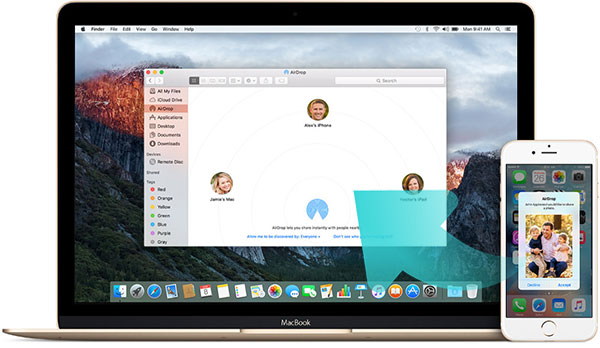
If you need to transfer multiple attachments, select them where supported before sharing. Otherwise, you may need to send them individually.
FAQs about Exporting iMessage Attachments from iPhone
Q1: Can I export iMessage attachments to a Windows PC?
Yes. You can save attachments to your iPhone and transfer them to your PC using a USB cable or another file-sharing method. A compatible iPhone data recovery tool like MobiKin Doctor for iOS can also help extract attachments from an existing iTunes backup. (How to Transfer Photos from iPhone Messages to Computer?)
Q2: Can I export iMessage attachments in their original quality?
In most cases, yes. Saving the original attachment or transferring it as a file helps preserve its quality. Avoid sending photos through services that may compress them if the original resolution matters.
Q3: Can I export iMessage attachments without opening each conversation?
Yes, depending on the method and tool you use. MobiKin Doctor for iOS can scan an existing iTunes backup and let you browse supported message data in one place, so you don't have to open conversations individually.
Q4: Why can't I find old iMessage attachments on my iPhone?
The attachment may have been deleted, removed by a message retention setting, or become unavailable after a sync issue. Check the original conversation and any other Apple devices that use Messages. If you have an older iTunes backup, you may also be able to retrieve the attachment from it.
Q5: Can I export iMessage attachments from a broken iPhone?
It depends on the damage and whether you have a usable backup. If the iPhone won't turn on or cannot be unlocked, restoring access to the device may be necessary. If you have an iTunes backup, you can try extracting the available attachments from that backup instead.
Conclusion
Exporting iMessage attachments doesn't have to be complicated. You can save individual photos and documents directly on your iPhone, use iCloud to access synced messages on other Apple devices, or send files to your Mac with AirDrop. If you need to extract multiple attachments from an existing iTunes backup, MobiKin Doctor for iOS offers a more convenient option. Choose the method that fits your needs and save your important files before they're lost or become difficult to find.
Related Articles:
Fixed! iPhone Messages Disappeared But Still Taking Up Space
[Guide] How to Recover Deleted iMessages With/Without Backup
