
iPhone Calendar Not Syncing with Outlook? Try The 9 Proven Fixes
TL;DR:
If your iPhone Calendar is not syncing with Outlook, it can quickly affect your daily schedule and lead to missed or delayed events. This guide will help you understand the issue and fix it step by step.
- We will explain the main reasons why Outlook calendar syncing fails on iPhone.
- You will learn practical methods to fix the syncing issue quickly and effectively.
- You will also discover an easy way to manage and transfer iPhone calendar data for better stability.
Syncing your iOS Calendar with Outlook makes it easy to stay on top of meetings, events, and daily plans in one place. However, when your iPhone Calendar is not syncing with Outlook, important schedules may fail to appear or update properly, which can easily lead to confusion or missed appointments.
If Outlook sync stops working or becomes unreliable on your iPhone, don't worry - you're in the right place. In the sections below, we'll walk through the common reasons behind the issue and show you practical ways to fix it step by step.
Part 1: Why Is iPhone Calendar Not Syncing with Outlook?
If your iPhone Calendar is not syncing with Outlook, it can quickly throw off your entire schedule and cause missed events or duplicated entries. Here are the most common reasons behind this issue:
- The Outlook account may not be properly set up on your iPhone, or calendar syncing could be disabled in your account settings.
- A weak or unstable internet connection can prevent new events from updating across devices in real time.
- Your iOS system or Outlook app may be outdated, leading to compatibility or syncing bugs.
- Calendar conflicts between iCloud and Outlook can cause events to appear in one place but not the other. (How Do I Share A Calendar in iCloud?)
- Temporary issues with Microsoft Exchange or Outlook servers may delay or block synchronization.
Part 2: How to Fix iPhone Calendar Not Syncing with Outlook
1. Check Your Internet Connection
If your internet connection is weak or unstable, Outlook may not be able to update or sync your calendar properly. Try switching between Wi-Fi and mobile data to see if the issue improves. It's also worth checking whether Low Data Mode or any data-saving feature is enabled on your iPhone, as this can restrict background syncing.
Once your connection is stable again, your Outlook calendar should automatically start updating and syncing with your iPhone as normal.
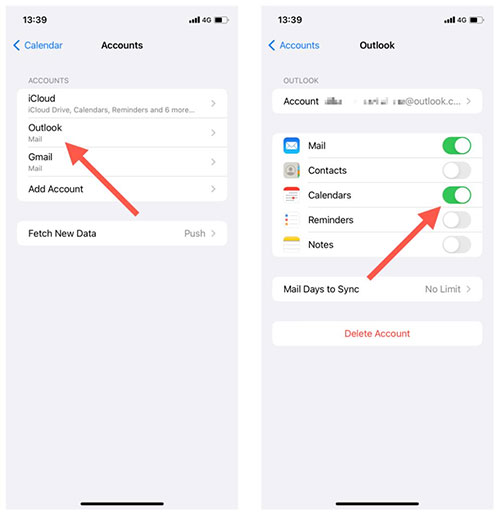
2. Enable Calendar Sync for Outlook Account
If your Outlook calendar isn't appearing on your iPhone, the sync option may simply be turned off in your account settings. Enabling it usually fixes the issue right away.
- Open the "Settings" app on your iPhone.
- Scroll down and tap "Mail".
- Select "Accounts".
- Tap your "Outlook account" from the list.
- Make sure the toggle next to "Calendars" is switched "ON". (How to Sync iCloud Calendar with Outlook?)
- If it's already on, turn it off, wait a few seconds, then turn it back on to refresh the sync.
3. Restart Your iPhone and Outlook App
Sometimes the issue isn't caused by settings at all, but by temporary glitches in the system or the Outlook app itself. A simple restart can refresh background processes and restore normal calendar syncing.
To fix this, you can first close the Outlook app completely by swiping it away from the app switcher. Then restart your iPhone to clear any temporary system errors. After your device powers back on, reopen Outlook and check if your calendar events start syncing again.
In many cases, this quick refresh is enough to get Outlook Calendar working properly on your iPhone again.
4. Set Outlook as Default Calendar
If you often create events on your iPhone but they don't show up in Outlook, the issue may be that your iPhone is saving new events to a different calendar by default (such as iCloud). Setting Outlook as your default calendar ensures all new events are automatically added to your Outlook account and stay in sync across devices.
- Open the "Settings" app on your iPhone.
- Scroll down and tap "Calendar".
- Tap "Default Calendar".
- Select your "Outlook calendar" from the list.
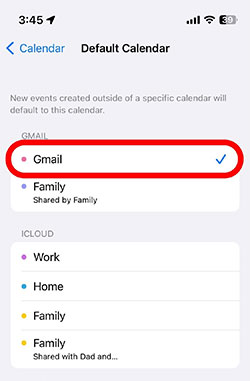
After this change, any new event you create on your iPhone will be saved directly to Outlook, helping prevent missing or mismatched calendar entries.
5. Update iOS and Outlook App
Keeping both your iPhone system and the Outlook app up to date is important because syncing issues are often caused by outdated software or compatibility bugs. Apple and Microsoft regularly release updates to improve performance and fix calendar synchronization problems between devices.
If your system or app version is too old, the calendar may stop updating properly, delay new events, or fail to sync altogether. Updating ensures both platforms can communicate smoothly and reduces the chances of recurring errors.
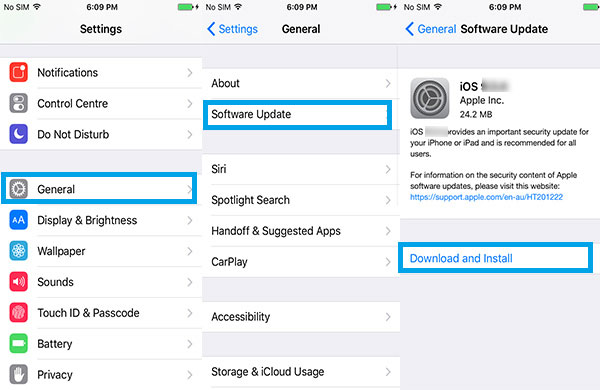
To update them, you can do the following:
- Go to "Settings" on your iPhone.
- Tap "General".
- Select "Software Update" and install any available iOS update.
Then update the Outlook app:
- Open the App Store.
- Tap your profile icon in the top right corner.
- Scroll to Outlook and tap "Update" if it is available.
6. Remove and Re-add Outlook Account
If your Outlook calendar is still not syncing properly, removing and re-adding your account is often one of the most effective ways to refresh the connection between Outlook and your iPhone. This process clears temporary sync glitches and rebuilds the account from scratch without affecting your data stored on the server.
- Go to "Settings" on your iPhone.
- Tap "Mail", then select "Accounts".
- Choose your Outlook account.
- Tap "Delete Account" and confirm the removal.
- Return to "Accounts", then tap "Add Account".
- Select "Outlook.com" (or Microsoft Exchange if applicable).
- Sign in with your Outlook credentials and ensure "Calendars" is enabled during setup.
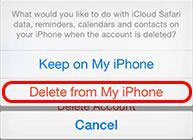
After re-adding the account, give it a few minutes to fully sync. In most cases, your calendar events will reappear and start updating normally. (Is iPhone Calendar Still Not Syncing?)
7. Check Outlook Sync Settings
Sometimes the issue is not on your iPhone settings but inside the Outlook app itself. Even if your account is correctly added, calendar sync can still fail if syncing is disabled within Outlook or restricted by app settings.
To fix this, check the settings to make sure calendar synchronization is enabled. You should also verify that the correct Outlook account is selected, especially if you are using multiple accounts in the same app.
- Open the "Outlook" app on your iPhone.
- Tap the profile icon or "Settings".
- Select your Outlook email account under "Mail Accounts".
- Find the "Sync Calendar" option and ensure it is turned ON.
- If syncing is already enabled, toggle it OFF, wait a few seconds, then turn it ON again to refresh the connection.
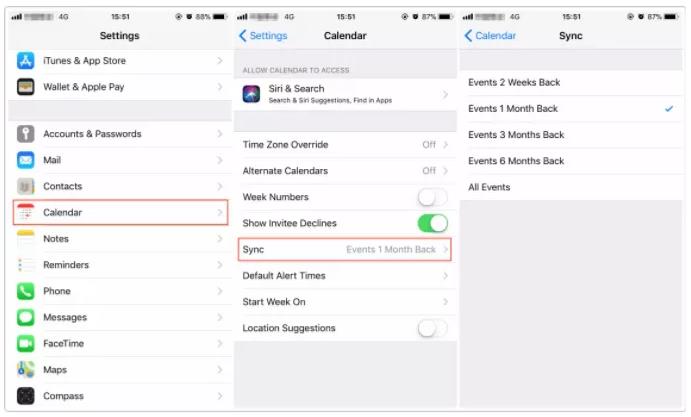
8. Disable and Re-enable Calendar Sync
If Outlook calendar still isn't syncing properly, turning the sync off and on again can help refresh the connection and clear temporary glitches.
- Open "Settings" on your iPhone.
- Scroll down and tap "Mail".
- Go to "Accounts".
- Select your "Outlook" account.
- Turn off the "Calendars" toggle.
- Wait about 10–15 seconds.
- Turn the "Calendars" toggle back on.
After re-enabling it, give your iPhone a few minutes to re-sync the calendar data. In many cases, this simple refresh restores normal Outlook calendar syncing. (iPhone Calendar Disappeared?)
9. Reset Network Settings
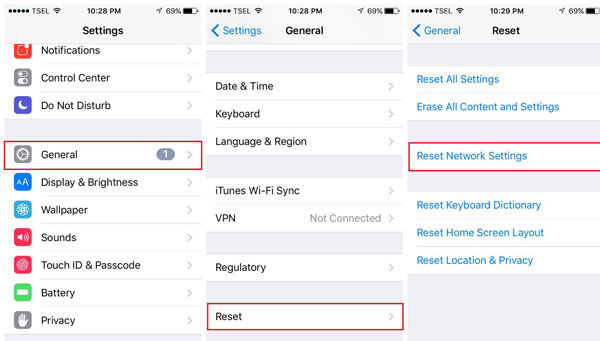
If your iPhone Calendar still won't sync with Outlook, resetting network settings can help fix hidden connection issues that may be blocking data sync in the background. This method won't delete your personal data, but it will reset Wi-Fi networks, VPN settings, and cellular configurations.
- Open the "Settings" app on your iPhone.
- Tap "General".
- Scroll down and select "Transfer or Reset iPhone".
- Tap "Reset".
- Choose "Reset Network Settings".
- Enter your passcode if prompted and confirm the action.
Part 3: An Easy Way to Manage and Transfer iPhone Calendar
When Outlook calendar sync issues keep happening, even after trying all the basic fixes, it can be frustrating to rely only on cloud-based syncing. In such cases, using a computer-based tool can give you more control over your calendar data. A practical option is MobiKin Assistant for iOS, which helps you manage, back up, and transfer iPhone calendar data easily without depending on Outlook or iCloud sync.
Key Features of MobiKin Assistant for iOS:
- It allows you to transfer iPhone calendar to computer, and vice versa.
- It supports exporting calendar data in a readable format for easy management.
- You can selectively manage calendar entries instead of syncing everything.
- It works without requiring iCloud or Outlook synchronization.
- Support to transfer calendar, contacts, SMS, photos, videos, music, notes and more.
- Edit, delete and manage iOS data on computer directly.


Step 1: Start by launching MobiKin Assistant for iOS on your computer. Connect your iPhone using a USB cable, and wait until the software automatically detects your device. Once recognized, you will see your device information displayed on the screen.
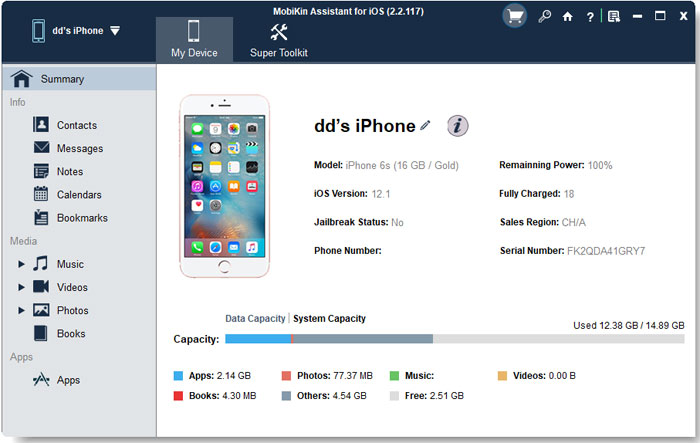
Step 2: From the main interface, click on the "Calendar" category. The tool will load and display all calendar events stored on your iPhone. You can preview details such as event titles, dates, and notes before taking any action.
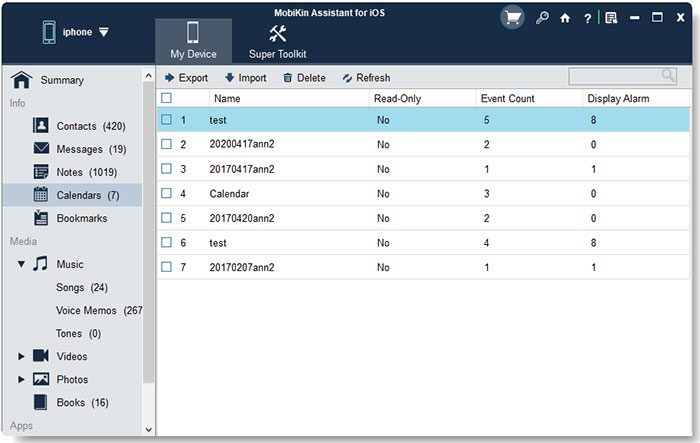
Step 3: After previewing your calendar items, you can choose what you want to do:
- Export calendar events to your computer for backup or offline access;
- Import calendar data from your computer back to your iPhone;
- Delete unwanted or duplicate events directly to keep your calendar organized.
Video Tutorial
FAQs About iPhone Calendar Not Syncing with Outlook
Q1. How do I force my iPhone Calendar to sync with Outlook?
You can try opening the Calendar app and pulling down to refresh. You can also go to "Settings" > "Mail" > "Accounts" > "Outlook" and toggle the "Calendars" option off and on again to trigger a fresh sync.
Q2. Why are some Outlook events missing on my iPhone?
Missing events often occur when your iPhone is syncing only part of your calendar data, or when there is a conflict between iCloud Calendar and Outlook Calendar. Checking your default calendar settings can help fix this.
Q3. Does deleting and re-adding my Outlook account fix calendar sync issues?
Yes, in many cases it does. Removing and re-adding your Outlook account refreshes the connection and forces your iPhone to re-download calendar data from the server.
Q4. Can I use Outlook Calendar without iCloud?
Yes. Outlook Calendar works independently of iCloud. You can disable iCloud Calendar and still sync your Outlook events directly through the Outlook account settings on your iPhone.
Q5. What should I do if Outlook Calendar still won't sync after all fixes?
If none of the settings-based solutions work, it may indicate a deeper system or data issue. In that case, using a desktop management tool like MobiKin Assistant for iOS can help you back up, transfer, and manage calendar data more reliably.
Words in the End
As mentioned above, the Outlook app may fail to sync with the iOS Calendar app for several different reasons. The good news is that each issue has a possible fix, you just need to identify the right one for your situation and apply it to get your schedule back on track.
Have you found a solution that worked for you? Feel free to share your experience in the comments section.
Related Articles:
Top 4 Methods to Sync iPhone and iPad Calendars
How to Print Calendar from iCloud: 3 Easy Methods
