
How to Export Safari Bookmarks from iPhone: Simple Guide in 2026
TL;DR:
Need to move or save your favorite Safari bookmarks from iPhone? Here are 4 simple ways to export Safari bookmarks from iPhone:
- Export Safari bookmarks directly from iPhone with Safari.
- Copy Safari bookmarks manually for quick saving.
- Export bookmarks to a computer with MobiKin Assistant for iOS.
- Export Safari bookmarks through iCloud sync.
Safari bookmarks often collect years of useful websites, work resources, and personal favorites, so losing them when switching devices can be frustrating. However, moving these bookmarks is not as complicated as it may seem. Whether you want a quick copy, a full backup, or a way to manage bookmarks on your computer, there are several solutions available. In this guide, we will show you how to export Safari bookmarks from iPhone using built-in methods, iCloud, and a professional iOS management tool.
- Way 1: Export Safari Bookmarks from iPhone Directly with Safari
- Way 2: Copy Safari Bookmarks from iPhone Manually
- Way 3: Export Bookmarks from iPhone to Computer with MobiKin Assistant for iOS [HOT!]
- Way 4: Export Safari Bookmarks from iPhone via iCloud Sync
- FAQs About Exporting Safari Bookmarks from iPhone
Way 1: Export Safari Bookmarks from iPhone Directly with Safari
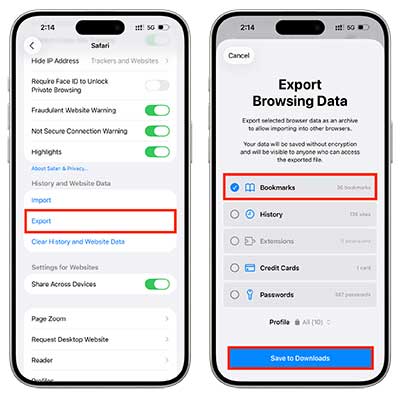
If you want to export your Safari bookmarks without installing another app, you can do it directly from your iPhone. This is the simplest option when you only need to save your bookmarks for backup or move them somewhere else. Just make sure your iPhone is running a supported version of iOS before you start.
- Open the "Settings" app on your iPhone.
- Scroll down and tap "Apps", then select "Safari". (What If Bookmarks on iPhone/iPad Disappeared?)
- Scroll to the bottom and tap "Export".
- Choose the Safari profile and data you want to export. Safari will prepare an archive containing your browsing data, including your bookmarks.
- When the export is ready, tap the "Share" button to save the file to Files, send it to another device, or share it through an available app.
- If you save the export to Files, open the Files app and locate the ZIP archive. You can then move, rename, or share it whenever you need.
Way 2: Copy Safari Bookmarks from iPhone Manually
If you only have a few Safari bookmarks to save, copying them manually can be a quick and simple workaround. Unlike exporting all bookmarks as a file, this method lets you copy individual bookmark links and store them in another app, such as Notes or Messages. It works well when you just need to keep or share a small number of bookmarks.
- Open the Safari app on your iPhone. ([Safari Keeps Crashing on iPhone?)
- Tap the "Bookmarks" icon at the bottom of the screen (the open book icon).
- Find the bookmark you want to copy, then tap and hold it.
- Select "Copy" from the pop-up menu.
- Open the app where you want to save the bookmark, such as Notes, Messages, or an email app.
- Tap and hold in the text field, then choose "Paste" to save the copied bookmark.
- Repeat the same steps for other bookmarks you want to copy.
Way 3: Export Bookmarks from iPhone to Computer with MobiKin Assistant for iOS
If you want to export Safari bookmarks from your iPhone to a computer and manage them more efficiently, MobiKin Assistant for iOS is a convenient choice. Instead of manually copying bookmarks one by one, this tool allows you to access, preview, and manage Safari bookmarks directly from your computer. You can easily export bookmarks for backup, import bookmarks from your computer to iPhone, and delete unwanted bookmarks without complicated steps.
Key Features of MobiKin Assistant for iOS:
- Export Safari bookmarks from iPhone to computer for backup or transfer.
- Preview bookmark details before exporting to make sure you select the right items.
- Import bookmark files from computer to iPhone when you need to restore or transfer them.
- Delete unwanted Safari bookmarks directly from your computer.
- Support other iPhone data management tasks, including transferring and managing contacts, messages, photos, music, videos, and more.


Steps to export Safari bookmarks from iPhone to computer:
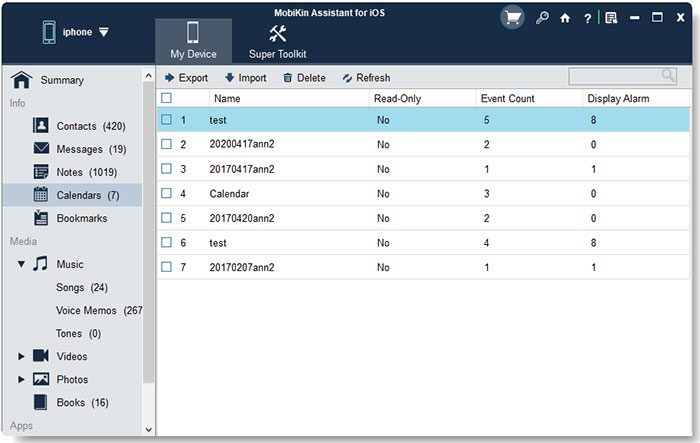
Step 1: Download and install MobiKin Assistant for iOS on your computer, then connect your iPhone using a USB cable. Tap "Trust" on your iPhone if prompted.
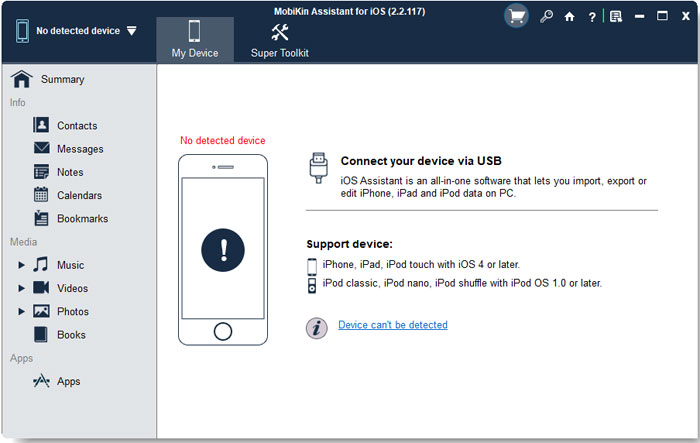
Step 2: Launch the program and choose "Bookmarks" from the left sidebar. Preview the Safari bookmarks stored on your iPhone and select the ones you want to export.
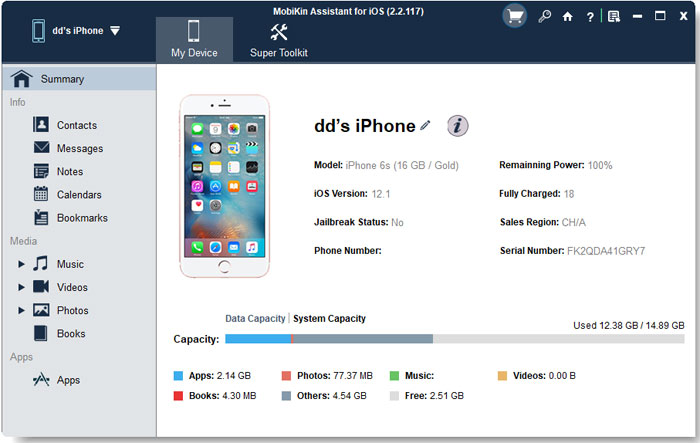
Step 3: Click "Export" and choose a location on your computer to save the exported Safari bookmarks.
Video Guide:
Way 4: Export Safari Bookmarks from iPhone via iCloud Sync
If you already use iCloud to sync Safari data across Apple devices, you can export your iPhone Safari bookmarks through iCloud as well. This method requires syncing bookmarks to another Apple device, such as a Mac, where you can export them as a file (Transfer Safari Bookmarks to A New iPhone?). It is a good option for users who prefer using Apple's built-in services, but it may take a little more time compared with using a dedicated iPhone data management tool.
- Open "Settings" on your iPhone and tap your name at the top of the screen.
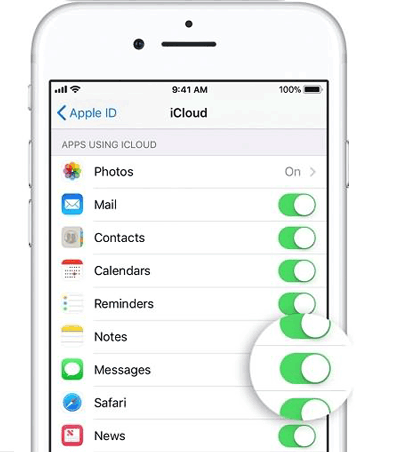
- Tap "iCloud", then find "Safari" in the list of apps using iCloud.
- Turn on Safari syncing by tapping the switch next to "Safari". If prompted, choose "Merge" to combine your existing Safari data with iCloud.
- On your Mac, open the Safari app and make sure you are signed in with the same Apple Account.
- Wait for your iPhone Safari bookmarks to sync to Safari on your Mac.
- In Safari on your Mac, click "File" in the menu bar, then select "Export Bookmarks".
- Choose a location to save the exported bookmarks file and click "Save".
FAQs About Exporting Safari Bookmarks from iPhone
Q1. Where are Safari bookmarks stored on iPhone?
Safari bookmarks are stored within the Safari app data on your iPhone. If Safari is enabled in iCloud, your bookmarks can also be synced and stored with your iCloud account, allowing you to access them across Apple devices.
Q2. Can I export Safari bookmarks from iPhone to Chrome?
Yes. You can first export Safari bookmarks as a file, then import that file into Chrome or another supported browser. If your bookmarks are stored on a Mac, you can export them from Safari and then import them into your preferred browser.
Q3. How do I transfer Safari bookmarks from one iPhone to another?
You can transfer Safari bookmarks by enabling Safari sync with the same iCloud account on both iPhones. Alternatively, you can export bookmarks from the old iPhone with MobiKin Assistant for iOS and import them to the new iPhone.
Q4. Can I export only selected Safari bookmarks from my iPhone?
Yes, but the available options depend on the method you use. A professional iOS management tool allows you to preview bookmarks and select specific items before exporting them, which is more convenient than exporting all Safari data at once.
Words in the End
Exporting Safari bookmarks from iPhone can be done in different ways depending on your needs. For occasional saves, Safari and iCloud are enough. If you need more control over your bookmarks, such as selective export, import, or deletion, MobiKin Assistant for iOS provides a more flexible computer-based solution. Choose the method that best fits your workflow and keep your bookmarks safe.
Related Articles:
Why Is Safari So Slow on iPhone & iPad: 6 Ways to Fix
Top 6 iPhone File Explorers to Browse & Manage iOS Data
