
iOS 26: iMessage Not Working on iPhone/iPad? 8 Methods to Fix!
iMessage allows you to communicate between Apple devices over WiFi or a cellular network. With iMessage, you can send text messages, photos, videos, and other content on your iPhone, iPad, or Mac. However, there are times when iMessage is not working on your iPhone, iPad or Mac. When this happens, your messages may turn green and be sent as standard SMS instead of iMessage.
This issue can occur for several reasons. In this article, we explain the most common causes and share practical solutions to help you fix "iMessage is not working" on iPhone, iPad, and Mac.
Part 1: Why Is My iMessage Not Working?
Let's first explore why iMessage might not be working after updating to iOS 26. Here are some common reasons:
- Network Connection Problems: A weak or unstable connection can prevent iMessage from working properly.
- Incorrect iMessage Settings: The iMessage settings might have been misconfigured after the iOS 26 update.
- Software Glitches: Although iOS 26 is generally stable, bugs or glitches may affect iMessage.
- Apple Server Issues: Sometimes, Apple's servers may experience downtime or maintenance, affecting services like iMessage.
- Incorrect Time Zone: If the time zone doesn't update automatically, it could cause issues with iMessage.
Read Also:
Part 2: Common Scenarios and Solutions for iMessage Not Working
1: Fix All iMessage Bugs on iPhone/iPad with One Click
If iMessage isn't working properly, don't worry - there's an easy solution. Professional iOS system repair tools like "iOS System Recovery" can quickly fix the issue without much hassle. If you haven't heard of it yet, it's a specialized tool designed to address software problems within the iOS system. It's safe, effective, and very user-friendly.
Key features of iOS System Recovery:
- Fix iMessage is not working problem efficiently.
- Fix 130+ system problems and 200+ iTunes problems, including iMessage Not Delivered on iPhone, iPhone unavailable, bottom of iPhone screen not working, error 11 iTunes, error 0xe8000015 iPhone, iPhone keeps crashing, iPhone frozen on the lock screen, etc.
- Upgrade or downgrade your iPhone or iPad with a single click.
- Reset your device and enter or exit recovery mode seamlessly.
- Works with all iPhone models and iOS versions, including iOS 17, 18, and 26.
- No data loss during the repair process.


Follow these steps to use iOS System Recovery to resolve the iMessage is not working issue:
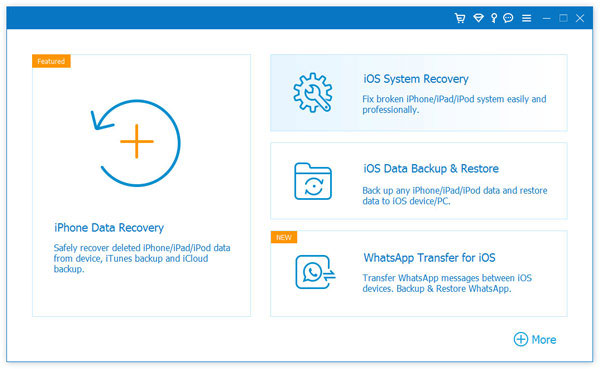
Step 1. Choose the "iOS System Recovery" module
Download and install iOS System Recovery on your computer. Connect your iPhone or iPad to the computer using a USB cable. Open the program and select "More Tools" > "iOS System Recovery" from the main menu.
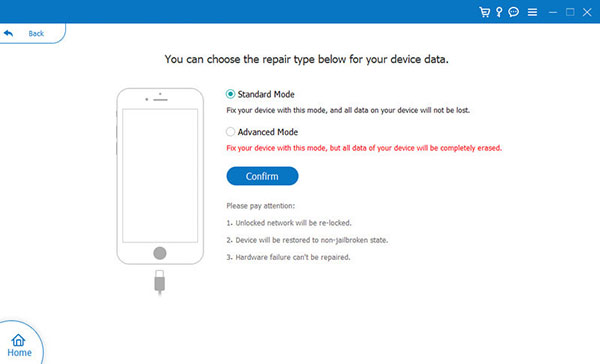
Step 2. Select Standard Mode
Follow the on-screen instructions and choose "Standard Mode" to fix the issue without risking any data loss. Click "Confirm" to start the process.
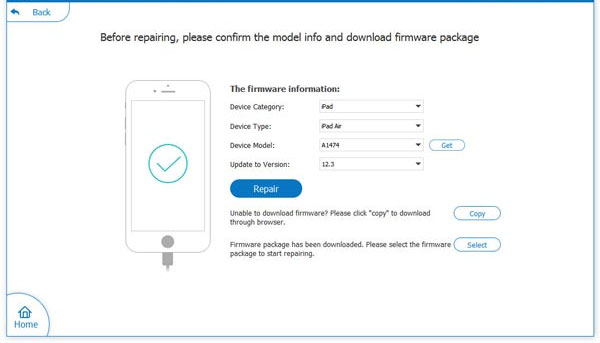
Step 3. Verify your iPhone information
Ensure that your phone's details on the screen are correct. iOS System Recovery will download the appropriate firmware based on your device model.
Step 4. Fix the iMessage is not working issue
Wait a few minutes for the firmware to download, restart your device, and try sending an iMessage again. The issue should now be resolved.
2. Not Connected to the Internet
iMessage requires an internet connection to work properly. If you're offline, you may encounter with syncing paused on iMessage, or get stuck in the "Sending" status or be sent as green SMS instead.
How to fix it:
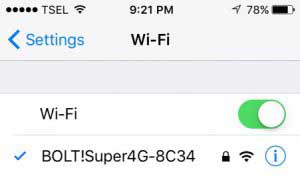
- Go to "Settings" > "Wi-Fi" and connect to a stable network. If you're using mobile data, go to "Settings" > "Cellular" and ensure that "Cellular Data" is turned on.
- Open Safari or Mail and try loading a page to confirm your connection is active. Some Wi-Fi networks may show as connected but still require a login screen.
- Still not working? Turn on Airplane Mode for 10 seconds, then turn it off again. This will reset your network radios and re-establish the connection.
3: iMessage Activation Issue
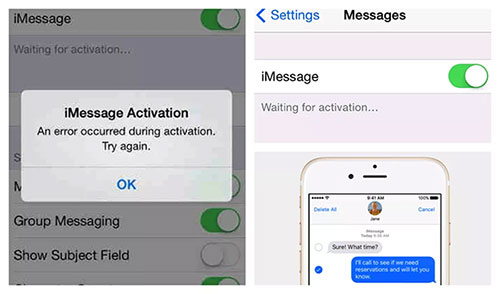
After the iOS 26 update, many users experience iMessage activation problems. You may see error messages like "Waiting for activation" or "Activation process unsuccessful," or "The server is offline, try again later." These indicate that there's an issue with activating iMessage. Although activating iMessage on an iPhone is usually simple, if problems occur, you can follow the steps below to fix them.
How to Fix It:
- The first step to resolve the "waiting for activation" issue is to toggle "Airplane Mode" on and off. This simple action can resolve minor network connectivity issues preventing your iPhone from connecting to Wi-Fi or cellular data.
- If turning Airplane Mode on and off doesn't work, try turning iMessage off and on. This will restart iMessage and may resolve any glitches that occurred during activation.
- Lastly, sign out of your Apple ID and sign in again. This can help refresh the connection between your device and Apple's activation servers.
4: iMessage Is Disabled
Sometimes, iMessage gets turned off without you noticing, particularly after an iOS update, SIM card change, or when resetting settings. When it's off, messages are sent as SMS by default, which might not reach international contacts or those using only Apple devices.
How to fix it:
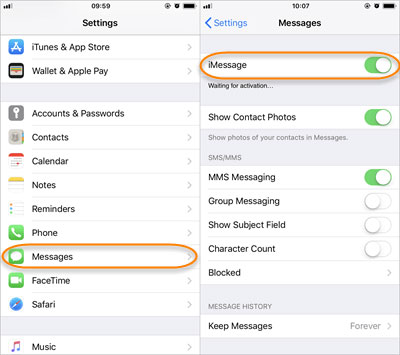
- Go to "Settings" > "Messages" and turn iMessage back on.
- Ensure you're connected to the internet and wait up to a minute for Apple's servers to activate it.
- If nothing happens, proceed with the next steps to resolve activation issues.
See More:
5: Can't Send or Receive iMessage on iPhone
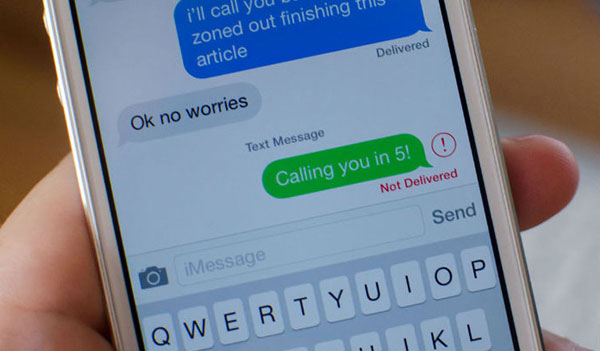
After upgrading to iOS 26, many iPhone users report issues with sending or receiving iMessages. The app may also run slowly if there are a large number of photos and videos stored in it. So, before troubleshooting, make sure your device has enough storage space to receive new messages. Several factors can cause iMessage issues. If there's no problem, incoming iMessages will appear instantly on your screen. However, if you experience delays or don't receive messages at all, it's possible that there's a problem. When you try to send a message, a green bubble will appear if the message is sent via SMS instead of iMessage. If you see a red alert, there's an issue.
How to fix it:
- First, check your internet connection. Try toggling Airplane mode on and off, or restart your network settings.
- If that doesn't work, check your device storage. Limited storage on iPhones can sometimes prevent sending or receiving iMessages. Make sure there's enough free space on your device after the update.
- Enable MMS messaging.
6: iMessage Effects Not Working
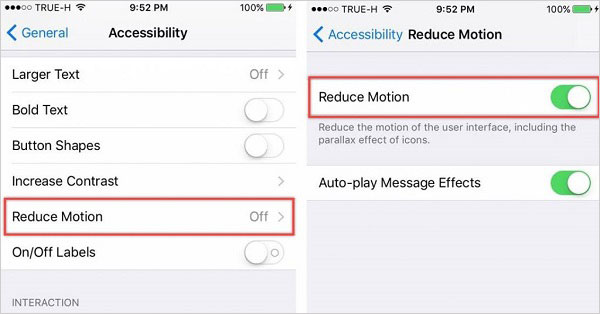
iMessages on iPhones offer special effects like animated text, confetti, balloons, love hearts, and even fireworks. These fun elements help make messages more engaging. However, some iOS users have reported losing access to these features after the iOS 26 update. (Photos Disappeared from iMessage?)
How to fix it:
- Turn off "Reduce Motion." When enabled, this feature limits certain animations, which can affect iMessage effects and cause other issues like screen zooming or icon movement. It's best to disable "Reduce Motion."
- Enable "Auto-Play Message Effects."
- Restart your iPhone.
- Sign out of your Apple ID and then sign back in.
- If none of the above work, the final step is to reset your iPhone.
7: iMessage Links Not Working
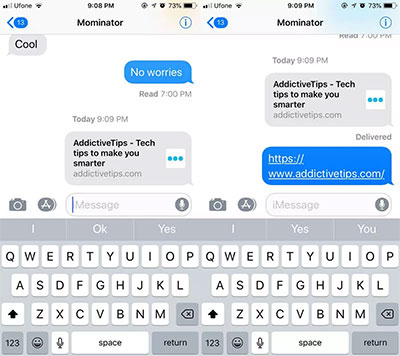
This is a common issue for iOS users. Apple users can create a link that initiates a new iMessage conversation on any website by using a custom URL within an anchor tag. When someone clicks the link, it opens a new chat with the specified Apple ID in the Messages app on iOS or iMessages on macOS. However, after the latest update, the iMessage link preview may not load for some users, or the link may not be clickable.
How to fix it:
- Restart your iPhone and force close any apps.
- Check the device settings.
- Add the recipient to your contact list.
- Update iMessage. A good way to reset settings that affect your iPhone's connection to Wi-Fi and cellular networks is to go to the network settings menu.
8: iMessage Notification Not Working
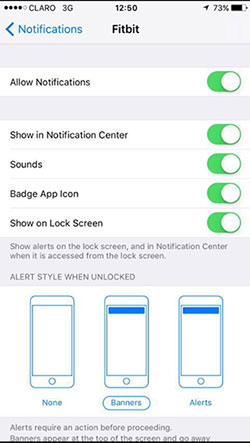
One of the best features of iOS devices is the ability to notify you about everything. The iMessage notification panel provides instant alerts for your messages. Whether you're communicating with friends, family, or colleagues, iMessage makes it easy. However, after updating to iOS 26, you might notice that the notification sound doesn't play when you receive a message. This issue often arises after a device update or when "Do Not Disturb" mode is enabled.
How to fix it:
- Ensure that the iMessage app has permission to send notifications through the settings.
- If iMessage notifications are not working after the iOS 26 update, try toggling iMessage off and on to resolve the issue.
- If you have "Filter Unknown Senders" enabled, you won't receive notifications for iMessages from people not in your contact list. You can turn this off to fix it.
- Make sure "Do Not Disturb" mode is turned off.
- If none of the above solutions work, try resetting all settings on your device as a final step to resolve the issue.
Summing Up
Connecting with family and friends through the iMessage app on your iPhone and iPad is both safe and enjoyable. We hope this article on how to fix iMessage is not working issues after the iOS 26 update helps you resolve your problem. If the issue persists, feel free to refer to our other solution articles, and remember that iOS System Recovery is also available to assist you.
Related Articles:
[2026] FaceTime Not Working on iPhone? Fix it Now!
Helpful Tips to View Text Messages on iCloud from PC/Mac/iPhone
