
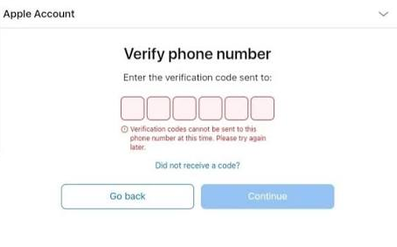
14 Solutions to Not Receiving Verification Code Texts on iPhone
TL;DR:
While basic fixes like network toggles or settings adjustments can resolve common verification-code issues, they often fail when the root cause is an underlying iOS system glitch. For the most reliable and highest success rate, using a dedicated tool like iOS System Recovery is recommended, as it can safely repair system-level errors without erasing your data when simpler methods prove ineffective.
Why isn't my phone receiving verification codes on my iPhone?
- Unstable network prevents verification messages from arriving.
- Blocked numbers or wrong Messages settings block texts.
- Do Not Disturb or Focus mode hides notifications.
- SMS filters block verification messages.
- SIM card issues interrupt SMS delivery.
- Temporary network errors stop incoming texts.
- Messages cache glitches affect SMS reception.
- Outdated iOS causes verification code issues.
- iMessage registration conflicts with SMS delivery.
- Spam blockers filter out verification texts.
- TextNow or virtual number issues prevent code delivery.
- Outdated carrier settings affect SMS services.
- Carrier issues or account restrictions block messages.
After figuring out the possible reasons, let's now dwell on the comrresponding solutions to fix it efficiently in the following part.
Part 1: How to Fix Not Receiving Verification Code Texts on iPhone? 13 Basic Fixes
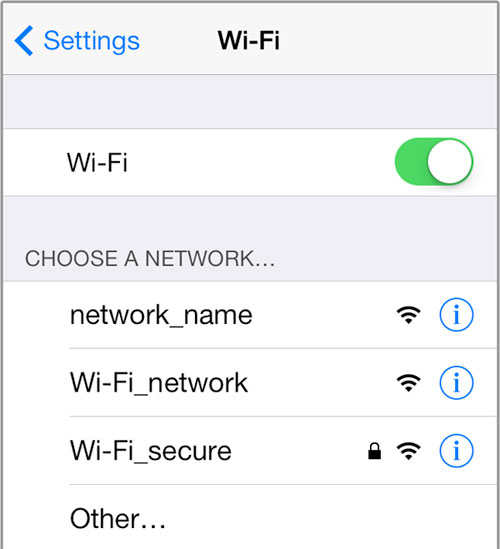
Fix 1: Verify Network Connection
A weak or unstable network connection can prevent your iPhone from receiving verification code texts. Check whether your device has a stable cellular signal or Wi-Fi connection before trying other solutions:
- Move to an area with stronger cellular coverage if the signal is poor.
- Restart your iPhone to reconnect it to the network.
You Might Also Enjoy: iPhone Not Receiving Texts from Android? Here's Why & Real Fix
Fix 2: Check Blocked Numbers and Message Settings
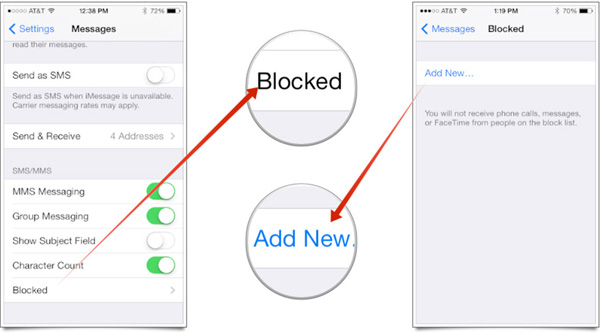
Blocked contacts or incorrect message settings may stop verification codes from appearing in your Messages app. Review these settings to make sure short-code messages are not being filtered or blocked:
- Open Settings > Messages > Blocked and remove any blocked numbers related to verification services. (Can I block or unblock someone on WhatsApp on iPhone?)
- Check Settings > Messages and make sure SMS messaging is enabled.
- Ensure your phone number is correctly linked to your Apple ID or account.
Fix 3: Disable Do Not Disturb
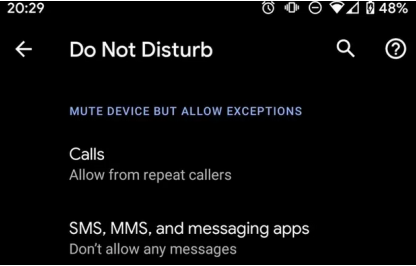
Do Not Disturb or Focus mode may hide incoming message notifications, making it seem like verification texts are missing. Below is how to disable it:
- Open Control Center: Swipe down from the top-right corner of your iPhone.
- Find Focus: Tap the Focus button.
- Turn Off Do Not Disturb: If Do Not Disturb is enabled, tap it to deactivate.
- Check Focus Settings: Go to Settings > Focus > Do Not Disturb and make sure it is not scheduled to turn on automatically.
- Request a New Code: Return to the app or website and request another verification code.
Further Reading: Fix Not Receiving Verification Code Texts on Android in 12 Ways
Fix 4: Disable SMS Filter
The SMS filtering feature can sometimes classify verification codes as unknown or unwanted messages. Turning it off may help your iPhone receive these texts normally. Here's how:
- Go to Settings > Messages.
- Tap Unknown & Spam.
- Disable Filter Unknown Senders and check whether verification messages appear.
Fix 5: Reinsert SIM Card
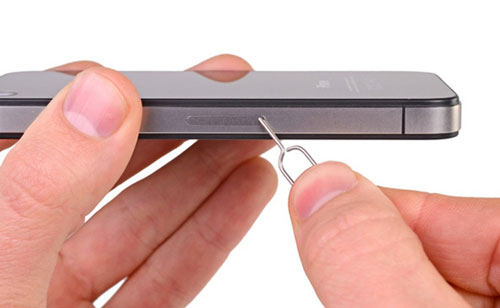
A loose or improperly detected SIM card can interrupt SMS services. Removing and reinstalling the SIM card can help refresh the connection between your iPhone and carrier network. To do it:
- Turn off your iPhone before removing the SIM card.
- Take out the SIM tray and check whether the card is damaged or misplaced.
- Reinsert the SIM card and turn your iPhone back on.
Fix 6: Enable Airplane Mode
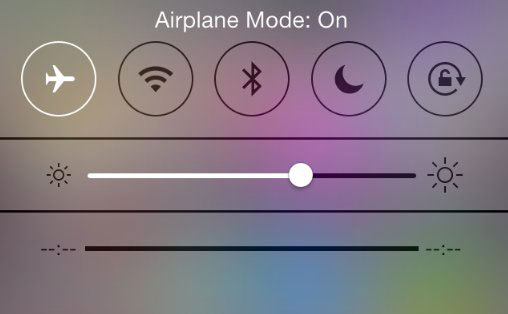
Airplane Mode can refresh your iPhone's wireless connections and fix temporary network issues that prevent verification texts from arriving. To turn it on:
- Swipe down from the top-right corner to open Control Center.
- Turn on Airplane Mode for about 30 seconds.
- Turn it off and wait for your cellular connection to return.
- Request the verification code again.
Fix 7: Clear Cache on Messages
Old message data or temporary system glitches may interfere with receiving new SMS codes. Cleaning up Messages data can help refresh the app. To do this:
- Delete unnecessary message conversations from the Messages app.
- Restart your iPhone after clearing old messages.
- Request a new verification code to check whether the issue is fixed.
Fix 8: Update iOS
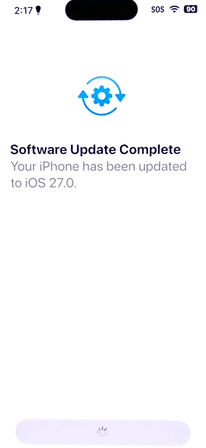
Running an outdated iOS version may cause compatibility problems with messaging services. Installing the latest update can resolve system bugs affecting SMS delivery. Here are the steps:
- Open Settings > General > Software Update.
- Download and install any available iOS update.
- Restart your device after the update finishes.
Fix 9: Re-register iMessage
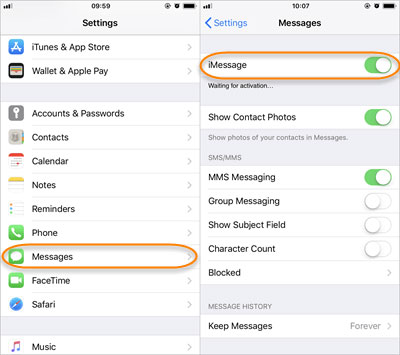
Problems with iMessage registration can sometimes affect message handling. Turning iMessage off and back on can refresh Apple's messaging service. To accomplish this:
- Go to Settings > Messages.
- Turn off iMessage.
- Wait a few seconds, then enable it again. (What if iMessage doesn't work?)
- Try receiving the verification code once more.
Fix 10: Remove Spam Blockers
Third-party spam blocking apps or carrier filters may accidentally block verification messages. Removing these restrictions can allow short-code texts to come through. To do it:
- Check installed call-blocking or SMS-filtering apps.
- Disable suspicious spam protection features temporarily.
- Ask for a new verification code after removing the blocker.
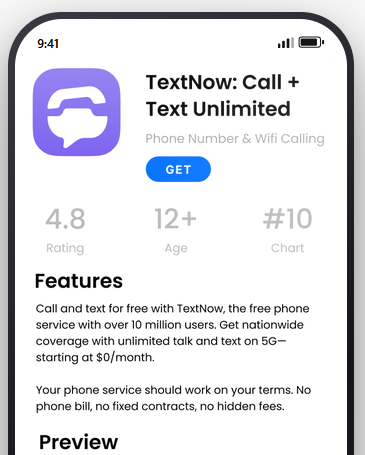
Fix 11: Troubleshoot with TextNow
If your regular phone number cannot receive verification codes, using TextNow may help determine whether the issue is related to your carrier service. Below is how:
- Install and open TextNow if available in your region.
- Use a TextNow number to test SMS reception.
- If verification codes arrive there, your original carrier service may need troubleshooting.
Fix 12: Check for Carrier Settings Update
Carrier settings updates improve network performance and messaging compatibility. Installing a pending update may fix problems with SMS delivery. Here's how you can do it:
- Connect your iPhone to Wi-Fi.
- Open Settings > General > About.
- Wait for a prompt asking you to update carrier settings.
- Install the update if one is available.
Fix 13: Contact Your Carrier
If none of the above methods work, the problem may come from your mobile carrier. Carriers can check whether SMS short codes, account settings, or network restrictions are preventing verification messages. To do this:
- Contact your carrier's customer support.
- Explain that you cannot receive verification code texts.
- Ask them to check SMS services, short-code blocking, and account status.
Part 2: Troubleshoot Not Receiving Verification Code Texts on iPhone Expertly
A reliable option for handling iPhone system-related problems is iOS System Recovery, which can help troubleshoot not receiving verification code texts on iPhone caused by software glitches. It can repair various iOS issues, including abnormal system behavior, stuck screens, and message-related errors, while keeping existing data safe during the repair process.
The tool offers a simpler alternative when basic fixes like checking settings, updating iOS, or contacting the carrier do not resolve the verification code problem.
Key Characteristics of iOS System Recovery:
- Repairs iOS system errors that may prevent SMS verification codes from arriving.
- Fixes problems like stuck screens, update failures, and system glitches.
- Offers Standard Mode for data-safe repairs and Advanced Mode for deeper fixes.
- Repairs iPhone issues without deleting personal files in Standard Mode.
- Works with various iPhone, iPad, and iPod models.
- Helps solve problems related to iOS version compatibility.
- Guides users through connection, firmware download, and repair steps.
- Works on both Windows and macOS computers.


How to troubleshoot not receiving verification code texts on iPhone using iOS System Recovery?
Step 1: Start by downloading and installing iOS System Recovery on your computer. After the installation is finished, open the program and go to More Tools > iOS System Recovery to enter the repair module.
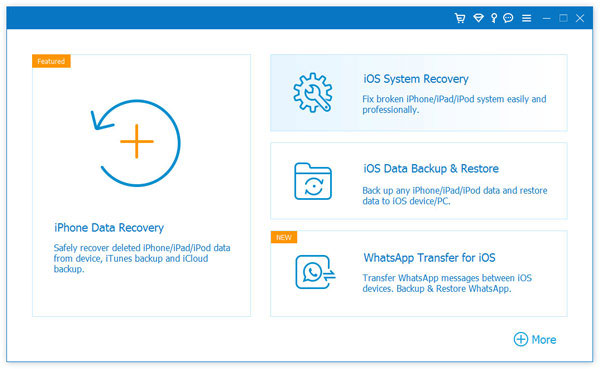
Step 2: Connect your iPhone to the computer using a dependable USB cable. Once the device is recognized successfully, click the "Start" button to begin the repair process.
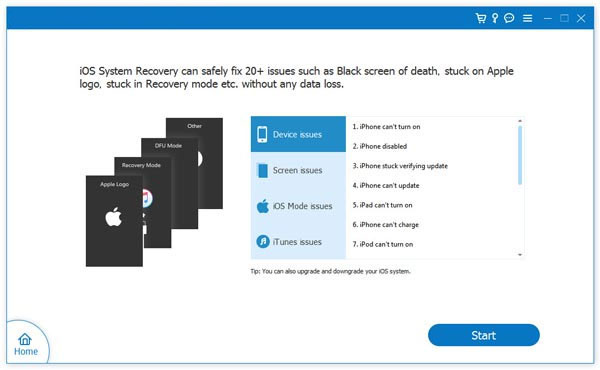
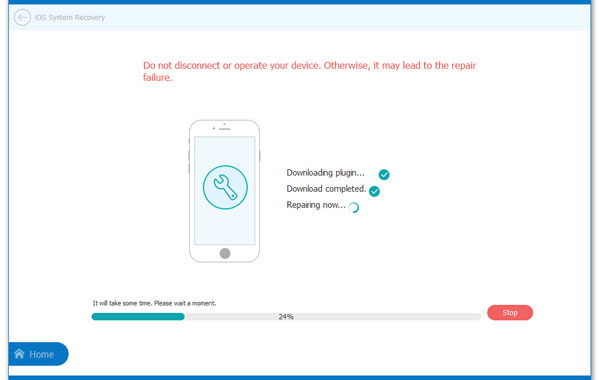
Step 3: The software will automatically identify and present your iPhone's device information. Please take a moment to confirm that the displayed details are accurate.
- If everything is correct, proceed by clicking "Repair." If the detected information is incorrect, manually select the appropriate model and firmware version from the list, then click "Repair" again to continue.
Which Method to Choose? A Detailed Comparison
These 14 fixes cover everything from network and message settings to carrier-related problems, giving you several ways to troubleshoot missing verification codes. When simpler methods fail or the issue stems from an iOS system error, iOS System Recovery is the best tool to turn to for repairing the underlying problem.
|
Fix
|
When to Use It
|
|
1. Verify Network Connection |
When weak signal or network issues stop verification texts. |
|
2. Check Blocked Numbers and Message Settings |
When blocked contacts or filters hide verification codes. |
|
3. Disable Do Not Disturb |
When Focus mode hides message notifications. |
|
4. Disable SMS Filter |
When verification codes are filtered as unknown or spam messages. |
|
5. Reinsert SIM Card |
When SIM problems affect SMS reception. |
|
6. Enable Airplane Mode |
When temporary network errors prevent message delivery. |
|
7. Clear Cache on Messages |
When Messages glitches affect incoming texts. |
|
8. Update iOS |
When outdated iOS causes messaging issues. |
|
9. Re-register iMessage |
When iMessage settings interfere with SMS delivery. |
|
10. Remove Spam Blockers |
When spam apps or filters block verification texts. |
|
11. Troubleshoot with TextNow |
When you need to test carrier or number issues. |
|
12. Check for Carrier Settings Update |
When outdated carrier settings affect SMS services. |
|
13. Contact Your Carrier |
When carrier restrictions prevent verification codes. |
|
14. Use iOS System Recovery |
When common settings and network fixes fail because the issue may come from iOS system errors. Unlike the other methods that mainly adjust connections, messages, or carrier settings, this tool can repair various iOS system problems and restore abnormal iPhone functions without requiring complicated manual troubleshooting. |
Related Articles:
iPhone Text Sound Not Working? Here's the Fix [100% Success]
iPhone Shows Unread Messages But There Are None? Reasons & 15 Solutions
2026 Guide: How to Extract Text Messages from iPhone Backup
[4 Ways] How to Recover Deleted Text Messages on iPhone without Computer?
How to Back Up Text Messages on iPhone without iCloud: Guide 2026
