
Wondershare TunesGo Review: Features, Pros, Cons & Best Alternative
Managing phone data can be a headache, especially when you need to transfer files, back up important information, or organize media files. Wondershare TunesGo is a powerful phone management tool that allows users to easily manage media files, contacts, apps, and even fix iOS system problems. Whether you want to transfer files between devices, back up data, or organize your phone's content, Wondershare TunesGo provides a comprehensive solution.
In this Wondershare TunesGo review, we'll delve into its key features, performance, and price, and list its pros and cons to help you determine if it meets your needs.
Part 1: What Is Wondershare TunesGo?
Wondershare TunesGo is an all-in-one phone management software designed to help users manage Android and iOS devices more effectively. Whether you're an Android or iPhone user, TunesGo provides a seamless way to transfer, back up, and organize your phone's data without the need for cumbersome software like iTunes. This tool is especially useful for users who want a simple, efficient way to transfer music, photos, videos, contacts, messages, and other files between devices and computers. Wondershare TunesGo is compatible with both Windows and macOS systems, making it accessible to a wide range of users.
What sets Wondershare TunesGo apart from other phone management software is its ease of use, speed, and its wide compatibility across both iOS and Android. With it, you don't have to worry about device restrictions or complex setups. Whether you're switching phones, backing up important files, or managing media, Wondershare TunesGo makes the process smooth and hassle-free.
Part 2: Key Features of Wondershare TunesGo
File Transfer Between Android and iPhone
Wondershare TunesGo allows seamless data transfer between Android devices, iPhones, and PCs. This includes transferring music, videos, contacts, messages, and more, without requiring the use of iTunes or Google services. Whether you're moving data from Android to iPhone or vice versa, TunesGo simplifies the process with just a few clicks.
Manage Music, Photos, and Videos
With Wondershare TunesGo, you can easily manage your music, photos, and videos on both Android and iOS devices. You can transfer music to and from your device, organize your playlists, and sync media files across devices. The software also allows you to remove duplicates, creating more storage space for your media.
Backup and Restore Phone Data
Wondershare TunesGo provides a reliable backup and restore feature. You can back up all your essential phone data—including contacts, text messages, photos, music, and apps—to your computer. In case of data loss, a single click allows you to restore everything from the backup, ensuring you don't lose important information.
Manage Contacts and SMS
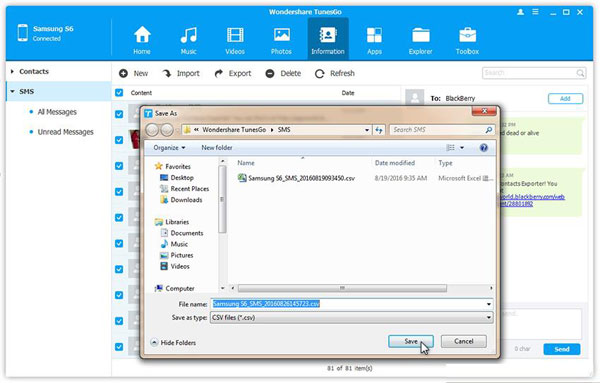
The software allows you to organize, back up, and restore your contacts and SMS messages. You can add, delete, or edit contacts directly from your computer and transfer them between devices. This feature also lets you back up text messages, saving important conversations that might otherwise be lost.
App Management
Wondershare TunesGo simplifies app management by allowing you to install, uninstall, and export apps on your Android and iPhone. You can even export app data to keep track of your app progress or restore app data when switching devices.
One-Click iOS System Repair
One of the standout features of Wondershare TunesGo is its ability to fix common iOS system issues with a single click. If your iPhone or iPad is stuck in recovery mode, the device is unresponsive, or you're facing other iOS-related problems, this tool can restore the system to normal without causing any data loss.
Part 3: How to Use Wondershare TunesGo
With these simple steps, Wondershare TunesGo makes it easy to manage your phone's data, transfer files, and fix system issues. Using Wondershare TunesGo is easy, thanks to its simple interface. Here's a quick guide on how to use it:
Step 1: Install Wondershare TunesGo
Download Wondershare TunesGo from the official website for Windows or Mac. Install the program and open it once it's done.
Step 2: Connect Your Phone
Use a USB cable or Wi-Fi to connect your Android or iPhone. For iPhone, trust the computer; for Android, make sure USB debugging is enabled.
Step 3: Choose the Feature You Need
Once your device is connected, select the feature you want to use (e.g., File Transfer, Backup, App Management, Contacts). The software will guide you through the process.
Step 4: Transfer or Manage Files
To transfer files, select the media type (e.g., music, photos) and choose what to import or export. To back up data, select what you want to back up (e.g., contacts, messages) and click Backup.
Step 5: Fix iOS System Issues (For iPhone)
If your iPhone has issues (e.g., stuck in Apple logo), click Fix iOS System. Follow the on-screen instructions to fix your device.
Step 6: Finish and Disconnect
Once your task is done, safely eject your device. Disconnect your phone from the computer.
Part 4: Pros and Cons of Wondershare TunesGo
Pros
- Lets you manage music, photos, videos, contacts, and more in one place.
- Quickly transfer data between iPhone, Android, and computer without iTunes restrictions.
- Supports both iOS and Android devices, as well as Windows and Mac systems.
- Helps safeguard data and recover files when needed.
- Allows users to organize playlists, remove duplicates, and manage libraries easily.
- Simple design makes it accessible even for beginners.
Cons
- Most advanced features require a paid version after the trial period.
- Beginners may need time to explore all features.
- Free version has restrictions on functionality.
- Certain functions depend on online access (e.g., metadata retrieval).
- Some features may vary depending on device or OS.
- Some users report slow or unhelpful customer service.
Part 5: Best Wondershare TunesGo Alternative
If you're looking for a simpler and more cost-effective alternative to Wondershare TunesGo, MobiKin Assistant for iOS is a great choice. It focuses on essential features like data transfer, management, and backup without unnecessary complexity, making it especially suitable for users who prefer a clean interface and straightforward operations. Compared with TunesGo, it is often lighter, easier to use, and more budget-friendly, while still covering most daily iPhone management needs.
Key Features of MobiKin Assistant for iOS:
- Transfer contacts, messages, photos, music, videos, and more between iPhone and computer without data loss.
- Import files from PC to iPhone or export specific data to your computer as needed.
- Add, edit, delete contacts, organize photos, uninstall apps, and manage notes, calendars, and bookmarks.
- Back up iPhone data to your computer and restore it anytime without overwriting previous backups.
- Works independently without iTunes, avoiding sync errors and making data management easier.
- Be compatible with overall iOS devices, including iPhone 17/16/15/14/13/12/11/X/8/7/6, etc.


How to Use MobiKin Assistant for iOS to transfer and manage iPhone/iPad data:
Step 1: Download and install MobiKin Assistant for iOS, then connect your iPhone to the computer via USB. Launch the program and let it detect your device automatically.
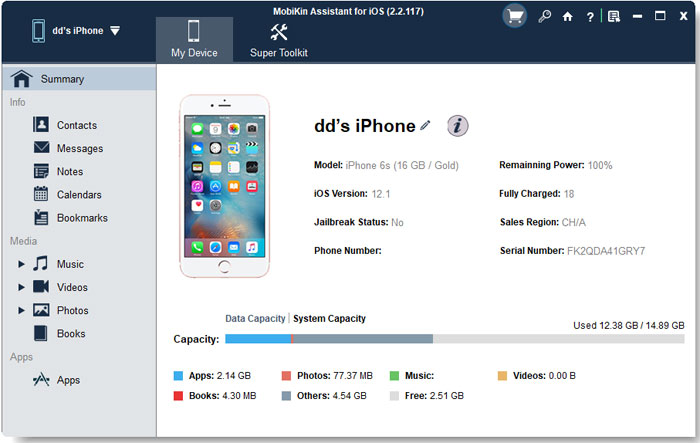
Step 2: Choose a data type (e.g., photos, music), then click "Export" or "Import" to transfer files between iPhone and computer.
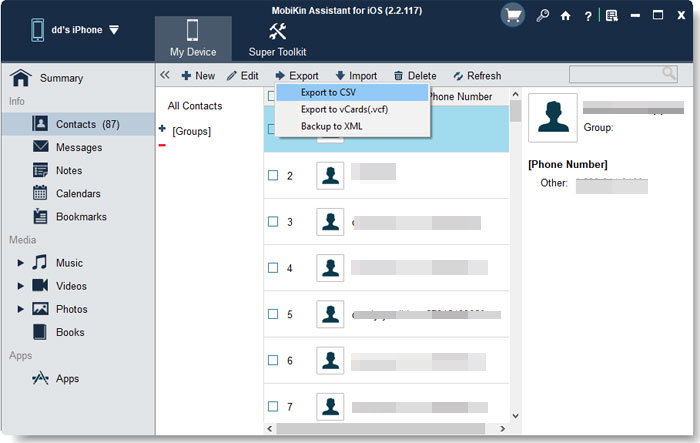
Step 3: Go to categories like Contacts or Messages to add, delete, or edit data directly on your computer.
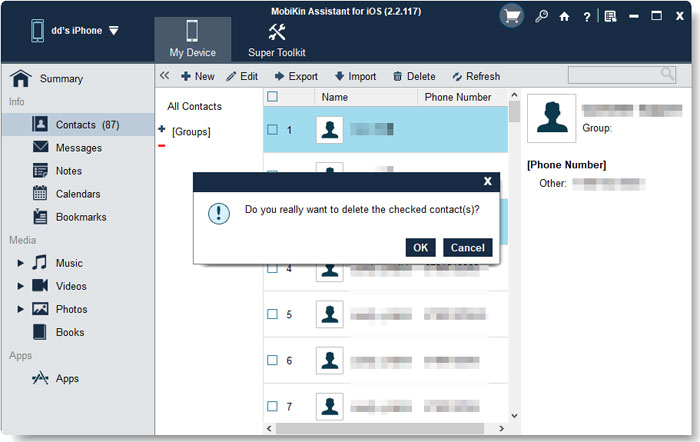
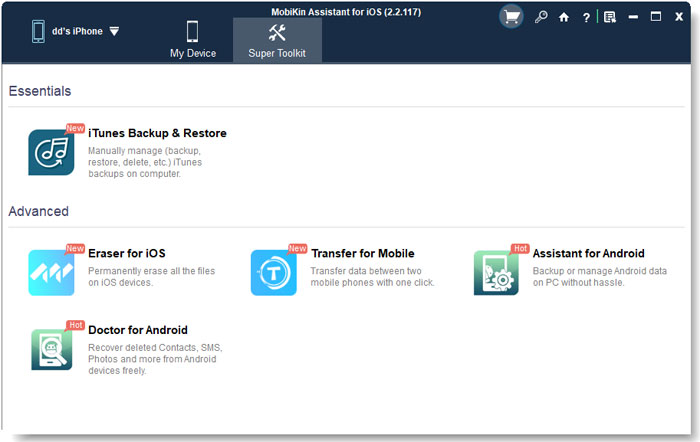
Step 4: Click "Super Toolkit" > "Backup", select data types, and back up your iPhone in one click. Choose "Restore", select a backup file, and recover your data to the device easily.
Video Guide:
Part 3: FAQs about Wondershare TunesGo
Q1: Is Wondershare TunesGo free to use?
Wondershare TunesGo offers a free trial version, but most advanced features require a paid license to unlock full functionality.
Q2: Is Wondershare TunesGo safe to use?
Yes, Wondershare TunesGo is generally safe to use as long as you download it from the official website. It does not harm your device or data during normal operations.
Q3: What types of data can Wondershare TunesGo manage?
It can manage a wide range of data, including music, videos, photos, contacts, messages, apps, and more.
Q4: Why is Wondershare TunesGo not connecting to my device?
This issue may occur due to an outdated USB driver, disabled USB debugging (on Android), or not trusting the computer (on iPhone). Updating drivers or reconnecting the device usually fixes the problem.
Q5: Is Wondershare TunesGo still supported?
Wondershare TunesGo has been gradually replaced by newer Wondershare products, so updates and support may be limited compared to newer tools.
Conclusion
Overall, Wondershare TunesGo is a powerful and versatile phone management tool that makes it easy to transfer, manage, and back up data across iOS and Android devices. It offers a wide range of features with a user-friendly interface, making it suitable for both beginners and advanced users. However, its pricing and limited updates may not appeal to everyone. If you prefer a simpler, more affordable solution focused on essential iPhone management tasks, tools like MobiKin Assistant for iOS can be a better alternative. Ultimately, the best choice depends on your specific needs and how you prefer to manage your mobile data.
Related Articles:
Top 6 iPhone File Explorers to Browse & Manage iOS Data
[2026] Top 12 iPhone Contacts Manager Apps & Software
