
12 Easy Solutions to 3uTools Virtual Location Not Working [Proven]
Some apps or services show different content depending on geographic location, which is why many users rely on GPS-modifying tools when exploring features, testing apps, or accessing region-based content. However, situations occasionally arise where 3uTools Virtual Location not working prevents the location from changing or causes the map to fail to load.
When this happens, focus on this article with explanations and practical fixes to restore the function and continue modifying their device's location.
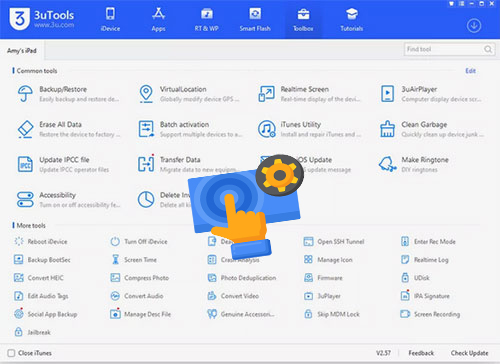
- Part 1: Why Is 3uTools Virtual Location Not Working
- Part 2: How to Fix 3uTools Virtual Location Not Working? 7 Basic Options
> Way 1: Inspect the internet connection
> Way 2: Uninstall iTunes
> Way 3: Restart your PC
> Way 4: Restart 3uTools Virtual Location
> Way 5: Reinstall the tool
> Way 6: Alter the source map
> Way 7: Redownload dependent components - Part 3: FAQs about 3uTools Virtual Location Not Working
- Part 4: Use the Best 3uTools Virtual Location Alternative [Tested]
Part 1: Why Is 3uTools Virtual Location Not Working
When attempting to spoof GPS with 3uTools, some users may find that the Virtual Location feature fails to load, apply, or maintain the selected location. This issue can be caused by several factors related to the software, device settings, or connection environment, as outlined below:
- Unstable Internet Connection - A weak network may prevent the map service from loading.
- Map Source Issues - An incorrect or unavailable map API can stop the feature from working.
- Outdated or Corrupted 3uTools - Old or damaged program files may cause malfunctions.
- Missing Drivers or Components - Apple drivers or required components may not be installed properly.
- Location Services Disabled - If location services are off, GPS modification will fail.
- iOS Compatibility Problems - Some iOS versions may not fully support the virtual location feature.
- USB Connection Errors - A faulty USB cable or unstable connection can interrupt communication.
- Device Restrictions or Security Settings - Certain system restrictions may block location modification.
When the Virtual Location feature fails unexpectedly, Virtual Location Tool can be a practical alternative for faking GPS locations on both Android/iOS devices. It allows users to change their device location, simulate movement along custom routes, and control GPS positions easily. With stable performance and wide device compatibility, it is often considered ideal to try when 3uTools Virtual Location is not working properly.


Part 2: How to Fix 3uTools Virtual Location Not Working? 7 Basic Options
Way 1: Inspect the internet connection
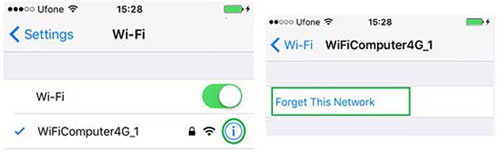
- Check Internet Access - Ensure your computer has a stable network connection so the map can load.
- Restart the Network - Reconnect Wi-Fi or restart the router to refresh the connection.
- Switch Networks - Try another Wi-Fi network or a wired connection if the current one is unstable.
You May Also Like: 3uTools Virtual Location Review: User Guide, Pros, Cons, & Alternative
Way 2: Uninstall iTunes
Uninstall iTunes from the Control Panel, restart your PC, and then install the latest version again to refresh the Apple drivers used by 3uTools. After reinstalling, reconnect your iPhone and check whether the Virtual Location feature works normally.
Way 3: Restart your PC
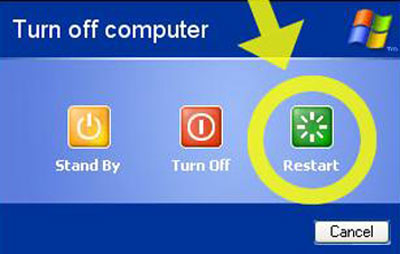
Restarting your computer can help clear temporary system glitches that may prevent 3uTools from modifying the GPS location. Click the Start menu, select Power, and choose Restart to refresh system processes and drivers. After the computer reboots, reopen 3uTools and try using the Virtual Location feature again.
Way 4: Restart 3uTools Virtual Location
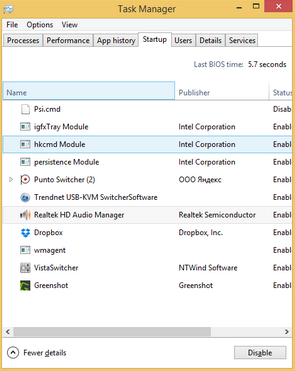
Close the 3uTools program completely and wait a few seconds before launching it again to refresh the Virtual Location module. You can also open Task Manager to ensure all 3uTools processes are ended before restarting the software. After reopening the program, reconnect your iPhone and try modifying the location again.
Way 5: Reinstall the tool
Remove the current 3uTools installation from your computer, restart your PC, and download the latest version from the official website. Installing a fresh copy ensures all program files and drivers are correctly updated, which often resolves Virtual Location issues.
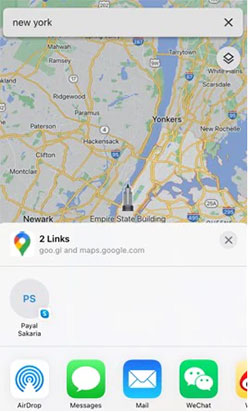
Way 6: Alter the source map
Open the Virtual Location feature, click on the Map Source option, and select a different map provider (e.g., from Google Maps to OpenStreetMap). This can resolve loading errors or location modification failures caused by map service issues.
Way 7: Redownload dependent components
If 3uTools Virtual Location is still not working, several common issues - like network problems, outdated software, or missing components - may be causing the failure. The following steps provide practical ways to troubleshoot and fix these problems, helping you restore the GPS spoofing feature.
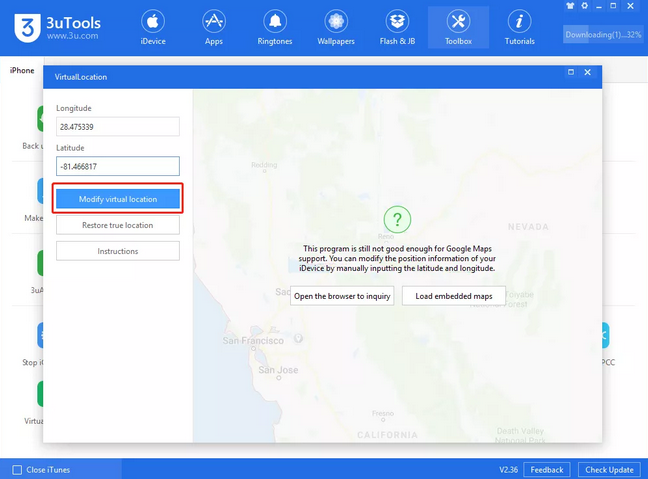
- Open 3uTools and navigate to Settings > Tools > Download Dependencies to check for missing or corrupted files.
- Redownloading all required components ensures that the program has the latest drivers and support files needed for Virtual Location.
- After the download is complete, restart 3uTools and reconnect your device to see if the feature works properly.
Part 3: FAQs about 3uTools Virtual Location Not Working
Q1: Are there any other fixes to Virtual Location not working?
If the previous solutions do not resolve the problem, there are still several additional checks that may help restore the virtual location function. The following methods focus on device settings, connection permissions, and system compatibility that can also affect how 3uTools modifies GPS locations.
- Fix 1: Reconnect Your iPhone - Disconnect the device, plug it in again with a reliable USB cable, and allow the computer to recognize it properly.
- Fix 2: Enable Location Services on iPhone - Go to Settings > Privacy & Security > Location Services and ensure the feature is turned on so the virtual location can override the GPS.
- Fix 3: Trust the Computer on Your Device - When connecting your iPhone, tap "Trust This Computer" on the device to allow proper communication with 3uTools.
- Fix 4: Disable VPN or Security Software Temporarily - Some VPNs or firewall programs may block map services or connections required for location modification.
- Fix 5: Check USB Drivers on the Computer - Ensure the Apple Mobile Device USB driver is installed and working correctly, as driver issues can prevent 3uTools from modifying the device location.
Q2: Does 3uTools Violate Pokémon GO's Rules?
Yes, using 3uTools to spoof your location can potentially violate Pokémon GO's Terms of Service. Niantic actively discourages GPS spoofing, and if the app detects unnatural location changes or inconsistent movement patterns, it may issue warnings, soft bans, or even permanent account suspensions. It's always safer to use GPS tools cautiously and understand the risks before attempting to spoof locations.
Q3: Is my iOS version affecting Virtual Location?
Yes, some newer iOS versions may not fully support 3uTools' location spoofing, which can cause the feature to stop working.
Q4: Can USB connection issues cause Virtual Location errors?
Absolutely; a loose, damaged, or unstable USB connection can prevent 3uTools from communicating properly with your iPhone.
Q5: Why does the location keep returning to the real GPS?
System restrictions, app-level location verification, or iOS security settings may override the spoofed location and revert it back.
Q6: How do I know if missing components are the problem?
You can suspect missing components are causing 3uTools Virtual Location issues if the feature fails even after checking your internet, map source, and device settings. Typically, 3uTools will not function properly when essential dependencies, drivers, or support files are corrupted or absent.
Part 4: Use the Best 3uTools Virtual Location Alternative
Virtual Location Tool is a reliable alternative when 3uTools Virtual Location fails to modify or maintain a spoofed GPS position. It enables users to change their location instantly, simulate movement routes, and control GPS positions on both iOS and Android devices with stable performance. When unexpected errors prevent 3uTools from working properly, this tool provides a practical way to continue faking locations without complicated setup.
|
Feature
|
Virtual Location Tool
|
3uTools Virtual Location
|
|
Platform Support
|
Works on both iOS and Android devices |
Mainly supports iOS devices only |
|
Location Change Mode
|
One-click teleport to any location worldwide |
Basic location modification only |
|
Route Simulation
|
Supports two-spot and multi-spot movement simulation |
Limited route simulation features |
|
Joystick Control
|
Built-in GPS joystick for real-time movement |
No joystick control |
|
App Compatibility
|
Works well with AR games and location-based apps |
May have compatibility issues with some apps |
|
System Compatibility
|
Frequently updated for new iOS and Android versions |
Updates may lag behind new iOS releases |
|
Stability
|
Designed for stable and continuous GPS spoofing |
Virtual Location may stop working in some cases |
|
Ease of Use
|
Simple interface with guided steps |
Requires navigating multiple menus |
How to use the most stable and error-free alternative to 3uTools Virtual Location?
- After downloading, install and run this utility on your PC/Mac.
- Click on "Get Started" to view the welcome screen.
- Next, connect your iPhone to the computer and unlock it.
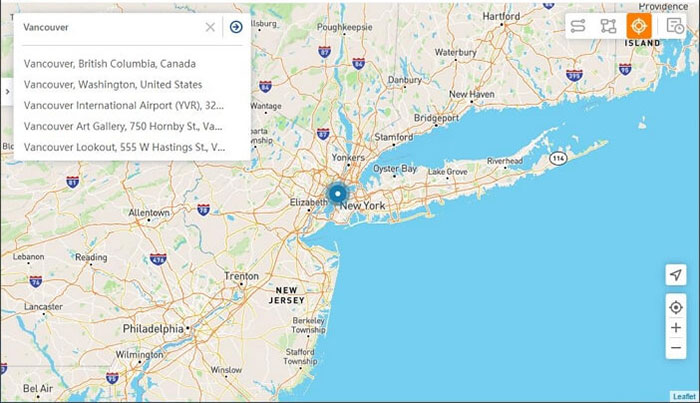
- Once the map is displayed, click on the "Teleport" section located in the upper-right corner.
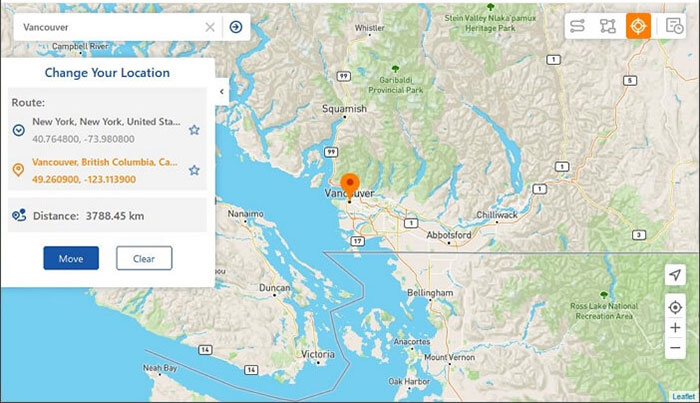
- Subsequently, identify the desired location for your iPhone at the upper-left corner.
- Alternatively, you may select a destination by zooming in or out on the map.
- You must locate and click the "Move" button.
- Finally, you can launch "Apple Maps" on your iPhone to verify the new location.
In a Nutshell
If repeated attempts fail to restore 3uTools Virtual Location, turning to Virtual Location Tool can be a practical next step. This tool offers wider compatibility with both iOS and Android devices, smoother GPS teleporting, and route simulation features that are not always available in 3uTools. With these advantages, it provides a reliable way to continue changing locations when the Virtual Location feature stops functionin
Related Articles:
All You Want to Know about Find My iPhone Offline Last Known Location [2026]
Top 9 Tenorshare iAnyGo Alternatives [For Better Experience]
Why Is My Location Wrong on My iPhone? 10 Ways to Fix It
How to Reset iPhone without Losing Data? [iOS 26/18/17 Supported]
