
How to Recover Photos & Videos from Android with Black Screen? 3 Ways
TL;DR:
When screen failure blocks access to your Android device, you still have multiple paths to safeguard your media - whether through dedicated recovery software - Broken Android Data Extraction, cloud backups like Google Photos, or direct SD card retrieval. By understanding these options and following the step-by-step guidance, you can confidently recover your photos and videos even when your phone's display is unresponsive.
So, the other day I totaled my Pura 70, the phone was basically folded in half and totally dead. Is there any way to recover any photos from this current paper weight? Or is all hope lost? -- from Reddit
A broken display, black screen, or touch failure can stop users from opening the gallery or transferring files normally. This guide explains how to recover photos or videos from Android with a black screen, covering 3 ways with or without a backup. It also includes helpful FAQs to make the process clearer and less stressful, ensuring that even when the screen fails, your memories remain within reach.
- Part 1: Recover Photos/Videos from Android with Black Screen without Backup
- Part 2: Retrieve Photos/Videos from Android with Black Screen via Google Drive
- Part 3: Recover Photos/Videos from Black Screen Android Phone via SD Card
- FAQs about Black Screen Android Photo/Video Recovery
- Tips to Fix an Android Phone with a Black Screen
Part 1: Recover Photos/Videos from Android with Black Screen without Backup
When an Android phone suffers from a black screen or other access issues, Broken Android Data Extraction can help retrieve important files from the damaged device. It supports recovering photos, videos, contacts, messages, and other data even when the phone cannot be operated normally. With its recovery features, users have a practical way to save media files from Android devices affected by screen failures or system problems.
Core Characteristics of Broken Android Data Extraction:
- Broken Phone Recovery - Extracts photos, videos, contacts, messages, and more.
- System Repair - Fixes black screens, crashes, freezes, and startup issues.
- Multiple Data Types - Recovers media and non-media files.
- Data Preview - Checks files before recovery.
- Selective Recovery - Recovers specific file types only.
- Unresponsive Device Support - Retrieves data from inaccessible phones.
- Broken Screen Support - Recovers files from cracked or black screens.
- Easy Operation - Guides users through scanning and recovery.
- Safe Extraction - Protects original device data during recovery.
- Samsung Support - Works with many Samsung Android devices.
Free and Secure Download:

Follow the steps below to see how to use Broken Android Data Extraction to retrieve photos or videos from an Android with a broken screen:
- Download and install Broken Android Data Recovery on your computer, then launch the program.
- Connect your device with a black screen to the computer using a USB cable.
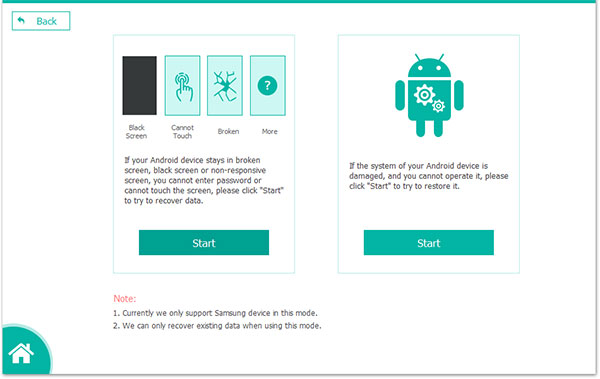
- Select "Broken Android Data Extraction" from the left panel of the interface.
- Next, specify the type of issue affecting your phone, then click the "Start" button to proceed.
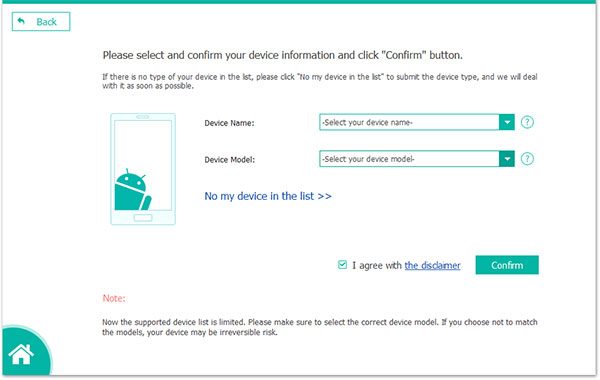
- Confirm your device details by using the drop-down menus to choose your Device Name and Device Model.
- Check the "I agree" box, then click "Confirm" to move forward.
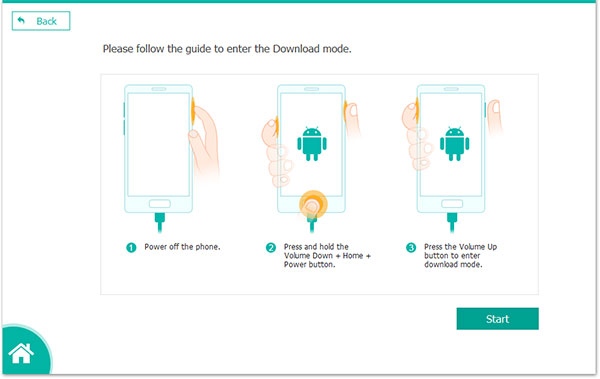
- Follow the on-screen instructions to place your glitchy phone into Download mode.
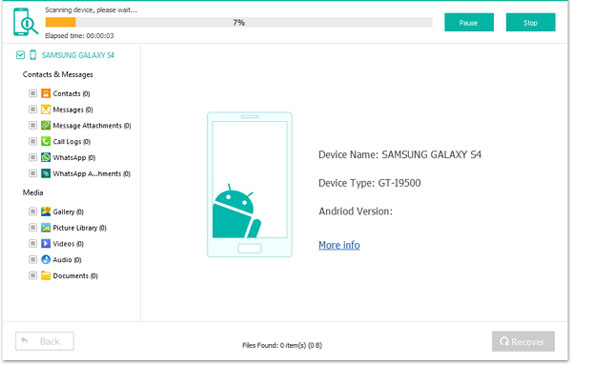
- Once that's done, click the "Start" button to allow the program to begin scanning your device.
- After the scan completes, all files on the phone will be displayed in categorized lists.
- Select the photos or videos you wish to recover, then click the "Recover" button to extract them to your computer.
Part 2: Retrieve Photos/Videos from Android with Black Screen via Google Drive
If your Android phone has a black screen but Google Drive backup was enabled before the issue occurred, you may still be able to access saved photos and videos from another device. (Google Drive itself does not automatically back up all Android photos and videos; most photo backups are handled through Google Photos.) Follow these steps:
Step 1: Check Whether Photos/Videos Were Backed Up
- Open Google Drive or Google Photos on another phone or computer.
- Sign in with the same Google account used on the damaged Android device.
- Check whether your photos and videos are available in Google Photos, Google Drive, or the Backups section.
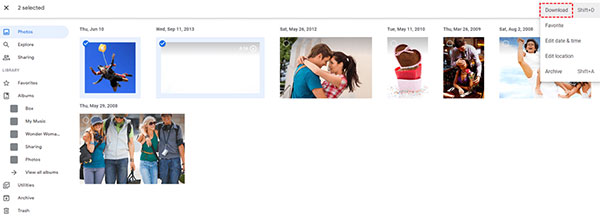
Step 2: Download Photos/Videos from Google Photos
- Visit photos.google.com on a computer.
- Log in with your Google account.
- Select the photos or videos you want to recover.
- Click the Download option to save them to your computer.
Step 3: Restore Photos/Videos to a New Android Device
- Add the same Google account to another Android phone.
- Open the Google Photos app.
- Enable backup and sync if needed.
- Wait for the backed-up photos and videos to appear.
Step 4: Retrieve Files from Google Drive
- Open drive.google.com and sign in with the same account.
- Browse folders where your Android files may have been saved.
- Select the required photos or videos and download them.
Part 3: Recover Photos/Videos from Black Screen Android Phone via SD Card
If your Android phone has a black screen but your photos and videos were saved on an SD card, you can remove the card and access the files through another device. Follow these steps:
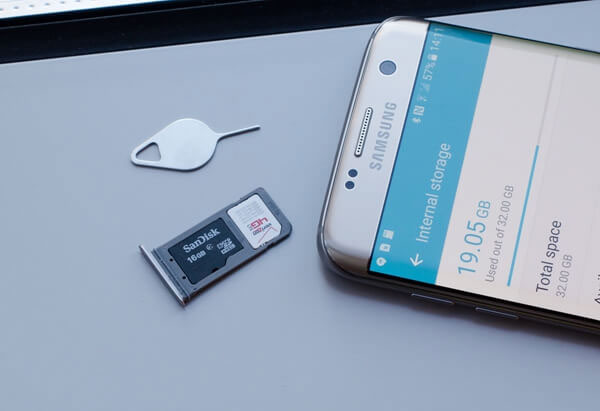
Step 1: Remove the SD Card from the Android Phone
- Turn off the phone if possible.
- Locate the SIM/SD card tray or SD card slot.
- Use an eject tool or your fingers to remove the SD card carefully.
Step 2: Connect the SD Card to a Computer
- Insert the SD card into an SD card reader.
- Connect the card reader to a Windows or Mac computer.
- Wait for the computer to detect the external storage.
Step 3: Locate Photos and Videos
- Open the SD card folder on the computer.
- Check common folders such as DCIM, Camera, Pictures, and Movies.
- Copy the needed photos and videos to the computer.
Step 4: Recover Missing Files (If Needed)
If the photos or videos are deleted or not visible:
- Stop using the SD card to avoid overwriting data.
- Use reliable SD card recovery software to scan the card.
- Preview found files and save recovered photos/videos to another location.
FAQs about Black Screen Android Photo/Video Recovery
Q1: Can I recover photos from a black screen Android phone without unlocking it?
It depends on the phone condition and security settings. If USB debugging was enabled before the screen problem, some computer-based tools may access the device; otherwise, unlocking the phone may be required.
Q2: Can Google Photos recover pictures from a phone with a black screen?
Yes, if automatic backup was enabled before the screen stopped working. Sign in to the same Google account on another device and check Google Photos for available backups.
Q3: Can I recover data if the Android phone screen is completely broken?
Yes, but the recovery method depends on whether the phone still works internally. If the device powers on, options such as external display adapters, backups, or recovery software may help.
Q4: Why can't my computer detect my Android phone with a black screen?
The phone may be locked, USB file transfer mode may not be enabled, or USB debugging may not have been activated. A damaged USB port, cable, or driver issue can also prevent detection.
Q5: Will recovering photos and videos erase existing data on my Android phone?
Most recovery methods do not erase existing files. However, avoid unnecessary operations, factory resets, or installing many apps on the device, as they may reduce the chance of successful recovery.
Q6: What is the best way to recover photos/videos from a black screen Android phone?
The best recovery method depends on whether you have a backup, SD card access, or a computer connection. Broken Android Data Extraction is a useful tool for extracting photos, videos, and other files from Android phones with broken or unresponsive screens. It helps recover data when normal access to the device is unavailable.
Tips to Fix an Android Phone with a Black Screen
An Android phone with a black screen can result from battery problems, software errors, app conflicts, or hardware damage. The following tips cover common fixes, from simple restarts and charging checks to system repairs and professional assistance:
- Force Restart the Phone - Hold the Power button or Power + Volume Down buttons to restart the device.
- Charge the Device - Charge the phone for at least 30 minutes to rule out battery issues.
- Check Charging Accessories - Try another cable, charger, or power outlet if the phone does not respond.
- Remove Battery or SD Card - Reinstall the battery or remove external storage to check for conflicts.
- Boot into Safe Mode - Start Safe Mode to find out if a third-party app causes the issue.
- Check Physical Damage - Inspect the phone for cracks, water damage, or hardware problems.
- Connect to a Computer - Check whether the phone is detected and back up data if possible.
- Use Recovery Mode - Clear cache or repair system issues through Android Recovery Mode.
- Try an External Display - Connect to another screen to check for display failures.
- Update Android System - Install updates or use repair tools to fix software errors.
- Factory Reset the Phone - Reset the device only after backing up important data.
- Get Professional Repair - Contact a technician for hardware-related black screen problems.
Related Articles:
Top 13 Photo Managers for Android to Manage Android Pics with Ease
11 Best Photo Recovery Apps/Software for Android [Must-read]
How to Transfer Photos from Android to iPhone? 7 Creative Ways
How to Recover Permanently Deleted Videos from Android? 4 Clever Ways
