How to Delete Private Data on iPhone Permanently: Full Guide
TL;DR:
The best approach depends on how much data you need to remove: use iPhone's built-in options for individual items, or MobiKin Eraser for iOS when you need a more thorough permanent wipe.
- Check the types of private data stored on your iPhone, including photos, messages, contacts, notes, Safari history, app data, files, and account information.
- Delete data manually through built-in apps and Settings, such as "Settings" > "Apps" > "Safari" > "Clear History and Website Data", and remember to empty "Recently Deleted".
- For a more thorough wipe, connect your iPhone to a computer with MobiKin Eraser for iOS, click "Erase", choose "Low Level", "Medium Level", or "High Level", enter "Delete", and start the erasing process.
- Before selling or giving away your iPhone, back up important data, check your iCloud syncing, remove personal accounts, and use a dedicated erasing tool for stronger privacy protection.
Your iPhone holds much more personal information than just photos and messages. Browsing history, contacts, notes, call records, app data, and account details can all reveal something about you. If you're planning to clean up your device, manually deleting these items is a good starting point, but it may not be enough when privacy really matters. In this guide, we'll walk through practical ways to delete private data from your iPhone, including a more thorough option for permanently wiping personal information.
Part 1: What Private Data Is Stored on an iPhone?
Your iPhone probably contains more personal information than you realize. Besides the photos and messages you see every day, it can also store browsing records, contacts, call history, notes, app data, and other information linked to your accounts. Some of this data may not seem important on its own, but together, it can reveal quite a lot about you. Before deleting private data, it helps to know where this information is stored and what you may need to remove.
- Photos and videos: Personal photos, videos, screenshots, and other media can contain private moments, locations, or other sensitive details.
- Messages and call history: Text messages, iMessages, attachments, and recent calls may include conversations and contact information you do not want others to see. (How to Permanently Delete Messages on iPhone?)
- Contacts and notes: Your address book and Notes app may contain phone numbers, addresses, reminders, personal thoughts, or other private information.
- Safari data: Browsing history, cookies, website data, and saved information can reveal the websites and services you use.
- App data and files: Many apps store personal content, downloaded files, login details, or other activity on your iPhone.
- Account information: Your iPhone may also contain information associated with your Apple Account, email accounts, social media apps, and other services.
Related Posts:
Part 2: How to Delete Private Data from iPhone Manually
If you only need to remove certain types of personal information, you can do it directly on your iPhone without installing any third-party app. Depending on what you want to delete, you can clear photos, messages, browsing history, contacts, notes, and other personal data separately. The following methods can help you clean up the information you no longer need.
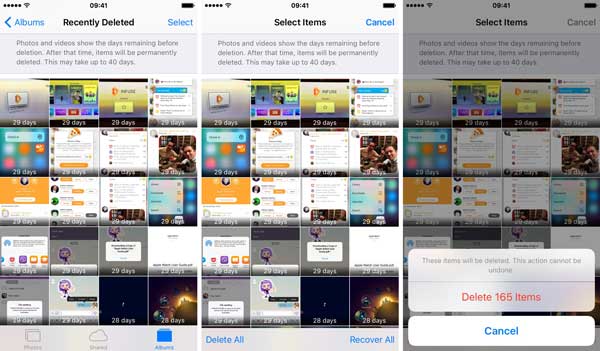
How to Delete photos and videos
- Open the Photos app and tap "Select" to choose the photos or videos you want to remove.
- Tap the trash icon and confirm the deletion.
- Go to "Recently Deleted", select the items again, and tap "Delete" to remove them permanently.
How to Clear Safari browsing data
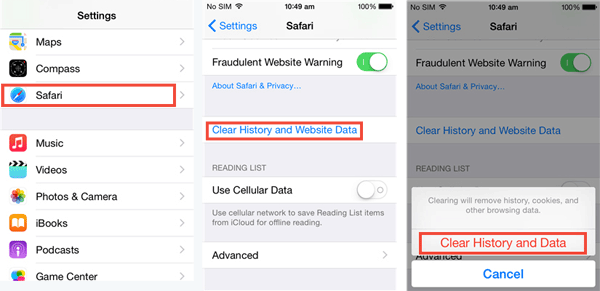
- Open "Settings" and tap "Apps" > "Safari".
- Tap "Clear History and Website Data". (How to Fully Clear iPhone Safari Bookmarks)
- Choose the appropriate time range and confirm the action.
How to Delete messages
- Open the Messages app and find the conversation you want to remove.
- Swipe left on the conversation and tap the delete icon, or use the selection option to remove multiple conversations.
- Open "Recently Deleted" and permanently delete the messages if necessary.
How to Remove contacts and call history
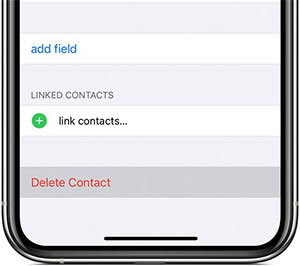
- Open the Contacts app and select a contact you no longer need.
- Tap "Edit", scroll down, and choose "Delete Contact".
- To remove call records, open the Phone app, tap "Recents", and delete the entries you want to clear.
How to Delete notes and personal files
- Open the Notes app or Files app and select the items you want to remove.
- Tap the delete option to move them to the trash or "Recently Deleted" folder.
- Open "Recently Deleted" and remove the items permanently.
How to Remove personal accounts
- Open "Settings" and review the accounts and services signed in on your iPhone.
- Sign out of the accounts you no longer want to keep on the device.
- If you are giving away or selling the iPhone, make sure your important data is backed up before removing your accounts.
These methods are useful when you only want to clean up specific information. However, going through each type of data manually can take quite a bit of time. Also, deleting files from an iPhone does not necessarily provide the same level of privacy as securely erasing the device. If you want a more thorough way to permanently remove private data, the next method is worth a look.
Related Posts:
Part 3: How to Delete Private Data on iPhone Permanently
If you want to permanently remove private data from your iPhone, a dedicated data eraser can save you from deleting everything manually. MobiKin Eraser for iOS - Erase Your iPhone, iPad or iPod touch Data Permanently is designed to securely wipe personal data from iPhone, iPad, and iPod touch. It provides different security levels, allowing you to choose how thoroughly you want to erase your data. This can be especially useful when you plan to sell, give away, or recycle an old iPhone and want to reduce the risk of personal information being recovered.
Key Features of MobiKin Eraser for iOS:
- Permanently erase private data from iPhone, iPad, and iPod touch.
- Support different security levels for different privacy needs.
- Erase photos, contacts, text messages, call logs and other private data from iPhone with simple clicks.
- Supports almost all iPhone models, including iPhone 18/17/16/15/14/13/12/11/X/8/7/6.
- Your iPhone data will be deleted permanently and nobody can ever recover or view your private data.


To permanently erase private data from your iPhone with MobiKin Eraser for iOS:
Step 1: Install and launch MobiKin Eraser for iOS on your computer, then connect your iPhone to the computer with a USB cable and let the program detect it.
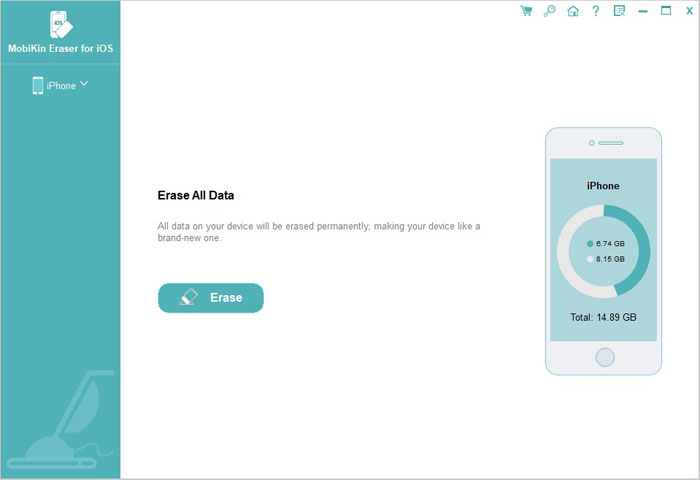
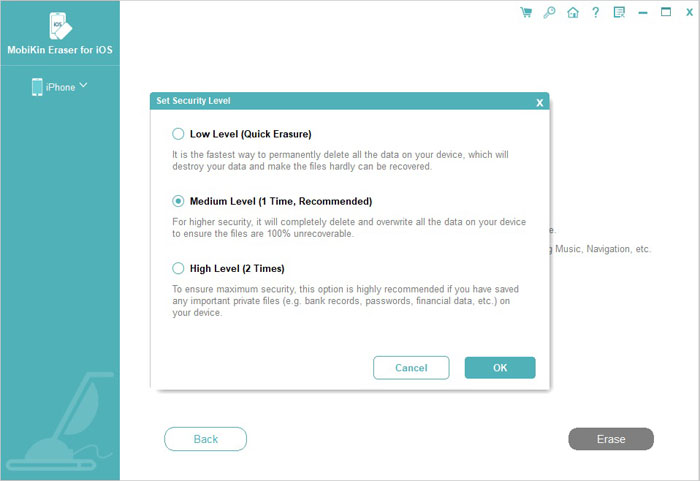
Step 2: Click "Erase" and choose a security level under "Select Security Level". You can select "Low Level", "Medium Level", or "High Level" based on your needs.
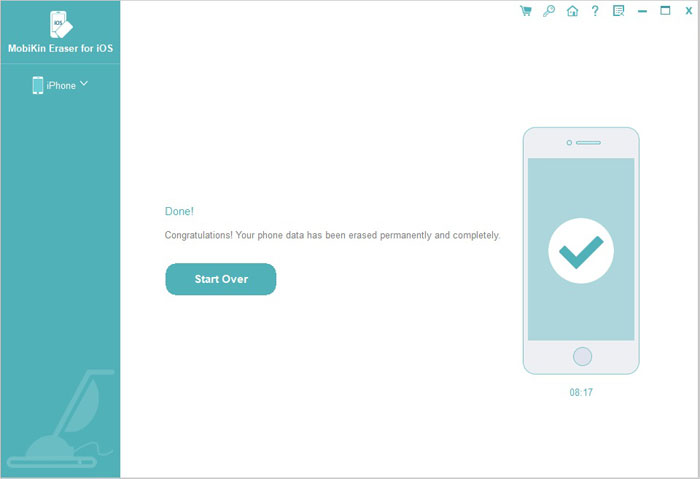
Step 3: Enter "Delete" in the required field and click "Erase" again to start wiping the data from your iPhone.
Part 4: FAQs About Deleting Private Data on iPhone
Q1. Does deleting an app remove all of its private data from an iPhone?
Not always. Removing an app deletes the app itself, but some related information may still exist in your backups or cloud account. If you want to remove data associated with an app completely, check its account and cloud storage settings as well. (How to Delete iPhone Apps Permanently?)
Q2. Does deleting data from an iPhone also remove it from iCloud?
It depends on the type of data and your sync settings. When iCloud syncing is enabled, deleting synced information from your iPhone may also remove it from iCloud and other connected devices. Always check what is synced before deleting anything important.
3. How can I protect my private data when giving my iPhone to someone else?
Before giving away or selling your iPhone, back up anything you want to keep and sign out of your accounts. For an extra layer of privacy, you can use MobiKin Eraser for iOS to thoroughly erase personal data from the device before handing it over.
Q4. Can private data be recovered after it is deleted from an iPhone?
It can depend on how the data was deleted and whether another copy exists in a backup or cloud service. If you are particularly concerned about sensitive information being recovered, using a dedicated tool such as MobiKin Eraser for iOS can provide a more thorough way to wipe private data from the device.
The Bottom Line
Deleting private data from an iPhone is fairly simple when you only need to remove a few items. You can clear different types of information directly through the built-in apps and settings. However, if you're preparing an iPhone for sale, transfer, or disposal, a more thorough erasing method - using MobiKin Eraser for iOS can offer greater peace of mind. Choose the approach that fits your situation and always back up anything important before deleting it.
Related Articles:
3 Best Ways to Delete Everything on iPhone Permanently
How to Erase All Content and Settings from iPhone