
3 Simple Techniques to Fake GPS on IQOO without Mock Location
Many may explore how to fake GPS on IQOO without mock location because iQOO's gaming marketing attracts users wanting gaming advantages, while others wish to bypass digital boundaries for various other reasons, such as testing apps, accessing region-specific content, or managing privacy. However, iQOO devices run FunTouch OS, which makes traditional mock-location methods unreliable or easily detected.
This article will walk you through 4 safe ways to simulate location on an iQOO phone without using the mock-location toggle and provide helpful FAQs about this topic.
Part 1: Fake GPS on IQOO without Mock Location via Virtual Location Tool [Stable]
Virtual Location Tool is a reliable GPS-simulation tool that lets iQOO users change their device location without using the Android mock-location feature. Its sophisticated system ensures location adjustments are precise and stable, reducing errors or detection by apps.
By connecting the phone securely to a computer, users can set a fake location or simulate movement along a route effortlessly. With its ease of use and dependable performance, this product is almost perfect for testing apps or managing location-based functions on iQOO devices.
Key Features:
- Fake GPS Without Mock Location: Change the iQOO location without mock location.
- One-Click Location Change: Set any location worldwide instantly.
- Route Simulation: Simulate movement along custom routes.
- App Compatibility: Works with most location-based apps.
- Secure Connection: Safe connection between PC and device.
- User-Friendly: Simple and intuitive interface.
- Real-Time Control: Update or freeze GPS instantly.
- No Root Needed: Works without rooting the device.
- Multi-Device Support: Manage multiple Android devices, including iQOO Series: Number (13/12 Pro/12/11S/11 Pro/11/10 Pro/10/9 Pro/9), Z (Z9–Z5), Neo (Neo 9S Pro–Neo 6), U (U5e–U3), Legend (12/9/5), etc.
- Error-Free: Smooth operation with minimal glitches.


Requirements:
- A Windows or macOS computer with the app installed.
- A stable USB cable to connect your iQOO device to the computer.
- Authorization granted on the phone when prompted for USB debugging access.
- Sufficient storage space on the computer and phone for the software to operate smoothly
- An adequately powered iQOO phone to prevent disconnection.
User Guide:
- Begin by downloading and installing the Virtual Location Tool on your computer at no cost.
- Open the application and select "Get Started" from the main interface.
- Connect your IQOO device to the computer via a USB cable.
- Allow the tool to automatically detect your IQOO and establish a connection.
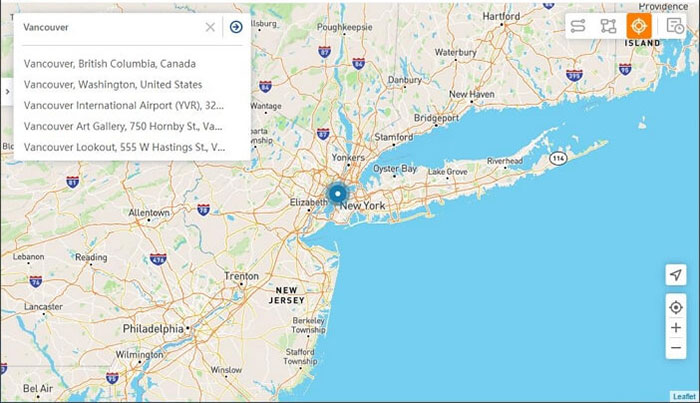
- Choose "Teleport Mode" located in the upper-right corner, then input your desired location in the search bar.
- The map cursor will shift to the selected location.
- Click "Move" to confirm and set the virtual location on your device.

Part 2: Fake GPS on IQOO without Developer Options via Magisk Manager
Requirements:
- An iQOO phone that has already been successfully rooted.
- Magisk Manager is installed to handle system-level modules.
- A compatible Magisk module designed to modify how location behavior is interpreted by the system.
- A GPS-testing or simulation app that can operate with Magisk-based system customization.
- Sufficient device storage and system stability for installing modules.
- A reliable internet connection for downloading modules or apps.
- A full device backup in case system customization causes conflicts.
- Basic familiarity with Magisk modules and system-level Android modifications.
- A reboot-ready device to apply module changes.
- Awareness of potential security, warranty, or app-compatibility risks.
User Guide:
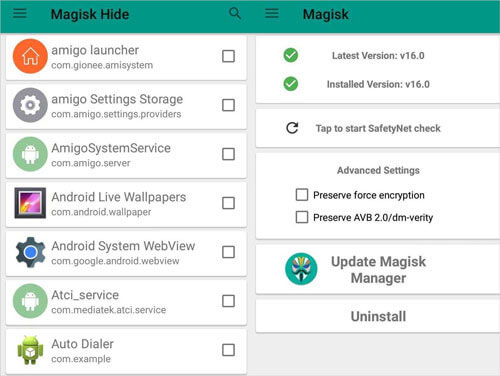
- Begin by using a system-modification manager such as Magisk Manager to handle root-level modules in one place.
- Open the manager and go to the area where modules or system add-ons are typically listed.
- Look for a module designed to adjust how Android handles location signals or mock-location visibility, and add it to your configuration.
- Restart the device so the operating system can reload with the new module active.
- Install a legitimate GPS-testing or simulation app that is compatible with Magisk-style system customization.
- Launch the simulation tool, choose a test location, and let the module manage compatibility and stability during the process.
You May Also Like: Can I use Magisk to root my IQOO device? Yes, here are the specific guide.
Part 3: Fake GPS Location on IQOO Phone without Mock Location Using ADB
Requirements:
- A Windows/Mac/Linux computer.
- Latest ADB platform-tools installed (from Google Android Developers site).
- USB cable for your iQOO phone.
- The Developer Options enabled on the phone.
- USB Debugging turned on.
- OEM Unlocking & USB Debugging (Security) enabled (on some iQOO models).
- A test location simulation tool that supports ADB commands.
- Your phone must accept ADB debugging authorization.
- Stable connection between PC and phone.
User Guide:
- Install the official Android platform-tools package on a computer to access ADB functionality.
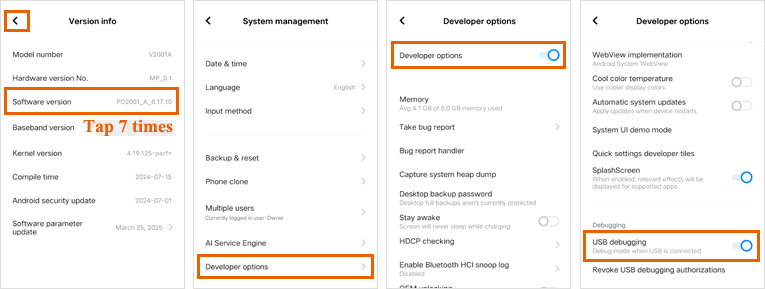
- Enable Developer options on the iQOO phone so debugging features become available.
- Turn on USB Debugging and confirm the authorization prompt when connecting the device to the computer.
- Connect the phone to the computer using a stable USB cable.
- Use an ADB-compatible location simulation tool that can send test coordinates through the debugging interface.
- Select a test location or route inside the tool.
- Let the tool transmit simulated coordinates to the phone through the ADB connection.
- Keep the device connected during simulation for stable results.
- Close the tool or disconnect the device when finished to restore normal GPS behavior.
It's generally safe if you use legitimate developer tools. However, you should trust only official tools, use a secure PC, and disable USB debugging afterward. Furthermore, ADB-based simulation lets developers send virtual GPS data from a computer to the phone via the Android Debug Bridge, bypassing the need to install a mock-location app. It is meant for testing, not everyday location modification.
Learn More: IQOO Mobile Hard Reset: 4 Options to Factory Reset IQOO Phones
FAQs about Faking GPS on IQOO without Mock Location
Q1: Can I fake GPS on IQOO via a free app like Fake GPS?
You can install a free app like Fake GPS on an iQOO phone, but it will only work if the device allows the "Allow mock locations" feature in Developer Options. Some iQOO models running FunTouch OS have stricter security, so mock-location apps may not function reliably or may be detected by certain services. These apps are generally meant for basic testing purposes, not for bypassing location-based protections.
Q2: How to hide mock location on IQOO with root?
- Confirm that no system-level modifications (such as root access) are present.
- Install a legitimate location-testing or developer tool that does not rely on altering system files.
- Use features that limit how mock-location data is exposed to apps, if supported by the tool.
- Activate the tool's protection or privacy features and restart the device to refresh system settings.
- Launch your location-testing app and check if the target app still detects mock-location usage.
Q3: Why do some iQOO apps detect mock location and block me?
Many apps include mock-location-detection mechanisms to prevent inaccurate location reporting, fraud, or gameplay abuse. These protections scan for mocking apps and mock-location APIs.
Q4: Why won't my iQOO device accept ADB commands for location simulation?
On some iQOO models, you must enable additional developer settings like:
- USB Debugging (Security)
- OEM Unlocking (not always required)
- Ensure the PC's RSA key is authorized.
Q5: Is GPS spoofing legal on an iQOO phone?
Using GPS simulation for developer testing is fully legitimate. However, using spoofed GPS to violate app rules, cheat in games, or commit fraud can violate terms of service and may have consequences.
Q6: Why do some fake GPS apps not work on iQOO phones?
Some fake GPS apps don't work on iQOO phones because FunTouch OS has strict security controls that limit background location manipulation and easily detect standard mock-location methods. These systems can block or override coordinates from basic spoofing apps, causing them to fail or behave inconsistently in certain services.
Many free tools also lack the technical depth to bypass system restrictions ethically and safely. In contrast, Virtual Location Tool offers a more professional and state-of-the-art solution, allowing smoother and more reliable location simulation on iQOO devices through its advanced design.
Related Articles:
4 Tactics: How to Transfer Contacts from Computer to IQOO
4 Ways to Transfer Text Messages from IQOO to IQOO 13/12/11/10/9/8/7
5 Tried-and-true Methods to Unlock IQOO Phone without Effort
5 Most Reliable Contact Recovery Software for IQOO [Validated]
