
Pokémon GO AR Not Working? 10 Quick Fixes & Helpful FAQs
"Has anyone else had trouble with their AR pertaining to their buddy Pokemon? I tried to play Pokemon GO with my buddy but I could not get the yellow footprints to show up." -- from Reddit
AR is one of the core features that make the game more immersive and fun, letting players see and catch Pokémon in the real world through their camera. When players encounter issues with this feature, it can interrupt the usual gameplay flow and reduce the interactive experience they expect from Pokémon GO.
This passage focuses on the issue of "Pokemon GO AR not working" and explores 10 tested methods to fix Pokemon GO AR not working, helping players restore normal AR functionality and continue enjoying the game smoothly.
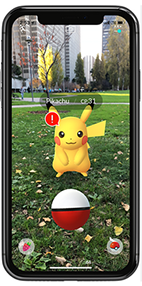
Part 1: Why Is Pokemon GO AR Mode Not Working
If AR mode in Pokémon GO suddenly stops working, it can be confusing, especially when everything else in the game runs fine. Before jumping into fixes, it's helpful to understand the common reasons behind this issue so you can pinpoint the exact cause more easily:
- Missing or faulty gyroscope sensor.
- Camera permission not enabled.
- Device not compatible with ARCore.
- Poor lighting or unsuitable environment.
- Outdated app or system bugs.
- Low device performance or hardware limits.
- Corrupted cache or app data issues.
- AR settings misconfigured or feature glitches.
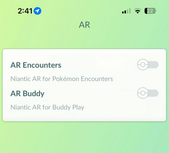
How to enable AR mode in Pokémon GO? Quick Guide: Open the app, tap the Poké Ball, and go to Settings. Find the AR/AR+ option and toggle it on. Then, during a Pokémon encounter, tap the AR button on the screen to activate it.
You May Also Like: [Must-read] A Comprehensive List of Pokemon GO Hacks for Android/iPhone
Part 2: How to Fix Pokemon GO AR Not Working
Fix 1: Check Phone Compatibility
- Check your Android or iOS version (Android 7.0+ or iOS 11+ required).
- Verify your phone supports ARCore (Android) or is compatible with Apple AR (iPhone 6s or newer).
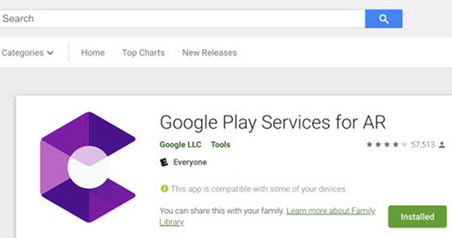
- Install or update Google ARCore/Google Play Services for AR from the Play Store (Android only).
- Check if your device has a gyroscope sensor (required for AR tracking).
- Test the gyroscope by accessing phone diagnostics or using sensor tools (values should change when you move the phone).
- Make sure your device is officially listed as AR-supported (unsupported phones won't run AR mode).
Fix 2: Use Proper Lighting and Environment
- Play in a well-lit area, as low light makes it hard for AR to detect surroundings.
- Point your camera at a flat, stable surface like the ground or a table.
- Avoid cluttered or uneven environments that confuse surface detection.
- Slowly move your phone to scan the surroundings and help the game map the area.
- Keep your hands steady and avoid fast or shaky movements during scanning.
Fix 3: Check Permission for Camera
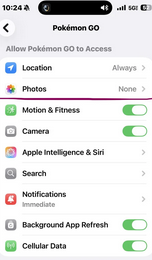
Make sure the app has permission to access your camera, as AR mode cannot function without it. You can check this by going to your phone's Settings > Apps > Pokémon GO > Permissions, then ensuring the camera is set to "Allow." If the permission was previously denied, enabling it should immediately restore AR functionality since the game relies on the camera to display real-world surroundings.
People Also Like: How to Transfer Clash of Clans from Android to iPhone? 2 Clever Ways
Fix 4: Log Out before Logging Back in
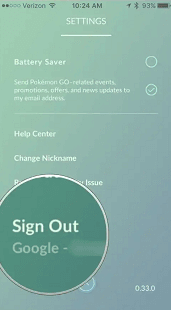
To fix AR not working in Pokémon GO, you can try logging out of your account first by going to Settings > Scroll down > Sign Out. After fully closing the app, reopen it and log back in using your usual method (Google, Apple, or Pokémon Trainer Club). This refreshes your game session and can help clear temporary glitches that may be affecting AR mode.
Fix 5: Check Gyroscope Sensor
- Download a sensor-check app (such as Sensor Kinetics or AIDA64) from the Play Store or App Store.
- Open the app and go to the Sensors section.
- Look for "Gyroscope" in the list of sensors.
- Move your phone slowly in different directions and check if the X, Y, and Z values change.
- If the values change, your gyroscope is working; if they stay at zero or are missing, your device may not support AR mode.
Fix 6: Update Pokemon GO
- Ensure the app is fully updated to the latest version, since outdated versions often cause AR glitches or missing features.
- Open the Google Play Store (Android) or App Store (iPhone), search for Pokémon GO, and tap Update if the option is available.
- Once updated, restart the app to refresh system features like AR support and camera integration.
NOTE: Reinstall Pokemon GO if the update doesn't work. Quick Guide: First, uninstall Pokémon GO from your device completely. Then go to the Google Play Store or App Store, download the latest official version, and reinstall it. After reinstalling, log back into your account and re-enable camera and AR permissions if prompted, which helps restore proper AR functionality.
Fix 7: Update OS
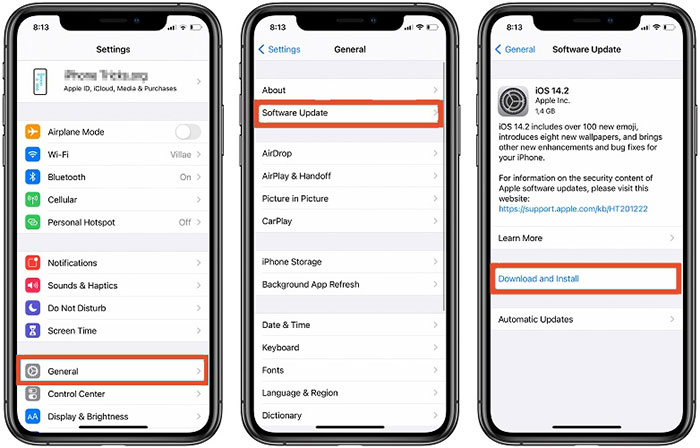
- Open your phone's Settings app.
- Scroll down and tap System/About Phone (Android) or General > Software Update (iPhone).
- Select Software Update/System Update.
- Tap Download and Install if an update is available.
- Wait for the update to finish, then restart your phone.
- Open Pokémon GO again and test AR mode.
Fix 8: Ask for Online Help
- Open a browser and visit support communities or help pages like Pokémon GO forums or troubleshooting guides.
- Clearly describe your issue, for example: "AR mode not working even after enabling camera and updating the app."
- Include key details such as your phone model, OS version, and app version to help others diagnose the problem.
- Attach screenshots or error messages if possible to make your issue easier to understand.
- Post your question on platforms like Reddit, Facebook groups, or official support pages and wait for responses from other players or experts.
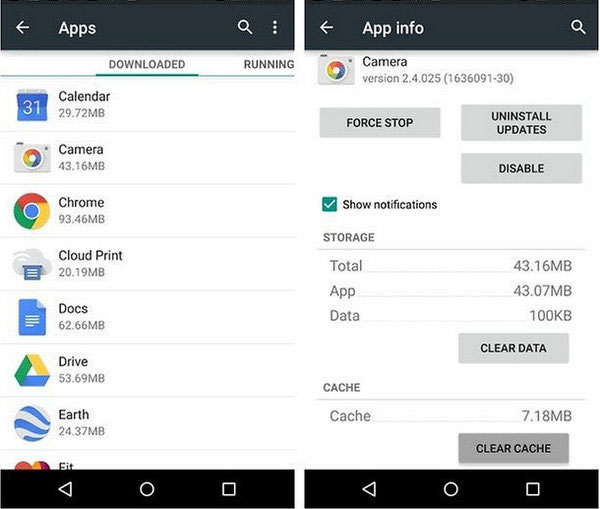
Fix 9: Clear Pokemon GO Data (Android Only)
Want to fix Pokémon GO AR not working on Android? you can clear the app's data to reset corrupted files that may be causing AR issues. Go to Settings > Apps > Pokémon GO > Storage, then tap Clear Data (and Clear Cache if available). After that, reopen the game and log in again, which will refresh the app and often restore AR functionality.
Fix 10: Verify Gyro Sensor (Android Only)
Verify whether your Android phone's gyroscope sensor is functioning properly. Install a sensor-checking app like "Sensor Test" or "CPU-Z" from the Google Play Store and open the Gyroscope section. If the values change when you move your phone, the sensor is working; if not, your device may not support AR mode or the sensor may be faulty.
Part 3: FAQs about Pokemon GO AR Not Working
Q1: Does my phone need special hardware for AR mode?
Yes, your device must support ARCore (Android) or ARKit (iPhone), and it should have a working gyroscope sensor for proper AR movement detection.
Q2: Why does AR mode show a black screen?
A black screen often appears when the camera is blocked, permissions are denied, or the device cannot properly detect surfaces due to low light or sensor issues.
Q3: Why does AR mode keep turning off automatically?
This can happen if your device is not ARCore/ARKit compatible or if the gyroscope sensor is unstable or disabled.
Q4: Why is the AR toggle missing in settings?
The AR option may disappear if your device is not supported or if AR services are not installed or updated correctly.
Q5: Does poor internet affect AR mode?
While AR mainly relies on sensors, unstable internet can still cause loading issues that prevent AR encounters from starting properly.
Q6: Why does Pokémon GO crash when I enable AR?
This usually happens due to device performance limits, outdated software, or conflicts between the camera and AR processing system.
Part 4: A Better Way to Play Pokemon GO AR without Moving [Fluent]
When Pokémon GO AR is not working and the issue is difficult to resolve through normal fixes, some players look for alternative ways to enjoy the game.
Virtual Location Tool offers a fluent and more stable experience by simulating GPS movement, allowing users to explore different in-game locations without physically moving. This makes it a safer and more convenient option for playing Pokémon GO AR-style features when standard AR mode or device troubleshooting does not work.
This tool allows users to change and simulate GPS movement on both iOS and Android devices when connected to a computer. It includes features like Teleport Mode, Route Simulation, Speed Adjustment, and Joystick Control. With cross-platform support, no jailbreak/root requirement, and broad app compatibility, it offers a safer and more flexible way to enhance location-based gaming experiences.


How to ensure Pokemon GO AR works smoothly with Virtual Location Tool?
- Begin by downloading and installing a trustworthy virtual location application on your Windows or MacOS computer.
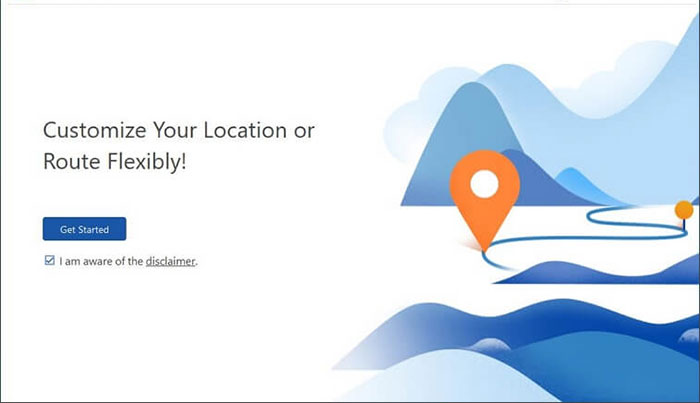
- After you launch the application, click on "Get Started" on the main screen.
- Utilize a USB cable to connect your smartphone to the computer and wait a moment for the software to detect your device.
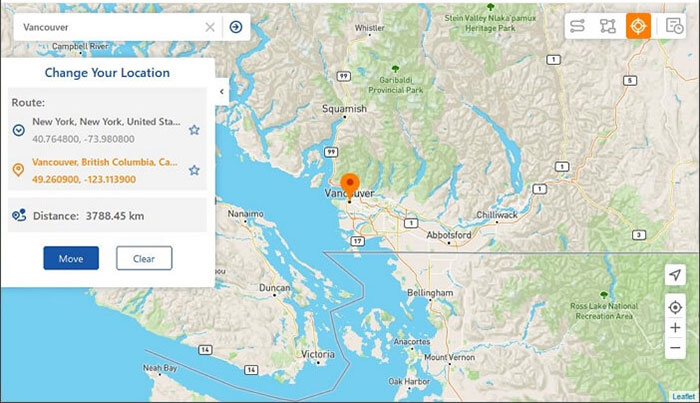
- In the top-right corner of the interface, choose "Teleport Mode."
- Next, input your desired destination into the search bar or provide specific GPS coordinates for precise location.
- Once the map pointer moves to your selected location, click "Move" to immediately update your location.
Summary: When facing persistent issues in Pokémon GO, especially with AR or location-based gameplay, having a reliable alternative can make the experience much smoother. Virtual Location Tool helps simplify location control, making it easier for players to enjoy a more flexible and pleasant Pokémon GO journey.
Related Articles:
12 Best Places/Coordinates to Spoof Pokemon GO [Must-read]
How to Fix Pokemon GO GPS Signal Not Found? 9 Smart Tricks
Pokemon GO Cooldown Chart: Everything about Cooldown Chart/Time for Pogo
How to Download & Play Android Games on PC in 7 Ways [Fluent]
