
Troubleshoot iTools Virtual Location Not Working - 8 Cases & Fixes
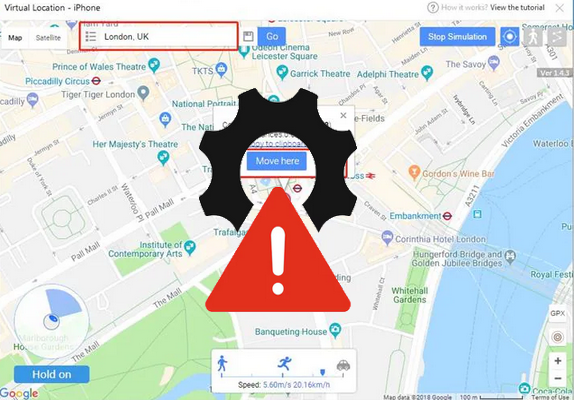
Many users rely on iTools to modify their device's GPS position for games, social apps, or testing location-based services. However, some may encounter problems while trying to change their device's GPS location. When these issues occur, it often leads people to look for solutions related to iTools Virtual Location not working.
This page explains the possible causes behind these errors and provides 8 quick fixes to help restore normal functionality. It also introduce 1 greater alternative that can handle location simulation more reliably.
- Part 1: iTools Virtual Location Not Working? (8 Cases & Solutions)
> Case 1: Not Downloading
> Case 2: Stuck in Developer Mode
> Case 3: Not Showing Up
> Case 4: Fails to Work
> Case 5: Map Crashes
> Case 6: Image Failed to Load
> Case 7: Location Refuse to Move
> Case 8: Compatibility Issues with iTunes - Part 2: iTools Virtual Location Still Doesn't Work? Try the Best Replacement
- Part 3: FAQs about iTools Virtual Location Not Working
Part 1: iTools Virtual Location Not Working? (8 Cases & Solutions)
Case 1: Not Downloading
If iTools Virtual Location is not loading, it is often caused by a weak or unstable internet connection, since the tool relies on online map services to display locations. An outdated version of iTools may also lead to loading problems or compatibility issues with the latest operating systems.
In some cases, temporary program glitches or blocked map APIs can prevent the map interface from appearing properly. Restarting the software, checking your network connection, or updating the program to the latest version can usually resolve the issue.
Case 2: Stuck in Developer Mode
When iTools Virtual Location is stuck in Developer Mode, it usually means the program has crashed or cannot proceed with the fake GPS setup. (Compare Fake GPS vs. Lexa Fake GPS Location)
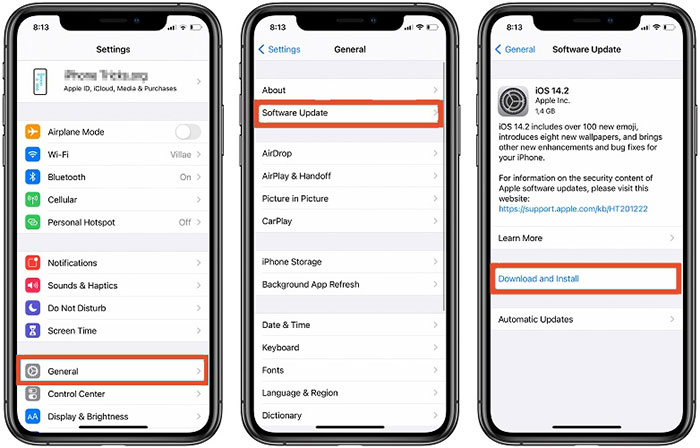
In many cases, this happens due to compatibility issues between the iTools version and the iOS system. Updating your iPhone to the latest iOS version or updating iTools can often resolve the problem and allow the virtual location feature to work normally.
Case 3: Not Showing Up
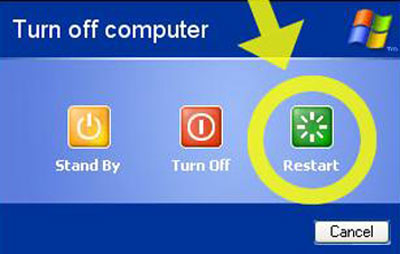
It may be due to connection or compatibility issues between the software and your device. For example, outdated iTools or iTunes components, an untrusted USB connection, or a faulty cable can prevent the program from detecting the device and displaying the feature. Updating the software, restart the PC, reconnecting the device, and ensuring the computer recognizes the phone can usually fix the problem.
Case 4: Fails to Work
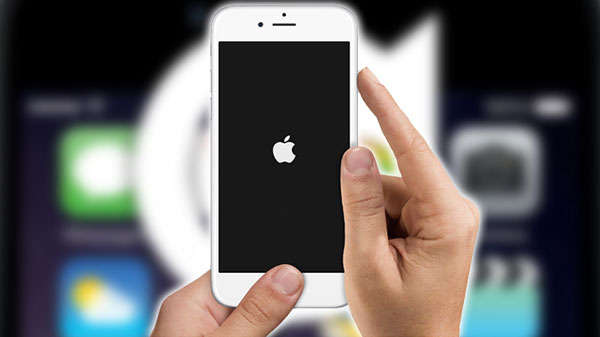
Assuming iTools Virtual Location suddenly stops working, it is often caused by a technical glitch or compatibility problem with the device or system. In many cases, the tool may crash or fail to spoof the GPS location due to outdated software or system conflicts. Restarting iTools, rebooting the device, or reinstalling the program can sometimes restore the feature and make it work again.
To fix iTools Virtual Location not working on iOS 26 or iOS 18, first ensure you have the latest version of iTools installed, as older versions may be incompatible with the new system. Next, check that your device is properly connected and trusted by the computer, and that location services are enabled. If the issue persists, restarting both your iPhone and iTools, or reinstalling the software, usually resolves the problem.
Case 5: Map Crashes
In many cases, switching the map source (e.g., from Google Maps to Mapbox) or refreshing your network connection can fix the crash and allow the map to load. If the crash persists, restarting iTools and retrying the spoofing process often resolves temporary glitches and restores normal map functionality.
Case 6: Image Failed to Load
Make sure your internet connection is stable, try switching networks, or temporarily disable firewall/antivirus that may block iTools from accessing online map resources. Updating iTools to the latest version or restarting the program often resolves the issue and allows the map images to load properly.
Case 7: Compatibility Issues with iTunes
This challenge usually happens because the versions of iTools and iTunes conflict with each other. This may trigger errors such as "Developer Image Load Failure" or prevent the virtual location feature from launching properly. To fix it, update or reinstall the latest version, then restart your computer so iTools can reconnect correctly.
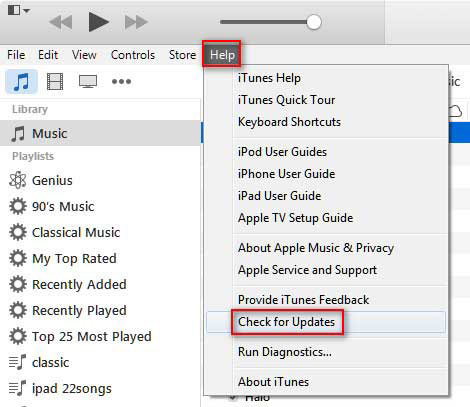
Case 8: Location Refuse to Move
First, ensure the app has permission to modify GPS settings and that Location Services are enabled on your device. A stable USB connection and a trusted computer connection also help ensure the movement commands are registered correctly. If the location still doesn't change, try restarting iTools and your device, or updating to the latest version to fix any software glitches that may be blocking the movement feature.
Part 2: iTools Virtual Location Still Doesn't Work? Try the Best Replacement
Are there alternatives if iTools Virtual Location keeps failing? Yes. If the issue persists, you can try other location-changing tools such as Virtual Location Tool.
This program offers a more consistent solution for changing GPS locations. It provides smoother map navigation, stable location simulation, and broad compatibility with the latest iOS and Android devices.
With regular updates and professional features such as route simulation and joystick control, it works well as a dependable replacement for iTools Virtual Location.


Quick Comparison
|
Feature
|
iTools Virtual Location
|
Virtual Location Tool
|
|
Ease of Use
|
Basic interface with a learning curve |
User-friendly and intuitive |
|
Stability
|
Sometimes unstable, map loading issues and crashes reported |
Highly stable with smoother map performance and fewer errors |
|
Compatibility
|
Compatibility issues with newer iOS versions and iTunes integration |
Broad support for latest iOS and Android systems with regular updates |
|
Professional GPS Spoofing
|
Suitable for casual use but prone to glitches |
Designed as a professional location changer with robust functionality |
|
Connection Reliability
|
Can experience dropouts due to USB or software conflicts |
More consistent connection handling and location changes |
|
Map Services
|
Occasional map loading failure and API errors |
Better integration with map data and smoother location simulation |
|
Support & Updates
|
Updates less frequent |
Frequent updates and dedicated support |
How can you utilize the best iTools Virtual Location alternative?
- First, download and install the virtual location software on your computer.
- Open the program and click "Get Started" on the main interface.
- Connect your iPhone (or Android phone) to the computer using a USB cable and wait for the program to recognize the device.
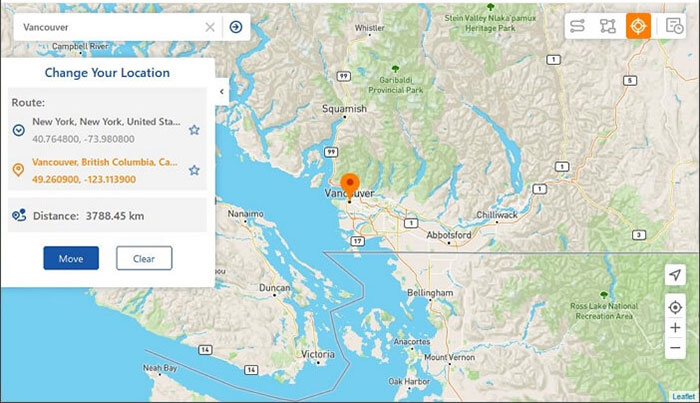
- Next, select "Teleport Mode" in the upper-right corner of the screen.
- Move the cursor to the desired location on the map and click "Move" to change your GPS location immediately.

Part 3: FAQs about iTools Virtual Location Not Working
Q1. Why can't iTools detect my phone when using Virtual Location?
- Outdated iTools version.
- Unsupported iOS or Android system.
- Unstable or faulty USB connection.
- Device not trusted by the computer.
- USB debugging disabled (Android).
- Location services turned off.
- Firewall or antivirus blocking the software.
- Missing or outdated device drivers.
- Poor or unstable internet connection.
- Conflicts with other GPS spoofing apps.
Q2. Why does my location revert after using iTools Virtual Location?
Some apps automatically refresh the GPS location or detect simulated locations. Restarting the location simulation or enabling developer options (on Android) may help keep the spoofed location active.
Q3. Can antivirus or firewall software affect iTools Virtual Location?
Yes. Some security programs may block certain components of iTools, preventing the virtual location feature from working properly. Temporarily disabling the firewall or adding the software to the whitelist may help.
Q4. Why does my device disconnect while using iTools Virtual Location?
Frequent disconnections may be caused by a faulty USB cable, unstable USB port, or outdated drivers on the computer. Using a different cable or port and updating the drivers can improve stability. (What if the USB driver installation failed?)
Q5. Is it safe to use iTools Virtual Location for location-based apps?
Generally, it is safe for changing your GPS location, but some apps may detect simulated locations and restrict certain features. It is recommended to use the tool carefully and follow the app's policies.
Final Words
While iTools Virtual Location can be useful for simple location spoofing, it often faces map loading problems, crashes, and compatibility challenges, making it less reliable for frequent or professional use. In contrast, Virtual Location Tool offers greater stability, smoother map performance, and more professional GPS spoofing capabilities, making it a stronger choice if you want a dependable and polished location-changing tool.
Related Articles:
5 Means to Share Location on Android Devices with Friends/Family
iTools Pokemon GO: Overview, Features, Safety, Risks, & Alternative
