
8 Ways to Fix When the MobiKin Product Freezes or Crashes
The program like MobiKin Assistant for Android, Backup Manager for Android, WhatsApp Recovery for Android, Doctor for Android, Eraser for Android, Assistant for iOS, Doctor for iOS, WhatsApp Recovery for iOS, HEIC to JPG Converter, Eraser for iOS, Cleaner for iOS, or Transfer for Mobile suddenly crashes or freezes during use? Don't worry! Here is a tutorial on how to fix when the product freezes or crashes for you. Now just go with the following the solutions to solve the problem.
Solution 1: Restart the Software
Close the program completely, including any background processes, and reopen it. This often clears temporary bugs that cause freezing or crashing.
Solution 2: Reinstall the Latest Program and Re-try It
It is possible that you are using an older version of the software, so please first uninstall the program on your computer. To get more details about uninstalling, just go to the page: How to Uninstall Applications on Your Windows or Mac Computer.
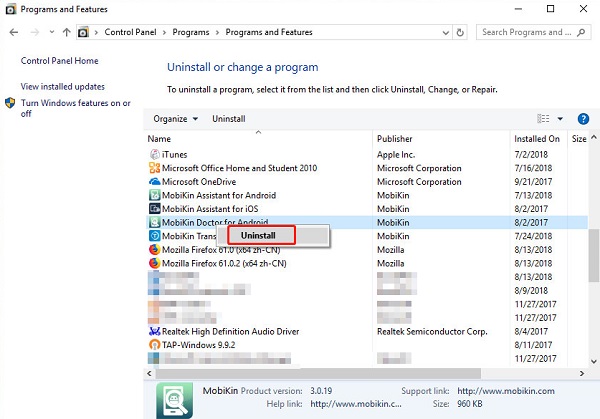
After completing the uninstallation, you can go to the product page or click the download link below to download the latest program. Then just go with the instructions to properly install the software on your computer. After reinstalling the software, you can try to use the latest software again.
Solution 3: Reboot Your Computer
A simple restart can refresh your system memory and terminate stuck processes that may interfere with MobiKin's performance.
Solution 4: Run as Administrator
Right-click the program icon and select "Run as Administrator." This ensures the software has the necessary permissions to function properly.
Solution 5: Disconnect and Reconnect Your Device
Unplug your Android or iOS device and reconnect it using an original USB cable. Then, ensure the device is unlocked and USB debugging or trust permission is enabled.
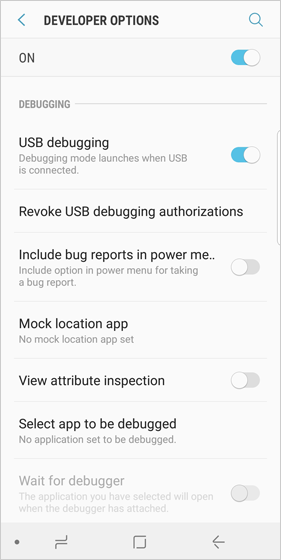
Solution 6: Close Conflicting Programs
Exit other phone management or data recovery programs (like iTunes, Samsung Switch, Hisuite, or other drivers) that may conflict with MobiKin's operations.
Solution 7: Update USB Drivers (for Android tools)
Outdated or corrupted USB drivers can cause freezing during connection. Update or reinstall your Android device drivers via Device Manager (Windows) or System Settings (Mac).
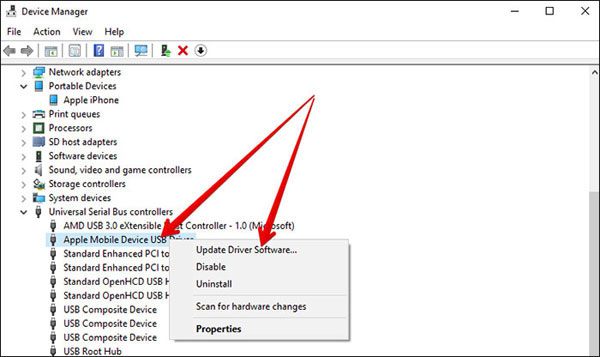
Solution 8: Check Antivirus or Firewall Settings
Your antivirus or firewall might mistakenly block MobiKin processes. Temporarily disable them or add MobiKin to the exceptions list, then restart the software.
Download Links:
MobiKin Assistant for Android (Win): https://www.mobikin.com/downloads/mobikin-android-assistant.exe
MobiKin Assistant for Android (Mac): https://www.mobikin.com/downloads/mobikin-android-assistant.dmg
MobiKin Doctor for Android (Win): https://www.mobikin.com/downloads/mobikin-doctor-for-android.exe
MobiKin Doctor for Android (Mac): https://www.mobikin.com/downloads/mobikin-doctor-for-android.dmg
MobiKin Backup Manager for Android (Win): https://www.mobikin.com/downloads/mobikin-android-backup-and-restore.exe
MobiKin Backup Manager for Android (Mac): https://www.mobikin.com/downloads/mobikin-android-backup-and-restore-mac.dmg
MobiKin Eraser for Android (Win): https://www.mobikin.com/downloads/mobikin-eraser-for-android.exe
MobiKin Eraser for Android (Mac): https://www.mobikin.com/downloads/mobikin-eraser-for-android.dmg
MobiKin WhatsApp Recovery for Android (Win): https://www.mobikin.com/downloads/mobikin-recovery-for-whatsapp.exe
MobiKin Assistant for iOS (Win): https://www.mobikin.com/downloads/mobikin-ios-assistant.exe
MobiKin Assistant for iOS (Mac): https://www.mobikin.com/downloads/mobikin-ios-assistant.dmg
MobiKin Doctor for iOS (Win): https://www.mobikin.com/downloads/mobikin-ios-doctor.exe
MobiKin Doctor for iOS (Mac): https://www.mobikin.com/downloads/mobikin-ios-doctor.dmg
MobiKin Eraser for iOS (Win): https://www.mobikin.com/downloads/mobikin-eraser-for-ios.exe
MobiKin Eraser for iOS (Mac): https://www.mobikin.com/downloads/mobikin-eraser-for-ios.dmg
MobiKin WhatsApp Recovery for iOS (Win): https://www.mobikin.com/downloads/mobikin-whatsapp-recovery-for-ios.exe
MobiKin HEIC to JPG Converter (Win): https://www.mobikin.com/downloads/mobikin-heic-to-jpg-converter.exe
MobiKin HEIC to JPG Converter (Mac): tps://www.mobikin.com/downloads/mobikin-heic-to-jpg-converter.dmg
MobiKin Cleaner for iOS (Mac): https://www.mobikin.com/downloads/mobikin-cleaner-for-ios.dmg
MobiKin Transfer for Mobile (Win): https://www.mobikin.com/downloads/mobikin-transfer-for-mobile.exe
MobiKin Transfer for Mobile (Mac): https://www.mobikin.com/downloads/mobikin-transfer-for-mobile.dmg
Ask Our Support Team for Help
If the latest program still freezes or crashes, you can contact our technical team via email: support@mobikin.com with the following contents:
1) The name and version of the program that you are using;
2) The required crashing report file; (On a Windows computer, you can tap on "Open" in the pop-up window to find the zip file and then send it to us; on a Mac computer, you just need to copy the crashing report file in the pop-up window and send it to us.)
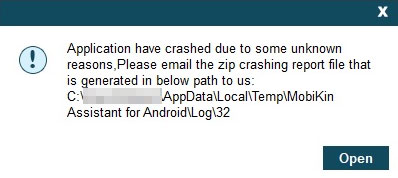
3) The detailed steps you take before the program crashes;
4) The brand name, model, OS version of your mobile phone, and the operating system of your computer;
5) Capture the interface when the program crashes. (Windows users can press the "Print Screen SysRq" key on your keyboard and then click on "Start > All Programs > Accessories > Paint > press Ctrl + V to paste the screenshot". After that, you can save the picture and send it to us.)
For other problems about the software installation, connection, and use, please head to the Product FAQ page to find the solutions.
