
How to Download & Install MobiKin Assistant for Android (Android Version) on Android Device?
To connect MobiKin Assistant for Android, Doctor for Android, Transfer for Mobile, Eraser for Android, or Backup Manager for Android via Wi-Fi, downloading and installing MobiKin Assistant for Android (Android Version) on your Android cell phone is necessary. But it doesn't matter since this is an easy task, and you even have several options to complete the process. Below are the details.
Way 1. Download the App by Scanning the QR Code
Step 1. Connect your Android phone or tablet to a stable network before opening the default browser on your device.
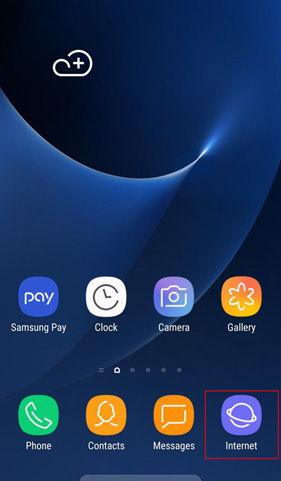
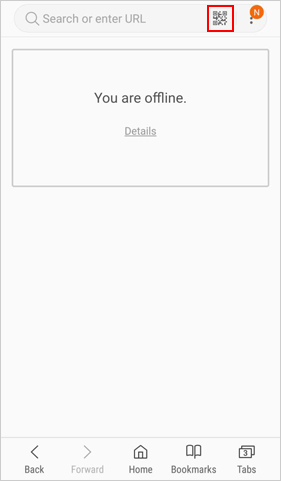
Step 2. Click the "Home" icon in the browser and tap on the QR code icon at the upper right corner. (If the default browser on your device does not support the function of scanning QR codes, please download and install a QR code scanner App.)
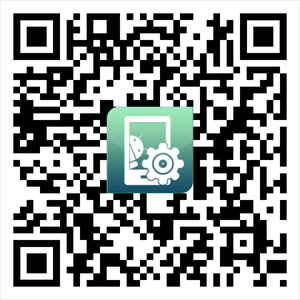
Step 3. Scan the QR code below:
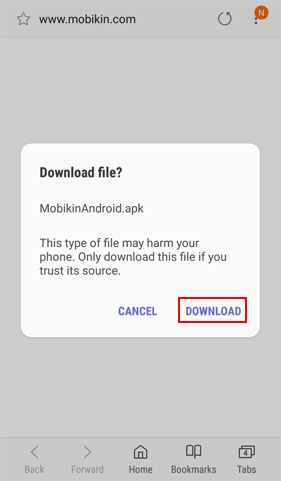
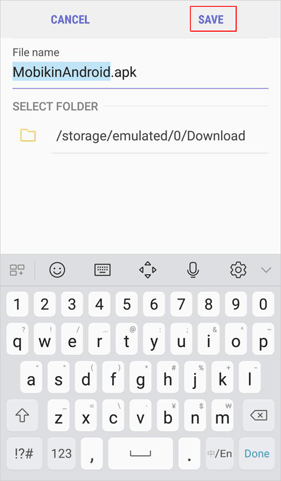
Step 4. Once the scanning process ends, you can click "Download" > "Save" to download the App to your Android device.
Way 2. Input Website Address to Download the Application
Step 1. Turn on the browser on your mobile phone and input the website address: a.mobikin.com.
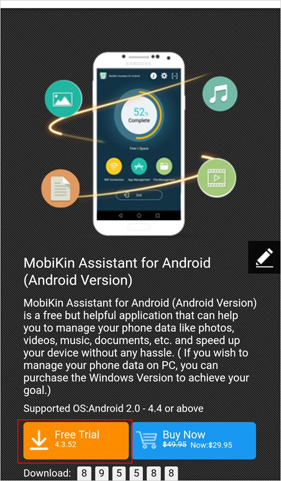
Step 2. Click on the "Free Trial" icon after entering the page to download the App.
Way 3. Download the App to Android Phone Directly
If you are visiting this page on your smartphone, you can directly click the icon below to download MobiKin Assistant for Android (Android Version) to your device.
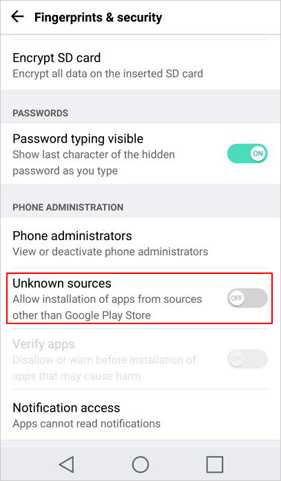
Notice: After downloading the App, you need to change the security setting on your cell phone by clicking "Settings" > "Security" > "Unknown sources" > "Allow", so the application can work normally on your device.
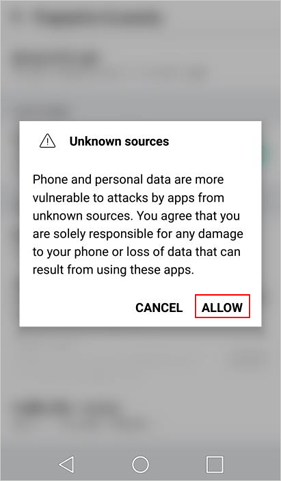
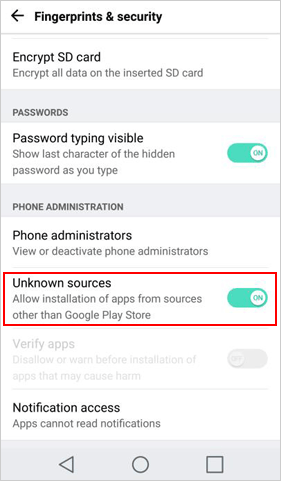
Installation: How to Install the Downloaded App?
You can now start installing the downloaded App. Here is how:
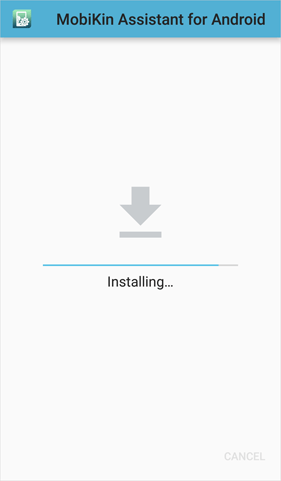
Step 1. Simply hit the "Install" button and wait till the installation completes.
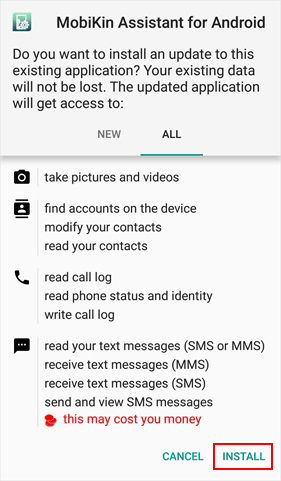
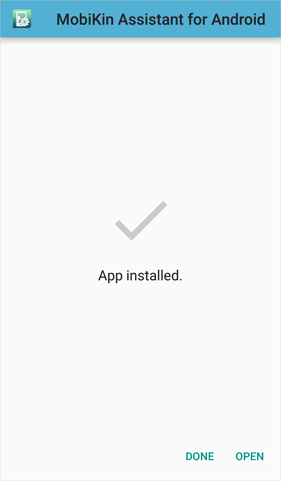
Step 2. Slide the buttons next to Camera, Contacts, Phone, SMS, etc., and click on "CONFIRM" to grant the App permissions.
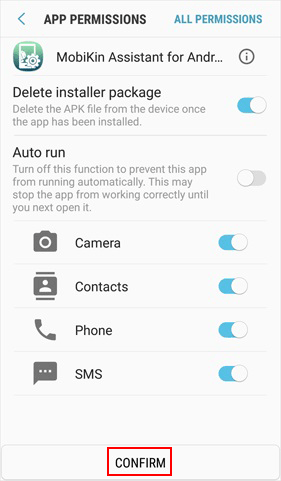
Once done, you can connect the software via Wi-Fi or use the App to manage your phone data.
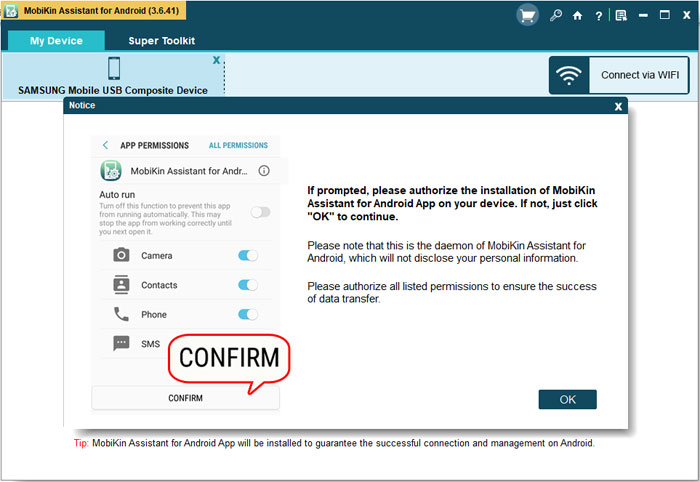
If you select to connect the program via USB cable, you do not need to download and install the App manually - during the connection, the program will download and install the MobiKin Assistant for Android (Android Version) on your Android device automatically. In this case, you just have to turn to your mobile phone and authorize the installation when the following interface pops up.
Assistant: Ask Our Support Team for Help
Still cannot download and install the App by following the steps above? Please contact us via Email: support@mobikin.com with the following information:
- What's your Android device?
- What's your Android OS version?
- Capture the screen you stop and send the picture to us. (To take a screenshot, Windows users can press the "Print Screen SysRq" key on the keyboard and then click on "Start > All Programs > Accessories > Paint > press Ctrl + V to paste the screenshot".)
If you have other queries about the software connection, recognition, installation, or use, please go to the Product FAQ page to find reliable solutions.
