
What If the MobiKin Program Does Not Recognize My Android Device?
What to do if the program (MobiKin Assistant for Android, Doctor for Android, Transfer for Mobile, Eraser for Android, Backup Manager for Android or WhatsApp Recovery for Android) does not recognize the Android device? Here are some solutions for your reference. You can select and follow one of them to fix the problem according to your actual situation.
During the connection process, the software will install the MobiKin Assistant for Android app on your mobile phone (Except WhatsApp Recovery for Android). So to smoothly complete the process, you need to make sure there is more than 100MB of free space on your device.
Solution 1. Make Sure Your Phone Is Supported by the Program
It is possible that your Android phone is not supported by the software, so you need to ensure that your mobile phone is on the supported devices list beforehand. To confirm that, you can go to the corresponding page - MobiKin Assistant for Android, MobiKin Doctor for Android, MobiKin Transfer for Mobile, MobiKin Eraser for Android, MobiKin Backup Manager for Android, or MobiKin WhatsApp Recovery for Android to have a check.
Solution 2. Install the Latest Version of the Product
An outdated version of the program would cause the recognition failure so installing the most recent software version is also a solution to solve the problem. To ensure that, you have two ways:
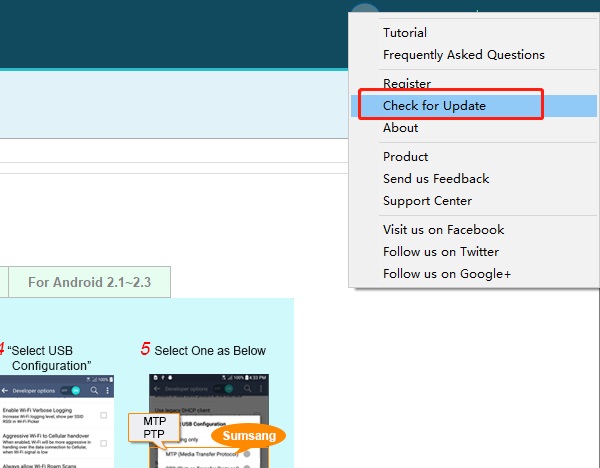
1) Click the menu icon on the top right corner of the program and choose Check for Update option. If there is any update available, you should adhere to the instructions to upgrade the software.
NOTE: Uninstall and reinstall MobiKin Assistant for Android or MobiKin Doctor for Android to fix corrupted components.
2) Directly download the latest version of the software. Here are the links:
- MobiKin Assistant for Android
- MobiKin Backup Manager for Android
- MobiKin WhatsApp Recovery for Android
Solution 3. Restart the Software
Stop using the program on your computer and then turn it off. Then you can try to launch the software once again and follow the on-screen prompts to make the device be recognized.
Solution 4. Re-connect Your Mobile Phone to PC
You can plug out the USB cable from your computer and then reconnect your phone to PC. If it still does not work, maybe there is something wrong with the USB port or USB cable. So you can attempt to use other USB ports or USB cables.
Solution 5. Try the Basic Fixes after the Physical Connection
- Use the original USB cable or a high-quality replacement that supports data transfer, not just charging.
- Plug the cable into another USB port on your computer to rule out a port issue.
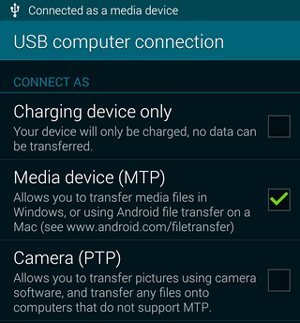
- Choose Media Device (MTP) or Media Transfer Protocol (MTP) when prompted on your phone.
- Test your phone on another PC to identify whether the issue lies with your PC.
- Keep the phone screen unlocked.
Solution 6. Inspect the Installation Status of the Driver on PC
If you connect your Android phone with a USB cable, this issue may also be caused by the driver installation failure. Hence, it is necessary for you to check the installing status of the driver in this case.
- When the driver is installed successfully, you will be able to see an icon in the lower right corner of PC. You can click the icon to check the status.
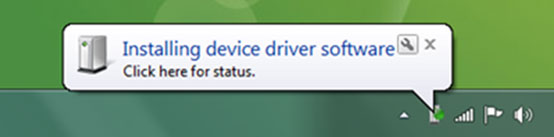
- If the driver is not installed properly or successfully, you will see a red "X" icon at the lower right corner of PC. In this case, you can try to find the solutions from this tutorial: How to Do If the Driver Installation Fails.
Solution 7. Enable USB Debugging on Your Android Phone
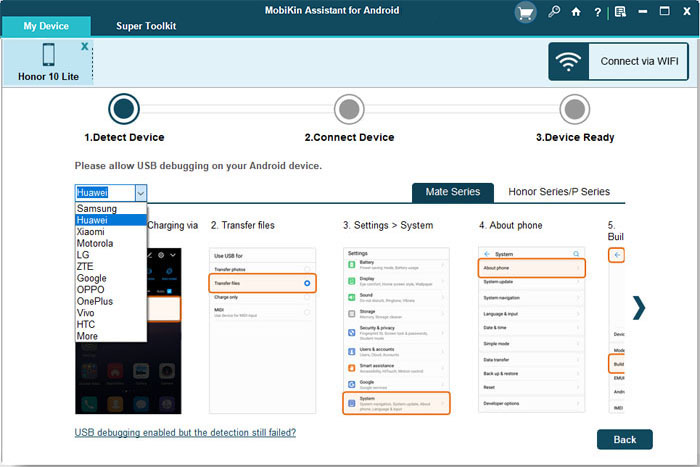
Supposed that the driver is installed well on your computer, you should go to check the USB debugging settings on your Android phone. If the USB debugging is disabled, you need to turn it on first. Here is a tutorial about enabling USB debugging on Android for your reference.
Solution 8. Try to Connect via Wi-Fi
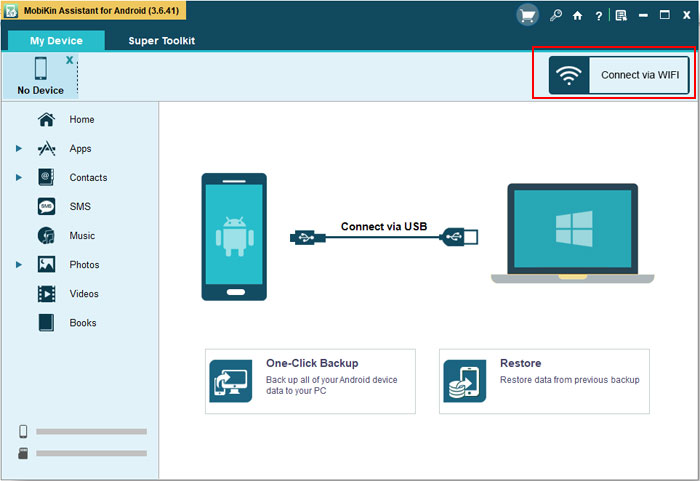
The program still fails to recognize your Android phone after trying out all the means above? Then you can disconnect the USB cable and attempt to build a connection via Wi-Fi. (This feature is only supported by MobiKin Assistant for Android, Transfer for Mobile, Eraser for Android, and Backup Manager for Android presently.) Just get the detailed steps from the guide for Wi-Fi connection.
Solution 9. Disable Other Phone Management Tools
Close tools like Samsung Kies, Smart Switch, HiSuite, Xperia Companion, or Mi PC Suite, which may interfere with the MobiKin program. Plus, security software might block the connection; disable it briefly for testing.
Solution 10. Update Android OS
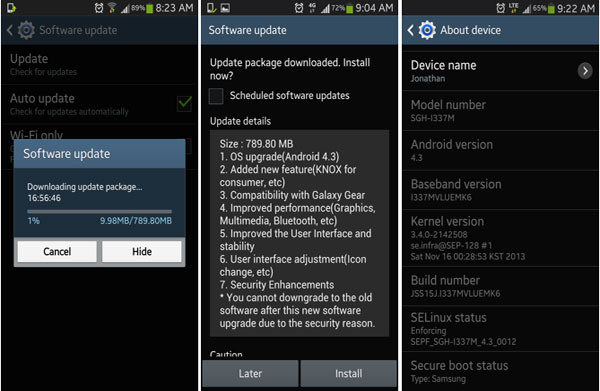
Older firmware may have bugs affecting connection; update to the latest version through Settings > System update to ensure full compatibility with MobiKin software. (What if the Android update failed?) Regular updates often include driver-level fixes, USB communication improvements, and enhanced device recognition stability, which can help the program detect your Android device more reliably.
Last Resort - Ask Our Support Team for Help
If you still fail to fix the issue by following the methods above, you can contact us via Email: support@mobikin.com with the following information:
- What's the operating system of your computer?
- What's your phone model and its operating system?
- Capture the program screen that you stop and send the picture to us. (To capture the screen, Windows users can press "Print Screen SysRq" key on your keyboard and then click on "Start > All Programs > Accessories > Paint > press ctrl + V to paste the screenshot".)
For other problems about the software connection, installation, or use, you can go to the Product FAQ page to find the solutions.
