
AirDropped Photos Not Showing Up on iPhone? Reasons & 9 Fixes
TL;DR:
A successful photo transfer depends on both the right AirDrop settings and a reliable alternative when wireless sharing is inconvenient.
iOS Transfer is a practical choice for moving photos from a Windows PC or Mac to an iPhone or iPad through a USB connection, without relying on AirDrop or iTunes. It also lets you easily locate and organize albums and transfer other data such as videos, music, contacts, and messages without replacing your existing content.
"I AirDropped some pictures and it says they were sent but they're not showing up in my camera roll." -- from Reddit
This topic - AirDropped photos not showing up on iPhone - focuses on helping users locate transferred images that seem to have disappeared or confirm whether the transfer actually succeeded. The passage will also explore the reasons for AirDropped photos not showing up on iPhone and how to fix it in 9 dependable ways, offering practical steps to resolve the issue.
- Part 1: Where Do AirDropped Photos Go on an iPhone
- Part 2: Why Can't I See My AirDropped Photos on My iPhone
- Part 3: AirDropped Photos Not Showing Up on iPhone? 9 Quick Fixes
> Way 1: Restart Your iPhone
> Way 2: Keep Devices Closer
> Way 3: Verify AirDrop Settings
> Way 4: Enable Bluetooth & Wi-Fi
> Way 5: Disable Low Power Mode
> Way 6: Reopen the Photos App
> Way 7: AirDrop a Smaller Number of Images
> Way 8: Check Corresponding Date & Time
> Way 9: Update iPhone Firmware - Part 4: Best Alternative to AirDrop from Mac/Windows to iPhone
- FAQs for AirDropped Photos Not Showing Up on iPhone
Part 1: Where Do AirDropped Photos Go on an iPhone
- Photos app: All images and videos sent via AirDrop are stored here. They appear in the Recents album and are organized by the original capture date.
- Files app: PDFs, text files, and other documents are saved here after you select an app to open them.
- Contacts app: Shared contacts prompt you to save them directly.
- Safari browser: Website links open instantly in Safari.
Further Exploration: How to Transfer Files between iPhone and Mac/MacBook: 7 Easy Ways
Part 2: Why Can't I See My AirDropped Photos on My iPhone
Sometimes AirDropped photos don't immediately appear in your iPhone's Photos app due to settings, syncing, or technical issues. Below are ten common reasons that explain why your images might seem to be missing:
- Wrong AirDrop settings: Receiving set to "Off" or "Contacts Only."
- iCloud sync delays: Photos appear later or on another device first.
- Unsupported formats: RAW/TIFF may open in Files instead of Photos.
- Storage full: No space left to save new photos.
- Saved by original date: Photos are sorted by capture date, not transfer date.
- Connection issues: Wi-Fi or Bluetooth unstable during transfer.
- Incomplete transfer: Large batches may not finish sending.
- Low Power Mode: Restricts background processes, blocking AirDrop.
- iOS bugs: Software glitches prevent photos from appearing.
- App conflicts: Third-party apps interfere with saving or viewing photos.
Part 3: AirDropped Photos Not Showing Up on iPhone? 9 Quick Fixes
Way 1: Restart Your iPhone
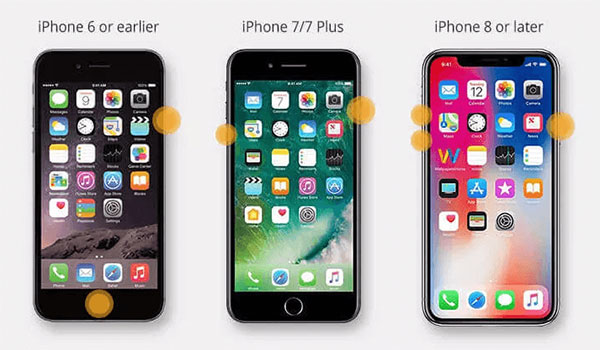
Press and quickly release Volume Up, then Volume Down, and hold the Side button until the Apple logo appears (for Face ID iPhones). This forces a restart that can clear AirDrop-related system glitches that prevent photos from appearing in the Photos app. After the device restarts, check the Photos > Recents album again.
Way 2: Keep Devices Closer
Keep devices closer (within about 10 meters/30 feet) so AirDrop can maintain a stable Bluetooth and Wi-Fi connection. If the devices are too far apart, the transfer may fail or photos may not appear even if it says "sent." Physical proximity also helps the iPhone correctly complete and register the incoming files in the Photos app.
Way 3: Verify AirDrop Settings
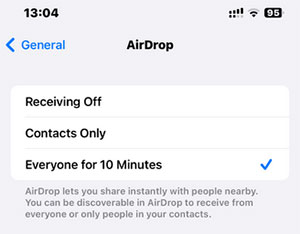
- Open Settings > General > AirDrop and check that the receiving option is not set to "Receiving Off," as this will completely block incoming photos and files.
- Switch the setting to Contacts Only or Everyone for 10 Minutes to make your iPhone discoverable for AirDrop transfers.
- Make sure the selected option matches your situation, especially if the sender is not saved in your contacts.
People Also Like: Can I Use AirDrop for Android? No. Here Are the 4 Most Viable Alternatives
Way 4: Enable Bluetooth & Wi-Fi
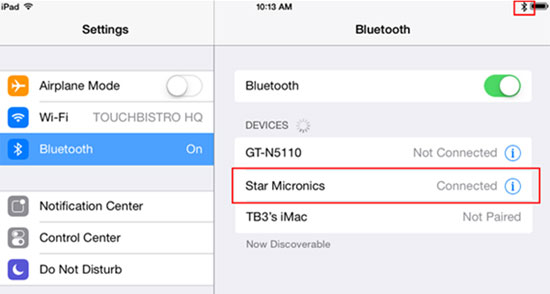
Turn on Bluetooth and Wi-Fi from Control Center or Settings, because AirDrop relies on both connections to detect nearby devices and complete file transfers properly. If either one is disabled, the iPhone may receive the file but fail to save it correctly in the Photos app. After enabling both, keep them active during the entire transfer and try sending the photos again for a stable connection.
Way 5: Disable Low Power Mode
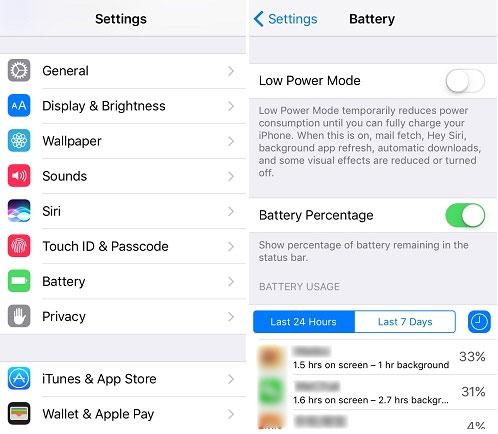
Turning off Low Power Mode can help restore background processes and network stability needed for AirDrop to properly save photos to your iPhone. To do this:
- Open Settings > Battery and locate Low Power Mode.
- Toggle Low Power Mode OFF so the switch turns gray.
- Re-enable Wi-Fi and Bluetooth afterward if needed to stabilize AirDrop transfers.
- Try receiving the AirDropped photos again to confirm they appear in the Photos app.
Way 6: Reopen the Photos App
Force close the Photos app by swiping up from the bottom of the screen (or double-pressing the Home button on older iPhones), then swiping the Photos app off the screen to fully shut it down. After that, reopen the Photos app so it can refresh its background indexing process and reload newly received AirDropped images. This often resolves cases where photos are received but do not immediately appear in the library.
Way 7: AirDrop a Smaller Number of Images
- Sending fewer images at one time helps AirDrop complete transfers more reliably and prevents photos from failing to appear in the Photos app. Large batches can overwhelm the transfer process or delay photo indexing.
- Splitting files into smaller groups ensures each set is fully received and saved before continuing.
- Select a small batch of photos (about 5-10 images).
- Send the group via AirDrop and wait for the transfer to finish completely.
- Check Photos > Recents to confirm they appear.
- Repeat the process until all images are transferred.

Way 8: Check Corresponding Date & Time
Open the Photos app and scroll to the date when the photos were originally taken or sent. If the iPhone time settings are incorrect, the images may appear in a different section of your library. Adjusting or verifying the timeline helps you quickly locate missing AirDropped photos.
Way 9: Update iPhone Firmware
Updating your iPhone firmware can resolve AirDrop glitches that prevent transferred photos from appearing correctly in the Photos app. Here's how:
- Open Settings on your iPhone and go to General.
- Tap Software Update to check for the latest iOS version.
- If an update is available, select Download and Install.
- Ensure your iPhone is connected to Wi-Fi and power during the update process.
- After installation, restart your iPhone and try AirDropping the photos again.

Part 4: Best Alternative to AirDrop from Mac/Windows to iPhone
For users who need a simple way to manage iPhone data, iOS Transfer provides an efficient solution for transferring and organizing files. It allows you to copy photos from a Windows PC or Mac to an iPhone or iPad without using iTunes or replacing existing content. The software also handles videos, music, contacts, messages, and other iOS data through an easy-to-navigate interface.
Key Functions of iOS Transfer:
> Transfer photos from PC to iPhone/iPad without using iTunes.
> Move photos between iPhone, iPad, and computer in either direction.
> Transfer photos between iOS devices with a few clicks.
> Import photos without overwriting existing content.
> Create, organize, and manage photo albums from your computer.
> Preview photo details before transferring or deleting files.
> Support HEIC photos for easy viewing and management.
> Transfer other data types, including videos, music, contacts, messages, etc.
> Compatible with almost all iPhone, iPad, and iPod models and iOS versions.
> Simple, user-friendly interface for quick file transfers.
Free and Safe Download:


How to transfer photos from PC to iPad/iPhone with USB using iOS Transfer?
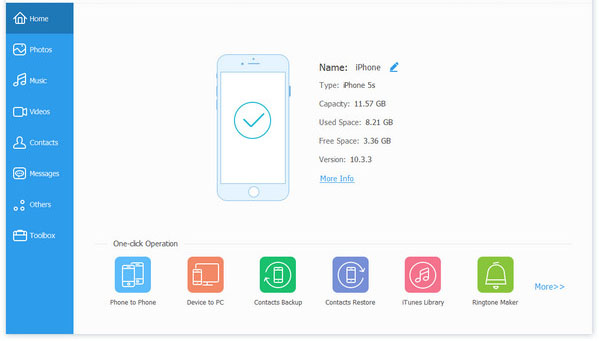
Step 1. Connect iPhone and Launch the Tool - Connect your iPhone to your computer using a USB cable, then open the iOS Transfer program on your PC to begin the process.
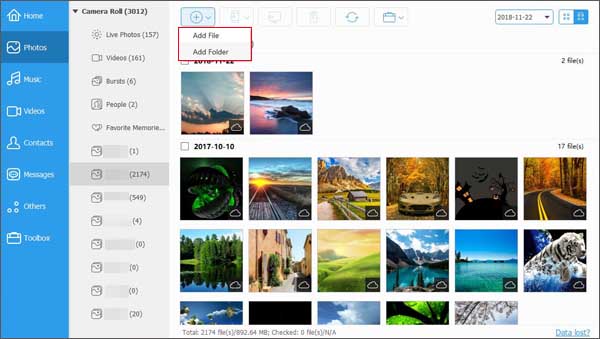
Step 2. Access the Photos Section - Navigate to the Photos category, where your iPhone's photo library will be automatically displayed and organized into different sections based on file type.
Step 3. Import Photos from Computer - Click the "+" (Add) button on the top toolbar, choose "Add Files" or "Add Folder," then select the photos you want from your computer to transfer them to your iPhone without using iTunes. (Then copied photos are usually saved directly into the iPhone's Photos app under Recents or a newly created album)
FAQs for AirDropped Photos Not Showing Up on iPhone
Q1. Why did AirDrop say "Sent" but I can't find the photos?
The transfer may complete but fail to index properly in the Photos app due to temporary iOS glitches or storage/sync delays.
Q2. Can AirDrop photos be lost during transfer?
Yes, but rarely. Issues like interrupted connection, low storage, or outdated iOS can prevent files from being fully saved.
Q3. Why do AirDropped photos appear in Files instead of Photos?
If the receiving app is not set to Photos by default or the file type is not recognized as an image, iOS may save it in the Files app.
Q4. Why do AirDropped photos show the wrong date?
Photos are often sorted by their original capture date (EXIF data), not the transfer date, which can make them harder to locate.
Q5. Should I reset settings if AirDrop keeps failing?
As a last step, resetting network settings can help fix persistent AirDrop issues related to connectivity.
Q6. Can storage space affect AirDropped photos not showing?
Yes, low iPhone storage can prevent files from being saved properly, even if the transfer initially succeeds.
Q7. Does disabling AirDrop and enabling it again help?
Yes, turning AirDrop off and back on can refresh device discovery and fix temporary connection glitches.
Q8. Why do only some AirDropped photos appear?
This can happen when large batches are interrupted or partially transferred due to unstable connections.
In a Nutshell
The methods outlined provide a structured way to bring order back to the photo library and ensure smoother sharing across Apple devices. Before assuming the transfer failed, always check both the Photos app (Recents album) and the Files app, since AirDropped images may be stored in either location depending on file type and system behavior.
Related Articles:
Can You Airdrop from PC Windows to iPhone? Everything You Should Know
Why Is AirDrop Taking So Long? 10 Reasons, 11 Solutions, & 1 Substitute
How to AirDrop Messages from iPhone to iPhone: 5 Best Ways
11 Easy Fixes to AirDrop Contacts Only Not Working [Latest Info]
