
How to Check and Manage iPhone Storage on PC: A Complete Guide
TL;DR:
You can manage iPhone storage from a PC by checking large data, transferring files you want to keep, and removing unnecessary content with the right tools.
- Check "Settings" > "General" > "iPhone Storage" to identify what's using space.
- Use MobiKin Assistant for iOS to preview, export, and batch-delete iPhone data from your PC.
- Use File Explorer > "This PC" > iPhone > "Internal Storage" > "DCIM" to move photos and videos.
- Sign in to iCloud.com to access synced data and download important files before cleanup.
- Remove unused apps, old attachments, downloads, and other unnecessary content, then check storage again.
Running out of iPhone storage can be frustrating, especially when you have lots of photos, videos, and other files you don't want to lose. A PC gives you a larger screen and more room to organize your data before cleaning things up. You can check what's taking up space, transfer important files, remove unnecessary data, or use iCloud when it fits your needs. This guide covers several practical ways to manage iPhone storage from a PC and shows how MobiKin Assistant for iOS can make the process easier.
- Part 1: How to Check iPhone Storage from PC?
- Part 2: Manage iPhone Storage from PC with MobiKin Assistant for iOS [Recommended]
- Part 3: Free Up iPhone Storage by Transferring Data to PC
- Part 4: Manage iPhone Storage from PC with iCloud
- Part 5: Tips to Free Up More iPhone Storage
- FAQs About Managing iPhone Storage from PC
Part 1: How to Check iPhone Storage from PC?
If your iPhone is running low on space, checking its storage from a PC can help you figure out what is taking up the most room before you start deleting anything. Windows does not provide the same detailed storage overview as the iPhone itself, but you can still use a phone management tool to view your data on a larger screen. Photos, videos, music, messages, contacts, and other files can be checked by category, making it easier to spot large or unnecessary data and decide what to move or remove.
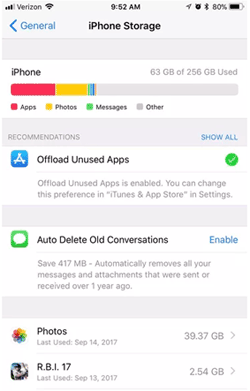
To check storage directly on your iPhone, go to "Settings" > "General" > "iPhone Storage". You'll see how much space is used and which apps or data are taking up the most storage. (How to Free Up Space on iPhone?)
Part 2: Manage iPhone Storage from PC with MobiKin Assistant for iOS
If you want a more direct way to manage iPhone storage from your PC, MobiKin Assistant for iOS is worth trying. It lets you access different types of iPhone data from your computer, so you can review what you have, move important files to the PC, and remove data you no longer need. This is especially useful when your iPhone is packed with photos, videos, messages, or other files and you want to clean things up without doing everything on the small screen.
Key Features of MobiKin Assistant for iOS:
- Manage photos, videos, music, messages, contacts, and other iPhone data from a PC.
- Free up iPhone storage without relying on iCloud or iTunes.
- Preview files before deciding what to keep or delete.
- Select and delete unwanted data directly from the iPhone.
- Export important files to your PC before clearing them.


To manage your iPhone storage with MobiKin Assistant for iOS:
Step 1: Install and launch MobiKin Assistant for iOS on your computer, then connect your iPhone to the PC with a USB cable. Unlock the iPhone and tap "Trust" if prompted.
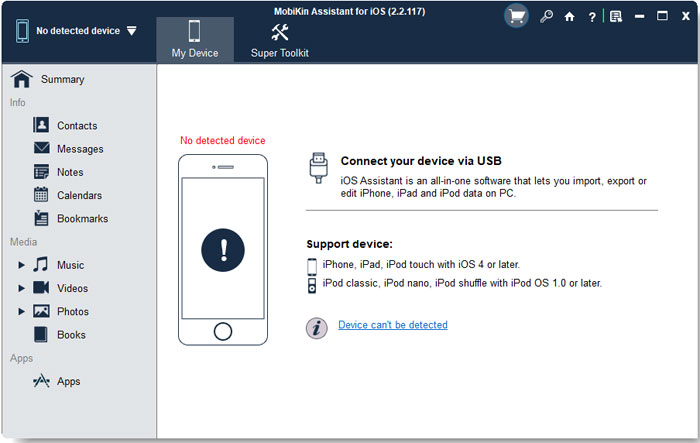
Step 2: Once the device is recognized, open the data category you want to manage, such as "Photos", "Videos", "Music", "Messages", or "Books".
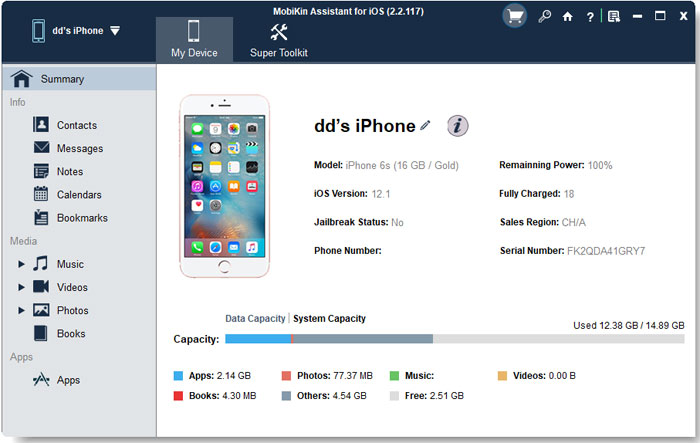
Step 3: Browse and preview the available data, then select the files you no longer need. If some files are important, export them to your PC first.
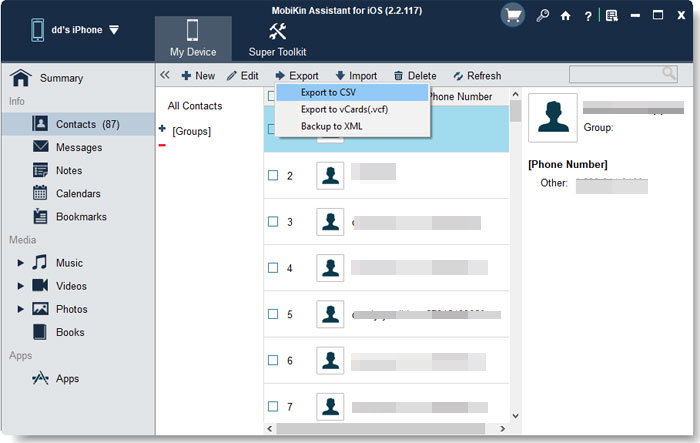
Step 4: Click "Delete" to remove the selected data from your iPhone. For large collections, you can select multiple items and manage them in batches.
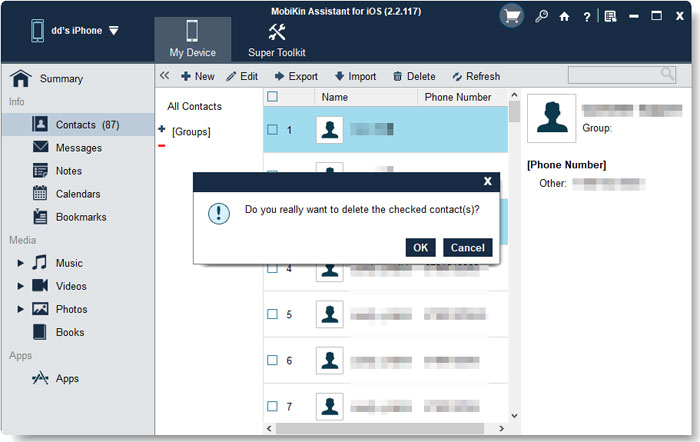
Repeat the process for other categories that are taking up space until you have freed up enough iPhone storage.
Video Guide:
Part 3: Free Up iPhone Storage by Transferring Data to PC
If you don't want to delete important photos, videos, or other files, you can move them to your PC first. Once you confirm that the files are safely stored on your computer, you can remove the originals from your iPhone to free up space. This is a simple option for keeping a local copy while clearing large amounts of data from your device. (See how to Transfer Photos from iPhone to PC?)
- Connect your iPhone to your PC with a USB cable and unlock the device.
- Open File Explorer on your PC and select your iPhone under "This PC".
- Open "Internal Storage" > "DCIM" and browse the photos and videos stored on your iPhone.
- Select the files or folders you want to keep and copy them to a folder on your PC.
- Open several transferred files to make sure they were copied successfully.
- After confirming the backup, delete the corresponding photos and videos from your iPhone to reclaim storage.
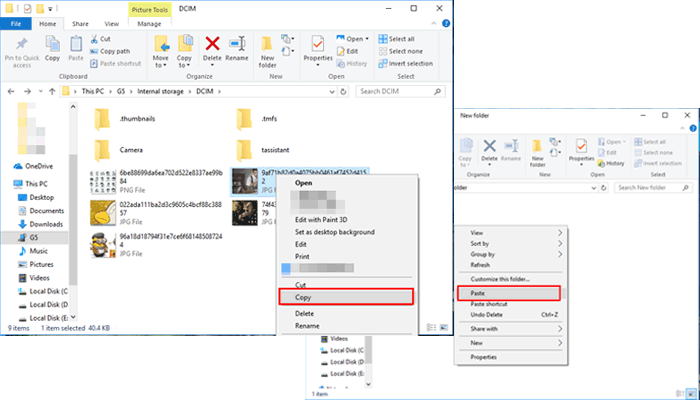
File Explorer works well for moving photos and videos, but it offers limited control over other types of iPhone data. For more comprehensive data management, you can use MobiKin Assistant for iOS in Part 2.
Part 4: Manage iPhone Storage from PC with iCloud
If you prefer not to install extra software, iCloud gives you another way to manage some iPhone data from your PC. You can sign in to iCloud.com, access synced photos, contacts, and other available data, and download important files before removing unnecessary ones. Keep in mind that iCloud storage and iPhone storage are different. Deleting data from iCloud may also affect your synced devices, so check what you're removing before confirming.
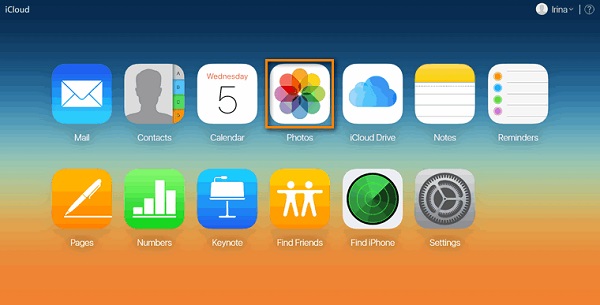
- Open a browser on your PC and go to iCloud.com.
- Sign in with the Apple Account used on your iPhone.
- Open "Photos", "Contacts", or another available iCloud service to view your synced data.
- Download important photos or files to your PC if you want to keep a local copy.
- Remove unnecessary data from iCloud when appropriate, then check your iPhone to make sure the changes are what you expected.
Part 5: Tips to Free Up More iPhone Storage
If your iPhone is still short on space after moving or deleting some files, a few simple cleanups can help. Focus on the data that takes up the most room first, and avoid deleting anything important before making a backup.
- Delete large or unwanted photos and videos.
- Remove apps you no longer use.
- Clear old messages and large attachments.
- Delete downloaded movies, music, podcasts, and other offline content.
- Review files in the "Files" app and remove unnecessary downloads.
- Restart your iPhone after cleanup and check "Settings" > "General" > "iPhone Storage" to see how much space you have freed up.
FAQs About Managing iPhone Storage from PC
Q1. Can I manage iPhone storage from a PC without iTunes?
Yes. You don't have to rely on iTunes to manage your iPhone data from a computer. Third-party iPhone management software like MobiKin Assistant for iOS, can provide more direct access to different data categories and make storage cleanup easier.
Q2. Will managing iPhone data from a PC affect the original files?
It depends on the action you take. Viewing or exporting data does not normally change the files on your iPhone. However, deleting or modifying data can be permanent, so it's best to check your selections carefully before confirming.
Q3. Can I manage iPhone app data from a PC?
You can manage some app-related data from a PC, but access varies by app and iOS restrictions. You generally cannot browse every app's internal files as you would with folders on a Windows computer.
Q4. Why does my iPhone still show low storage after I delete files?
iOS may need some time to update its storage calculation. Recently deleted photos, cached data, system files, and other temporary content can also continue using space. Give the device some time and check the storage overview again.
Q5. Is it safe to use third-party software to manage iPhone storage?
It can be, provided you choose reputable software and download it from its official source. Before making major changes, preview the data and keep a backup of anything important to reduce the risk of accidental data loss.
Summary
Managing iPhone storage from a PC doesn't have to be complicated. You can use File Explorer to move photos and videos, iCloud to access synced data, or MobiKin Assistant for iOS to manage different types of iPhone data in one place. Before deleting anything, make sure important files are safely backed up. With a little cleanup, you can free up useful space without giving up the data you still need.
Related Articles:
How to Reduce System Data on iPhone/iPad [5 Solutions]
5 Best Cloud Storage for iPhone in 2026 [Free & Paid]
