
FileBrowser Professional Review: Advanced iOS File Management Explained
TL;DR:
Need a better way to manage files on iPhone or iPad? This FileBrowser Professional review covers its features, pros, cons, and best alternatives.
- Introduction to FileBrowser Professional: A powerful iOS file management app for iPhone and iPad, designed for advanced users.
- Key Features: Manage local files, access Windows/Mac/NAS, integrate cloud services, stream media, and transfer files wirelessly.
- How to Use: Simple steps to connect devices, browse files, transfer data, and stream media.
- Pros and Cons: Powerful and flexible, but may feel complex for beginners.
- Best Alternative: MobiKin Assistant for iOS – simpler, beginner-friendly, and supports quick backups and transfers.
- FAQs: Detailed answers on safety, device compatibility, cloud support, and value.
Managing files on an iPhone or iPad can be tricky, especially when accessing network drives or cloud storage. FileBrowser Professional is a powerful iOS app that helps you organize files, connect to Windows, Mac, or NAS devices, and even stream media directly from remote servers. In this review, we'll explore its main features, performance, pros and cons, and pricing, helping you decide if it's the right file management tool for your iOS devices. Whether you need advanced transfers, cloud access, or media streaming, FileBrowser Professional promises to simplify it all.
Part 1: What is FileBrowser Professional?
FileBrowser Professional is an advanced file management app for iPhone and iPad developed by Stratospherix. It allows users to manage local files, access shared folders on Windows and Mac computers, connect to NAS drives, and integrate cloud storage services such as Dropbox, Google Drive, and OneDrive.
Unlike the built-in Files app on iOS, FileBrowser Professional offers more powerful features, including wireless file transfers, media streaming, document management, and remote file access. It also supports SMB, FTP, and WebDAV connections, making it useful for both personal and professional use.
The app is especially suitable for users who frequently transfer files between devices or need easy access to network storage and cloud services.
Part 2: Key Features of FileBrowser Professional
FileBrowser Professional stands out for its wide range of features that make file management on iOS devices efficient and flexible. Here are its main capabilities:
1. Local File Management
- Organize, copy, move, rename, and delete files on your iPhone or iPad.
- Create folders for better file organization.
2. Network File Access
- Connect to Windows, Mac, or NAS devices via SMB.
- Access shared folders and files remotely.
3. Cloud Storage Integration
- Supports Dropbox, Google Drive, OneDrive, Box, and other popular cloud services.
- Sync files between local storage and the cloud.
4. Media Playback
- Stream videos, music, and photos directly from remote servers. (Can I Mirror iPhone to PC without Software?)
- Supports subtitles and various media formats.
5. File Transfer Options
- Transfer files wirelessly between devices.
- Support for FTP, WebDAV, and SFTP connections.
6. Document Viewing and Editing
- Open and edit PDF, Word, Excel, and other document types.
- Annotate documents directly in the app.
7. Security and Privacy
- Password protection and encryption for sensitive files.
- Control access to your network and cloud storage securely.
Part 3: How to Use FileBrowser Professional?
FileBrowser Professional is designed to be user-friendly, even with its advanced features. Here's how to get started and use it effectively:
Step 1. Install and Open the App
Download FileBrowser Professional from the App Store and launch it on your iPhone or iPad. You'll be guided through a quick setup process.
Step 2. Add a File Source
Tap "Add Location" to connect to your files. You can choose from:
- Local device storage
- Windows/Mac shared folders (SMB)
- NAS drives
- Cloud services like Google Drive or Dropbox
Step 3. Browse and Manage Files
Once connected, you can easily browse folders, open files, or manage them by copying, moving, renaming, or deleting.
Step 4. Transfer Files Between Devices
Select files and use the "Copy" or "Move" option to transfer them wirelessly between connected devices or cloud storage.
Step 5. Stream Media Files
Tap any video or audio file to stream it directly without downloading, making it ideal for remote media access.
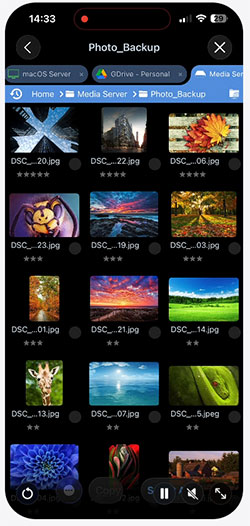
With these simple steps, you can quickly turn FileBrowser Professional into a powerful file management hub for all your devices.
Part 4: FileBrowser Professional Pros and Cons
FileBrowser Professional offers many advantages for iOS users who need advanced file management, but it also has some drawbacks. Here's a balanced look:
Pros:
- Copy, move, rename, delete, and organize files easily.
- Connect to Windows, Mac, NAS, and major cloud services.
- Play videos and music directly from remote servers.
- Supports SMB, FTP, WebDAV, and wireless transfers.
- Open, edit, and annotate PDF, Word, and Excel files.
Cons:
- Some users may find the interface less intuitive compared to simpler apps.
- Network connections or cloud sync may need manual configuration.
- Casual users may prefer a simpler file management solution.
Part 5: Best Alternative to FileBrowser Professional
If FileBrowser Professional feels too complex or doesn't fully meet your needs, there are several alternatives that offer simpler or more focused file management features. One of the most reliable options is MobiKin Assistant for iOS, a desktop-based tool designed for easy iPhone and iPad data management.
Assistant for iOS allows you to transfer, back up, and manage files between your iOS device and computer with just a few clicks. Unlike FileBrowser Professional, it does not require complex network setup, making it more beginner-friendly.
Key features of Assistant for iOS:
- Easily transfer data between iPhone/iPad/iPod and computer.
- One-click backup and restore for your iOS device.
- Supports more than 14 file types, including photos, videos, music, contacts, messages, notes, Safari bookmarks, voice memos, podcasts, ringtones, and more.
- Manage, edit, and delete iOS data directly on your computer.
- Fully compatible with iPhone 17/16/15/14/13/12/11/X/8/7/6, iPad 11/10/9/8/Pro/Air/mini/4, and iPod touch.


How to use MobiKin Assistant for iOS to transfer and manage iPhone/iPad/iPod data:
Step 1: Launch MobiKin Assistant for iOS on your computer and connect your iPhone, iPad, or iPod via USB. Once connected, the device information will be displayed on the main interface.
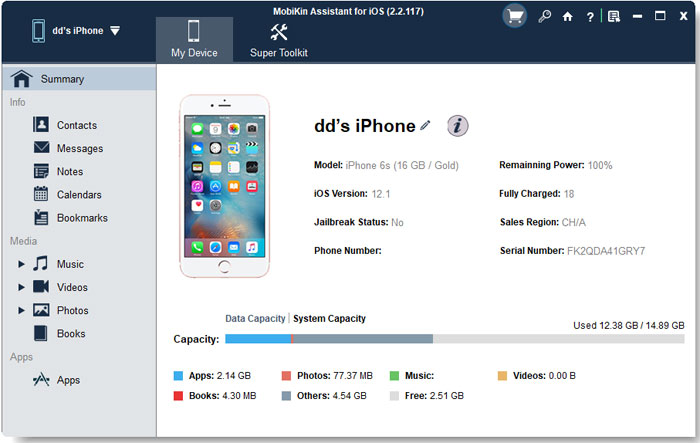
Step 2: Browse your iOS data, which is neatly organized into categories on the left panel. Click any category to preview and select the files you want.
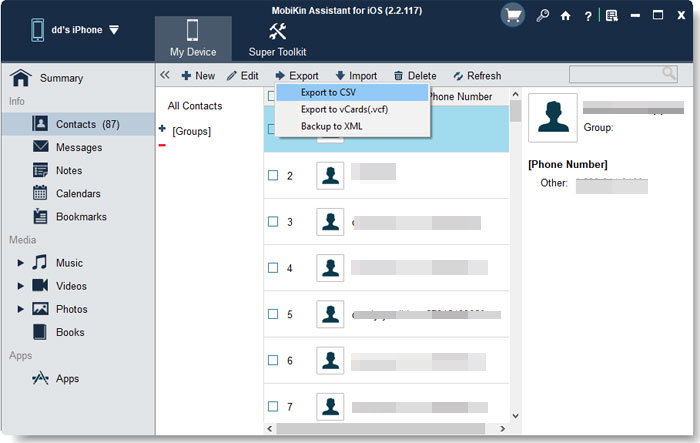
Step 3: Use the toolbar options to manage your data. Click "Export" to transfer files from your iOS device to your computer, click "Import" to add data from your computer back to your device, or click "Delete" to remove unwanted data from your iPhone or iPad.
Video Guide:
FAQs About FileBrowser Professional
Q1. Is FileBrowser Professional safe to use?
Yes, FileBrowser Professional is safe. It includes password protection and encryption options, which help keep your files and network connections secure. The app does not access your data without permission, and all transfers are handled directly between your devices or cloud services.
Q2. Does FileBrowser Professional work on both iPhone and iPad?
Yes, the app is fully compatible with iPhones and iPads running iOS 15 or later. It is optimized for both devices, supporting various screen sizes and allowing seamless use on iPad with multitasking features.
Q3. Can I connect FileBrowser Professional to Windows and Mac computers?
Absolutely. FileBrowser Professional supports SMB, FTP, and WebDAV protocols, making it easy to connect to Windows PCs, Mac computers, and NAS devices. Once connected, you can browse, open, and transfer files directly from your iOS device.
Q4. Does FileBrowser Professional support cloud storage services?
Yes, it integrates with major cloud platforms such as Dropbox, Google Drive, OneDrive, and Box. You can view, download, upload, and organize your cloud files without leaving the app, making it convenient for managing both local and cloud storage in one place.
Q5. Is FileBrowser Professional worth buying?
For users who frequently manage files across devices or need access to network storage and cloud services, FileBrowser Professional is a strong choice. It combines advanced features, media streaming, and reliable performance. However, casual users who only need basic file management might prefer simpler, more user-friendly alternatives like MobiKin Assistant for iOS.
Words in the End
FileBrowser Professional is a powerful iOS file manager designed for advanced users who need flexible access to local storage, cloud services, and network drives. It supports media streaming, wireless transfers, and multiple connection protocols like SMB and FTP. While it offers rich features and strong performance, beginners may find it complex. Overall, it's a great choice for professional file management on iPhone and iPad.
Related Articles:
5 Best iPhoneBrowser Alternatives in 2026 [Full Review]
6 Simple Ways to Transfer Files from iPhone to Mac
