
FileMaster Review: Is This File Manager Worth Using in 2026?
Managing files on an iPhone or iPad is not always easy, which is why many users turn to FileMaster for help. This app offers file management, media playback, file transfer, and privacy protection features in one place. But is it really worth using in 2026? In this FileMaster review, we'll explore its features, pros and cons, safety, user feedback, and the best alternative to help you decide whether this app is right for you.
Part 1: What is FileMaster?
FileMaster is a file management app designed for iPhone and iPad users. It helps users organize, transfer, view, and protect different types of files on their iOS devices. With this app, you can manage photos, videos, music, documents, PDFs, and compressed files in one place.
Besides basic file management, FileMaster also includes features like a built-in media player, Wi-Fi file transfer, cloud storage support, and private folder protection. Many users use it to transfer files between their iPhone and computer without relying completely on iTunes or iCloud.
FileMaster offers both a free version and a premium version. The free version includes basic tools, while some advanced features require in-app purchases or a subscription.
Part 2: Key Features of FileMaster
FileMaster offers a wide range of features that go beyond basic file browsing. It is designed to act as an all-in-one file management hub for iOS users, combining storage, playback, transfer, and security tools in a single app.
1. Advanced File Management
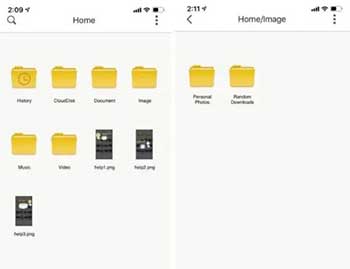
FileMaster allows users to fully manage files on their devices with ease. You can create folders, move or copy files, rename items, and delete unwanted data. The interface is designed to feel similar to a desktop file system, making navigation intuitive even for beginners.
2. Built-in Media Player
The app includes a built-in media player that supports various audio and video formats. Users can play media files directly without needing third-party apps, and basic playback controls such as pause, fast-forward, and background play are supported.
3. Wireless File Transfer (Wi-Fi Transfer)
One of FileMaster's most useful features is Wi-Fi transfer. By connecting your iPhone or iPad to the same network as your computer, you can upload or download files wirelessly through a browser interface, which reduces the need for cables or external tools.
4. Privacy and File Security
FileMaster provides security features such as passcode locking and Face ID protection. Users can hide sensitive files in a private folder, ensuring that personal documents, photos, or videos are not easily accessible to others.
5. Cloud Storage Integration
The app supports integration with popular cloud services, allowing users to access and manage online files directly within FileMaster. This makes it easier to keep files synchronized across multiple devices. (5 Best Cloud Storage for iPhone)
6. Document Viewing Support
FileMaster can open and preview a variety of document formats, including PDF, Word, Excel, PowerPoint, and text files. This eliminates the need to switch between multiple apps for different file types.
7. ZIP File Handling
The app also supports compressing and extracting ZIP files. This is especially useful when downloading large files or sharing multiple documents at once, helping users save storage space and improve file organization.
Part 3: FileMaster Pros & Cons
Pros:
- FileMaster combines file browsing, media playback, document viewing, and file transfer in a single app. This reduces the need to install multiple apps for different tasks.
- The app is designed with a simple and intuitive layout, making it easy for both beginners and experienced users to manage files without confusion.
- It works with a wide range of file types, including photos, videos, music, PDFs, Office documents, and ZIP archives, making it highly versatile.
- Users can directly play audio and video files inside the app without switching to other players, which improves convenience.
- The Wi-Fi transfer feature allows users to move files between iPhone and computer without cables, which is especially useful for quick sharing.
- FileMaster offers passcode and Face ID locking options, allowing users to secure private files and folders.
Cons:
- The free version often includes advertisements, which may interrupt the user experience during file browsing or transfers.
- Some useful tools and enhanced functions are locked behind a premium subscription or in-app purchases.
- Wi-Fi transfer performance may depend on network stability, and large files can sometimes take longer to transfer.
- While functional, the design is not as modern or polished as some newer file management apps.
Overall, FileMaster is a practical tool for basic file management, but users who need a smoother experience or more advanced features may want to explore alternatives.
Part 4: How to Use FileMaster on iPhone/iPad
FileMaster is designed to be simple, so most functions can be completed in just a few taps. Below are some of the most common ways to use the app on your iPhone or iPad.
How to import files into FileMaster
After opening the app, you can import files in several ways. You may use the "Import" option inside the app to add files from your Photos, Files app, or other apps. You can also download files directly from the built-in browser if the app provides one. Once imported, the files will appear in your main storage list for easy access.
How to transfer files to a computer
To move files from your iPhone or iPad to a computer, you can use the Wi-Fi transfer feature. First, make sure your device and computer are connected to the same Wi-Fi network. Then open the transfer section in FileMaster, and a local web address will appear. Enter this address into your computer browser, and you will be able to upload or download files directly.
How to lock private files
If you want to protect sensitive data, you can move files into the private folder. Inside the app settings, enable passcode lock or Face ID. Once activated, only you will be able to access these locked files, helping keep personal information secure.
How to manage or delete files
You can easily manage your files by long-pressing any item. This will bring up options such as rename, move, copy, or delete. You can also organize files into folders to keep everything structured and easy to find.
How to play media files
To play videos or music, simply tap on the file. The built-in media player will open automatically, allowing you to control playback, adjust volume, and switch between files without leaving the app.
How to connect cloud storage
If you use cloud services, you can link them inside the app settings. Once connected, you can access online files directly within FileMaster and manage them just like local files.
Part 5: Is FileMaster Safe?
FileMaster is a legitimate file management app available on the App Store, which means it meets Apple's basic security and review standards. For everyday use, such as managing photos, videos, and documents, it is generally safe to use if downloaded from the official store.
The app requires access to local storage and files in order to function properly. It also offers security features like passcode lock and Face ID protection, which help keep private files secure inside the app.
However, like many free apps, FileMaster may include ads and limited data tracking for advertising or app performance purposes. This is common, but it means users should still be cautious about storing highly sensitive information inside the app.
Overall, FileMaster is safe for general file management, but users who prioritize maximum privacy may prefer built-in iOS tools like the Files app or iCloud Drive.
Part 6: Best Alternative to FileMaster
While FileMaster works well for basic file handling on iPhone and iPad, it still has limits such as ads, restricted advanced features, and less stable performance for large data transfers. If you want a more professional and reliable way to manage iOS data on a computer, MobiKin Assistant for iOS is a strong alternative.
MobiKin Assistant for iOS is a desktop tool that lets you manage, transfer, and back up iPhone/iPad data directly on Windows or Mac. Compared with mobile file manager apps, it provides deeper access to data, faster batch operations, and more stable performance when handling large files.
Key Features of MobiKin Assistant for iOS:
- It supports transferring photos, videos, music, contacts, messages, notes, and more between iPhone/iPad and computer safely.
- You can back up all iPhone data to a computer and restore it anytime without data loss.
- Manage iOS files directly from a computer, including viewing, deleting, exporting, and organizing data in batches.
- Supports exporting data in formats like CSV, VCF, HTML, and XML for easy use and compatibility.
- The software works independently, so you don't need iTunes to connect or manage your device.
- Be compatible with iPad 17/16/15/14/13/12/11/X/8/7/6, etc.


How to use MobiKin Assistant for iOS to transfer and manage iPhone/iPad data:
Step 1: Connect your device
Download Assistant for iOS, install it on your Windows or Mac computer and complete the setup. Use a USB cable to connect your device to the computer. Unlock your iPhone/iPad and a prompt will appear asking "Trust This Computer." Tap "Trust" and enter your passcode if required.
Step 2: Transfer Data between iOS device and computer
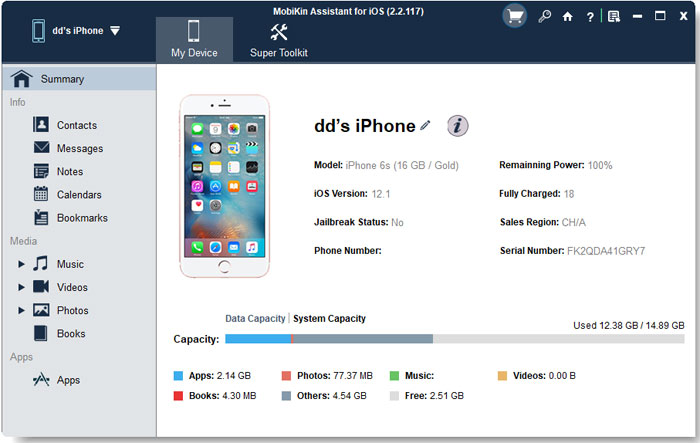
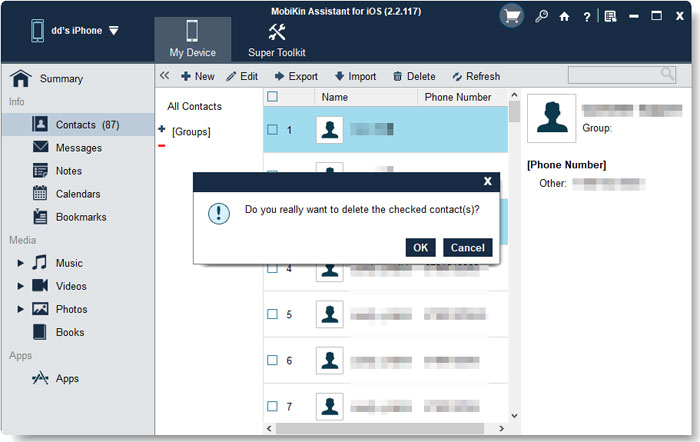
Open MobiKin Assistant for iOS on your computer. It will automatically detect your connected device and display its basic information. On the left panel, you will see different categories such as Photos, Messages, Contacts, Music, Videos, and more. Click on any category to preview the data inside.
Step 3: Manage Data (Delete, Edit, Organize)
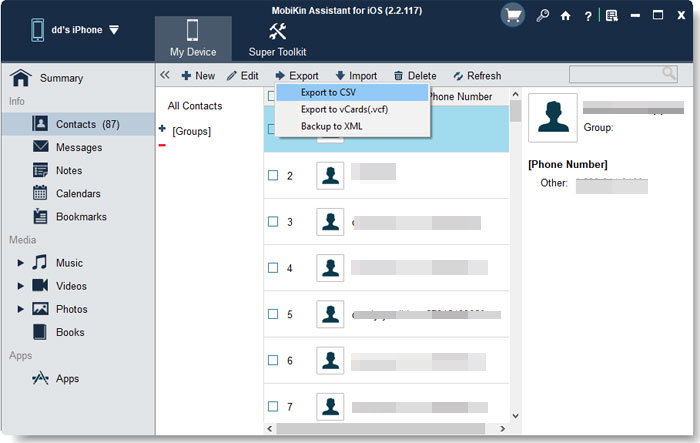
Select specific files or entire categories depending on your needs. Click "Export" to transfer files to your computer, or use "Import" to add files from your computer back to the device. Click "Delete" to remove your useless iPhone data and use "Edit" to modify contact details, notes, or calendar entries.
Step 4: One-Click Backup & Restore
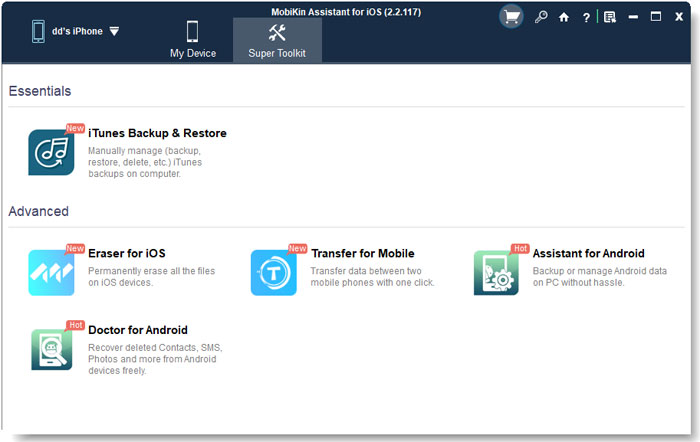
Go to the Super Toolkit section on the top menu and click "iTunes Backup & Restore". Choose "Backup" to save your iPhone data to the computer, or select "Restore" and pick a previous backup file.
Video Guide:
FAQs About FileMaster
Q1: Is FileMaster free to use?
Yes, FileMaster is free to download and use. However, it also offers in-app purchases, and some advanced features are only available in the premium version.
Q2: Does FileMaster work without internet?
Yes. Most basic functions like file management, offline viewing, and local storage work without an internet connection. However, features like cloud access or Wi-Fi transfer require a network connection.
Q3: Can FileMaster transfer files to a computer?
Yes. FileMaster supports Wi-Fi file transfer, allowing you to move files between your iPhone/iPad and computer as long as both devices are on the same network.
Q4: What file types does FileMaster support?
It supports many common formats, including photos, videos, music, PDFs, Word, Excel, PowerPoint, and ZIP files, making it a versatile file manager.
Q5: Can FileMaster replace iCloud or Files app?
It can be a helpful alternative for managing local files, but it does not fully replace Apple's system-level tools like iCloud or the Files app, especially for deep system integration.
Q6: Does FileMaster support cloud storage?
Yes. It can connect with some cloud services, allowing users to access and manage cloud files within the app.
Conclusion
Overall, FileMaster is a practical file management app for iPhone and iPad users who need a simple way to organize, view, and transfer files. It offers useful features like media playback, Wi-Fi transfer, and basic privacy protection, making it suitable for everyday use. However, its ads and limited advanced functions may be a drawback for some users. If you only need basic file handling, it works well, but power users may prefer more advanced alternatives for better control and performance.
Related Articles:
Aiseesoft iOS Data Backup and Restore Review: Full Analysis
[Full Review 2026] Is Wondershare TunesGo Worth It
