
[Review] Is Easy Backup Worth It? A Simple Contact Backup Solution
Whether you're getting a new iPhone or simply want to ensure you don't lose important phone numbers, having a reliable iCloud backup solution is crucial. Easy Backup offers a simple and quick way to back up and restore your iPhone contacts. In this review, we'll delve into its features, pros, cons, and compare it to other alternatives, such as MobiKin Assistant for iOS, for users who need more advanced data management capabilities.
Part 1: What is Easy Backup?
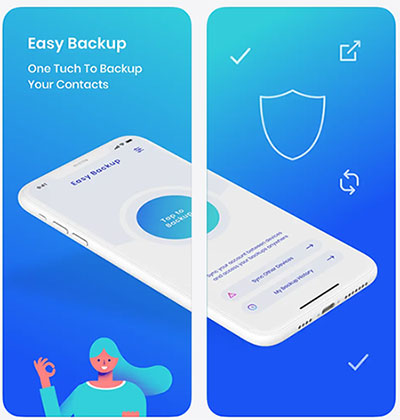
Easy Backup is a simple iPhone app designed to help users back up and restore their contacts quickly. It allows you to save your entire contact list with just one tap, making it a convenient solution for people who want to protect their important phone numbers.
With Easy Backup, you can export contacts as a VCF file, which can be easily shared or stored on other devices. For example, you can send the backup file via email, save it to cloud storage, or keep it on your computer for future use.
Another useful feature is that Easy Backup makes restoring contacts very easy. If you accidentally delete contacts or switch to a new iPhone, you can quickly restore them from the backup file. (How to Recover Deleted Contacts from iPhone?)
Overall, Easy Backup is a beginner-friendly tool that focuses mainly on contact backup, export, and recovery, helping users keep their contact information safe without complicated steps.
Part 2: Key Features of Easy Backup
Easy Backup offers several practical features that help iPhone users protect and manage their contacts easily. Below are some of the main features of this app.
1. One-Tap Contact Backup
Easy Backup allows you to back up your entire contact list with just one tap. After granting access to your contacts, the app can quickly create a full backup without complicated settings.
2. Secure Cloud Backup
The app can upload your contacts to a secure cloud storage, helping keep your data safe. This means you can still recover your contacts even if your phone is lost, damaged, or replaced.
3. Export Contacts as VCF Files
Easy Backup lets users export contacts as VCF (VCard) files, which are widely supported by email services, computers, and many contact management programs.
4. Easy Contact Transfer Between Devices
You can use Easy Backup to transfer contacts from one device to another. Simply log in with the same account on another phone and restore the saved backup.
5. Multiple Sharing Options
The app allows you to send backup files through different services such as email or other sharing apps, making it convenient to store or share contacts.
6. Simple Contact Recovery
If contacts are deleted accidentally, Easy Backup makes it easy to restore contacts from previous backups, helping you recover important information quickly.
Overall, Easy Backup focuses on simplicity and speed, making it a helpful tool for users who only want a quick and easy way to back up and restore their iPhone contacts.
Part 3: Pros and Cons of Easy Backup
Like most apps, Easy Backup has both advantages and limitations. Understanding its strengths and weaknesses can help you decide whether it is the right tool for backing up your contacts.
Pros:
- The interface is simple and easy to use. Users only need to tap once to back up contacts.
- It can quickly scan and package your contact list, allowing you to complete the backup in seconds.
- It allows you to export contacts as VCF files and send them via email or other apps, making it easier to transfer contacts between devices.
- The backup file can be easily restored on other devices, so Easy Backup is suitable for migrating contacts when switching phones.
Cons:
- It only supports contact backup. It cannot back up other data such as photos, text messages, or videos.
- Some features, especially advanced cloud options or additional export functions, may require a paid version.
- Some user reviews report issues such as incomplete backups or missing contacts.
- Easy Backup provides fewer features for editing, organizing, or cleaning contacts.
Part 4: How to Use Easy Backup?
Using Easy Backup to back up your iPhone contacts is very simple. Follow the steps below:
Step 1. Install and open Easy Backup
Download Easy Backup from the App Store and launch the app on your iPhone. Allow the app to access your contacts when prompted.
Step 2. Start the backup process
Tap the "Backup Now" button. The app will quickly scan your contact list and create a backup file.
Step 3. Export or save the backup file
After the backup is completed, you can export the contacts as a "VCF file" and send it via email, save it to cloud storage, or keep it on your device.
Step 4. Restore contacts when needed
If you need to recover your contacts, simply open the backup file on your device and import it to restore your contacts quickly.
Part 5: Best Easy Backup Alternative
While Easy Backup is a great tool for quick contact backups, it has certain limitations, such as only supporting contacts and lacking advanced management features. If you're looking for a more comprehensive solution, MobiKin Assistant for iOS is an excellent alternative. It offers far more functionality, not just for contacts but also for managing a wide range of iPhone data.
Assistant for iOS is a desktop application that allows you to back up, transfer, and manage various types of data on your iPhone, including contacts, photos, messages, and more. Whether you're looking to back up your entire device or just specific data, MobiKin Assistant provides a much more versatile and reliable option.
Key Features of MobiKin Assistant for iOS:
- Supports transferring various data types between iOS devices and computers, including contacts, photos, videos, messages, call logs, etc.
- Supports backing up and restoring iOS data on your computer.
- Allows you to preview data before backup and transfer, making it easy to select the files you need.
- Offers options to manage files on your iPhone directly on your computer, such as adding, deleting, or exporting media files.
- Work for overall iDevices, including iPhone 17/16/15/14/13/12/11/X/8/7/6, and iPad 11/10/9/8/Pro/Air/mini, etc.


How to Use MobiKin Assistant for iOS to Back Up Data
Step 1. Install and launch Assistant for iOS
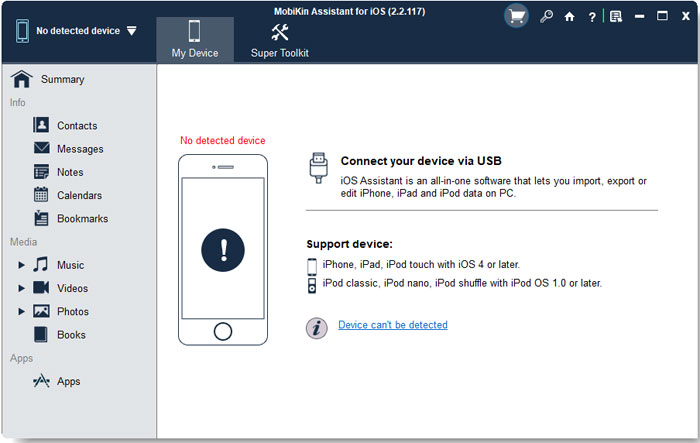
Download and install MobiKin Assistant for iOS on your Windows or Mac computer. Open the program and connect your iPhone via a USB cable.
Step 2. Scan your device
Once connected, the software will automatically detect your iPhone. Click on the file types displayed on the left sidebar to allow the program to scan your device for data.
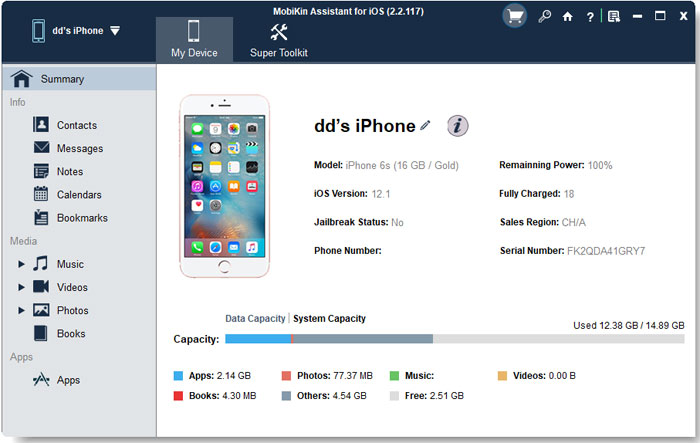
Step 3. Preview and select data
You'll be able to see all the data on your iPhone in a well-organized format. Select the data you want to back up (e.g., contacts, photos, etc.).
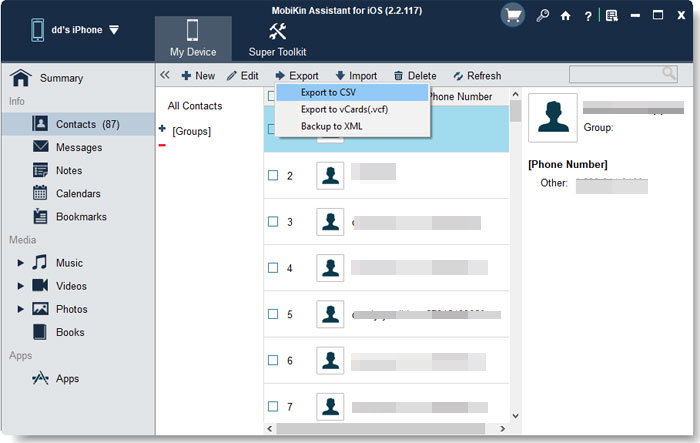
Step 4. Backup iPhone to computer
Click the "Export" button to back up the selected data to your computer. You can specify an output location to save the backup files.
Video Guide:
Part 6: FAQs About Easy Backup
Q1. Is Easy Backup safe to use?
Yes, Easy Backup is safe to use. It only accesses your contacts and doesn't collect any other personal information. However, as with any app, ensure you're downloading it from the official App Store for security.
Q2. Does Easy Backup require an internet connection to work?
No, Easy Backup does not require an internet connection for the initial backup. However, if you choose to use cloud storage or share your contacts via email, an internet connection will be required.
Q3. Can I back up more than just contacts?
No, Easy Backup is limited to contact backup. It does not support backing up photos, messages, or other data types.
Q4. Is Easy Backup free?
Easy Backup is free to download and use for basic functions. However, some advanced features, such as cloud storage or additional export options, may require a premium version.
Q5. Can I restore contacts from a previous backup?
Yes, you can restore contacts from any backup you've created using Easy Backup. Simply open the backup file on your device and import the contacts.
Q6. Does Easy Backup work with all iPhone models?
Yes, Easy Backup is compatible with most iPhone models and works with the latest versions of iOS. Ensure that your device is updated to the latest iOS version for smooth performance.
Conclusion
Easy Backup is a simple and effective tool for quickly backing up and restoring iPhone contacts. It's easy to use, fast, and lets you export contacts as VCF files. However, its limitations—like only supporting contacts and lacking advanced features—make it less suitable for users needing more comprehensive data management.
For a more robust solution, MobiKin Assistant for iOS offers a wider range of features, including backup and transfer of various data types, making it a better choice for those needing more flexibility.
Related Articles:
Top 9 Best PhoneCopy Alternatives/Similar Apps [Pros/Cons]
10 Best AirDrop Alternatives for Windows/iOS/Android/Online
